Table of Contents >> Show >> Hide
- What a 502 Bad Gateway Error Actually Means
- Quick Triage: 30 Seconds Before You Start “Fixing” Things
- 1) Reload the Page (and Try a “Hard Refresh”)
- 2) Check If the Website Is Actually Down
- 3) Try a Private Window and Disable Extensions
- 4) Clear Browser Cache and Cookies (Safari First, Then Others)
- 5) Flush the DNS Cache in macOS
- 6) Renew Your DHCP Lease (Get a Fresh IP Address)
- 7) Change Your DNS Servers (Try a Faster, Cleaner Resolver)
- 8) Disable VPNs, Proxies, and “Secure” Filters Temporarily
- 9) Restart Your Network the “Grown-Up” Way
- 10) Advanced: If You Manage the Website (or You’re Running It Locally on Your Mac)
- A Simple “Do This Next” Flow (When You Don’t Want to Think)
- My Real-World 502 Experiences on a Mac (The “Been There” Section)
- Conclusion
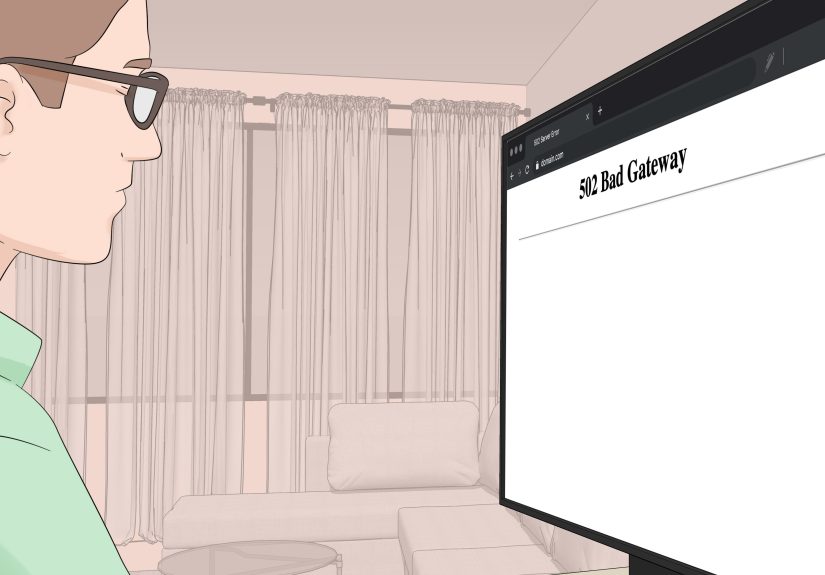
You’re on your Mac, you click a link, and instead of the internet doing its job, you get slapped with:
“502 Bad Gateway.”
It’s the digital equivalent of showing up to a party and being told, “Sorry, the host isn’t answering the door.”
The good news: a 502 error often isn’t “your fault.” The slightly annoying news: you can still do a lot on your Mac
to rule out local problems (browser issues, DNS hiccups, VPN weirdness) and get back online faster.
What a 502 Bad Gateway Error Actually Means
A 502 Bad Gateway happens when one server acts like a middleman (a gateway or proxy) and receives
an invalid response from an upstream server it needs to talk to. Translation: the website’s “front desk” can’t
reach the “back office,” so it shows you an error instead of the page you wanted.
That’s why sometimes the only real fix is… time. But before you resign yourself to dramatic sighing, here’s a
Mac-friendly checklist that solves a surprising number of 502 errors.
Quick Triage: 30 Seconds Before You Start “Fixing” Things
- Try another site. If everything fails, it’s likely your connection. If only one site fails, it may be the site.
- Try your phone on cellular. If the site loads on cellular but not your Wi-Fi, your network or DNS may be the culprit.
- Take note of where you see the error. Safari only? Chrome too? In one profile but not another? These clues matter.
1) Reload the Page (and Try a “Hard Refresh”)
Yes, it’s basic. No, it’s not silly. Many 502 errors are temporary upstream hiccups, short outages, or overloaded
servers that recover quickly.
What to do on a Mac
- Click Reload (or press Command + R).
- If the page seems “stuck,” try closing the tab and opening the page again.
- Wait 30–60 seconds and retryespecially if the site is busy or news-related.
If you get the same error immediately every time, move on. If it works after a minute, congratulationsyou just
fixed a server problem with patience, which is also a life skill.
2) Check If the Website Is Actually Down
If only one website is throwing a 502 error (and other sites load fine), the most likely explanation is:
the website is having a bad day.
How to confirm
- Try the site in a different browser or Private/Incognito mode (see the next tips).
- Try from a different network (hotspot from your phone, coffee shop Wi-Fi, etc.).
- Look for the site’s official status page (many services publish them).
If it’s down everywhere, your best “fix” is to wait or contact the site owner. This is the one time doing nothing
is technically productive.
3) Try a Private Window and Disable Extensions
Browser extensions can interfere with requestsad blockers, privacy tools, script blockers, VPN add-ons, and even
“helpful” coupon extensions that behave like raccoons in your network traffic.
What to do
- Safari: File > New Private Window
- Chrome: File > New Incognito Window
- Firefox: File > New Private Window
If the site loads in Private/Incognito, your regular browser profile (cache/cookies/extensions) is the likely
cause. Disable extensions one-by-one (or all at once, if you enjoy efficiency).
4) Clear Browser Cache and Cookies (Safari First, Then Others)
Corrupted cache files or old cookies can cause odd behaviorespecially if a site recently changed servers, SSL
settings, or CDN configuration. Clearing site data forces your browser to fetch fresh resources.
Safari (most common on Mac)
- Open Safari.
- Go to Safari > Settings > Privacy.
- Click Manage Website Data.
- Select the problem website and click Remove (or use Remove All).
Heads-up: clearing cookies may sign you out of sites. (Your browser will forget you for a moment. It’s not personal.)
Chrome / Firefox / Edge
If you’re seeing 502 errors outside Safari, clear the cache for your browser too. In most browsers, you’ll find
this under Settings > Privacy > Clear browsing data.
Pick “Cached images and files” and “Cookies and other site data,” then try the site again.
5) Flush the DNS Cache in macOS
DNS is the internet’s contact list. If your Mac has a stale or incorrect DNS entry cached, your browser may be
trying to reach the wrong IP addressleading to errors that look like “the site is broken.”
How to flush DNS on a Mac
- Open Terminal (Spotlight: type “Terminal”).
- Run this command:
Enter your Mac password when prompted (you won’t see it typemacOS is being “secure,” not rude). Then reload the page.
6) Renew Your DHCP Lease (Get a Fresh IP Address)
If your network settings got weirdconflicting IP addresses, router hiccups, stale leasesrenewing the DHCP lease
can reset your Mac’s local network identity.
Steps (macOS System Settings)
- Apple menu > System Settings > Network.
- Select Wi-Fi (or Ethernet), then click Details.
- Open TCP/IP.
- Click Renew DHCP Lease, then click OK.
After renewing, try the website again. If you’re on a corporate network, this can also help reestablish the correct
routing rules.
7) Change Your DNS Servers (Try a Faster, Cleaner Resolver)
If DNS is flaky, slow, or filtered, switching resolvers can help. Popular options include public DNS services like
Cloudflare (1.1.1.1) or Google (8.8.8.8). This won’t “fix” a dead website, but it can fix DNS-related misrouting
and speed up resolution.
How to change DNS on macOS
- Apple menu > System Settings > Network.
- Select your active connection (Wi-Fi/Ethernet) > Details.
- Click DNS.
- Use the + button to add DNS servers (example:
1.1.1.1,1.0.0.1or8.8.8.8,8.8.4.4). - Click OK, then try loading the site again.
Tip: If you’re troubleshooting, write down your original DNS entries first so you can switch back later.
8) Disable VPNs, Proxies, and “Secure” Filters Temporarily
VPNs and proxies can be lifesaversuntil they aren’t. A VPN endpoint can have upstream issues, a proxy can block
certain domains, or a security filter can mis-handle traffic and trigger gateway errors.
What to try
- Turn off your VPN app and reload the site.
- Check for a system proxy: System Settings > Network > (your connection) > Details > Proxies. Disable anything you don’t recognize.
- If your work/school uses filtering software, test on a different network to isolate the cause.
If disabling the VPN fixes it, the website may be blocking that VPN’s IP range, or the VPN provider may be having
upstream issues. In that case, switching VPN servers often helps.
9) Restart Your Network the “Grown-Up” Way
“Have you tried turning it off and on again?” is a meme for a reason: it works. Network gear can get into a weird
state, especially after ISP blips, long uptimes, or too many devices fighting for attention.
Do this sequence
- Turn Wi-Fi off on your Mac, then back on.
- Restart your Mac (yes, really).
- Power-cycle your modem/router: unplug for 30 seconds, plug back in, wait 1–2 minutes, then retry.
- If you’re on public Wi-Fi, open any non-HTTPS site (like an example test page) to trigger a captive portal login.
This step is especially effective when every website seems “kind of broken,” not just one.
10) Advanced: If You Manage the Website (or You’re Running It Locally on Your Mac)
If you’re a site owner, developer, or you’re testing a local environment (Nginx/Apache, Docker, WordPress stacks,
etc.), a 502 can mean your gateway can’t reach the upstream app (PHP-FPM, Node, Python, Railspick your poison).
Common “owner-side” causes
- Upstream service is down: app crashed, PHP-FPM stopped, container exited.
- Timeouts or overload: the upstream is too slow or starved for CPU/RAM.
- Misconfiguration: wrong port/socket, bad upstream host, SSL handshake issues.
- Firewall/CDN issues: origin blocked, rate-limited, or failing health checks.
Practical fixes you can do from your Mac
- Restart your local services: stop/start your web server and upstream app.
- Check logs: look for upstream connection failures, timeouts, or socket errors.
- Test the upstream directly: hit the upstream port locally to confirm it responds.
- If you use a CDN: verify the origin server is reachable and healthy; temporarily bypass the CDN if possible.
If you’re just a visitor and not the site owner, this section is mainly here to answer the question:
“Is it me or is it them?” Most of the time, it’s them. But now you know where “them” lives.
A Simple “Do This Next” Flow (When You Don’t Want to Think)
- Reload and wait 60 seconds.
- Try Private/Incognito.
- Clear site data for that website.
- Flush DNS.
- Renew DHCP lease.
- Disable VPN/proxy.
- Switch DNS servers.
- Restart router/modem.
- If it’s only one site and nothing works: it’s likely server-sidetry later.
My Real-World 502 Experiences on a Mac (The “Been There” Section)
I’ve seen 502 errors show up in three main flavors on a Mac: the “coffee shop special,” the “VPN betrayal,” and the
“local dev monster.” Each one looks the same in your browser, but the fix is wildly differentlike treating a
headache caused by dehydration versus one caused by staring at spreadsheets for eight hours.
Experience #1: The Coffee Shop Special. I once tried to open a website on Safari while using public
Wi-Fi. I got a 502, then another 502, and then I started questioning reality. The twist? The Wi-Fi had a captive
portal login page that didn’t pop up automatically. Safari was basically shouting, “I can’t reach the upstream
server,” but the truth was simpler: I wasn’t actually authenticated on the network yet. The fix wasn’t DNS magic
or clearing cookiesit was opening a new tab, typing a plain website address, and completing the Wi-Fi sign-in. The
moment the portal accepted my soul as payment, the 502 vanished.
Experience #2: The VPN Betrayal. Another time, I was using a VPN to test a region-specific page.
Safari and Chrome both threw 502 errors, which made me suspect the site was down. But the site loaded instantly on
my phone using cellular data. The culprit: the VPN server I was connected to had a bad route (or the site didn’t
love that IP range). Switching to a different VPN location fixed it immediately. The lesson: if a 502 disappears
the second you disable the VPN, your browser isn’t brokenyour network path is. Sometimes the “secure” option is
also the “mysteriously broken” option.
Experience #3: The Local Dev Monster. If you build sites locally on a Mac, you’ll eventually meet
the 502 that lives in your own house. I’ve seen it happen when an upstream service silently crashed (Node stopped,
PHP-FPM wasn’t running, a Docker container exited). Your browser shows a 502 because the gateway (often Nginx or a
dev tool acting like one) can’t get a valid response from the app behind it. The fix is less “clear cache” and more
“is the service alive?” I’ve learned to check logs, restart the upstream, and verify ports before I blame Safari.
The funny part is that it feels like an internet outageuntil you realize you’re the internet, and your laptop is
the server having a bad day.
Experience #4: The Stubborn Cache Trap. Occasionally, the 502 isn’t really a “server down” issue
it’s a browser holding onto something stale. I’ve seen a site switch CDNs or adjust security settings, and Safari
kept pulling an old cached resource that triggered an error. Clearing website data for just that domain (instead of
nuking everything) saved time and spared me from logging back into 27 unrelated sites. If you want the least
painful win, start with removing site data for the one website that’s failing.
Experience #5: The DNS “It Was Fine Yesterday” Moment. DNS issues are sneaky because everything
looks normal… until it doesn’t. When a domain changes IPs or your ISP’s DNS gets cranky, your Mac might resolve the
wrong address for a while. Flushing DNS and switching to a public resolver has rescued me more times than I’d like
to admit. It’s not the most glamorous fix, but it’s satisfyinglike hitting “refresh” on your Mac’s contact list
for the internet.
The big takeaway from all these: a 502 error is a symptom, not a diagnosis. Your Mac can’t force a broken server to
behave, but you can eliminate local causes quicklyso you’re not stuck troubleshooting the wrong thing for
an hour while the actual fix was “log in to the Wi-Fi” or “turn off the VPN.”
Conclusion
When you see a 502 Bad Gateway error on a Mac, start simple: reload, test in a private window, and clear website
data. If the error sticks around, move into network fixes like flushing DNS, renewing DHCP, changing DNS servers,
and disabling VPN/proxy settings. And if it’s only happening on one website across multiple devices, the honest
answer is: the website likely needs to fix its upstream connectionnot you.