Table of Contents >> Show >> Hide
- Before You Start: What You’ll Need
- Method 1: Connect Your GoPro to a Computer with a USB Cable
- Method 2: Use the microSD Card and a Card Reader (Fastest Transfer)
- Method 3: Use Your GoPro as a Webcam or Live Capture Device
- Troubleshooting: When Your Computer Won’t Recognize the GoPro
- Frequently Asked Questions
- Real-World Experiences and Tips for Connecting a GoPro to a Computer
- Conclusion
You’ve just filmed an epic bike ride, surf session, or your dog zooming around the yard in glorious 4K,
and now your GoPro’s memory card is basically begging for mercy. Time to get those clips onto your
computer so you can edit, share, or just binge-watch your own adventures.
The good news? Connecting a GoPro to a computer is easier than landing a backflip on a snowboard (and
less painful when you mess up). In this guide, we’ll walk through three reliable methods to connect a
GoPro to a computer: using a USB cable, using the microSD card, and using your GoPro as a webcam or live
capture device. We’ll cover Windows and Mac, add troubleshooting tips, and finish with real-world
examples so you don’t just know the stepsyou actually know how to use them in everyday life.
Before You Start: What You’ll Need
No matter which method you use to connect your GoPro, having the right gear and settings will make
everything smoother. Take a minute to gather:
- Your GoPro camera (HERO models like HERO8, HERO9, HERO10, HERO11, HERO12, HERO13 Black, etc.).
- A compatible USB cable:
- Most recent GoPro models use USB-C.
- Older models may use micro USB.
- A computer running Windows 10/11 or macOS.
- The GoPro’s microSD card, especially if you plan to use a card reader.
- A microSD card reader (USB-A, USB-C, or a built-in reader on your laptop or desktop).
- Optional software:
- GoPro software or basic file manager tools (File Explorer on Windows, Finder or Image Capture on Mac).
- For webcam use: GoPro’s webcam utility or compatible streaming/meeting apps.
Once you’ve got the basics covered, you’re ready to connect and move your GoPro footage like a pro.
Method 1: Connect Your GoPro to a Computer with a USB Cable
This is the most straightforward method and is perfect if you want to plug in, copy your files, and get
back to editing. It works for both Windows and Mac, as long as your computer recognizes the camera over
USB.
Step 1: Power and Cable Check
-
Charge your GoPro battery (or plug into power).
While the camera can transfer files on low battery, it’s safer if it has enough charge so it doesn’t
shut off halfway through a transfer. -
Turn the GoPro off before connecting. Many GoPro models recommend powering the camera
down before you plug it in, then turning it on once the cable is connected to the computer. -
Use a good-quality cable. Ideally, use the original GoPro cable. Cheap or charge-only
cables may not support data transfer and can cause your GoPro to charge but not show up on your
computer. -
Connect the cable:
- Plug the USB-C or micro USB end into the GoPro.
- Plug the other end into a USB port directly on your computer (avoid USB hubs if possible).
Step 2: Put the Camera in USB / MTP Mode
After the cable is connected:
- Turn the GoPro on. Many models automatically switch to USB or MTP (Media Transfer Protocol) mode.
- If nothing happens:
- Look for a USB or “MTP” option in your camera’s on-screen menu.
- On some HERO models, you may swipe down and adjust the connection mode in the settings.
Step 3: Browse Your GoPro on Windows
On Windows 10 or Windows 11:
- Open File Explorer (press Windows + E).
-
In the sidebar, look for:
- GoPro MTP Client Disk Volume, or
- A device under This PC or Portable Devices that looks like your
GoPro.
-
Double-click the GoPro device, then open the DCIM folder. This is where your photos
and videos are stored. -
Select the folders or files you want, then copy and paste them to a folder on your
computersuch as Videos > GoPro or a project folder for editing.
Step 4: Browse Your GoPro on Mac
On macOS, there are two common ways to see your GoPro files:
-
Using Finder:
- In some setups, your GoPro will appear as a device in Finder’s sidebar.
- Click it, open the DCIM folder, then drag your files into a folder on your Mac.
-
Using Image Capture:
- Open Image Capture (built into macOS).
- Select your GoPro in the left panel.
- Choose a destination folder and click Import or Import All.
Pros and Cons of the USB Method
Pros:
- Simplejust a cable and your camera.
- No need to remove the microSD card.
- Good for quick transfers or checking a few clips.
Cons:
- Can be slower than using a high-speed card reader for big 4K files.
- If your computer doesn’t recognize the GoPro, troubleshooting can take time.
Method 2: Use the microSD Card and a Card Reader (Fastest Transfer)
If speed is your love language, this is your method. Removing the microSD card and using a dedicated
card reader is often the fastest and most reliable way to move big GoPro filesespecially 4K or high
frame-rate footage.
Step 1: Power Down and Remove the Card
- Turn the GoPro off to avoid corrupting files.
-
Open the side or bottom door (depending on your GoPro model) and gently press the microSD card in until
it clicks and pops out. - Place the card somewhere safe while you grab your card reader.
Step 2: Insert the Card into a Reader
- Insert the microSD card into a microSD to SD adapter if needed.
-
Plug the card or adapter into:
- A USB card reader (USB-A or USB-C), or
- The built-in SD/microSD slot on your laptop or desktop.
Step 3: Copy Files on Windows or Mac
Once the card is connected, it behaves like a regular storage drive.
-
On Windows:
- Open File Explorer.
- Look for a new drive under This PC (often labeled with the card brand or “SD
Card”). - Open the DCIM folder and drag your GoPro clips to your preferred folder.
-
On Mac:
- A card icon usually appears on the desktop or in Finder’s sidebar.
- Open it, then open DCIM and copy your media to a folder on your Mac.
Because card readers are optimized for file transfers, this method is typically faster and more stable
than transferring directly from the camera over USB.
Step 4: Safely Eject the Card
- On Windows, right-click the card drive and select Eject.
- On Mac, drag the card icon to the Trash (which turns into an eject icon).
- Now remove the card from the reader and place it back into your GoPro.
Pros and Cons of the Card Reader Method
Pros:
- Usually the fastest way to transfer large amounts of footage.
-
More reliable than some USB connections, especially on computers that struggle to detect cameras as
USB devices. - Doesn’t rely on the GoPro battery during transfer.
Cons:
- Requires a card reader (and maybe a microSD-to-SD adapter).
- You handle the microSD card more often, so you need to be careful not to lose or damage it.
Method 3: Use Your GoPro as a Webcam or Live Capture Device
GoPro cameras aren’t just for recording and transferring filesyou can also use them as high-quality
webcams for live streaming, video calls, recordings, and virtual meetings. This involves connecting the
GoPro to your computer and using special software or a webcam mode.
Step 1: Check Compatibility
Not every GoPro model supports official webcam mode, but many recent HERO models (such as HERO8 Black and
newer) can be used with GoPro’s webcam utilities and supported apps. Check GoPro’s official documentation
for the latest compatibility list for your exact model and operating system.
Step 2: Install the Webcam Utility or App
Depending on your operating system:
-
On Windows or Mac: GoPro provides a desktop webcam utility you can
install. Once installed, it allows the computer to recognize the GoPro as a webcam source in apps like
Zoom, Microsoft Teams, Discord, and other platforms. -
On macOS for streaming: You may also see a GoPro webcam app listed in the App Store
that helps you use your GoPro for live video with adjustable options.
Step 3: Connect and Configure the GoPro
- Connect the GoPro to your computer with a USB cable, as in Method 1.
-
Launch the GoPro webcam utility. You’ll usually see an icon indicating that the GoPro
has been detected. -
Set your GoPro to the appropriate mode:
- Newer models may automatically enter webcam or USB mode.
- Others may require you to select a specific “webcam” or “USB” option on the camera screen.
- Open your meeting or streaming app (Zoom, Teams, etc.) and go to the Video settings.
-
Choose GoPro Camera or a similar label as your video source. Your live GoPro view
should appear immediately.
Step 4: Adjust Resolution and View
Some webcam utilities let you:
- Select different digital lenses (wide, linear, narrow) to adjust your field of view.
- Choose between landscape and portrait orientation.
- Fine-tune the resolution for smoother streaming versus maximum quality.
Pros and Cons of Using a GoPro as a Webcam
Pros:
- Much better image quality than many built-in laptop webcams.
- Great for streaming, tutorials, and professional video calls.
- Flexible mounting options using GoPro mounts and accessories.
Cons:
- Requires additional software and configuration.
- Can tax your computer and camera during long sessionsheat and battery life matter.
- Not all older GoPro models support official webcam mode.
Troubleshooting: When Your Computer Won’t Recognize the GoPro
If your GoPro refuses to show up on your computereven though you’re connected by USBdon’t panic. Here
are some common fixes:
-
Try a different USB port.
Ports can fail or may not provide enough power. Use a direct port on the computer instead of a hub or
docking station. -
Use a different cable.
Some cables are charge-only and don’t carry data. A proper data cable (ideally the original GoPro
cable) is essential. -
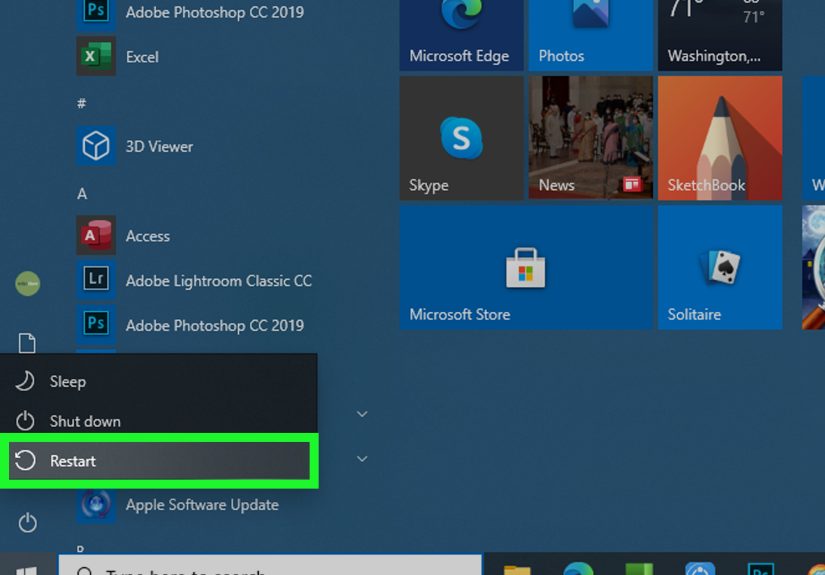
Restart everything.
Turn off the GoPro, unplug it, restart your computer, then reconnect and power on the camera. -
Check USB/MTP mode on the GoPro.
Make sure it’s not stuck in a mode that your computer can’t recognize. Switch to the standard USB or
MTP connection mode in your GoPro’s settings if needed. -
Update firmware and software.
Keeping your GoPro firmware and, if applicable, webcam utility up to date can fix connection issues. -
On Windows: Look under Portable Devices or This PC for your GoPro,
and ensure that drivers are installing correctly. -
On Mac: If Finder doesn’t show your GoPro, try opening Image Capture
to see if the camera is detected there for import.
Frequently Asked Questions
Can I transfer GoPro videos wirelessly?
Yes. GoPro offers mobile apps that let you connect the camera to your smartphone over Wi-Fi. From there,
you can transfer clips from the camera to your phone, then move them from your phone to your computer.
Wireless transfer is convenient, but it can be slower than using a USB cable or card readerespecially
for long 4K recordings.
Is it safe to delete footage from the SD card once I copy it?
Once you’ve confirmed the files play correctly on your computer and (ideally) backed them up to an
external drive or cloud storage, it’s safe to delete them from the microSD card to free up space. Many
users prefer formatting the card in the GoPro rather than deleting individual files, as it helps maintain
card health and performance.
Why are my GoPro files in multiple folders?
GoPro organizes files inside the DCIM folder, sometimes splitting long videos into
multiple segments due to file size limits. Your video editor will usually stitch these together
seamlessly; just import all related segments into the same project.
Real-World Experiences and Tips for Connecting a GoPro to a Computer
Knowing the three methods is one thing. Actually using them in the wildon road trips, trailheads, or
tight deadlinesis another story. Here are some practical lessons and scenarios that show how these
connection methods play out in everyday use.
1. The Travel Vlogger: Card Reader for the Win
Imagine you’re traveling with a lightweight laptop and a couple of microSD cards. You film all day, get
back to your hotel, and now you need to edit a highlight reel before you fall asleep in your chair.
In this case, popping the microSD card out of the GoPro and using a USB-C card reader is usually the
fastest move. The card mounts instantly, you open the DCIM folder, and you’re dragging 4K footage into
your editing software in minutes. If you’re on a tight upload schedulesay, posting a daily vlog while
travelingthose saved minutes every night really add up.
Many travel creators also carry a small external SSD. Their workflow looks like this:
- Transfer footage from the microSD card to the SSD.
- Edit directly from the SSD to avoid filling up the laptop’s internal storage.
- Keep the raw clips on the SSD as a backup while cleared cards go back into the GoPro for the next day.
The main takeaway: if you shoot a lot while on the move, a tiny card reader plus an SSD can make
connecting your GoPro to your computer feel almost instant.
2. The Weekend Mountain Biker: USB for Quick Checks
Now picture a different user: a weekend mountain biker who wants to quickly check how a new trail looked
on camera. They don’t necessarily need to transfer every clip, but they do want to confirm that angles
and exposure looked good before the next ride.
Here, using a USB cable straight from the GoPro to the computer is often enough. Plug in the camera,
browse the DCIM folder, play back a few key clips, and maybe drag one or two to your desktop. Because you
aren’t offloading hundreds of files, speed isn’t as criticalit’s more about convenience.
A smart habit in this scenario is to create a clearly labeled folder system on your computer, like:
GoPro > 2025 > 05-Trail-Ride-Blue-Ridge. Even casual users benefit from a consistent
folder structure when they want to find “that one amazing jump” six months later.
3. The Remote Worker or Streamer: GoPro as a Webcam
If you spend your days in video calls or streaming, using your GoPro as a webcam can make you look
noticeably sharper than your built-in laptop camera. But it also introduces more moving parts: software,
USB cables, and settings.
A typical setup might look like this:
- Mount the GoPro behind your monitor using a clamp or mini-tripod.
- Connect via USB and launch the GoPro webcam utility or supported app.
- Choose the GoPro as your camera in Zoom, Teams, or your streaming software.
Real-world tip: if you use your GoPro as a webcam for long multi-hour calls, consider:
- Using external power (such as USB power through a hub or adapter) so the battery doesn’t drain.
- Lowering the resolution slightly to keep things cooler and more stable.
- Disabling unnecessary camera features like high-bit-rate recording if they’re not needed for webcam
mode.
Many remote workers say the biggest surprise is how wide the GoPro’s field of view isyou’ll probably
want to use a linear or narrower digital lens so you’re the star of the frame and not your entire living
room.
4. Backup and Organization: The Unsung Heroes
Regardless of which connection method you use, the long-term quality of your setup depends a lot on how
you handle backups and file organization. Two people can use the same GoPro and computer, but the one
with a clear routine will always have an easier time finding their favorite moments later.
A simple, effective routine might be:
- After each shoot, connect the GoPro or microSD card and copy files to a dated folder on your computer.
- Back up that folder to an external drive or cloud storage once a week (or after important trips).
- Only then, format the microSD card in the GoPro to prepare for your next shoot.
This not only keeps your SD card healthy but also ensures that a lost camera or corrupted card doesn’t
take your memories with it. The method you use to connectUSB, card reader, or webcam modeis just part
of a bigger system that keeps your footage safe and usable.
5. Choosing the Right Method for You
At the end of the day, there’s no single “best” way to connect a GoPro to a computerjust the best way
for your style of shooting:
- Want maximum speed and reliability? Use the microSD card plus card reader.
- Want simple, casual transfers? Use the USB cable method directly from the camera.
- Want better live video quality? Use your GoPro as a webcam with the appropriate
utility.
Once you’ve tried all three, you’ll naturally gravitate toward a favorite. The important thing is that
you’re confident about how to connect, where your files go, and how to keep them backed upso your focus
can stay on capturing great footage, not fighting with cables and menus.
Conclusion
Connecting a GoPro to a computer doesn’t have to be complicated. With three main optionsUSB cable,
microSD card plus reader, and webcam/live capture modeyou can choose the workflow that fits your gear,
your shooting style, and your patience level.
Use the USB method for quick transfers, the card reader method for speed and reliability with large
projects, and the webcam method when you want your GoPro to double as a high-quality camera for calls and
streams. Combine these methods with smart backup and organization habits, and your GoPro footage will
always be just a few clicks away from editing, sharing, or reliving your favorite adventures.