Table of Contents >> Show >> Hide
- Why Outlook Signature Options Matter More Than People Think
- Way 1: Edit Signature Options in Classic Outlook for Windows
- Way 2: Edit Signature Options in New Outlook and Outlook on the Web
- Way 3: Edit Signature Options in Outlook for Mac or Mobile
- What You Can Actually Change in Outlook Signature Options
- Common Problems When Editing Outlook Signatures
- Real-World Experiences: What Editing Outlook Signatures Is Really Like
- Conclusion
If your Outlook signature still says “Sent from my desk, probably with coffee” from three jobs ago, it may be time for a refresh. Email signatures are tiny pieces of digital real estate, but they do a lot of work. They tell people who you are, how to reach you, what company you represent, and whether you are the kind of person who uses two exclamation points or none at all.
The good news is that Microsoft Outlook gives you several ways to edit signature options depending on which version you use. The mildly annoying news is that Outlook has more than one personality: classic Outlook for Windows, new Outlook, Outlook on the web, Mac, and mobile. So the menu path can change just enough to make you wonder whether your signature got lost in a software witness protection program.
In this guide, we’ll walk through three practical ways to edit signature options in Microsoft Outlook, plus the settings that actually matter: default signatures, account-specific signatures, replies versus new messages, images, links, formatting, and a few common problems that make people mutter at their screens. By the end, you’ll know exactly where to click and how to make your Outlook signature look polished without turning it into a tiny billboard.
Why Outlook Signature Options Matter More Than People Think
An email signature is not just a decorative footer. In many workplaces, it acts like a miniature contact card. It can include your full name, job title, phone number, website, business address, booking link, pronouns, social links, or even a short legal disclaimer when needed. For freelancers and small business owners, it can also work as subtle branding. For teams, it helps keep communication consistent.
Outlook signature options matter because different situations call for different signatures. You might want one formal signature for clients, another shorter one for internal email, and no signature at all on quick back-and-forth replies. You may also want a separate signature for each account, especially if you juggle work, personal, and side-project inboxes. That flexibility is where Outlook’s signature settings become genuinely useful.
And yes, there is also another reason: a bad signature is memorable for all the wrong reasons. Giant logos, five inspirational quotes, and seven phone numbers do not say “efficient professional.” They say “this email lands with the weight of a kitchen appliance.”
Way 1: Edit Signature Options in Classic Outlook for Windows
If you use classic Outlook for Windows, this is the version many longtime Office users know best. It gives you detailed control over signatures, and it is still one of the easiest places to manage multiple signature options.
How to open the signature settings
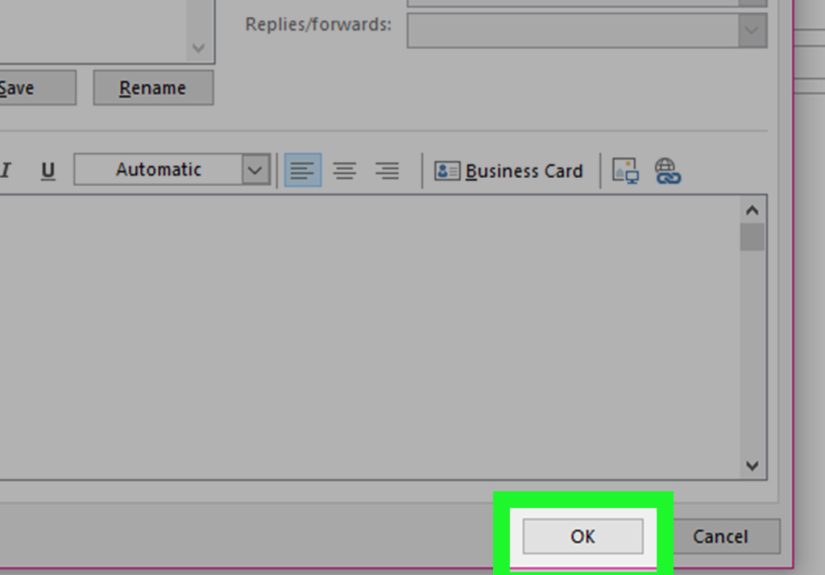
In classic Outlook, open a new email message first. Then go to the Message tab, choose Signature, and click Signatures. This opens the signature editor, where you can create a new signature, rename one, edit an existing one, or delete a signature you no longer need.
Once you are inside the editor, choose the email account you want to work with. This matters if you use more than one account in Outlook. You can then pick a signature to edit and make changes in the editing box below. This area lets you update text, add spacing, adjust fonts, and insert items like images or links.
How to set defaults for new messages and replies
This is where classic Outlook earns its gold star. You can assign one default signature for new messages and a different one for replies and forwards. That is perfect if you want a full signature when introducing yourself, but a shorter version for ongoing email threads.
For example, your new-message signature might include:
Jane Smith
Marketing Director
Company Name
Phone Number
Website
But your reply signature might be just:
Jane
Company Name
That small adjustment keeps long email chains from looking like a parade of repeated contact blocks.
How to manually insert a signature
You do not have to auto-attach a signature to every message. In classic Outlook, you can leave automatic signatures off and insert one manually when you need it. This is helpful when switching between a business signature, a personal signature, or a stripped-down version for internal messages.
If you create several signatures, name them clearly. “Business,” “Internal,” “Personal,” and “Sales” are much easier to manage than “Signature 1,” “Signature 2,” and “What Was This One Again.” Future you will appreciate the favor.
Best use case for classic Outlook
Classic Outlook is ideal for people who want detailed control over signature behavior, especially on Windows. If you regularly need different signatures for different accounts or email scenarios, this version makes the job pretty painless.
Way 2: Edit Signature Options in New Outlook and Outlook on the Web
The new Outlook and Outlook on the web are much closer cousins than many people realize. In fact, the steps for creating and editing signatures are largely the same. That is good news if you switch between the desktop app and a browser during the day.
Where to find signature settings
In new Outlook, go to Settings, then Accounts, then Signatures. In Outlook on the web, the path is effectively the same. Once there, you can edit an existing signature, create a new one, and choose which signature appears on new messages and on replies or forwards.
This setup feels cleaner and more modern than classic Outlook. The menus are less cluttered, and the editing process is straightforward. If classic Outlook feels like an overstuffed desk drawer, new Outlook feels more like a neatly labeled file cabinet.
Why new Outlook is handy for multi-signature users
New Outlook supports multiple signatures, and if you have more than one account, you can choose the account you want the signature to apply to. That makes it much easier to keep your work identity separate from your personal account. Nobody wants to accidentally sign a family email with “Regional Operations Manager, Strategic Partnerships.” Grandma may be impressed, but she will also be confused.
You can also pick a signature while composing a message, which is useful when you need a different sign-off for different audiences. This is especially practical for consultants, recruiters, sales teams, and anyone who frequently changes tone depending on who is receiving the email.
Formatting options in new Outlook and web Outlook
Within the signature editor, you can usually change text styling, add links, and include images. If you want a more polished look, Outlook also supports building a signature from a template. That can save time when you want something branded but not painfully homemade.
A smart signature in new Outlook is usually simple: name, role, company, one direct phone number, one website link, and maybe a LinkedIn profile if it actually serves a purpose. Clean beats crowded almost every time.
Best use case for new Outlook and Outlook on the web
This route is best for people who move between devices or prefer Microsoft’s newer interface. It is also a great choice if you want signature settings that feel less buried and easier to update on the fly.
Way 3: Edit Signature Options in Outlook for Mac or Mobile
If you use a Mac, iPhone, or Android phone, Outlook still gives you signature controls, but they are shaped for the device you are on. The core idea stays the same: create a signature, decide whether it should be account-specific, and keep it readable.
Editing signatures in Outlook for Mac
In Outlook for Mac, go to the Outlook menu, choose Settings, and then select Signatures. From there, you can create or edit signatures and choose default signatures for each account. If you use multiple accounts, Outlook for Mac lets you set them separately, which is exactly what you want when your professional and personal lives live in the same app.
Mac users can also add pictures, logos, tables, and hyperlinks. That gives you room to create a more branded signature, although restraint is still your friend. A tasteful logo is professional. A signature that looks like a small trade-show booth is less so.
Editing signatures in Outlook mobile
On Outlook for iPhone and Android, open Settings, go under Mail, and tap Signature. You can enter a single signature for all accounts or turn on Per Account Signature to set separate ones.
Mobile signatures are best kept short. People are reading on small screens, often while walking, multitasking, or pretending they are not checking email in line for coffee. A mobile signature should be light, clear, and useful. Name, role, and one contact path are usually enough.
Best use case for Mac and mobile
This option is perfect for users who do not live full-time in Windows or who frequently respond from a phone. It is also essential if your desktop signature looks polished but your mobile emails still go out with a default line that makes you look like you are emailing from 2014.
What You Can Actually Change in Outlook Signature Options
When people say they want to “edit a signature in Outlook,” they usually mean more than changing a line of text. Here are the signature options that matter most:
- Edit the wording: update your name, title, pronouns, department, phone number, or business hours.
- Choose default behavior: set one signature for new messages and another for replies and forwards.
- Create multiple signatures: useful for different brands, clients, or email accounts.
- Assign signatures by account: especially important if you use work and personal inboxes in one Outlook app.
- Add images or a logo: great for branding, but keep file size and visual clutter under control.
- Insert hyperlinks: ideal for websites, booking pages, portfolios, or professional profiles.
- Use templates: handy when you want a consistent, polished design without building from scratch.
- Remove a signature entirely: sometimes the best design choice is simply less.
Common Problems When Editing Outlook Signatures
1. The formatting looks wrong
If fonts, colors, images, or spacing do not appear correctly, check the message format. Rich signature formatting works best when email is composed in HTML. Plain text is more limited, which means some styling may disappear. If your signature suddenly looks like it was typed on a typewriter during a power outage, message format is one of the first things to check.
2. The signature does not sync everywhere
Some users expect a signature created on desktop Outlook to instantly appear the same in Outlook on the web. In reality, that does not always happen smoothly. If your signatures do not match across versions, it may not be user error. Sync behavior has been a known issue in some Microsoft 365 scenarios. The simplest fix is often to confirm your signature settings separately in the version you are actively using.
3. The signature suddenly has weird borders or layout issues
Classic Outlook has also had occasional rendering quirks because Word is involved in how email content is displayed. If a table-based signature starts showing strange borders or layout problems, the issue may be tied to the rendering engine rather than something you personally broke while trying to add one innocent logo.
4. You are mixing up an email signature and a digital signature
This is a very common point of confusion. An email signature is the block of text or branding at the bottom of your message. A digital signature is a security feature used to verify sender identity and message integrity, usually requiring a certificate. Same word, very different job. One says, “Here is my phone number.” The other says, “Yes, I really sent this.”
Real-World Experiences: What Editing Outlook Signatures Is Really Like
In real-world use, Outlook signatures tend to become messy for ordinary human reasons, not dramatic ones. Someone gets promoted and forgets to update their job title. A company changes its phone system and half the office still has outdated direct lines in their signatures. A marketing team adds a seasonal banner, then nobody removes it, so the holiday promo keeps haunting inboxes like a ghost of discounts past.
One of the most common experiences is the “multi-device mismatch.” A user updates a signature on their laptop, sends a few polished emails, and assumes the problem is solved. Then they reply from their phone later that day and discover the mobile app is still using a completely different signature. Now one message ends with a sleek branded footer, while the next says something bare-bones or outdated. It is not exactly a business crisis, but it can make communication look inconsistent.
Another very normal experience happens when people try to make signatures look too fancy. They paste in large logos, stack multiple social icons, use custom fonts, then wonder why the result looks different when a recipient opens it in another email client. A signature that felt elegant during setup can turn into a lopsided collection of spacing problems once it leaves Outlook. This is why many experienced users gradually move toward simpler layouts. Not because simple is boring, but because simple travels better.
There is also the classic internal-versus-external email problem. Many people eventually realize they do not want the same signature on every message. Sending a full business signature to a new client makes sense. Sending that same block ten times in a rapid internal thread makes the conversation feel heavier than it needs to be. Once users discover that Outlook lets them set separate defaults for new messages and replies, there is often a small moment of joy. A nerdy little productivity joy, yes, but joy nonetheless.
Mac users often report a different kind of experience: the setup is clean and logical, but they still need to double-check how images and links behave after insertion. Mobile users, meanwhile, usually learn the value of restraint very quickly. On a phone, the best signature is often the one that does its job quietly. Short, accurate, and account-specific usually beats long and decorative.
And then there is the workplace standardization story. Teams that take signatures seriously often create one approved format for everyone. This reduces errors, keeps branding consistent, and saves employees from designing their own miniature masterpieces in fifteen different styles. In practice, that is often the smartest approach. Give people room to personalize a little, but keep the essentials consistent. It is good for brand identity, easier for IT, and far less likely to produce a signature that looks like a flyer taped to the bottom of every email.
The biggest lesson from real use is simple: the best Outlook signature is usually not the flashiest one. It is the one that is current, readable, appropriate for the account you are using, and easy to maintain. In other words, your signature should work like a good introduction, not like a marching band.
Conclusion
If you want to edit signature options in Microsoft Outlook, the right method depends on the version you use. Classic Outlook for Windows gives you deep control over defaults and multiple signatures. New Outlook and Outlook on the web make the process cleaner and more streamlined. Mac and mobile keep things flexible for people who work across devices.
The real trick is not just knowing where the menu lives. It is knowing how to use signature options strategically. Set different signatures for different accounts. Keep reply signatures shorter. Use images and links sparingly. Check mobile settings separately. And remember that an elegant signature is not the one with the most stuff in it. It is the one that gives readers exactly what they need, then gets out of the way.
So yes, updating your Outlook signature may feel like a tiny administrative task. But it is one of those small details that quietly improves every email you send. And unlike inbox zero, it is actually achievable.