Table of Contents >> Show >> Hide
- The Fast Answer: Best Fortnite Controller Settings to Start With
- Why These Fortnite Controller Settings Work
- Builder Pro Is Still the Best Foundation
- Higher Look Speed Helps You Survive Close-Range Fights
- Lower ADS Speed Improves Tracking and Precision
- Turning Boost Usually Sounds Better Than It Feels
- Build and Edit Multipliers Should Be Faster Than Combat Aim
- Dead Zones Should Be Low, but Not Heroically Low
- Linear vs. Exponential: Which Input Curve Is Better?
- Best Controller Gameplay Settings Beyond Sensitivity
- Platform-Specific Tips for PS5, Xbox, Switch, and PC Controller Players
- How to Fine-Tune Your Fortnite Controller Settings Like a Pro
- Common Mistakes That Ruin Good Controller Settings
- A Strong Final Recommended Setup
- What It Actually Feels Like to Switch to Pro-Style Fortnite Controller Settings
- Conclusion
If your Fortnite controller settings still look like whatever the game picked on day one, we need to have a friendly intervention. You can have sharp aim, great game sense, and enough confidence to hot-drop like a maniac, but if your sticks feel sluggish, your edits feel sticky, and your camera turns like it is towing a refrigerator, you are making the game harder than it needs to be.
The good news is that the best Fortnite controller settings are not some mysterious secret hidden in a vault guarded by Unreal-ranked players and one very sweaty box-fighter. They are mostly about building a setup that gives you faster reactions, steadier aim, cleaner edits, and more consistent movement. The even better news? You do not need to copy a pro player setting for setting to start improving. You just need a smart baseline.
In this guide, you will learn the best controller settings to start with in Fortnite, why those settings work, how to tweak them for your play style, and which mistakes quietly sabotage controller players. Whether you play on PS5, Xbox, Switch, or PC with a controller, this setup will help you feel quicker, smoother, and a lot less likely to lose a fight because your crosshair decided to go sightseeing.
The Fast Answer: Best Fortnite Controller Settings to Start With
If you want a strong, pro-style starting point, begin here and then fine-tune in small steps after a few matches or some time in Creative.
| Setting | Recommended Starting Point |
|---|---|
| Controller Layout | Builder Pro |
| Use Advanced Options | On |
| Look Horizontal Speed | 42% to 46% |
| Look Vertical Speed | 42% to 46% |
| ADS Horizontal Speed | 9% to 12% |
| ADS Vertical Speed | 9% to 12% |
| Turning Boosts | 0% |
| Boost Ramp Time | 0% |
| Look Dampening Time | 0% |
| Look Input Curve | Linear for speed, Exponential for extra control |
| Aim Assist Strength | 100% |
| Build Mode Sensitivity Multiplier | 1.9x to 2.2x |
| Edit Mode Sensitivity Multiplier | 2.0x to 2.3x |
| Left Stick Dead Zone | 5% to 7% |
| Right Stick Dead Zone | 6% to 8% |
| Vibration | Off |
| Edit Hold Time | 0.100 seconds |
| Confirm Edit on Release | On |
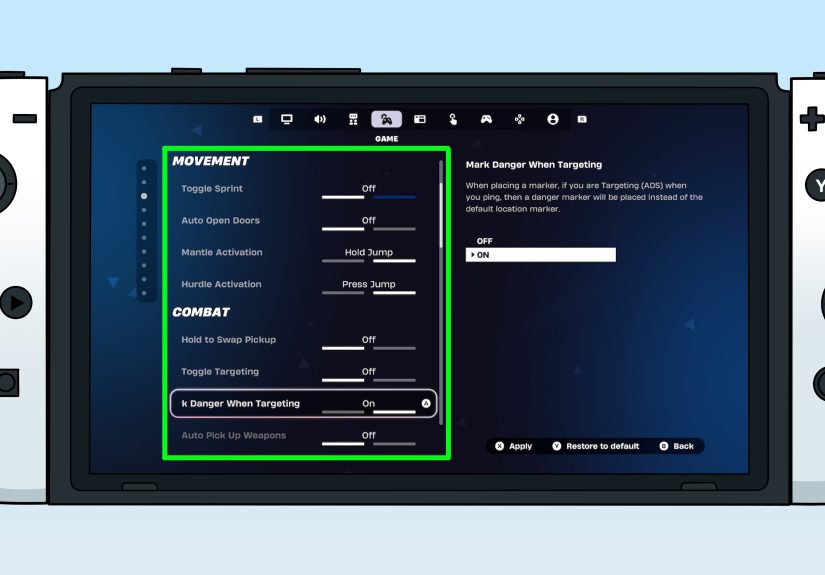
| Toggle Sprint | On |
| Auto-Open Doors | On |
| 120 FPS Mode | On if your hardware and display support it |
This setup is not magic. It is simply a balanced controller baseline that gives you enough speed for close-range fights, enough control for tracking, and enough responsiveness for building and editing without turning your aim into a shopping cart with a broken wheel.
Why These Fortnite Controller Settings Work
Builder Pro Is Still the Best Foundation
If you are serious about improving, Builder Pro should be your default layout. It makes building much faster because each major build piece is mapped more directly, which means fewer extra inputs and less thumb gymnastics. In Fortnite, speed matters, but clean speed matters even more. Builder Pro reduces the number of tiny delays that turn a safe wall placement into a very public elimination.
Higher Look Speed Helps You Survive Close-Range Fights
Your look speed controls how quickly you turn when you are not aiming down sights. Too low, and you get spun around by aggressive players who jump into your box and introduce themselves with a shotgun. Too high, and your crosshair starts acting like it drank three energy drinks and forgot its responsibilities.
That is why the sweet spot is usually moderate to moderately high. Around the low-to-mid 40s on advanced look speed gives many controller players enough snap for emergency turns while still staying controllable.
Lower ADS Speed Improves Tracking and Precision
Here is where many players throw away free accuracy: they make their ADS sensitivity too fast. Hip-fire look speed and ADS speed should not be twins. ADS is for precision. If your scoped or aimed sensitivity is too close to your regular look speed, your crosshair will float past targets instead of sticking to them.
A lower ADS range, usually around 9% to 12%, helps you track opponents at mid-range, control recoil more comfortably, and land more follow-up shots. In plain English, it helps you stop outlining enemies with bullets like a very aggressive art student.
Turning Boost Usually Sounds Better Than It Feels
Turning boosts can look attractive because they promise quicker spins. In practice, many players find that boosts make aim feel less predictable, especially when trying to build muscle memory. If you want consistency, starting with boosts at 0% is often the safer call. Your thumbs will thank you for not turning every shotgun flick into a surprise event.
Build and Edit Multipliers Should Be Faster Than Combat Aim
Fortnite is not just a shooter. It is a shooter where players can become real estate developers in half a second. Your build and edit sensitivities need to be higher than your combat look speed so you can place pieces and confirm edits quickly without making your raw aim too wild.
That is why multipliers around 1.9x to 2.2x for build mode and 2.0x to 2.3x for edit mode are such a popular starting point. They make you quicker in construction and editing without forcing your regular combat camera into chaos.
Dead Zones Should Be Low, but Not Heroically Low
Dead zones control how far you move your stick before the game registers input. Lower dead zones make your aim feel more responsive, but if you go too low, stick drift shows up like an uninvited guest who never leaves. The right approach is simple: use the lowest dead zone that does not produce drift.
For many players, that lands around 5% to 7% on the left stick and 6% to 8% on the right stick. If your reticle or movement drifts when your hands are off the controller, raise the values one point at a time. This is tuning, not a pride contest.
Linear vs. Exponential: Which Input Curve Is Better?
This is one of the biggest debates in Fortnite controller settings, and the answer depends on how you play.
Choose Linear If You Want Faster, Rawer Control
Linear makes your stick input feel more immediate. Small movements register more directly, which can make close-range tracking and box-fighting feel snappier. If you are an aggressive player who likes fast reactions, quick peeks, and pressure fights, linear often feels fantastic once you get used to it.
The downside is that linear can feel twitchier at first. If your hands are not steady or your sensitivity is too high, it may feel like your aim has become a caffeinated squirrel.
Choose Exponential If You Want More Forgiveness
Exponential gives you softer control on smaller stick movements and ramps up more gradually. That can make micro-adjustments easier, especially at mid-range. If you want your aim to feel smoother and a little more controlled, exponential is a great choice.
For many players, the decision is simple: linear for speed and aggressive fighting, exponential for steadier precision and easier transition if you do not love ultra-responsive inputs.
Best Controller Gameplay Settings Beyond Sensitivity
Turn Vibration Off
Vibration is fun until it is not. In a competitive match, it adds extra noise to your hands and can make fine aiming feel slightly less stable. Turning vibration off makes your input feel cleaner, especially during spray fights, intense tracking, or chaotic close-range moments.
Use Confirm Edit on Release
This setting is one of the easiest upgrades for controller players. It speeds up editing by reducing extra confirmation steps, which is exactly what you want when every fraction of a second matters. If you have ever lost a fight because your edit felt one beat late, this setting deserves a thank-you card.
Keep Edit Hold Time Low
A lower edit hold time makes your edits feel faster and more responsive. Around 0.100 seconds is a strong starting point. Higher values can make your editing feel sticky and delayed, like the game is asking you to submit paperwork before opening a window.
Turn On Toggle Sprint and Auto-Open Doors
These are small quality-of-life settings that make movement smoother. Toggle Sprint helps reduce awkward repeated inputs, and Auto-Open Doors removes one more tiny interruption while rotating, looting, or pushing. Little frictions add up. Removing them adds speed.
Platform-Specific Tips for PS5, Xbox, Switch, and PC Controller Players
PS5 and Xbox Series X|S
If your display supports it, turn on 120 FPS mode. This matters more than many players realize. Higher frame rates make the game look smoother, reduce perceived input delay, and generally make aiming and tracking feel more immediate. If you are chasing a more competitive experience, this setting is one of the biggest upgrades available outside the game itself.
PC With a Controller
PC controller players get flexibility. If your controller software or accessories app lets you customize dead zones, stick sensitivity, or profiles, use that carefully. Still, do not stack too many tweaks in too many places. Keep your setup simple enough that you always know what caused a change in feel.
Nintendo Switch and Gyro-Capable Controllers
Fortnite also supports gyro aiming on supported platforms and controllers. This is worth testing if you like fine motion-assisted aiming. Gyro is not mandatory, and it is not for everyone, but some players love using it for micro-adjustments while keeping the right stick for larger camera movement. Think of it as an optional side quest for your aim.
How to Fine-Tune Your Fortnite Controller Settings Like a Pro
Here is the rule that separates improving players from frustrated players: change one thing at a time.
Do not overhaul your look speed, ADS, dead zones, and input curve all in one sitting, then jump into Ranked and wonder why everything feels cursed. Start with a solid baseline. Play a few matches or spend 20 to 30 minutes in Creative. Then ask specific questions:
- Am I over-aiming in shotgun fights?
- Am I too slow when turning on players behind me?
- Do my edits feel delayed?
- Am I fighting stick drift?
- Do I lose accuracy when I try to speed up?
If you over-flick, lower look speed slightly. If you cannot keep up in close-range fights, raise it slightly. If your aim is fine but your builds feel slow, increase build and edit multipliers instead of boosting everything. Small adjustments win. Giant leaps usually create confusion.
Common Mistakes That Ruin Good Controller Settings
Copying a Pro Exactly
Pro settings can be useful for direction, but your hands are not their hands, your controller is not their controller, and your habits are not their habits. Use pro-style settings as a blueprint, not a religion.
Making Sensitivity Too Fast Too Soon
Many players believe “faster” automatically means “better.” Not true. The best sensitivity is the one you can control under pressure. A slightly slower setting that lets you hit shots is much stronger than a flashy fast setting that turns every engagement into interpretive dance.
Ignoring Dead Zones
Dead zones are not glamorous, so people ignore them. Bad idea. They directly affect responsiveness and stability. Fixing dead zones can make your controller feel newer, cleaner, and much easier to trust.
Changing Settings After Every Bad Match
Sometimes you missed because your settings were off. Sometimes you missed because the other player was better, you panicked, or your brain briefly disconnected from your thumbs. Give settings enough time before judging them. One rough match is not a scientific study.
A Strong Final Recommended Setup
If you want one balanced setup to copy and test right now, this is a smart place to start:
- Builder Pro: On
- Use Advanced Options: On
- Look Horizontal Speed: 44%
- Look Vertical Speed: 44%
- ADS Horizontal Speed: 10%
- ADS Vertical Speed: 10%
- Turning Horizontal Boost: 0%
- Turning Vertical Boost: 0%
- Boost Ramp Time: 0%
- Look Dampening Time: 0%
- Input Curve: Linear
- Aim Assist Strength: 100%
- Build Multiplier: 2.0x
- Edit Multiplier: 2.2x
- Left Stick Dead Zone: 6%
- Right Stick Dead Zone: 7%
- Vibration: Off
- Edit Hold Time: 0.100
- Confirm Edit on Release: On
- Toggle Sprint: On
- Auto-Open Doors: On
If that feels too twitchy, switch to Exponential before you start changing everything else. That one move alone can make the setup feel smoother without sacrificing the whole structure.
What It Actually Feels Like to Switch to Pro-Style Fortnite Controller Settings
For a lot of players, the first experience with better Fortnite controller settings is not instant domination. It is confusion. Honest, mildly dramatic confusion. You change your setup, jump into a match, and suddenly your old habits start arguing with your new sensitivity. Your thumbs feel weird. Your edits are too fast in one fight and too slow in the next. For a brief moment, you may think, “Excellent, I have made everything worse.” That is normal.
The first real difference most players notice is in movement. With Builder Pro, Toggle Sprint, a low edit hold time, and faster build and edit multipliers, everything starts feeling less sticky. Rotating through buildings is smoother. Sprinting into cover feels more natural. Opening a box, placing a wall, and resetting an edit no longer feels like you are typing a password under stress. You start moving through the game with less hesitation, and that alone can improve confidence.
The second big change usually shows up in close-range fights. When your regular look speed is high enough to respond quickly, but your ADS speed stays lower for control, your camera stops feeling like one giant compromise. You can turn fast enough to track a player who jumps over your shoulder, but you can still settle the crosshair when it matters. That balance is where controller settings begin to feel “pro.” Not because they are flashy, but because they stop fighting you.
Then comes the dead zone effect, which is one of those things players rarely appreciate until it is dialed in properly. If your dead zones were too high before, lowering them makes the controller feel alive again. Your aim responds faster. Your micro-adjustments make more sense. Hitting a player gliding at medium range suddenly feels possible instead of accidental. On the other hand, if you go too low, drift appears and your reticle starts wandering around the screen like it lost its car keys. That is why finding the lowest stable value feels so satisfying. It is a tiny adjustment with a surprisingly huge payoff.
There is also a mental shift that happens after a few days with a cleaner setup. You stop thinking about the controller quite as much. That sounds boring, but it is actually the goal. Great settings fade into the background. They let you focus on timing, positioning, piece control, and decision-making instead of fighting your own inputs. Once that happens, the game feels slower in a good way. You read fights better because your hands are not constantly catching up to your brain.
And yes, if you enable 120 FPS on supported hardware, the experience often feels immediately better. Not “I am now secretly a champion” better, but definitely “why did my old setup feel like I was playing through peanut butter?” better. The game looks smoother, your reactions feel tighter, and tracking becomes less muddy.
In the end, pro-style Fortnite controller settings are not about turning you into a highlight reel overnight. They are about removing friction. They make movement cleaner, aiming steadier, and building more reliable. Once that friction is gone, improvement has room to show up. And that is when Fortnite starts to feel less like a wrestling match with your controller and more like a game you can actually control.
Conclusion
The best Fortnite controller settings to play like a pro are not about chasing the most extreme numbers. They are about finding a fast, stable, repeatable setup that helps you aim with confidence, build quickly, and edit without hesitation. For most players, that means Builder Pro, advanced options turned on, a moderate look speed, slower ADS, low dead zones, vibration off, quick edit settings, and 120 FPS when possible.
Start with a proven baseline. Test it in Creative. Adjust one setting at a time. And remember: the goal is not to copy someone else perfectly. The goal is to make Fortnite feel responsive enough that your mechanics can finally show up on time. Once your controller stops working against you, playing like a pro becomes a lot more realistic and a lot less mythical.