Table of Contents >> Show >> Hide
- What Does “Page X of Y” Mean in Word?
- The Fastest Way to Add Page Numbers X of Y in Microsoft Word
- How to Manually Create “Page X of Y” in Word
- How to Start Page Numbers Later in the Document
- How to Use Different Page Numbering in Different Sections
- How to Change the Appearance of X of Y Page Numbers
- How to Update Page Numbers If the Total Page Count Is Wrong
- How to Remove X of Y Page Numbers
- Common Mistakes to Avoid
- Final Thoughts
- Real-World Experience: What Actually Happens When You Use X of Y Page Numbers in Word
- SEO Tags
If you have ever stared at a Word document and thought, “This report looks sharp, but it still needs that polished Page 3 of 12 energy,” you are in exactly the right place. Adding page numbers in the X of Y format in Microsoft Word is one of those small details that makes a document feel more professional, easier to review, and far less likely to send your reader into a dramatic page-shuffling spiral.
The good news is that Word can do this without making you barter with a wizard, decode ancient symbols, or manually type numbers on every page like it is 1997. In most versions of Word, you can insert Page X of Y in just a few clicks. And when Word decides to be Word and act a little mysterious, there are reliable fixes using fields, section breaks, and formatting tools.
In this full guide, you will learn how to add page numbers X of Y in Microsoft Word on desktop and Word for the web, how to start numbering after a title page, how to restart page numbers in different sections, and how to fix the most common problems when the total page count looks wrong. By the end, your document will look organized, professional, and pleasantly free of numbering chaos.
What Does “Page X of Y” Mean in Word?
In plain English, X is the current page number and Y is the total number of pages in the document or section. So if you are on page 5 of a 14-page document, Word displays Page 5 of 14.
This format is especially useful for:
- Business reports and proposals
- Contracts and legal documents
- User manuals and training materials
- Academic papers with front matter
- Documents that get printed, shared, and inevitably dropped on someone’s desk in a messy stack
Regular page numbers are fine, but page X of Y in Word gives readers context. It tells them where they are, how much is left, and whether they are missing pages. That is the kind of small detail people do not always notice consciously, but they absolutely notice when it is missing.
The Fastest Way to Add Page Numbers X of Y in Microsoft Word
If your version of Word includes built-in Page X of Y layouts, this is the easiest route. It is fast, clean, and does not require manual field editing.
On Windows Desktop
- Open your document in Microsoft Word.
- Go to the Insert tab.
- Click Page Number.
- Choose where you want the number to appear:
- Top of Page
- Bottom of Page
- Page Margins
- Current Position if your cursor is already in a header or footer
- Scroll through the built-in designs until you see a layout that shows Page X of Y.
- Click the design you want.
- Close the header and footer area by double-clicking outside it or selecting Close Header and Footer.
That is it. Word inserts the current page number and total page count automatically. No calculator, no guessing, no muttering at your monitor.
On Mac
The process is very similar on Word for Mac, although the exact menu labels can vary slightly depending on your version.
- Open the document.
- Go to Insert.
- Select Page Number.
- Choose the location and style.
- If your version offers a built-in Page X of Y style, select it.
- If it does not, use the manual field method below for a reliable workaround.
Mac users sometimes see slightly different templates than Windows users, which is classic Microsoft behavior. Same app, same goal, slightly different scenic route.
In Word for the Web
Word for the web makes this surprisingly simple:
- Open the file in editing view.
- Go to Insert > Page Numbers.
- Check Include Page Count.
- Choose the placement you want.
If you mainly work in the browser, this is the quickest way to get the X of Y page number format without diving into advanced settings.
How to Manually Create “Page X of Y” in Word
Sometimes the built-in gallery does not show the exact layout you want. Other times, Word decides your perfectly normal request is somehow a personality test. When that happens, build the page number manually with fields.
The basic structure looks like this:
Page { PAGE } of { NUMPAGES }
Here is what each part does:
- PAGE displays the current page number
- NUMPAGES displays the total number of pages
Manual Field Method
- Double-click the header or footer area where you want the numbering.
- Type the word Page and a space.
- Insert the PAGE field.
- Type a space, the word of, and another space.
- Insert the NUMPAGES field.
- Click outside the header or footer to finish.
You can insert these fields using Word’s field tools. In many desktop versions, that means opening the field dialog and selecting the field name you want. If you are comfortable with field codes, you can also use field braces generated by Word. Important detail: do not type ordinary curly brackets from your keyboard and expect Word to salute. Word fields use special field braces, not decorative punctuation pretending to be helpful.
This method is great when you want a custom look such as:
Page 1 of 101 / 10Document Page 1 of 10
Why the Manual Method Matters
Knowing the manual method gives you more control over formatting and placement. It also helps when you are working in templates, shared corporate documents, or files that already contain complicated headers and footers. In those cases, the gallery option is not always the cleanest fit, but the PAGE and NUMPAGES fields usually get the job done.
How to Start Page Numbers Later in the Document
Many documents need a title page that does not show a number, while the second page starts at 1. This is common in reports, resumes, ebooks, and school papers that want the cover page to stay elegant and number-free.
Hide the Number on the First Page
- Insert page numbers normally.
- Open the header or footer.
- Check Different First Page.
- The number disappears from page 1.
If you want page 2 to display as 1 instead of 2, do one more step.
Make the Second Page Start at 1
- Go to Insert > Page Number > Format Page Numbers.
- Under Page numbering, set Start at to 0.
- Click OK.
That feels backward at first, but it works because the hidden title page counts internally as page 0, making the visible next page show as page 1. Word logic is occasionally like a riddle, but this one at least has a useful answer.
How to Use Different Page Numbering in Different Sections
This is where documents get fancy. Maybe you want Roman numerals for the introduction and regular numbers for the main content. Maybe you want the appendix to restart numbering. Maybe your document has chapters and each one needs its own setup. Word can do all of that with section breaks.
Example: Roman Numerals in Front Matter, Arabic Numerals in the Body
- Place your cursor at the end of the last introductory page.
- Go to Layout > Breaks > Next Page.
- Open the header or footer in the new section.
- Turn off Link to Previous.
- Go to Page Number > Format Page Numbers.
- Choose the numbering style you want for that section.
- Use Start at to restart numbering, if needed.
This is the key to section-based page numbering in Word. Without section breaks, Word treats the document as one long continuous stream. With section breaks, you can format page numbers like a pro instead of like someone wrestling an octopus made of menus.
How to Change the Appearance of X of Y Page Numbers
Once the numbering is in place, you can style it like regular text.
- Change the font
- Adjust the size
- Make it bold or italic
- Change the color
- Move it left, center, or right
To do that, double-click the header or footer, select the page number text, and apply formatting from the Home tab. This is useful if your document has branded typography, custom headers, or a cleaner minimal layout.
For example, a formal report might use a small serif font in the footer, while a training handout might use a centered sans-serif page count at the bottom. The content matters, but presentation absolutely matters too.
How to Update Page Numbers If the Total Page Count Is Wrong
Sometimes Word displays the wrong total number of pages, especially after major edits, copied sections, or template reuse. If your document says Page 4 of 3, congratulations: you have entered the strange little universe of field updates.
Try these fixes:
1. Update the Fields
- Press Ctrl + A to select the whole document.
- Press F9 to update fields.
This refreshes page numbers, cross-references, and other dynamic fields. It is the first fix to try because it often solves the issue instantly.
2. Check for Section Breaks
If your document has multiple sections, the total might behave differently than expected depending on where you placed the fields and how the sections are linked. Turn on formatting marks so you can see page breaks and section breaks more clearly.
3. Review Hidden Layout Settings
Paragraph settings such as Keep with next, Keep lines together, and Page break before can affect pagination. Tables can also influence where pages break. If the total page count seems off after formatting changes, the layout itself may have shifted.
4. Remove and Reinsert the Page Number
If the numbering is truly acting cursed, remove the page numbers and add them again. It is not glamorous, but it is effective.
How to Remove X of Y Page Numbers
If you need to start over, removing page numbers in Word is straightforward:
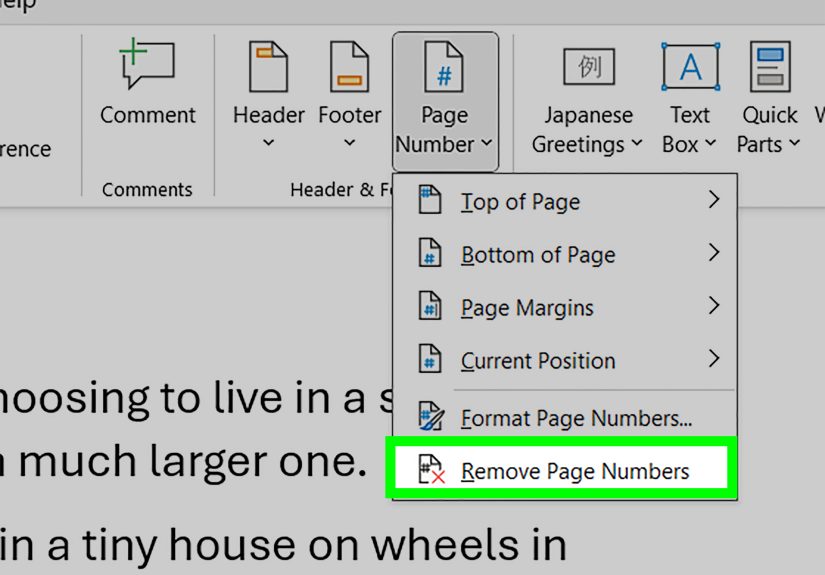
- Go to Insert > Page Number.
- Select Remove Page Numbers.
If that option is unavailable, open the header or footer manually, click the page number, and delete it. Then close the header or footer and reinsert the style you actually want.
Common Mistakes to Avoid
- Typing numbers manually: This defeats the whole purpose and breaks the moment the document changes length.
- Using normal curly braces for fields: Word fields need real field braces, not keyboard lookalikes.
- Forgetting section breaks: If you want different numbering styles in different parts, section breaks are essential.
- Leaving Link to Previous on: This causes one section’s header or footer to keep borrowing settings from the section before it.
- Skipping field updates: When totals look wrong, update before you panic.
Final Thoughts
Adding page numbers X of Y in Microsoft Word is one of those small formatting skills that pays off every time you create a long document. The built-in gallery is the fastest solution, the field method gives you more control, and section breaks let you handle complex layouts without turning your document into a formatting soap opera.
If you only remember three things, make it these: use Word’s automatic page numbering tools, use PAGE and NUMPAGES when you need a custom format, and use section breaks when your numbering needs to change between parts of the document. Do that, and your headers and footers will look polished instead of suspiciously improvised.
In other words, your document will finally say, with confidence and dignity, “Yes, I do know I am page 6 of 18.”
Real-World Experience: What Actually Happens When You Use X of Y Page Numbers in Word
In real-world document editing, adding Page X of Y in Word usually starts as a tiny formatting task and somehow ends up teaching you half of Word’s header, footer, and section logic. That sounds dramatic, but it is true. On a simple one-section document, the process is painless. You insert the number, choose a built-in style, and move on with your life like the organized professional you were always meant to be.
The interesting part begins when the document is not simple. Maybe it has a cover page, a table of contents, an appendix, or a borrowed template from a coworker who believes section breaks are decorative. In those situations, the X of Y format becomes more than a page number. It becomes a quick diagnostic tool. If the footer says Page 1 of 1 on page eight, you instantly know something is off with fields, sections, or both.
One of the most common experiences is thinking the problem is the page number itself when the real problem is the document structure. Users often blame the footer first because it is the part they can see, but the true culprit is frequently hidden above the waterline: linked headers, leftover section breaks, or a title page set up without adjusting the starting number. Once you understand that, Word stops feeling random and starts feeling merely fussy.
Another practical lesson is that manual field-based page numbering is worth learning even if the built-in option works most of the time. Templates vary. Ribbon layouts differ. Mac and Windows do not always show identical page-number galleries. In a shared office environment, that means the built-in design available on one machine might be missing on another. The field method gives you a dependable fallback, and that is incredibly useful when you are editing a file under deadline and do not have time for menu archaeology.
There is also a subtle usability benefit. Readers love Page X of Y because it reduces uncertainty. Reviewers know how long the document is. Managers know whether they have the full report. People printing a packet know whether a page is missing. It is one of those features that quietly improves the experience for everyone without demanding attention. Good formatting often works like good lighting: nobody applauds it, but everyone notices when it is bad.
Perhaps the most relatable experience of all is this: after you finally master Word page numbering, you start fixing every badly numbered document you meet. Suddenly you notice reports with random footers, contracts with missing totals, and manuals that restart page numbers for no obvious reason. And yes, you do feel a small but very real sense of superiority when you can fix them in under two minutes. Honestly, you have earned it.