Table of Contents >> Show >> Hide
- First: Decide What “Change Apple ID” Means for You
- Before You Change Anything: Do These 6 Safety Checks
- How to Change Apple ID Email (Same Account, Least Disruptive)
- How to Switch to a Different Apple Account on iPhone (Full Sign-Out + Sign-In)
- Want to Keep iCloud but Change App Store Purchases? Use “Media & Purchases”
- Can You Move Purchases from One Apple Account to Another?
- Troubleshooting: Fix the Most Common Problems
- Quick Checklist: Clean Up After You Switch Apple Accounts
- FAQ: Real Questions People Ask Mid-Panic
- Conclusion
- Experiences and Lessons Learned (The 500-Word Reality Check)
Changing your Apple ID on an iPhone sounds simple until you remember your entire digital life is wearing that Apple ID like a name badge.
Photos. Messages. App purchases. Subscriptions. Passwords. That one embarrassing ringtone from 2013. The good news: it’s totally doableand if
you follow the right steps, it doesn’t have to feel like defusing a tiny glass bomb.
This guide walks you through the safest ways to switch Apple IDs (now commonly called an Apple Account on newer iOS versions),
including what to do before you sign out, how to keep important data on your iPhone, and how to avoid the most common “Why is my phone
yelling at me?” problems.
First: Decide What “Change Apple ID” Means for You
People say “change my Apple ID” when they actually mean one of three different things. Pick the one that matches your goal:
Option 1: You want to change the email/phone number used to sign in (same account)
You keep your purchases, iCloud data, subscriptions, and everything elsejust update the sign-in email or phone number. This is the least
disruptive route and is ideal if you simply want to stop using an old email address.
Option 2: You want to sign out and sign in with a completely different Apple Account
You’re switching to another account (maybe a new one). This affects iCloud syncing, backups, Apple services, and often app downloads/updates tied
to the old account.
Option 3: You want to keep iCloud but use a different account for App Store purchases
This is the “two accounts” setup: one Apple Account for iCloud (photos, backups, contacts), and another for Media & Purchases
(App Store, subscriptions, purchases). It can work, but it comes with quirksespecially around app updates and family sharing.
Before You Change Anything: Do These 6 Safety Checks
Think of this section as putting on oven mitts before touching the hot pan. It’s not glamorous, but it prevents regret.
1) Confirm you know your Apple Account password
Signing out often requires your Apple Account password (and sometimes your device passcode). If you don’t know it, reset it firstdon’t wait until
you’re mid-sign-out with sweaty hands.
2) Make a fresh backup
The safest approach is having an up-to-date backup before signing outeither iCloud Backup or a computer backup (Finder on Mac, iTunes on Windows).
If you back up to a computer and enable encryption, you typically preserve more sensitive data (like Health data).
3) Let iCloud finish syncing
If you recently took photos, edited contacts, or changed notes, give iCloud time to sync. Use Wi-Fi, plug in your phone, and wait a bit. This helps
prevent “missing” items after you switch accounts.
4) Know what happens to iCloud data when you sign out
When you sign out, iCloud data remains in iCloud, but it can be removed from the device unless you choose to keep a copy when prompted. Your iPhone
may ask what you want to keep locally (contacts, calendars, reminders, etc.). Choose carefully based on what you need.
5) Check subscriptions and services tied to your Apple Account
Apple services like iCloud+, Apple Music, Apple TV+, Apple One, and paid app subscriptions are attached to the account used for purchases. If you
switch the purchase account, you may need to re-subscribe or manage billing.
6) If this is a work/school iPhone, check for device management (MDM)
If your iPhone is managed by an organization, you may be restricted from signing out. If you see management profiles or the Apple Account area is
grayed out, you may need approval or changes from the administrator.
How to Change Apple ID Email (Same Account, Least Disruptive)
If your goal is “I want my Apple ID to be my new email address” (but you don’t want to lose purchases or iCloud history), do this:
- Open Settings.
- Tap your name at the top (your Apple Account banner).
- Tap Sign-In & Security.
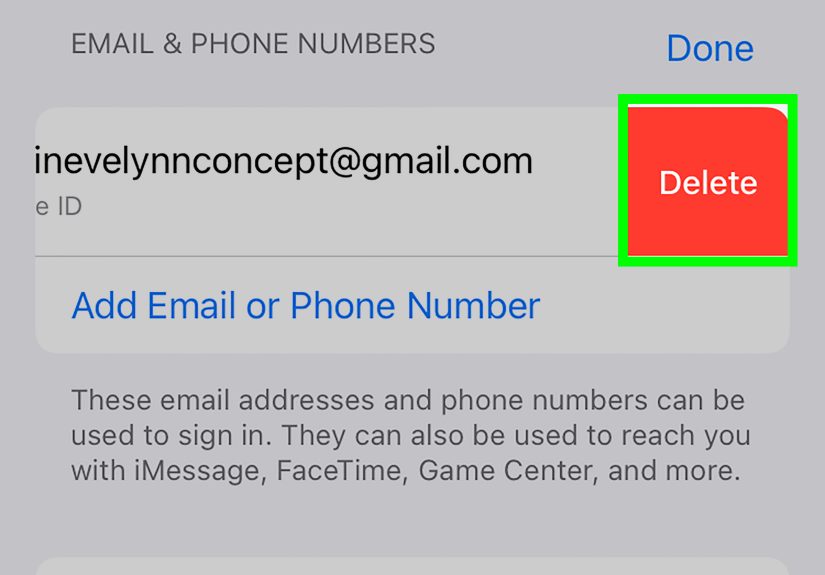
- Tap your primary email address (or the email section) and follow the prompts to update it.
- Verify the new email address when you receive the verification message.
Tip: Newer iOS versions may label things as “Apple Account” rather than “Apple ID,” but the pathway in Settings is essentially the same.
If you’re prompted to verify with a code, that’s normalApple uses verification to keep account changes secure.
How to Switch to a Different Apple Account on iPhone (Full Sign-Out + Sign-In)
This is the “I want to use a different Apple ID on this phone” method. Expect the biggest changes here.
Step 1: Sign out of your current Apple Account
- Open Settings.
- Tap your name at the top.
- Scroll down and tap Sign Out.
-
If prompted, choose:
- Erase This iPhone (only if you’re selling/giving it away), or
- Sign Out But Don’t Erase (typical when you’re keeping the phone).
- Follow the prompts to decide what data you want to keep on the iPhone (for example, contacts or calendars).
- Enter your Apple Account password (or device passcode) if requested.
What “Sign Out But Don’t Erase” really means: Your phone can keep certain data locally, but it won’t keep syncing with iCloud under the
old account. Think “kept on this phone,” not “kept in the cloud forever.”
Step 2: Restart your iPhone (optional, but helpful)
You don’t always need to restart, but it can clear out cached sign-in prompts and reduce weirdnessespecially if you’re switching accounts after years
of using the old one.
Step 3: Sign in with your new Apple Account
- Go to Settings.
- Tap Sign in to your iPhone (or Apple Account at the top if shown).
- Enter the new Apple Account email/phone number and password.
- Complete two-factor authentication if prompted (verification code).
- Choose what you want to enable (iCloud syncing, Find My, Keychain, etc.).
Step 4: Verify critical services after switching
- iCloud: Settings > your name > iCloud confirm Photos, Drive, and backups are configured how you want.
- Messages: Settings > Messages confirm Send & Receive and iMessage settings match your new account.
- FaceTime: Settings > FaceTime confirm your reachable addresses.
- Find My: Settings > your name > Find My confirm it’s enabled for the new account.
- App Store: Open App Store > profile icon confirm you’re signed into the account you expect.
Want to Keep iCloud but Change App Store Purchases? Use “Media & Purchases”
If you share an iPhone with family or you inherited a stack of app purchases on another account, you can sign into a different Apple Account for
Media & Purchases without changing your iCloud account.
How to sign out of Media & Purchases (only)
- Open Settings and tap your name.
- Tap Media & Purchases.
- Tap Sign Out and confirm.
- Then sign back in to Media & Purchases with the Apple Account you want for App Store purchases.
Heads-up (the “why is it asking for my old password?” moment): Apps downloaded under the old purchase account may still request the old
Apple Account password for updateseven if iCloud is using your new account. This is normal and one of the biggest annoyances of mixing accounts.
Can You Move Purchases from One Apple Account to Another?
Sometimes, yes. Apple has a purchase migration feature that can move purchases from one account (often called a “secondary” account for Media & Purchases)
to your primary Apple Account. If you see Migrate Purchases in Settings under Media & Purchases > View Account, your accounts may be eligible.
Migration isn’t available for everyone, and it has rules. If it’s offered on your device, read each screen carefullyApple will tell you what will and
won’t change, and what the new “primary vs. secondary” setup means.
Troubleshooting: Fix the Most Common Problems
Problem: “Sign Out” is grayed out or you can’t sign out
This is often caused by Screen Time restrictions. Check Settings > Screen Time and look for restrictions related to account changes.
If a Screen Time passcode is set, you’ll need it to allow changes.
Problem: You keep getting asked to enter the old Apple Account password
Common causes include:
- Apps purchased under the old account are updating.
- Your device is still signed into the old account for Media & Purchases.
- iMessage or FaceTime still has the old account enabled.
- A device association limitation is in effect (some purchase-related changes can have waiting periods).
Problem: Contacts, calendars, or notes “disappeared”
Usually, they didn’t vanishthey’re just stored in the old account’s iCloud. Sign back in to the old account to confirm what’s there. Also check if
those items were stored in a third-party account (like Google) rather than iCloud. You may need to re-enable the correct account under Mail/Contacts
settings or set the correct default account for syncing.
Problem: iCloud Photos aren’t showing up after switching
iCloud Photos is account-specific. When you move to a new Apple Account, you’re looking at a different iCloud library. If you need photos from the old
account, you’ll want to back them up (or export/transfer them) before fully switching.
Problem: You’re worried about scams while signing in
Good instinct. Only sign in through Settings or official Apple sign-in screens. Avoid links from texts or emails asking you to “verify”
your Apple Account. When in doubt, manually open Settings and check your account there.
Quick Checklist: Clean Up After You Switch Apple Accounts
- Confirm iCloud Backup is enabled under the new account (if you use iCloud backups).
- Check Find My is enabled for the new account.
- Open Messages and FaceTime settings to ensure reachable addresses are correct.
- Open App Store and confirm the correct purchase account is signed in.
- Review Subscriptions (Settings > your name > Subscriptions) to ensure billing is correct.
- If you use Family Sharing, confirm purchase sharing is configured how you want.
FAQ: Real Questions People Ask Mid-Panic
Will I lose everything if I sign out of my Apple Account?
Not automaticallybut you can lose local access to some iCloud-synced content if you don’t keep copies when prompted. Your data remains in iCloud under
the old account. The key is backing up and choosing carefully when asked what to keep on the device.
Can I use two Apple Accounts on one iPhone?
You can use one Apple Account for iCloud and another for Media & Purchases. It’s allowed, but it can get messy with app updates, subscriptions, and
family sharing.
What if my iPhone is signed into someone else’s Apple Account and I can’t sign out?
If you bought a used iPhone and it’s still tied to the previous owner’s Apple Account, the correct solution is to have the previous owner sign out or
remove the device from their account. Don’t trust “magic unlock” servicesthose are often scams and can create bigger problems.
Conclusion
Changing your Apple ID (Apple Account) on an iPhone is basically a controlled handoff: back up first, let iCloud sync, sign out the right way, then sign
in and verify services like iCloud, Messages, FaceTime, and the App Store. If you only need a new email address for the same account, update the primary
email instead of switching accountsyour future self will thank you.
Take it slow, read each prompt carefully, and remember: the goal is not just “new Apple ID,” it’s “new Apple ID with zero chaos.”
Experiences and Lessons Learned (The 500-Word Reality Check)
If you’ve never changed an Apple ID on an iPhone before, it can feel like you’re trying to rename a cat that already ignores you. You tap “Sign Out,”
and suddenly iOS starts asking deep philosophical questions like: “Would you like to keep a copy of your data?” (Translation: “Are you sure
you know where your contacts live?”)
One of the most common real-world reasons people switch accounts is family logistics. A parent sets up a kid’s iPhone using their own Apple Account “just
for now,” and three years later that same phone is full of school photos, group chats, and apps that all technically belong to Mom’s account. When it’s
finally time to separate things, the first surprise is usually app updates. The phone may keep working fineuntil an update arrives and it demands the
password for the account that originally downloaded the app. Cue the classic family group chat: “Does anyone remember the password to the old email from
2016?” Spoiler: nobody remembers.
Another common experience: the “I thought my photos were on my phone” moment. Many people use iCloud Photos with Optimize iPhone Storage turned on,
which means the phone may store smaller versions locally while the full library lives in iCloud. When you sign out and switch accounts, you might realize
the device was never meant to be the permanent vaultit was more like a well-organized display case. That’s why doing a backup (and confirming what’s
actually stored locally) is such a big deal before switching.
Then there’s the awkward-but-important security lesson: scammers love Apple Account anxiety. Any time you’re changing passwords, signing in, or verifying
codes, you’re more likely to fall for a message that says “Suspicious activity detected!” because you’re already in a heightened state. The safest habit
people develop after a close call is simple: never use links from texts/emails to sign in. If something seems off, they open Settings and check their
account directly. It’s not flashy, but it’s effective.
The best “experienced user” move? Treat switching Apple Accounts like moving apartments. Before you hand over keys, you pack (backup), label boxes (know
which account holds what), and take photos of the layout (screenshots of key settings like iCloud toggles and subscription lists). When you “move in”
(sign in to the new account), you do a quick walk-through: Messages, FaceTime, Find My, App Store, iCloud Backup. That final check is what separates a
smooth transition from a weekend spent muttering, “Why are my reminders in the void?”
In the end, changing your Apple ID isn’t hardit’s just highly connected. Once you respect the connections, the process becomes straightforward. And the
payoff is worth it: the right account on the right phone, fewer password pop-ups, cleaner subscriptions, and a lot less digital clutter wearing the wrong
name tag.