Table of Contents >> Show >> Hide
- What You Need Before Logging Into the Microsoft Store
- How to Log Into the Microsoft Store App on Windows
- How to Log Into the Microsoft Store in a Browser
- Microsoft Store App vs. Browser: What Is the Difference?
- How to Switch Accounts in the Microsoft Store
- How to Find Apps After Signing In
- How to Fix Microsoft Store Sign-In Problems
- Security Tips When Logging Into the Microsoft Store
- Common Microsoft Store Login Questions
- Best Practices for a Smooth Microsoft Store Login
- Real-World Experience: What Logging Into the Microsoft Store Is Actually Like
- Conclusion
Logging into the Microsoft Store should not feel like trying to unlock a secret government vault with a toaster. Thankfully, whether you are using the Microsoft Store app on Windows or signing in through a browser, the process is usually simple: open the Store, choose the sign-in option, enter your Microsoft account details, verify your identity if prompted, and start downloading, buying, updating, or managing your apps.
Still, small details matter. The Microsoft Store connects to your Microsoft account, your Windows profile, your payment methods, your app library, Xbox purchases, Microsoft 365 subscriptions, and sometimes even your work or school account. That means logging in with the wrong email can make your apps appear to vanish like socks in a dryer. They are usually not gone; they are just attached to another account.
This guide explains how to log into the Microsoft Store using both the Windows Store app and a web browser. You will also learn how to switch accounts, fix common sign-in problems, protect your account, and avoid the classic “Why can’t I find the app I just bought?” panic spiral.
What You Need Before Logging Into the Microsoft Store
Before you sign in, make sure you have a Microsoft account. This is the same type of account used for Outlook.com, Hotmail, Xbox, OneDrive, Microsoft 365, Windows backup, and many other Microsoft services. Your sign-in ID may be an Outlook address, a phone number, a Skype name, or another email address you registered with Microsoft.
You also need a stable internet connection, an updated browser or Windows device, and access to your security verification method if two-step verification is enabled. That verification method might be a text message, email code, Microsoft Authenticator prompt, passkey, or another approved security option.
Personal Account vs. Work or School Account
Most home users log into the Microsoft Store with a personal Microsoft account. That is the account usually tied to personal app purchases, games, digital downloads, payment methods, and order history.
A work or school account may also sign into some Microsoft services, but your organization can control what apps are available, which services are allowed, and whether Store access is restricted. If you are using a school laptop or company computer, do not be surprised if the Store behaves differently. That is not the app being dramatic; it is probably your administrator doing administrator things.
How to Log Into the Microsoft Store App on Windows
The Microsoft Store app is built into Windows 10 and Windows 11. It is the main place to download apps, games, entertainment content, and some Microsoft products directly on your PC.
Step 1: Open the Microsoft Store App
Select the Start button and type Microsoft Store into the search box. When the app appears, select it. You can also find it pinned to the Start menu or taskbar on many Windows devices.
If the Store does not open, do not immediately blame your computer’s personality. Try restarting your PC first. If that does not help, you may need to reset the Store cache or repair the app, which we will cover later.
Step 2: Select the Profile Icon
Inside the Microsoft Store app, look near the top area of the window. You should see a profile icon, account photo, or small person-shaped symbol near the search box or upper-right area. Select it.
If you are not signed in, you should see a Sign in option. If you are already signed in, you will see the current account. This is worth checking carefully, especially if you have multiple Microsoft accounts.
Step 3: Choose Sign In
Select Sign in. Windows may show a list of accounts already connected to your PC. You can choose one of those accounts or select an option to use a different Microsoft account.
For many people, the account connected to Windows is already available here. That makes sign-in faster, but it can also cause confusion if your Windows login account is not the same account you used to buy apps or games.
Step 4: Enter Your Microsoft Account Information
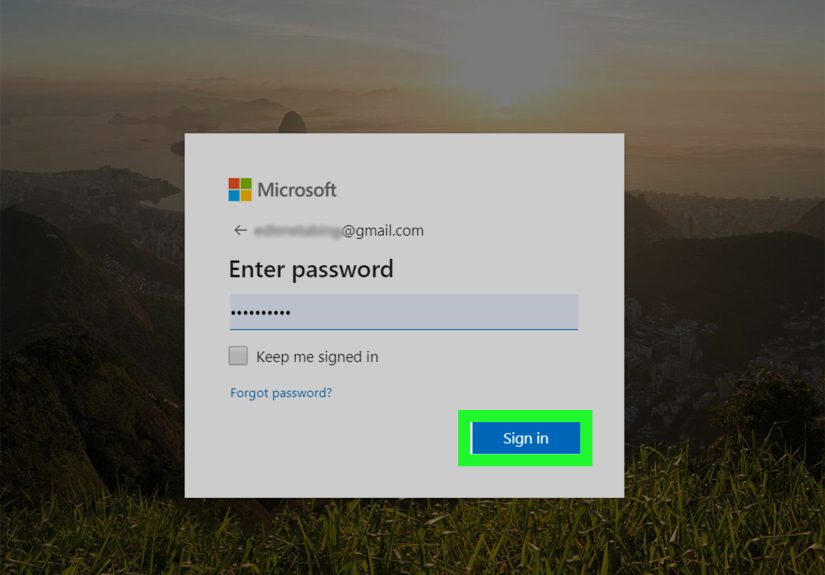
Enter your email address, phone number, or Skype name, then select Next. After that, enter your password, passkey, or other sign-in method. If Microsoft asks you to verify your identity, follow the prompt using your security code, authenticator app, or approved verification method.
Once you are signed in, the Microsoft Store should show your profile account. You can now download apps, claim free apps, install purchased items, update apps, or manage Store settings.
How to Log Into the Microsoft Store in a Browser
You can also access the Microsoft Store through a web browser such as Microsoft Edge, Chrome, Firefox, or Safari. This is useful when you are shopping online, checking order history, managing purchases, or browsing products before installing them on a Windows device.
Step 1: Open the Microsoft Store Website
Open your preferred browser and go to the Microsoft Store website. You can search for “Microsoft Store” or visit Microsoft’s official shopping pages directly. Make sure you are on a real Microsoft domain before entering your account information. The internet is a wonderful place, but it also contains websites dressed up like trusted brands wearing fake mustaches.
Step 2: Select Sign In
Look for the Sign in button near the top-right corner of the page. Select it, then enter your Microsoft account email, phone number, or Skype name.
If you are already signed into another Microsoft service in the same browser, Microsoft may automatically detect that account. Confirm that it is the account you want to use before making purchases or checking your order history.
Step 3: Complete Verification
Enter your password or use your preferred sign-in method. If your account has two-step verification enabled, approve the sign-in request or enter the security code. This extra step may feel slightly inconvenient, but it is like locking your front door. Future you will appreciate it.
Step 4: Browse, Buy, or Manage Your Account
After you log in, you can shop, review your cart, access digital downloads, check subscriptions, review payment options, or view order history. If you purchased software from Microsoft, your download or product key may appear in your Microsoft account order history, depending on the product.
Microsoft Store App vs. Browser: What Is the Difference?
The Microsoft Store app and browser version both connect to your Microsoft account, but they are best used for slightly different tasks.
Use the Store App When You Want to Install Apps
The Microsoft Store app is ideal for installing Windows apps, updating apps and games, reinstalling items from your library, and managing Store app settings. If you select Get for an app, the Store app can handle the download and installation directly on your PC.
Use the Browser When You Want to Shop or Manage Orders
The browser is convenient for browsing products, checking your Microsoft account, viewing order history, managing billing, and signing in from a device where you may not want to open the Store app. It is also useful when comparing products or reading details before installing anything.
How to Switch Accounts in the Microsoft Store
If you are signed into the wrong account, your purchases, app library, or subscriptions may not show correctly. This is one of the most common Microsoft Store mix-ups.
Switch Accounts in the Store App
Open the Microsoft Store app, select your profile icon, and look for the account menu. You may see an option to sign out or manage accounts. Sign out of the current account, then sign back in using the Microsoft account connected to your purchases or downloads.
For example, suppose you bought Minecraft, a productivity app, or a movie using your old Outlook email. If you sign into the Store with a newer Gmail-based Microsoft account, the Store may not show that purchase. The solution is not to rebuy the app while muttering at your keyboard. Sign into the correct account first.
Switch Accounts in a Browser
In your browser, select your account icon or name and choose Sign out. Then sign in again with the account you want to use. If the browser keeps pulling up the wrong account, try using a private browsing window or clear the site’s saved cookies for Microsoft pages.
How to Find Apps After Signing In
Once you are logged into the Microsoft Store app, you can search for apps by name using the search bar. You can also open your Library section to find apps associated with your account. This is especially helpful when reinstalling apps after resetting a PC or setting up a new Windows device.
If an app does not appear, check three things: whether you are using the correct Microsoft account, whether the app is compatible with your current Windows version, and whether the app is still available in the Store. Some older apps may be removed, replaced, or managed directly by the publisher.
How to Fix Microsoft Store Sign-In Problems
Sometimes the Microsoft Store refuses to sign in, loops back to the same screen, shows an error code, or acts like it has had three cups of coffee and no plan. Here are practical fixes that often help.
Check Your Internet Connection
Start simple. Open a browser and visit a few websites. If nothing loads, the Store is probably not the villain. Restart your router, reconnect to Wi-Fi, or try another network.
Make Sure Windows Is Updated
Microsoft Store depends on Windows components, account services, security features, and app frameworks. Go to Settings > Windows Update and check for updates. Install available updates, restart your PC, and try signing in again.
Update the Microsoft Store App
Open Microsoft Store, go to Library, and check for updates. Microsoft Store app updates can fix bugs, improve security, and resolve strange behavior. Yes, sometimes the app that updates apps also needs an update. Very modern. Very circular.
Reset the Microsoft Store Cache
If the Store app opens but behaves badly, reset its cache. Press Windows key + R, type wsreset.exe, and select OK. A blank Command Prompt window may appear briefly, then the Store should reopen automatically.
Repair or Reset the Store App
On Windows 11, go to Settings > Apps > Installed apps, find Microsoft Store, open its advanced options, and choose repair or reset if available. Repair tries to fix the app without removing its data. Reset is more aggressive and may clear local app data, so use it after simpler fixes.
Check Your Date, Time, and Region
Incorrect system time can interfere with secure sign-ins. Go to Settings > Time & language and make sure your date, time, time zone, and region are correct. Secure services are picky about time because authentication tokens depend on it.
Confirm Your Password and Security Info
If your password is not working, use Microsoft’s account recovery or password reset options. If you recently changed your password, sign out and sign back in across Microsoft services. Also make sure your recovery email and phone number are current, because old security info can turn a simple login into a detective novel.
Security Tips When Logging Into the Microsoft Store
Your Microsoft Store account may contain payment details, order history, subscriptions, Xbox purchases, and personal information. Treat it like a key to a digital apartment, not like a sticky note on the fridge.
Use Two-Step Verification
Two-step verification adds another layer of protection by requiring a second proof of identity. Even if someone guesses your password, they still need access to your verification method. That is a much better security setup than hoping your password “Fluffy123” can carry the whole team.
Do Not Share Your Password
A Microsoft account should be private. If someone else needs an app, game, or subscription, use Microsoft’s official family or sharing features where available rather than handing over your sign-in details.
Watch Out for Fake Microsoft Store Pages
Only sign in on official Microsoft websites or the built-in Microsoft Store app. Be cautious with emails, pop-ups, or ads that claim your account will be locked unless you sign in immediately. Real security messages should be handled by going directly to Microsoft’s official account page, not by clicking suspicious links.
Common Microsoft Store Login Questions
Can I Use Gmail to Log Into the Microsoft Store?
Yes, if your Gmail address was used to create a Microsoft account. A Microsoft account does not have to end in Outlook.com or Hotmail.com. The important thing is whether that email address is registered as a Microsoft account.
Do I Need to Log Into Windows With the Same Account?
No, not always. You can use one account to sign into Windows and another Microsoft account for the Store. However, using different accounts can become confusing when managing purchases, app libraries, and subscriptions.
Why Is My Purchased App Missing?
The most likely reason is that you are signed into the wrong Microsoft account. Check your order history using the account you used at purchase time. Also confirm that the app is still available and compatible with your version of Windows.
Can I Log Into the Microsoft Store Without a Microsoft Account?
You may browse some Store content without signing in, but downloading many apps, claiming free apps, making purchases, syncing your library, and accessing order history usually require a Microsoft account.
Best Practices for a Smooth Microsoft Store Login
Use one main Microsoft account for personal purchases whenever possible. Keep your password strong, enable two-step verification, update your recovery information, and write down which account you use for Store purchases. Not the password, of course. Just the email address. Your future self will send you a mental thank-you card.
Also keep Windows and the Store app updated. Many sign-in errors are not really account problems; they are outdated app, cache, or system issues wearing an account-problem costume.
Real-World Experience: What Logging Into the Microsoft Store Is Actually Like
In real everyday use, logging into the Microsoft Store is usually fast, but the experience can vary depending on your device, account history, and how many Microsoft accounts you have collected over the years. And yes, many people have more Microsoft accounts than they realize. One for Xbox, one for an old Hotmail address, one made with Gmail, one connected to school, one created during a late-night “I just need Word installed” emergency. It happens.
The smoothest experience usually happens on a personal Windows PC where you already use a Microsoft account to sign into Windows. In that situation, the Store app often recognizes the account and lets you sign in with just a few clicks. You open the Store, select the profile icon, confirm the account, complete verification if needed, and you are in. It feels almost too easy, which is exactly how technology should feel when it is behaving itself.
The less smooth experience often appears after buying a new laptop, reinstalling Windows, or switching between personal and work accounts. You may open the Store, sign in, and notice that your purchased apps are missing. This can be alarming for about seven seconds. Then you remember that digital purchases are tied to the Microsoft account used at the time of purchase. Once you sign out and sign back in with the correct account, your library usually makes a comeback like the final scene of a feel-good movie.
Browser sign-in is especially useful when you want to check purchases without touching your Windows device. For example, if you bought software online and need to reinstall it, the order history page can help you locate the purchase connected to your account. This is also helpful for parents managing family purchases, students checking subscriptions, or anyone trying to remember whether they bought something from Microsoft directly or from another retailer.
One practical habit is to use a password manager. It keeps your Microsoft account credentials organized and reduces the chance of signing in with the wrong email. It also helps you create a stronger password, because nobody should be expected to memorize a 20-character password that looks like a cat walked across a keyboard. Pair that with two-step verification, and your account becomes much harder to break into.
Another useful habit is checking the profile icon before downloading or buying anything. This tiny step can prevent big confusion. If you are signed into the wrong account and install an app, you may later wonder why the app is unavailable on another device. The Store did not betray you. It simply followed the account you gave it.
For troubleshooting, the best experience comes from working in layers. First, restart the app. Then check your internet connection. Then update Windows. Then update the Store. Then clear the Store cache with wsreset.exe. Then repair or reset the app if needed. This order matters because it moves from simple fixes to stronger fixes. Jumping straight to reset is like using a fire extinguisher because your toast is slightly too brown.
Overall, the Microsoft Store login process is reliable once you understand the account connection. The main trick is not technical wizardry; it is account awareness. Know which Microsoft account owns your purchases, keep your security info updated, and do not panic when the Store asks for verification. It is not being nosy. It is trying to make sure the person downloading, buying, or managing apps is actually you.
Conclusion
Logging into the Microsoft Store through the Windows app or a browser is straightforward when you know where to look and which account to use. In the Store app, open Microsoft Store, select the profile icon, choose sign in, and enter your Microsoft account details. In a browser, select sign in on the Microsoft Store website or Microsoft account pages, then complete verification if prompted.
The biggest lesson is simple: your Microsoft Store experience follows your Microsoft account. Apps, purchases, digital downloads, subscriptions, and order history are tied to the account used when you got them. If something looks missing, check the account before assuming something is broken. A little account housekeeping can save a lot of digital head-scratching.