Table of Contents >> Show >> Hide
- Before You Touch Anything: A 60-Second Reality Check
- Method 1: Try the Login Window Reset Options (Fastest When Available)
- Method 2: Reset Using Another Admin Account (If One Exists)
- Method 3: Reset in macOS Recovery Using Terminal (The Official “resetpassword” Route)
- Method 4: If It’s a Work/School Mac (MDM, Jamf, Kandji, etc.)
- Method 5: Last ResortErase and Reinstall (When Recovery Options Aren’t Available)
- After You’re Back In: Keychain, Password Prompts, and Other “Why Is My Mac Mad?” Issues
- Common Problems (and Quick, Non-Ragey Fixes)
- Preventing Round Two: Make Future-You Proud
- Real-World Experiences & Lessons People Learn the Hard Way (Yes, This Is the 500-Word “Experience” Section)
- SEO Tags
Losing your Mac admin password feels like getting locked out of your own house… while your house is also judging you
for not using a password manager. The good news: Apple built several legit, official recovery paths that can get you
back in without turning your Mac into a science experiment. The “less fun” news: the exact steps depend on how your
Mac is set up (Apple silicon vs. Intel, FileVault on/off, Apple ID recovery enabled, work/school management, etc.).
This guide walks through the safest, most reliable ways to reset a lost admin passwordincluding the famous Terminal
method in macOS Recoveryplus what to do afterward when Keychain starts throwing a tantrum.
Before You Touch Anything: A 60-Second Reality Check
Let’s keep this clean and drama-free. These methods are intended for Macs you own or are authorized to administer.
If this is a company/school Mac, skip ahead to the “Managed Mac” sectionyour IT team likely has specific rules and
recovery keys.
Quick checklist
- Are you still logged in? If yes, you can often change the password from System Settings without Recovery Mode.
- Do you have another admin account? If yes, that’s usually the fastest reset.
- Is FileVault enabled? If yes, you may need your Apple ID recovery or a FileVault recovery key.
- Do you see “Reset using Apple ID” on the login screen? If yes, that’s the express lane.
- Do you have a Time Machine backup? Not required for a password reset, but wonderful for peace of mind.
Method 1: Try the Login Window Reset Options (Fastest When Available)
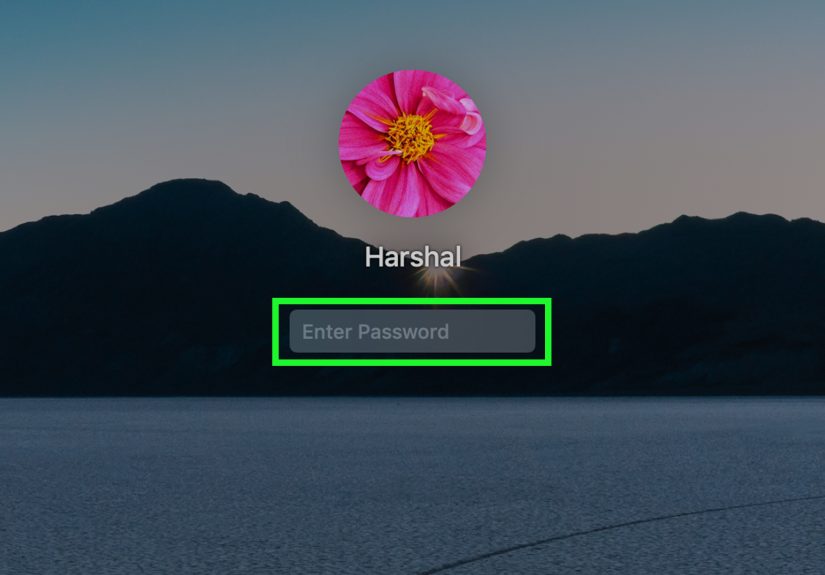
Start simple: the login window can offer password reset options after a few attempts. This works best when your user
account is tied to an Apple ID or you have a recovery key set up.
- At the login screen, select your user account and enter a password a few times (even if it’s wrongno shame).
-
Look for a question mark icon or a message like:
“Restart and show password reset options” or “Reset it using your Apple ID”. -
Follow the on-screen steps. You might be asked for:
- Your Apple ID (Apple Account) credentials, sometimes with two-factor authentication
- A recovery key (if you set one up)
- Permission to create a new keychain (more on that later)
If you can reset from the login window, do it. It’s the “minimum chaos” route.
Method 2: Reset Using Another Admin Account (If One Exists)
If your Mac has another admin account and you know its password, you can reset your locked-out admin account the
normal, civilized wayright inside macOS.
On macOS Ventura / Sonoma and newer
- Log in to the other admin account.
- Go to System Settings > Users & Groups.
- Select the user account that’s locked out.
- Choose Reset Password or Change Password (wording varies), then set a new password.
On older macOS versions
- Log in to the other admin account.
- Open System Preferences > Users & Groups.
- Click the lock icon to authenticate, select the locked account, and choose password reset options.
After you reset, the user can log in with the new passwordbut their Keychain might not automatically agree with the
new reality. We’ll fix that later.
Method 3: Reset in macOS Recovery Using Terminal (The Official “resetpassword” Route)
This is the method people mean when they say “I reset my Mac password with Terminal.” It happens in macOS Recovery,
and the Terminal command launches Apple’s built-in password reset assistant.
Important: This method changes the password; it does not reveal the old one. Also, if FileVault is
enabled and you don’t have the required recovery options (Apple ID / recovery key), you may not be able to proceed.
Step 1: Start up in macOS Recovery
If you have a Mac with Apple silicon (M1, M2, M3, etc.)
- Shut down your Mac completely.
- Press and hold the power button until you see Loading startup options.
- Select Options > Continue.
If you have an Intel Mac
- Restart your Mac.
- Immediately hold Command (⌘) + R until you see the Apple logo or a spinning globe.
Step 2: Open Terminal in Recovery
- When you’re in Recovery, look at the top menu bar.
- Choose Utilities > Terminal.
Step 3: Run the password reset assistant
- In Terminal, type: resetpassword
- Press Return.
- Follow the on-screen password reset workflow.
You’ll typically select the user account, then set a new password. In some setups, Apple may prompt for Apple ID
authentication (and two-factor approval) before allowing the reset.
If FileVault is enabled, expect extra steps
FileVault encrypts your disk, which is great for security and terrible for “I forgot everything” vibes. If FileVault
is on, you may need:
- Your Apple ID that was allowed to unlock/reset
- A FileVault recovery key
- Or help from your organization’s admin/IT (on managed Macs)
If you have none of those, the realistic outcome may be a full erase and reinstall (see Method 5). That’s not a
punishment; it’s encryption doing its job.
Method 4: If It’s a Work/School Mac (MDM, Jamf, Kandji, etc.)
If your Mac is managed, your organization may escrow (store) a FileVault recovery key or provide a recovery workflow
through their IT tools. Translation: the fastest solution is often contacting IT.
Why? Because managed environments can enforce security policies that block personal reset routesor require an
organization-held key to unlock the disk. If you try to brute-force your way around that, you’ll burn time and
possibly lock yourself out further.
Method 5: Last ResortErase and Reinstall (When Recovery Options Aren’t Available)
If you can’t reset the password using Apple ID, recovery keys, another admin account, or Recovery’s reset assistant,
you may need to wipe the Mac and reinstall macOS. This is especially common when FileVault is enabled and recovery
credentials are unavailable.
Option A: “Erase All Content and Settings” (Modern macOS)
On many newer Macs and recent macOS versions, Apple includes an erase assistant that resets the system similarly to
iPhone-style “factory reset.” It’s the cleanest wipe method when available.
Option B: Erase from macOS Recovery
In Recovery, you can erase the startup disk using Disk Utility and reinstall macOS. Be prepared: you may need to
authenticate with an Apple ID during setup, especially if Activation Lock is involved.
Pro tip: If your Mac is showing signs of startup trouble beyond the password (question-mark folder,
disk errors, etc.), run Disk Utility’s First Aid before reinstalling.
After You’re Back In: Keychain, Password Prompts, and Other “Why Is My Mac Mad?” Issues
Resetting your login password can cause a mismatch with your login keychainthe place macOS stores
saved Wi-Fi passwords, website passwords, certificates, and app secrets. If your keychain was protected with the old
password, your Mac may start nagging you with pop-ups.
Best case: Update the keychain using the old password
If you remember the old password later (it happens!), you can update the keychain password to match the new login
password in Keychain Access.
Common case: You don’t remember the old password
If you truly don’t know the previous password, you can reset the default keychain. That creates a fresh keychain,
but you’ll lose passwords stored only in that old keychain (anything synced via iCloud Keychain may come back after
you sign in).
In Keychain Access, look for an option like Reset My Default Keychain in Settings/Preferences. After
that, restart and sign in again.
Expect these side effects
- You may need to re-enter Wi-Fi passwords.
- Some apps might ask you to sign in again.
- Browsers may need to re-save passwords (unless they sync independently, like Chrome).
Common Problems (and Quick, Non-Ragey Fixes)
“My account is locked” after too many attempts
If macOS says your account is locked, wait the specified time and try again. If it still won’t cooperate, use
Recovery reset options rather than continuing guesses.
Keyboard layout got you
Passwords fail for surprisingly petty reasons: Caps Lock, a different keyboard layout, or a Bluetooth keyboard that
decided to take a nap. If you’re on the login screen, try the on-screen keyboard (if available) and verify input.
Firmware password / startup security issues
If you’re blocked by a firmware password you don’t know, the practical solution is Apple service with proof of
purchase. This is one of those “security feature doing security feature things” moments.
Preventing Round Two: Make Future-You Proud
Once you’re back in, take five minutes to set up recovery so you never have to read another 2,000-word password
reset epic.
- Enable FileVault (and store the recovery key safely).
- Turn on Apple ID password reset for your user account if you’re comfortable with that risk model.
- Add a spare admin account for emergencies (store the credentials in a password manager).
- Use a password manager so your brain can focus on more important things (like lunch).
- Keep a Time Machine backup or another backup strategy.
Real-World Experiences & Lessons People Learn the Hard Way (Yes, This Is the 500-Word “Experience” Section)
In the real world, forgetting a Mac admin password rarely happens in a calm, well-lit room with soothing lo-fi music.
It usually happens five minutes before a deadline, during travel, or right after you confidently told someone,
“Don’t worryI’m great with passwords.” The pattern is almost comical: people try the same three passwords they’ve
used since 2012, then invent two new ones on the spot, then stare at the login screen like it owes them money.
One super common scenario is the “I’m still logged in… somewhere” moment. Maybe your Mac is locked, but not rebooted,
and you have an app asking for an admin password to install an update. People often assume they’re doomed, but if you
can still authenticate with Touch ID or an existing session, you can sometimes change the password from System
Settings without going into Recovery. The lesson: before you reboot into anything dramatic, check whether you still
have a foothold inside macOS.
Another classic is the “Keychain rebellion” after a successful reset. Someone resets their password in Recovery,
logs in triumphantly, and then gets greeted by a parade of pop-ups asking for the login keychain password. That’s when
the emotional roller coaster hits: “I’m back in!” followed by “Why is my Mac asking me for the password I just
changed?” The fix is usually straightforwardupdate the keychain with the old password if you remember it, or reset
the keychain if you don’tbut it feels personal in the moment.
FileVault adds a whole different flavor. People hear “encryption” and think it’s only about hackers. Then, when they
forget their password and don’t have the Apple ID recovery flow set up (or don’t have the recovery key), they learn
what encryption actually means: your Mac can’t “just let you in” without the required credentials. It’s frustrating,
but it’s also why a stolen Mac isn’t instantly a free-for-all. The lesson: if you enable FileVault (you should), you
also need a plan for the recovery key and Apple Account access.
Then there’s the work/school Mac situation. People often assume “admin” means “I’m the boss of this device,” but
managed Macs can be configured so that the organization holds the recovery keys or restricts reset paths. The fastest
fix is almost always: contact IT. The lesson: if a Mac is managed, your best tool is not Terminalit’s the helpdesk.
The happiest endings usually belong to the folks who take prevention seriously after the crisis. They turn on a
password manager, confirm their Apple Account recovery options, store the FileVault recovery key safely, and create a
second admin account as a break-glass backup. It’s not glamorous, but neither is spending your Saturday in Recovery
Mode. Future-you will absolutely high-five present-you (quietly, because you’ll be working in a coffee shop).