Table of Contents >> Show >> Hide
- Can You Scan Mii QR Codes on a Nintendo Switch?
- How to Create a Mii on Nintendo Switch
- How to Use an amiibo to Transfer a Mii to Nintendo Switch
- Can You Transfer a Mii QR Code from 3DS to Switch?
- Why Nintendo Switch Does Not Scan Mii QR Codes
- Best Alternatives to Scanning Mii QR Codes on Nintendo Switch
- How to Edit or Delete a Mii on Nintendo Switch
- Common Problems When Trying to Use Mii QR Codes on Switch
- Best Games for Using Miis on Nintendo Switch
- Tips for Recreating a Mii from a QR Code Manually
- Experience Section: What It Feels Like Trying to Scan Mii QR Codes on Switch
- Conclusion
Note: Here is the honest answer right up front: the Nintendo Switch does not directly scan Mii QR Codes like the Nintendo 3DS or Wii U. There is no built-in Mii QR scanner in the Switch system settings, and the Switch console does not have a normal camera for reading those old square little portals of Mii magic. However, you still have several practical ways to bring a Mii-style character onto your Nintendo Switch, including recreating the Mii manually, copying a Mii from an amiibo, using Miitopia sharing features, or transferring from older Nintendo systems through amiibo when possible.
If you searched for “how to scan Mii QR Codes on a Nintendo Switch,” you are probably trying to do one of three things: import a favorite Mii from the Nintendo 3DS era, add a celebrity or custom Mii from a QR Code website, or move a beloved digital mini-you into a Switch game like Miitopia, Nintendo Switch Sports, Mario Kart 8 Deluxe, Super Smash Bros. Ultimate, or Tomodachi Life: Living the Dream. Good news: you are not out of options. Bad news: the Switch is not going to point a camera at a QR Code and say, “Ah yes, eyebrow settings acquired.”
This guide explains what works, what does not, and the best alternatives for getting Mii characters onto Nintendo Switch without wasting an afternoon poking every menu like you are trying to unlock a secret boss.
Can You Scan Mii QR Codes on a Nintendo Switch?
No, the Nintendo Switch cannot directly scan Mii QR Codes. Unlike the Nintendo 3DS and Wii U, the Nintendo Switch does not include a Mii Maker QR Code scanning feature. On Nintendo 3DS, users could open Mii Maker, choose QR Code/Image Options, scan a Mii QR Code with the system camera, and save the Mii. On Wii U, the GamePad camera could also scan Mii QR Codes. The Switch does not offer that same workflow.
This is the detail that trips up many players. The Switch has Mii creation tools, and it supports Miis in several games, so it feels natural to assume QR Code scanning must be hiding somewhere. It is not. It is not under System Settings. It is not inside the Album app. It is not unlocked by holding the Joy-Con at a dramatic angle while whispering “Tomodachi.” The feature simply is not part of the Nintendo Switch system software.
Why the Confusion Happens
Mii QR Codes became popular during the Nintendo 3DS and Wii U years because they made sharing avatars easy. Players created celebrities, friends, fictional characters, cursed masterpieces, and occasionally a Mii that looked like a potato with glasses. QR Codes let people pass those creations around online with almost no effort.
The Nintendo Switch kept Miis, but it changed how they are managed. Instead of a standalone Mii Maker app with camera-based QR importing, the Switch places Mii creation inside System Settings > Mii > Create/Edit a Mii. From there, you can start from scratch, choose a look-alike, or copy a Mii from an amiibo.
How to Create a Mii on Nintendo Switch
If your goal is simply to make a Mii on Nintendo Switch, the process is straightforward. It is not as flashy as scanning a QR Code, but it works reliably.
Step-by-Step: Create a New Mii
- Turn on your Nintendo Switch and go to the HOME Menu.
- Select System Settings.
- Scroll down the left-side menu and choose Mii.
- Select Create/Edit a Mii.
- Choose Create New Mii.
- Select one of the available options: Start from Scratch, Choose a Look-Alike, or Copy Mii from amiibo.
- Customize the face, hairstyle, eyebrows, eyes, nose, mouth, facial hair, glasses, body type, favorite color, and nickname.
- Save the Mii when you are finished.
The Choose a Look-Alike option is useful if you want a faster start. It gives you a ready-made base Mii, which you can adjust until it looks like the person or character you are trying to recreate. Think of it as ordering a sandwich and then removing half the ingredients because apparently your Mii has opinions about eyebrow altitude.
How to Use an amiibo to Transfer a Mii to Nintendo Switch
The closest official alternative to scanning a Mii QR Code on Nintendo Switch is copying a Mii from an amiibo. This method can help if your Mii already exists on another Nintendo system and can be registered to an amiibo first.
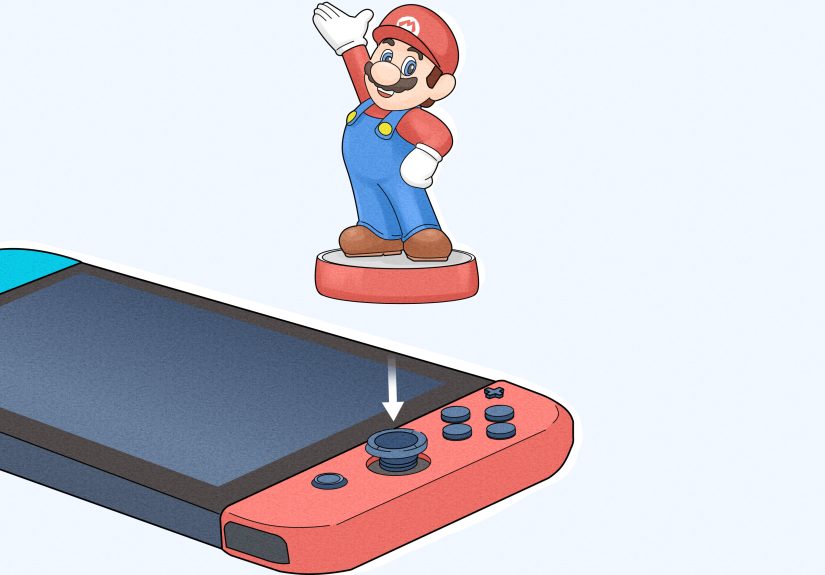
An amiibo can store owner and Mii data. On Nintendo Switch, you can copy a Mii registered to an amiibo by using the Mii menu in System Settings. This is especially helpful for players trying to move older Miis from Nintendo 3DS or Wii U to Switch.
Step-by-Step: Copy a Mii from amiibo to Nintendo Switch
- Go to the Nintendo Switch HOME Menu.
- Open System Settings.
- Scroll to Mii.
- Select Create/Edit a Mii.
- Choose Create New Mii.
- Select Copy Mii from amiibo.
- Touch the amiibo to the NFC touchpoint.
- On a Joy-Con, the NFC touchpoint is on the right control stick. On a Nintendo Switch Pro Controller, it is near the Nintendo Switch logo at the top center.
- Wait for the “Copied Mii” message.
- Save the copied Mii to your system.
If you see a message saying that no Mii is registered to the amiibo, the amiibo does not currently contain a Mii owner. You will need to register a Mii to that amiibo using a compatible system or settings menu first.
Can You Transfer a Mii QR Code from 3DS to Switch?
Yes, but not directly. The Nintendo Switch cannot scan the Mii QR Code itself, but a Nintendo 3DS can scan the QR Code. From there, you may be able to move that Mii to an amiibo and then copy it to your Nintendo Switch.
The general route looks like this:
- Use a Nintendo 3DS or 2DS system to scan the Mii QR Code in Mii Maker.
- Save the Mii on the 3DS system.
- Register that Mii to an amiibo using amiibo settings.
- Use the Nintendo Switch Mii menu to copy the Mii from the amiibo.
This method is not as instant as scanning directly on Switch, but it is one of the most reliable workarounds for players who still own a 3DS family system. If you have an older 3DS model without built-in NFC, you may need the separate Nintendo 3DS NFC Reader/Writer accessory. New Nintendo 3DS, New Nintendo 3DS XL, and New Nintendo 2DS XL systems include built-in NFC support, making the amiibo part easier.
What You Need for the 3DS-to-Switch Method
- A Nintendo 3DS, 2DS, New 3DS, New 3DS XL, or New 2DS XL system
- The Mii QR Code you want to import
- An amiibo that can store owner/Mii data
- A Nintendo Switch, Switch Lite, Switch OLED, or compatible Switch 2 system
- Patience, because this is a Nintendo migration ritual, not a microwave burrito
Why Nintendo Switch Does Not Scan Mii QR Codes
Nintendo has never turned the Switch Mii menu into a QR Code scanning tool. The most practical reason is hardware and design direction. The Nintendo 3DS had built-in cameras designed for photos, augmented reality cards, and QR scanning. The Wii U GamePad also had a camera. The original Switch system does not have a normal front-facing or rear-facing camera. The right Joy-Con includes an IR Motion Camera, but that is not the same as a standard camera for scanning Mii QR Codes.
In other words, the Switch has the technology to do many clever things, but reading old Mii QR Codes is not one of its built-in party tricks. Nintendo also shifted Mii sharing toward game-specific systems. For example, Miitopia on Switch allows players to use Miis already on the system and includes sharing options tied to the game experience. Other games simply let you select from your saved system Miis.
Best Alternatives to Scanning Mii QR Codes on Nintendo Switch
Since direct scanning is off the table, here are the best practical alternatives depending on what you are trying to accomplish.
Option 1: Recreate the Mii Manually
This is the simplest method. Open the QR Code on your phone, computer, or tablet, then use it as a visual reference while creating the Mii manually on Switch. You will not import the data, but you can get surprisingly close if you pay attention to key features.
Start with the face shape, hairstyle, eyes, eyebrows, and mouth. Those features usually define the Mii more than tiny details like height or favorite color. If you are copying a famous Mii, focus on the exaggerated traits: giant eyebrows, tiny eyes, dramatic mustache, or that one nose shape that says, “I am either a villain or a substitute math teacher.”
Option 2: Use amiibo Transfer
If you have access to a 3DS or Wii U, the amiibo transfer method is the best bridge between old Mii QR Codes and the Nintendo Switch. Scan the QR Code on the older system, save the Mii, register it to an amiibo, and then copy it to the Switch.
This method is especially useful for longtime Nintendo fans who built a library of Miis across Wii, 3DS, and Wii U. It keeps the original Mii data more intact than manual recreation.
Option 3: Use In-Game Sharing Features
Some Nintendo Switch games handle Miis in their own way. Miitopia, for example, places heavy emphasis on creating, casting, and sharing Mii characters. Nintendo Switch Sports lets players use Mii characters instead of Sportsmates. Mario Kart 8 Deluxe and Super Smash Bros. Ultimate also support Miis in specific ways.
If your goal is to use Miis in a particular game, check that game’s own Mii options. The system-level Mii menu is important, but some games add extra layers of customization, selection, or sharing.
Option 4: Use a Mii Design Guide
Many online Mii communities share step-by-step recipes instead of QR Codes. A design guide might list each facial feature, color, size, rotation, spacing, and position. This is slower than scanning, but it works on Switch because you can manually enter the same settings.
This is also the best option if you do not own a 3DS or amiibo. It turns Mii creation into a recipe: two scoops of eyebrow chaos, one heroic jawline, and a sprinkle of “why does this look exactly like my uncle?”
How to Edit or Delete a Mii on Nintendo Switch
Once a Mii is on your Nintendo Switch, you can edit or delete it from the same Mii menu.
Step-by-Step: Edit a Mii
- Open System Settings from the HOME Menu.
- Select Mii.
- Choose Create/Edit a Mii.
- Select Mii List.
- Choose the Mii you want to edit.
- Make your changes and save.
Step-by-Step: Delete a Mii
- Go to System Settings.
- Select Mii.
- Open Create/Edit a Mii.
- Choose Mii List.
- Select the Mii you want to remove.
- Choose the delete option and confirm.
Before deleting a Mii, remember that some games may use that character for save data, profiles, or appearances. Deleting the Mii from the system may affect how that character appears in supported games.
Common Problems When Trying to Use Mii QR Codes on Switch
Problem: “I Cannot Find the QR Code Scanner”
That is normal. There is no Mii QR Code scanner on Nintendo Switch. Use manual creation, amiibo transfer, or game-specific sharing instead.
Problem: “My amiibo Says No Mii Is Registered”
This means the amiibo does not currently have a Mii owner saved to it. Register a Mii to the amiibo first on a compatible system, then try copying it to the Switch again.
Problem: “The Mii Looks Different on Switch”
Some small visual differences can happen across Nintendo systems and games. A Mii copied from an older system should remain recognizable, but certain games may display Miis with different lighting, expressions, outfits, or rendering styles.
Problem: “A Game Does Not Show My Mii”
Not every Nintendo Switch game supports Miis. Some games use system Miis, some use game-specific avatars, and others ignore Miis completely. Check the character selection, profile, or customization menu inside the game you are playing.
Best Games for Using Miis on Nintendo Switch
Although Mii QR Code scanning did not make the jump to Switch, Miis are far from gone. Several major Switch games still use them in fun ways.
Miitopia
Miitopia is one of the best Switch games for Mii lovers. The entire adventure is built around casting Miis as heroes, villains, friends, royalty, townspeople, and assorted weirdos. If you enjoy turning your group chat into a fantasy RPG, this is the game that understands your artistic vision.
Nintendo Switch Sports
Nintendo Switch Sports primarily uses Sportsmates, but it also allows players to use Mii characters. This is perfect if you want your classic Mii to bowl, spike, swing, and occasionally embarrass itself in front of the family.
Mario Kart 8 Deluxe
Mario Kart 8 Deluxe includes Mii racers, letting your custom character hit the track alongside Mario, Link, Isabelle, and the rest of the roster. There is something deeply satisfying about watching your Mii get flattened by a blue shell. Painful, yes. Personal, absolutely.
Super Smash Bros. Ultimate
Super Smash Bros. Ultimate includes Mii Fighters in Brawler, Swordfighter, and Gunner styles. These let you build custom fighters based on your Miis, complete with different moves and costumes.
Tomodachi Life: Living the Dream
Tomodachi Life: Living the Dream brings Mii-centered life simulation back to Nintendo Switch. The game focuses on player-made Mii characters, island life, relationships, personality, and strange little moments that feel like a sitcom written by a dream journal. Because Miis are central to the experience, many players are especially interested in bringing older Mii designs forward.
Tips for Recreating a Mii from a QR Code Manually
If you cannot transfer the Mii with amiibo, manual recreation is your best path. It can be surprisingly fun if you treat it like character design instead of data entry.
Use a Large Reference Image
Open the Mii QR Code page on a laptop or tablet so you can see the Mii clearly. If the page includes a preview image, zoom in. Trying to copy a Mii from a tiny phone screen is how innocent people end up with eyebrows in the next ZIP code.
Start with the Most Recognizable Features
Do not begin with height, weight, or favorite color. Start with the face shape, hair, eyes, eyebrows, nose, and mouth. These features create the character’s identity.
Match Proportions Before Colors
Eye spacing, eyebrow height, mouth size, and nose position matter more than you think. A Mii can go from “famous actor” to “confused accountant” with one wrong eyebrow rotation.
Save Multiple Versions
If you are not sure which version looks best, save a few variations. You can compare them in the Mii List and delete the weaker ones later. This is not cheating. This is science, with more mustaches.
Experience Section: What It Feels Like Trying to Scan Mii QR Codes on Switch
The first experience many players have with Mii QR Codes on Nintendo Switch is not exactly glamorous. It usually begins with confidence. You find a great Mii QR Code online, maybe a celebrity, a meme character, a favorite anime hero, or a lovingly cursed version of someone’s dad. You grab your Switch, open System Settings, and expect to find a neat little “Scan QR Code” button. Five minutes later, you are deep in menus, questioning reality, and wondering whether Nintendo hid the feature behind a Konami Code performed with Joy-Cons.
That moment is common because Nintendo trained a whole generation of players to associate Miis with QR Codes. On Nintendo 3DS, scanning was easy. You opened Mii Maker, tapped QR Code options, lined up the code, and the Mii appeared like it had stepped through a tiny digital doorway. It was simple, charming, and perfect for sharing. The Switch, however, feels like it politely changed the subject. It still loves Miis, but it does not want to talk about QR Codes at dinner.
In practice, the best experience depends on what tools you have. If you own a 3DS and an amiibo, transferring a Mii feels like completing a small but satisfying side quest. You scan the QR Code on the 3DS, save the character, register the Mii to an amiibo, then copy it to the Switch. It is not difficult, but it does feel slightly ceremonial, like carrying a sacred avatar across generations of Nintendo hardware. The amiibo becomes a little ferryboat for your Mii, sailing from the land of dual screens to the kingdom of hybrid gaming.
If you do not have a 3DS, the manual recreation route is slower but still enjoyable. It turns the process into a creative challenge. You study the original Mii, adjust the eyes, nudge the eyebrows, rotate the mouth, and slowly watch the character come together. Sometimes the result is excellent. Sometimes the result looks like your intended character got startled during a passport photo. Either way, the process makes you appreciate how expressive Miis can be despite their simple parts.
The biggest tip from experience is to avoid rushing. Mii design is all about tiny adjustments. A small shift in eye height or eyebrow angle can completely change the personality. When recreating a Mii from a QR Code, keep the reference image visible and work feature by feature. Do not try to perfect everything in one pass. Build the basic face first, then refine the expression. Once the Mii starts to feel recognizable, adjust the small details.
Another useful habit is testing the Mii inside the game where you plan to use it. A Mii that looks perfect in the system editor may look slightly different in Miitopia, Nintendo Switch Sports, or Mario Kart 8 Deluxe because each game presents Miis with its own lighting, poses, clothing, and animation style. If the character looks odd in-game, go back and tweak the system Mii. This back-and-forth can make the final result much better.
For players returning because of Tomodachi Life: Living the Dream, the lack of direct QR Code scanning may be disappointing at first. Mii sharing was a huge part of the older Tomodachi Life culture. People swapped friends, celebrities, oddballs, and inside jokes through QR Codes. On Switch, the process is less direct, so communities often rely on access keys, design recipes, screenshots, and amiibo transfer methods. It is not the same as the 3DS glory days, but the creative spirit is still there. Players will always find a way to put bizarre little people on an island and watch drama unfold.
So, while the answer to “How do I scan Mii QR Codes on Nintendo Switch?” is technically “you do not,” the practical answer is more hopeful: you recreate, transfer, copy, and adapt. The Switch may not scan Mii QR Codes directly, but it still gives your Miis places to race, fight, bowl, adventure, and live strange little lives. And honestly, that is very on-brand for Miis. They survive every console generation with the calm smile of someone who knows their eyebrows are doing most of the work.
Conclusion
The Nintendo Switch does not directly scan Mii QR Codes, but that does not mean your favorite Miis are stuck in the past. You can create Miis manually in System Settings, copy a Mii from an amiibo, transfer older Miis through a 3DS or Wii U when available, or use game-specific sharing tools in titles like Miitopia and Tomodachi Life: Living the Dream. The fastest method is manual creation; the most faithful method is amiibo transfer from an older Nintendo system.
If you came here hoping for a hidden QR scanner, the answer may feel a little disappointing. But if your real goal is getting a favorite Mii onto your Switch, you still have workable options. The Switch may not read Mii QR Codes, but with a little creativity, your digital look-alikes, celebrity clones, and comedy goblins can still find a new home.