Table of Contents >> Show >> Hide
- Why This Is Easier Than It Used to Be
- Method 1: See the Password for the Wi-Fi Network You’re Using Right Now
- Method 2: Find Passwords for Previously Joined Wi-Fi Networks
- Method 3: Use the Passwords App on iOS 18
- Method 4: Show a Wi-Fi QR Code in iOS 18
- Method 5: Use Another Trusted Apple Device
- Method 6: Check the Router App, Router Admin Page, or AirPort Utility
- What If You Still Can’t Find the Wi-Fi Password?
- Common Mistakes People Make
- Security Tips Before You Share That Password Everywhere
- Final Thoughts
- Real-Life Experiences: When Knowing Your iPhone Wi-Fi Password Saves the Day
Few modern tragedies are more annoying than this: your phone already knows the Wi-Fi, your laptop does not, your smart TV is acting dramatic, and suddenly you’re staring at your iPhone like it owes you answers. The good news? In recent iOS versions, Apple made it much easier to find saved Wi-Fi passwords on iPhone. The even better news? You now have several practical ways to reveal, copy, or share that password without performing ancient router rituals under your desk.
In this guide, you’ll learn six easy methods to see your Wi-Fi password on iPhone, including how to find the password for the network you’re using right now, how to check previously joined networks, how to use the Passwords app in iOS 18, and what to do if your iPhone still refuses to cooperate. We’ll also cover the “I just need to get this other device online before I lose patience” options, because real life does not always wait for perfect menu navigation.
Why This Is Easier Than It Used to Be
For years, finding a saved Wi-Fi password on iPhone felt weirdly harder than paying taxes. Older iPhones could remember networks, connect automatically, and act smug about it, but actually showing you the password was another story. That changed with newer iOS versions. Starting with iOS 16, Apple let users reveal Wi-Fi passwords right in Settings. With iOS 18, Apple pushed things further by adding Wi-Fi details to the dedicated Passwords app, which makes browsing saved networks much less clunky.
So if you’ve been wondering, “Why can my iPhone connect but not tell me the password?” the answer is simple: it can now, as long as your software is reasonably current and the network was saved on your device.
Method 1: See the Password for the Wi-Fi Network You’re Using Right Now
This is the fastest and most direct method when your iPhone is already connected to the Wi-Fi network.
- Open Settings.
- Tap Wi-Fi.
- Find the network you’re currently connected to.
- Tap the info icon (i) next to the network name.
- Tap the Password field.
- Authenticate with Face ID, Touch ID, or your passcode.
- The password appears, and you can usually copy it from there.
This method is perfect when you need the password right now for a tablet, laptop, streaming box, gaming console, or that one printer that only becomes visible once every solar eclipse.
Best for: Your current home, office, or café network.
Big advantage: Fast, simple, and built right into iPhone settings.
Small catch: It works best when the iPhone has already joined the network and still remembers it.
Method 2: Find Passwords for Previously Joined Wi-Fi Networks
Need a password for a network you used before, but you’re not connected to it now? Your iPhone may still have it saved.
- Open Settings.
- Tap Wi-Fi.
- Tap Edit in the upper-right corner.
- Authenticate with Face ID, Touch ID, or your passcode.
- Browse the list of known networks your iPhone previously joined.
- Tap the info icon (i) next to the network you want.
- Tap the Password field to reveal it.
This is one of the most useful hidden features for anyone who travels, bounces between family homes, or has ever uttered the sentence, “I know I connected here last Thanksgiving.” Your iPhone often remembers more than you do, which is both helpful and slightly unsettling.
Best for: Old apartment Wi-Fi, parents’ house Wi-Fi, hotel or office networks you joined before.
Big advantage: You do not need to be connected to the network right now.
Small catch: If you forgot the network or reset network settings, the saved password may be gone.
Method 3: Use the Passwords App on iOS 18
If your iPhone runs iOS 18, Apple gives you a cleaner route: the Passwords app. This is arguably the easiest method for people who want all saved credentials in one place instead of digging through Wi-Fi settings like a digital archaeologist.
- Open the Passwords app.
- Authenticate with Face ID, Touch ID, or your passcode.
- Tap Wi-Fi.
- Select the network you want.
- Tap the Password field to reveal or copy it.
What makes this method especially handy is convenience. Instead of hunting for an old network through the Settings app, you can browse saved Wi-Fi networks in a more organized view. For people who manage multiple networks at home, work, or rental properties, this feels like a long-overdue quality-of-life upgrade.
Why the Passwords App Is a Big Deal
The Passwords app pulls Wi-Fi credentials into the same general world as your saved logins and passkeys. That means less menu hopping and fewer muttered complaints. If you do not see the Passwords app, your iPhone may be on an older version of iOS, in which case Methods 1 and 2 are usually your best bet.
Method 4: Show a Wi-Fi QR Code in iOS 18
This method is not about reading the password character by character like you’re cracking a spy code. It’s about sharing access fast. In iOS 18, the Passwords app can create a Wi-Fi QR code for a saved network, which another phone can scan to join the network.
- Open the Passwords app.
- Tap Wi-Fi.
- Select the saved network.
- Choose the option to show the network QR code.
- Have the other person scan it with their phone’s camera.
This is wonderful when the password is something ridiculous like BlueWalrus_1978!BasementLamp and you would rather not read it out loud five times while someone types it incorrectly six times. It’s also a nice option when guests use Android devices, since scanning a QR code is often quicker than relying on Apple-only sharing prompts.
Best for: Guests, parties, family visits, and avoiding typo-fueled chaos.
Big advantage: Fast sharing without verbal password dictation.
Small catch: It is mainly about quick access, not staring at the raw password for fun.
Method 5: Use Another Trusted Apple Device
Sometimes your iPhone is not the easiest place to pull the password, but another Apple device is. If your Mac, iPad, or another trusted iPhone already knows the same network, you may be able to reveal or copy the Wi-Fi password there and use it on your iPhone or elsewhere.
For example:
- An iPad can show saved Wi-Fi passwords in much the same way as an iPhone.
- A Mac may show Wi-Fi details through Apple’s password tools if the credentials are synced.
- Another iPhone already joined to the network can often reveal the password using the same Settings or Passwords app steps.
This method works well when your own iPhone no longer has the network saved, but another device in your Apple ecosystem does. It is the digital equivalent of asking the organized sibling where the charger is because you know they actually know.
Bonus: Use Apple’s Built-In Wi-Fi Password Sharing
If you do not actually need to see the text and just need to connect another Apple device, Apple’s built-in sharing feature is even easier.
- Make sure both devices have Wi-Fi and Bluetooth turned on.
- Keep both devices near each other.
- Make sure both people are signed in to their Apple Accounts.
- Save each other’s Apple Account email or phone number in Contacts.
- On the device that needs access, tap the Wi-Fi network.
- On the already-connected iPhone or iPad, tap Share Password.
This won’t always display the plain text password on-screen, but it solves the real-world problem: getting online with minimal drama.
Method 6: Check the Router App, Router Admin Page, or AirPort Utility
If your iPhone does not have the network saved, the router itself is often the source of truth. Many routers and mesh systems let you view or change the Wi-Fi password through a mobile app or web-based admin page.
Common examples include router apps from major internet providers or networking brands. If you manage the network, open the app for your router or visit its admin page in Safari. Once logged in, look for sections like:
- Wi-Fi
- Wireless
- Network Settings
- SSID and Password
If you use older Apple networking hardware, AirPort Utility can help manage Apple base stations and reveal related network information. This is more niche now, but it still matters for homes and small offices that never fully broke up with their old Apple router gear.
Best for: Homeowners, admins, and anyone who controls the router.
Big advantage: You can confirm or even change the password at the source.
Small catch: You need the router admin login, not just the iPhone.
What If You Still Can’t Find the Wi-Fi Password?
If none of the six methods work, one of these issues is usually to blame:
- You forgot the network on your iPhone, which removed the saved password.
- You reset network settings, which can erase stored Wi-Fi credentials.
- Your iPhone is on an older iOS version with fewer built-in options.
- iCloud Passwords & Keychain is not syncing across your Apple devices.
- You are trying to find the password for a network your iPhone never actually joined.
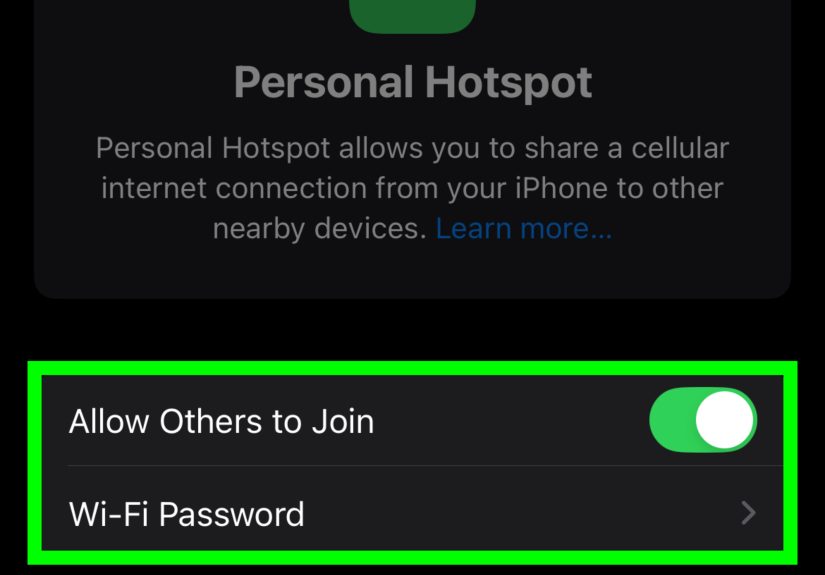
- You are looking for the Personal Hotspot password, which is separate from your home Wi-Fi password.
If that last one is the problem, go to Settings > Personal Hotspot to view your iPhone hotspot password. Different password, different mission.
Common Mistakes People Make
When users search “how to see Wi-Fi password on iPhone,” they often make the same wrong turns:
1. Confusing the current network with a saved network
The active network is usually the easiest to reveal. Older saved networks may require the Edit route or the Passwords app.
2. Assuming every method works on every iPhone
Some features depend on iOS version. iOS 18 adds the dedicated Passwords app experience, while earlier versions lean more heavily on Settings.
3. Forgetting that router access is separate
Your Wi-Fi password and your router admin password are not the same thing. One gets devices onto the network. The other controls the network itself.
4. Reading the password wrong
Capital letters, symbols, and lookalike characters such as O and 0 are classic troublemakers. When possible, tap Copy Password instead of trusting your eyeballs at 11:43 p.m.
Security Tips Before You Share That Password Everywhere
Just because your iPhone can show the Wi-Fi password does not mean you should fling it into every group chat like confetti. A few smart habits help keep your network safer:
- Use a strong Wi-Fi password with a mix of letters, numbers, and symbols.
- Prefer copying or QR sharing over reading it aloud in public.
- Change the password if it has been shared too widely or with people you no longer trust.
- Keep your iPhone and router firmware updated.
- If you’re the network owner, check that your router uses a modern security standard such as WPA2 or WPA3.
Final Thoughts
Finding a Wi-Fi password on iPhone is no longer a weird tech scavenger hunt. In most cases, you can reveal it directly in Settings, browse saved networks through Edit, or use the much friendlier Passwords app in iOS 18. And if your own iPhone comes up empty, Apple’s ecosystem and your router controls usually provide a backup path.
The biggest lesson is simple: do not panic, do not reboot three things for no reason, and do not assume the password vanished into the void. Your iPhone, your Mac, your iPad, or your router probably still knows it. You just need the right door to open.
Real-Life Experiences: When Knowing Your iPhone Wi-Fi Password Saves the Day
One of the funniest things about modern life is how quickly a room full of calm adults can become a stressed-out committee the moment someone needs the Wi-Fi password. It sounds small, but the need shows up at the most inconvenient times. You’re setting up a new smart TV. A relative comes to visit and wants to connect their tablet. Your laptop drops the network after an update. A wireless printer decides today is the day it no longer remembers anything. Suddenly, your iPhone becomes less of a phone and more of a tiny emergency response center.
A lot of people first discover this feature during a very ordinary household moment. Maybe you’re helping your parents connect a streaming stick, and nobody can find the paper where the internet provider wrote the original password. The router is tucked behind a cabinet, there’s dust everywhere, and moving it feels like starting a home renovation project by accident. Instead of crawling on the floor and squinting at a faded sticker, you open your iPhone, tap Wi-Fi, reveal the password, and feel like the most competent person in the building.
Then there are the guest situations. A friend comes over, asks for the Wi-Fi, and you realize the password is one of those impossible strings created during setup years ago. It’s full of random characters, one capital letter in a suspicious place, and a number that may or may not be an eight. You read it out once. They type it wrong. You read it slower. They type it wrong again. At that point, the Passwords app QR code feature feels less like a convenience and more like a peace treaty.
Work-from-home life adds another layer. If you use a laptop, tablet, external monitor, smart speaker, and a couple of other connected gadgets, your home network becomes the invisible backbone of everything. When one device drops off and asks to reconnect, being able to see your saved Wi-Fi password on iPhone saves a surprising amount of time. It keeps you from logging into the router dashboard when you do not need to, and it helps you solve the problem in under a minute instead of turning it into an afternoon project.
Travel creates its own version of the same story. You might visit a relative’s house twice a year and never remember the password between trips. Your iPhone, however, may remember it just fine. That means less asking around, less hunting through text messages, and less dependence on the one family member who “set it up” and is now unreachable because they’re mowing the lawn or ignoring everyone on purpose.
What makes these experiences so relatable is that Wi-Fi passwords are not exciting until you need one immediately. Then they become the main character. The ability to find, copy, or share them from iPhone turns a frustrating little household mystery into a quick fix. It is not flashy. It will not win design awards. But in the real world, this tiny feature can save a setup session, a family visit, a work call, or your last bit of patience at the end of a long day.