Table of Contents >> Show >> Hide
- Before You Fix It: What “Color Inversion” Actually Means on iPhone
- How to Turn Off Color Inversion on an iPhone (4 Simple Steps)
- If Your iPhone Still Looks Weird: Common Look-Alikes (Not Inversion)
- Troubleshooting: Color Inversion Keeps Turning On
- When Invert Colors Is Helpful (and When Dark Mode Is Better)
- FAQ: Quick Answers for Common “Inverted Screen” Questions
- Conclusion
- Experiences: Real-World Moments When Color Inversion Sneaks In (and How People Fix It)
At some point, every iPhone owner has had a “Why does my screen look like a haunted photocopier?” moment. One second you’re scrolling like a normal human, the next your whites are black, your photos look weird, and you’re convinced you accidentally opened a portal to an alternate universe.
Good news: you’re not cursed. Your iPhone is almost certainly using a built-in Accessibility feature called Invert Colors. Better news: turning it off is quick, painless, and doesn’t require sacrificing your charger to the Apple gods.
Before You Fix It: What “Color Inversion” Actually Means on iPhone
“Color inversion” on iPhone usually refers to one (or both) of these settings:
- Smart Invert: Inverts most interface colors but tries to leave images, videos, and some media alone so your selfies don’t look like alien evidence.
- Classic Invert: Inverts everythingincluding images and videoslike a dramatic “negative film” effect.
This is different from Dark Mode. Dark Mode is a design theme that many apps support intentionally. Invert Colors is more like a system-wide visual flip, meant to help some users see content more comfortably in certain conditions.
How to Turn Off Color Inversion on an iPhone (4 Simple Steps)
These steps work on modern iOS versions and are the most reliable way to get your screen back to normal. (Menu labels may vary slightly by iOS version, but the path is essentially the same.)
-
Step 1: Open Settings and go to Accessibility
Tap Settings, scroll a bit, and select Accessibility. This is the iPhone’s control room for vision, hearing, mobility, and other helpful features.
-
Step 2: Tap Display & Text Size
Inside Accessibility, look for Display & Text Size. This section controls visual adjustments like contrast, text clarity, andyepcolor inversion.
-
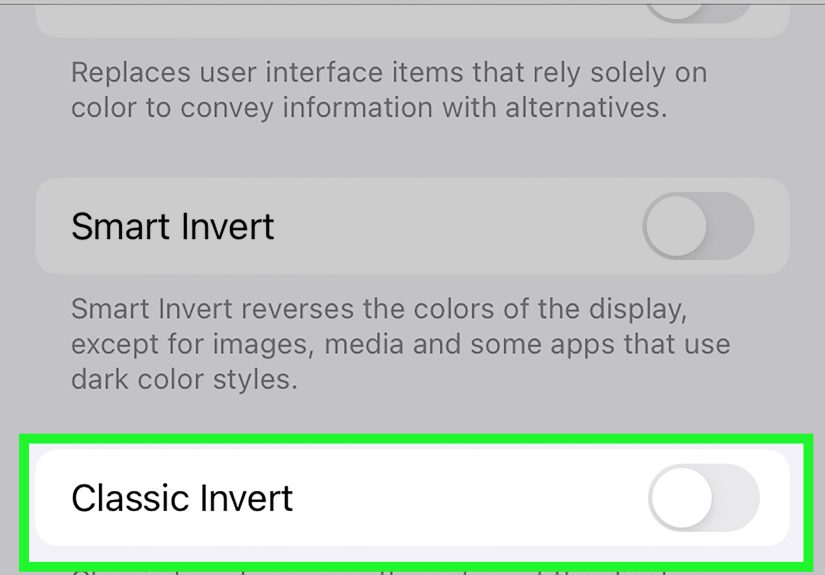
Step 3: Turn off Smart Invert and Classic Invert
You’ll see two toggles:
- Smart Invert switch it Off
- Classic Invert switch it Off
Pro tip: if you only turn off one and your screen still looks inverted, the other toggle is likely still on. Turn off both to be safe.
-
Step 4: Stop it from turning on again (Shortcut check)
If inversion “mysteriously” returns, it’s often being triggered by a shortcut. Do this quick prevention sweep:
Option A: Remove Invert Colors from the Accessibility Shortcut (triple-click)
Go to Settings > Accessibility > Accessibility Shortcut. If Smart Invert, Classic Invert, or Invert Colors is selected, unselect it. This prevents accidental toggles from a triple-click on the Side button (Face ID iPhones) or Home button (Touch ID iPhones).
Option B: Check Back Tap
If your iPhone supports Back Tap and someone assigned inversion to it (maybe you, maybe your cat, maybe “Past You” who loves chaos), go to Settings > Accessibility > Touch > Back Tap. Check both Double Tap and Triple Tap and set inversion-related actions to None or something less… surprising.
Option C: Check the Action button (supported models)
Some iPhone models can map the Action button to an Accessibility feature. If inversion keeps turning on, confirm the Action button isn’t assigned to Smart/Classic Invert or Accessibility Shortcuts.
Option D: Check Control Center
If you added Accessibility controls to Control Center, it’s possible to tap them by accident. You can customize Control Center to remove or rearrange those controls for fewer accidental “screen flips.”
If Your iPhone Still Looks Weird: Common Look-Alikes (Not Inversion)
Sometimes the screen looks “inverted,” but the cause is another display setting. Here are the usual suspects:
Color Filters
Color Filters can dramatically shift hues (and can look “wrong” if enabled accidentally). Check Settings > Accessibility > Display & Text Size > Color Filters and make sure it’s off (or set correctly).
Zoom Filter
The Zoom accessibility feature includes filters that can change colors. If something feels off, check Settings > Accessibility > Zoom and verify it’s off or set to “None.”
Dark Mode (not a problem, just a vibe)
If your screen is simply darker (but not “negative photo” weird), you might be in Dark Mode. You can switch it in Settings > Display & Brightness.
Troubleshooting: Color Inversion Keeps Turning On
If your iPhone keeps flipping into inversion like it’s auditioning for a sci-fi movie, here’s a practical checklist. You don’t have to do all of thesejust work top to bottom until the chaos stops.
1) Confirm both inversion toggles are off
Go back to Settings > Accessibility > Display & Text Size and confirm Smart Invert and Classic Invert are both off. It’s easy to disable one and forget the other.
2) Remove inversion from Accessibility Shortcut
The triple-click shortcut is the #1 reason people “accidentally” enable inversion. If it’s selected, one enthusiastic triple-click and boomyour screen becomes a reverse-universe art project.
3) Check Back Tap and Action button assignments
Back Tap and the Action button can be set to run Accessibility actions. If inversion is mapped there, it may trigger during normal handling (especially if you tap the phone a lot while thinking).
4) Check Per-App Settings (the sneaky one)
iOS lets you customize Accessibility settings per app. That means Smart Invert can be “On” for a single appeven if it’s off everywhere else. Go to Settings > Accessibility > Per-App Settings, select the app that looks inverted, and make sure Smart Invert is set to Default (or Off).
5) Restart if the display is stuck
If you toggled everything correctly and the screen still looks wrong, a restart can clear visual glitches. It’s the digital equivalent of “turn it off and on again,” which remains undefeated.
When Invert Colors Is Helpful (and When Dark Mode Is Better)
Invert Colors exists for a reason. Some people use it to reduce eye strain, improve readability in bright apps, or increase contrast in certain situations. That said, for most users who just want a darker interface, Dark Mode is usually the better choice because it’s designed to preserve colors and layout properly.
If you turned on inversion to make the screen easier to view at night, consider trying:
- Dark Mode (cleaner, more consistent)
- Reduce White Point (tones down brightness without color weirdness)
- Increase Contrast (helps text pop without flipping the world upside down)
FAQ: Quick Answers for Common “Inverted Screen” Questions
Why do my photos or videos look strange?
If you used Classic Invert, it inverts everythingincluding photos and videosso media will look odd. Smart Invert tries to avoid inverting images and media, but some apps and content may still display differently.
Can I toggle inversion quickly if I actually like it sometimes?
Yes. The easiest method is the Accessibility Shortcut (triple-click the Side button or Home button), as long as you intentionally enable it and don’t trigger it accidentally. Control Center options, Back Tap, and the Action button can also be used if you prefer quick access.
What if I can’t find “Display & Text Size”?
Use Settings search: open Settings, pull down to reveal search, and type Invert. You should see results for Smart Invert, Classic Invert, or related Accessibility settings.
Conclusion
Turning off color inversion on an iPhone is usually a 30-second fix: head to Accessibility > Display & Text Size, switch off Smart Invert and Classic Invert, then make sure shortcuts (triple-click, Back Tap, Action button, Control Center) aren’t re-triggering the feature.
Once you’ve done that, your iPhone should stop cosplaying as a photographic negativeand go back to being the normal, slightly judgmental rectangle you know and love.
Experiences: Real-World Moments When Color Inversion Sneaks In (and How People Fix It)
Color inversion tends to show up in the wild the same way glitter does: unexpectedly, dramatically, and usually right before you need your phone to behave. A super common scenario happens when someone discovers the triple-click shortcut by accident. They’re trying to lock the screen quickly, or they fidget with the Side button while the phone is waking upand suddenly the whole interface flips. The first reaction is almost always the same: “Did my screen break?” The second reaction is Googling a phrase like “iPhone screen negative help,” which is basically the digital version of running around waving your arms.
Another classic moment: a parent hands their iPhone to a kid “just for a minute.” Ten minutes later, the child returns it with the confidence of a tiny hacker, and your icons look like they’ve been through a sci-fi filter. Kids love tapping everything, and Accessibility settings are absolutely tappable. Inversion might be turned on directly in Display & Text Size, or triggered by a shortcut that was already set up. The fix is usually simpleturn off Smart Invert and Classic Invertbut the best “experience-based” lesson is prevention: remove inversion from the Accessibility Shortcut so a triple-click doesn’t accidentally flip your screen again during the next episode of “Let me see your phone.”
Some people run into inversion while trying to create “extra dark mode.” They’re in a bright app that doesn’t play nicely with Dark Mode, so they experiment with Smart Invert (which can feel like a cheat code). It’s genuinely useful in certain cases, especially for reading at night. The problem is when you forget it’s on and later open Photos or a shopping app and everything looks slightly off. The experience here is learning the difference between Smart Invert (usually tolerable) and Classic Invert (maximum chaos). If you like the effect but want control, set a deliberate shortcut you won’t trigger by accidentlike Control Center placement you won’t fat-finger, or a Back Tap gesture you can actually remember.
People also report a “wait, it’s only happening in one app” situation. This is where Per-App Settings enters like a plot twist. You might have Smart Invert turned off globally, but a specific app is still inverted because it was customized separately. This is surprisingly common for apps that don’t support Dark Mode wellsomeone sets Smart Invert for that app and later forgets. The fix feels oddly satisfying: go to Per-App Settings, find the app, and set Smart Invert back to Default. Suddenly everything looks normal again, and you get that tiny rush of victory usually reserved for finding your keys on the first try.
Finally, there’s the “I thought it was inversion, but it wasn’t” experience. Color Filters, Zoom filters, or contrast settings can mimic the vibe of inversion, especially if your colors look strange rather than fully flipped. The best habit is to treat it like a quick diagnostic: first check Smart/Classic Invert, then check Color Filters, then check Zoom. Once you’ve done it once or twice, you’ll recognize the symptoms fastand you’ll be the person other people text when their phone starts acting like a spooky mirror dimension.