Table of Contents >> Show >> Hide
- Why WhatsApp Notifications May Be Off on Android
- How to Turn On WhatsApp Notifications on Android: 12 Steps
- Step 1: Open Your Android Settings
- Step 2: Go to Apps or App Management
- Step 3: Find and Tap WhatsApp
- Step 4: Tap Notifications
- Step 5: Enable Notification Categories
- Step 6: Set Alerts to Ring, Vibrate, or Pop on Screen
- Step 7: Check Lock Screen Notifications
- Step 8: Turn On WhatsApp Notification Dots or App Icon Badges
- Step 9: Open WhatsApp Notification Settings
- Step 10: Choose Message, Group, and Call Notification Sounds
- Step 11: Unmute Important Chats
- Step 12: Disable Battery, Data, and Do Not Disturb Blocks
- Quick Troubleshooting: WhatsApp Notifications Still Not Working?
- Best WhatsApp Notification Settings for Everyday Use
- Privacy Tips for WhatsApp Notifications on Android
- Common Android Brand Differences
- Experience Notes: What Actually Helps in Real Life
- Conclusion
Few modern mysteries are as annoying as missing a WhatsApp message and then discovering it arrived 47 minutes ago, quietly sitting there like it was afraid to bother you. Whether it is a family group chat planning dinner, a work message that should not have gone into digital hibernation, or a friend sending “Are you ignoring me?” with theatrical timing, WhatsApp notifications matter.
The good news: turning on WhatsApp notifications on Android is usually simple. The slightly less good news: Android phones come in many flavorsGoogle Pixel, Samsung Galaxy, Motorola, OnePlus, Xiaomi, and othersand each brand likes to rearrange menus like furniture before guests arrive. Still, the core process is the same: allow WhatsApp notifications in Android settings, enable alerts inside WhatsApp, check notification categories, and make sure battery or data restrictions are not putting your messages in a nap pod.
This guide walks you through how to turn on WhatsApp notifications on Android in 12 steps, with practical fixes for missing sounds, lock screen alerts, pop-up banners, notification dots, and delayed messages. Let’s bring those pings backresponsibly, of course. Nobody needs 246 group chat alerts during lunch.
Why WhatsApp Notifications May Be Off on Android
Before we tap our way through settings, it helps to know why WhatsApp notifications may stop working. On newer Android versions, apps need permission to send notifications. If you accidentally tapped “Don’t allow” during setup, WhatsApp can receive messages but stay quiet. Your phone may also silence alerts through Do Not Disturb, Battery Saver, Data Saver, muted chats, disabled notification categories, or custom settings inside WhatsApp itself.
In other words, WhatsApp notifications are controlled by two bosses: Android system settings and WhatsApp’s own notification settings. To fix the problem properly, you need to check both. Think of it like turning on a lamp: the bulb can be fine, but if the wall switch is off, you are still standing in the dark wondering why technology has betrayed you.
How to Turn On WhatsApp Notifications on Android: 12 Steps
Step 1: Open Your Android Settings
Start by opening the Settings app on your Android phone. You can usually find it by swiping down from the top of the screen and tapping the gear icon. On most phones, this is the control room for app permissions, notification behavior, sounds, lock screen alerts, and battery rules.
If your Android phone has a search bar at the top of Settings, use it. Type WhatsApp notifications or simply notifications. This is often faster than scrolling through menus like you are hunting for buried treasure.
Step 2: Go to Apps or App Management
Next, look for a section called Apps, Apps & notifications, App management, or Applications. The exact wording depends on your Android version and phone brand.
On Google Pixel phones, you may see Apps. On Samsung Galaxy devices, you will usually find Apps directly in Settings. On OnePlus and Motorola phones, the wording may vary slightly, but the goal is the same: get to the list of installed apps so you can adjust WhatsApp directly.
Step 3: Find and Tap WhatsApp
Scroll through the app list and tap WhatsApp. If you have many apps installed, use the search icon inside the Apps page and type “WhatsApp.” Once you open WhatsApp’s app info page, you should see options such as Notifications, Permissions, Mobile data, Battery, Storage, and Open by default.
This page is important because Android can block WhatsApp notifications even if everything inside WhatsApp looks perfectly fine. When in doubt, always check Android’s app-level settings first.
Step 4: Tap Notifications
Inside WhatsApp’s app info page, tap Notifications. This is where Android lets you control whether WhatsApp can send alerts at all. If notifications are disabled here, WhatsApp can shout into the void all day, but your phone will not show you anything.
Look for a main switch such as Allow notifications, All WhatsApp notifications, or Show notifications. Turn it on. If this switch was off, you may have just solved the mystery. Please take a small victory lap around your desk.
Step 5: Enable Notification Categories
Many Android phones split app notifications into categories. For WhatsApp, you may see options such as Message notifications, Group notifications, Call notifications, Media playback, Chat backup, or Other notifications.
Turn on the categories you care about. At minimum, enable message notifications and call notifications. If you want alerts from group chats, make sure group notifications are enabled too. If you only turn on one category, you may receive private message alerts but miss group messagesor the other way around. Android is powerful, but it will absolutely follow overly specific instructions.
Step 6: Set Alerts to Ring, Vibrate, or Pop on Screen
Once WhatsApp notifications are allowed, tap individual notification categories to customize how they behave. Choose Alerting instead of Silent if you want sound or vibration. On some Android phones, you can also enable Pop on screen, Banner, or Floating notification so WhatsApp messages appear briefly while you are using the phone.
This step matters because notifications can be technically “on” but set to silent. That means your phone receives the message, puts it in the notification shade, and refuses to make eye contact. If you want a sound, vibration, or banner, make sure the notification category is set as an alertnot silent.
Step 7: Check Lock Screen Notifications
If WhatsApp notifications appear only after you unlock your phone, check lock screen settings. Go to Settings > Notifications > Lock screen notifications. Choose an option that allows notifications to show on the lock screen.
For privacy, Android may let you choose between showing all notification content, hiding sensitive content, or hiding notifications completely. A balanced option is to show that you have a WhatsApp notification while hiding the message preview. That way, your phone tells you something arrived without broadcasting your friend’s dramatic “CALL ME!!!” to everyone within eyebrow distance.
Step 8: Turn On WhatsApp Notification Dots or App Icon Badges
If you want the little dot or number on the WhatsApp app icon, enable notification badges. On many Android phones, go to Settings > Notifications > Advanced settings and turn on Notification dot on app icon or App icon badges.
Samsung Galaxy phones often provide badge styles such as dots or numbers. Pixel phones usually use notification dots. If badges are enabled globally but WhatsApp still does not show them, return to Settings > Apps > WhatsApp > Notifications and make sure badges are allowed for WhatsApp categories.
Step 9: Open WhatsApp Notification Settings
Now check settings inside WhatsApp itself. Open WhatsApp, tap the three-dot menu in the top-right corner, then tap Settings. Go to Notifications.
Here you can manage notification tones, vibration, popup behavior where available, light settings on supported devices, group notifications, message notifications, and call ringtones. If WhatsApp’s internal notification tone is set to none or vibration is disabled, your Android settings may be correct but the app may still seem suspiciously quiet.
Step 10: Choose Message, Group, and Call Notification Sounds
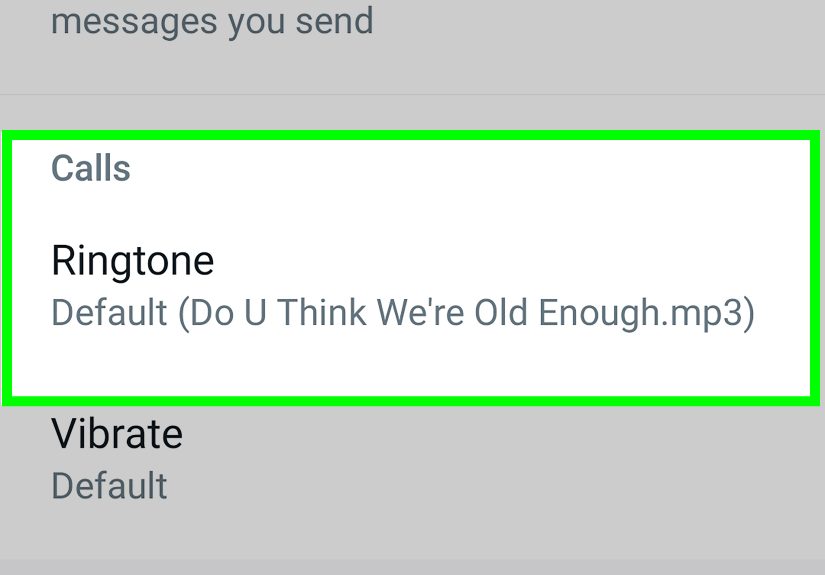
Inside WhatsApp’s Notifications menu, check the settings for Messages, Groups, and Calls. Select a notification tone you can actually hear. Choose vibration if you want physical alerts. For calls, set a ringtone that is different enough from your regular phone ringtone so you know when someone is calling through WhatsApp.
This is also a great time to customize your WhatsApp experience. Maybe your family group gets a gentle tone, your best friend gets something more noticeable, and that one group chat from 2017 stays muted forever, preserved like a fossil. Notification control is not just technicalit is emotional housekeeping.
Step 11: Unmute Important Chats
If only one person or one group is not sending alerts, the chat may be muted. Open WhatsApp and go to that conversation. Tap the contact or group name at the top, then look for Notifications or Mute notifications. If the chat is muted, turn mute off.
You can also customize notifications for individual chats. This is helpful if you want certain people to stand out without making every WhatsApp message sound like a breaking news alert. For example, you might give a family member, close friend, or business contact a unique sound so you know when the message is worth checking quickly.
Step 12: Disable Battery, Data, and Do Not Disturb Blocks
If WhatsApp notifications are turned on but still arrive late, check power and data restrictions. Go to Settings > Apps > WhatsApp > Battery and allow background activity if your phone offers that option. Avoid putting WhatsApp into deep sleep or restricted battery mode. Then check Mobile data and make sure background data is allowed.
Also check Do Not Disturb. If it is on, WhatsApp alerts may be silenced unless you add WhatsApp or specific contacts as exceptions. Battery Saver and Data Saver can also delay messages because they limit background activity. That is great when your battery is gasping at 3%, but not great when you need timely messages.
Quick Troubleshooting: WhatsApp Notifications Still Not Working?
Restart Your Phone
Restarting sounds basic, but it fixes a surprising number of notification issues. A reboot refreshes background services, clears temporary glitches, and gives your phone the digital equivalent of a brisk walk and a glass of water.
Update WhatsApp
Open the Google Play Store, search for WhatsApp, and tap Update if available. App updates often fix bugs related to notifications, permissions, calls, syncing, and Android compatibility.
Update Android
Go to Settings > System > Software update or Settings > Software update, depending on your device. Installing the latest available Android update can improve notification reliability, security, and app behavior.
Check Your Internet Connection
WhatsApp needs an active internet connection to deliver messages. Test both Wi-Fi and mobile data. If notifications arrive on Wi-Fi but not mobile data, background mobile data may be restricted. If they arrive on mobile data but not Wi-Fi, your Wi-Fi network may be blocking or delaying background activity.
Clear WhatsApp Cache
On many Android phones, you can clear cache by going to Settings > Apps > WhatsApp > Storage > Clear cache. Do not tap Clear data unless you know what you are doing and have backed up your chats. Clearing cache removes temporary files; clearing data can remove local app information.
Best WhatsApp Notification Settings for Everyday Use
The best setup depends on how you use WhatsApp. For most people, a balanced configuration works best: enable private message notifications, enable call notifications, allow lock screen alerts without full message previews, turn on notification dots, and keep most group chats muted unless they are genuinely important.
If you use WhatsApp for work, consider assigning a distinct sound to key contacts or business groups. If you use WhatsApp mainly for family and friends, keep message notifications alerting but control group chats carefully. Group chats are like popcorn machines: fun at first, then suddenly everything is everywhere.
Privacy Tips for WhatsApp Notifications on Android
Turning on notifications does not mean you have to show every message preview on your lock screen. If privacy matters, set lock screen notifications to hide sensitive content. This lets you know a message arrived without showing the sender and text to anyone who glances at your phone.
You can also manage WhatsApp preview settings inside the app if available on your version. Another smart move is using app lock or biometric lock for WhatsApp. Notifications help you respond faster, but privacy settings help make sure your messages do not become an accidental public announcement.
Common Android Brand Differences
Samsung Galaxy
Samsung phones often include extra notification controls under Settings > Notifications > Advanced settings. You may need to enable notification categories for each app to customize message, group, and call alerts. Samsung also offers app icon badges, lock screen notification styles, brief pop-up settings, and sleeping app controls that can affect WhatsApp.
Google Pixel
Pixel phones keep notification settings fairly close to standard Android. Look under Settings > Notifications > App notifications or Settings > Apps > WhatsApp > Notifications. Pixel devices also make it easy to manage lock screen notifications, notification dots, notification history, and conversation priority.
OnePlus, Motorola, Xiaomi, and Others
Other Android brands may include aggressive battery optimization. If WhatsApp alerts are delayed, battery restrictions are often the culprit. Look for settings such as Battery optimization, Background activity, Auto-launch, or App battery management. Allow WhatsApp to run in the background for faster notifications.
Experience Notes: What Actually Helps in Real Life
After helping plenty of Android users fix WhatsApp notifications, one pattern shows up again and again: people usually check only one place. They open WhatsApp, change the notification tone, and assume the job is done. But Android notifications are layered. If Android blocks WhatsApp at the system level, the app’s own settings cannot magically override it. That is why the best first move is always checking Settings > Apps > WhatsApp > Notifications.
A common real-world example is the Android notification permission prompt. Someone installs WhatsApp on a new phone, taps quickly through setup, accidentally denies notifications, and then wonders why messages arrive silently. The app works. Chats update. Calls may appear only when WhatsApp is open. But no alert shows because Android never granted permission. Turning on Allow notifications fixes the issue immediately.
Another frequent problem happens on phones with strong battery management. Some devices try so hard to save battery that they treat messaging apps like they are sneaking out after curfew. WhatsApp may be restricted in the background, which causes delayed alerts. The message appears only when the user unlocks the phone or opens the app. In that case, allowing background data and removing battery restrictions can make notifications feel instant again.
Muted chats are also sneaky. A user may say, “WhatsApp notifications do not work,” but after testing, private messages from other contacts appear normally. The issue is one muted group or one muted contact. This often happens when someone mutes a busy group for eight hours, one week, or alwaysand then forgets. The fix is simple: open the chat, tap the name, and unmute notifications.
For everyday comfort, I recommend using different notification levels instead of turning everything on loudly. Keep direct messages alerting, keep calls loud enough to notice, and mute nonessential groups. For important groups, choose a softer tone rather than the same sound you use for urgent messages. Your brain will thank you. So will anyone sitting near you when your cousin’s group chat discovers memes at midnight.
Lock screen privacy is another setting worth adjusting carefully. Showing message previews is convenient, but it can also reveal private conversations. A better setup for many people is allowing lock screen notifications while hiding sensitive content. You still know WhatsApp needs attention, but the actual message stays private until you unlock the phone.
Finally, test your settings after changing them. Ask a friend to send a WhatsApp message, send yourself a message from WhatsApp Web if you use it, or create a quick test with another device. Do not assume the fix worked until you see the notification, hear the sound, feel the vibration, or spot the badge. Technology loves confidence; it also loves proving confidence wrong.
Conclusion
Turning on WhatsApp notifications on Android is not difficult, but it does require checking the right places. Start with Android’s app notification permission, then review WhatsApp’s internal notification settings, notification categories, lock screen behavior, sounds, vibration, badges, muted chats, battery rules, data settings, and Do Not Disturb. Once these pieces line up, WhatsApp should alert you properly for messages, groups, and calls.
The key is not just making WhatsApp louderit is making it smarter. Choose alert settings that help you respond to important messages without turning your phone into a tiny, anxious robot. With the 12 steps above, you can bring back missing WhatsApp notifications and customize them so they fit your daily routine.
Note: Android menu names can vary by phone brand, model, and software version. If your device uses slightly different wording, look for similar options such as Apps, Notifications, App notifications, Battery, Background data, Do Not Disturb, and Lock screen notifications.