Table of Contents >> Show >> Hide
- What a Cell Phone Actually Does
- Get to Know the Parts of Your Phone
- How to Set Up a Cell Phone for the First Time
- Learn the Basic Gestures and Screens
- How to Make and Receive Calls
- How to Send Text Messages
- How to Use Apps Without Making a Mess
- How to Use Internet, Maps, and Email
- How to Manage Notifications, Sound, and Focus
- How to Charge Your Phone and Make the Battery Last
- How to Stay Safe on a Cell Phone
- Common Beginner Mistakes to Avoid
- Final Thoughts
- Experiences Related to How to Use a Cell Phone
Using a cell phone for the first time can feel a little like being handed the controls to a spaceship that also takes selfies. The good news is that modern phones are much easier to learn than they look. Once you understand the basics, a cell phone becomes less of a mysterious glowing brick and more of a pocket-size helper for calls, texts, maps, photos, banking, music, and daily life.
This guide walks through the essentials in plain English. Whether you have an iPhone or an Android phone, the core ideas are the same: learn the buttons, connect to Wi-Fi, make calls, send texts, install apps carefully, and adjust settings so the phone works for you instead of bossing you around. By the end, you should feel a lot more confident using a cell phone without needing a teenager to translate every screen.
What a Cell Phone Actually Does
At its core, a cell phone is a communication device that connects through a cellular network or Wi-Fi. You can use it to call people, send text messages, check voicemail, browse the internet, use apps, take photos, get directions, join video calls, and receive emergency alerts. Smartphones also let you manage notifications, control privacy settings, store contacts, and use helpful tools like alarms, calendars, flashlights, and note apps.
If that sounds like a lot, do not panic. You do not need to master every feature on day one. Start with the basics that matter most to your life: calling, texting, charging, contacts, and settings. Everything else can come later.
Get to Know the Parts of Your Phone
Before you start tapping wildly and accidentally ordering fish food at 2 a.m., get familiar with the physical parts of the phone:
- Power button: Turns the screen on and off. On many phones, holding it opens power options.
- Volume buttons: Adjust call volume, media sound, or ringer volume.
- Charging port: Usually USB-C or Lightning, depending on the phone.
- Front and rear cameras: Front for selfies and video calls, rear for regular photos and video.
- Speakers and microphone: Used for calls, videos, voice notes, and speakerphone.
- Touchscreen: The main control center where you tap, swipe, and type.
Most phones also use a lock screen, where you unlock the device with a passcode, fingerprint, or face recognition. That lock screen is your first line of defense if the phone gets lost, so set it up early.
How to Set Up a Cell Phone for the First Time
1. Charge It Fully
Before doing anything important, plug in the phone and give it a healthy charge. A half-dead phone makes learning harder and drama easier.
2. Turn It On
Press and hold the power button until the screen lights up. Follow the on-screen setup steps. You will usually choose a language, region, and Wi-Fi network.
3. Connect to Wi-Fi
Wi-Fi helps with setup, updates, app downloads, and backing up data. If you are at home, choose your home Wi-Fi network and enter the password. If your signal is weak later, remember that phone performance can be affected by distance from towers, walls, and interference, so Wi-Fi can be a lifesaver indoors.
4. Sign In to Your Account
On iPhone, you will sign in with an Apple Account. On Android, you will usually sign in with a Google Account. This lets you download apps, back up contacts and photos, and sync email, calendars, and settings.
5. Add a Passcode or Biometric Unlock
Choose a secure PIN, passcode, fingerprint, or face unlock. This step is boring in the same way seat belts are boring: annoying for three seconds and very useful later.
6. Update the Phone
Check for software updates after setup. Updates often improve security, fix bugs, and make the phone run better.
Learn the Basic Gestures and Screens
Nearly every cell phone relies on a few simple touchscreen actions:
- Tap: Open something.
- Swipe: Move between screens or dismiss notifications.
- Press and hold: Open more options.
- Pinch: Zoom in or out on photos and webpages.
You should also learn these common screens:
- Home screen: Where your apps live.
- App drawer or app library: A full list of apps, depending on your phone.
- Notifications panel: Shows recent alerts, messages, and reminders.
- Quick settings or Control Center: Lets you quickly adjust Wi-Fi, Bluetooth, brightness, airplane mode, flashlight, and sound.
On iPhone, Control Center gives quick access to useful controls like Airplane Mode, Do Not Disturb, brightness, volume, and the flashlight. On Android, Quick Settings works similarly. These shortcuts save time and make your phone feel much less chaotic once you use them regularly.
How to Make and Receive Calls
To make a call, open the Phone app, tap the keypad, enter a number, and press the call button. You can also tap a saved contact instead of typing the number every time. Once the call connects, you will usually see options like mute, speaker, keypad, hold, and add call.
Useful call features to know
- Speakerphone: Lets you talk without holding the phone to your ear.
- Mute: Turns off your microphone so the other person cannot hear you.
- Contacts: Save names and numbers so you do not have to memorize anything except maybe your coffee order.
- Call history: Shows recent incoming, outgoing, and missed calls.
If calls are dropping or not coming through, check whether Airplane Mode is on, whether you have cellular service, and whether Wi-Fi Calling is available on your phone. Many smartphones include built-in Wi-Fi Calling, which can help when regular signal indoors is weak.
How to check voicemail
Voicemail stores messages when you miss calls. Many carriers let you set it up by pressing and holding the number 1 in the Phone app and following the prompts. Some phones also support visual voicemail, which shows a list of messages you can play in any order.
Emergency calls
A cell phone is also a safety device. In the United States, 911 is for emergencies such as fire, crime, or requesting medical help. Many phones also support emergency features, including emergency contacts, medical information, and emergency SOS tools. Set those up before you need them, not during a panic when your hands are shaking and your battery is at 4 percent.
How to Send Text Messages
Texting is one of the easiest and most useful phone skills to learn. Open your Messages app, tap the button to start a new message, choose a contact, type your message, and hit send.
That is the simple version. Here is what helps in real life:
- Use emojis sparingly: One smiley says “friendly.” Fourteen crying-laughing faces say “help.”
- Attach photos: Tap the camera or photo icon inside a conversation.
- Use voice typing: Tap the microphone icon on the keyboard if typing feels slow.
- Start group chats carefully: Great for family updates, risky for accidental oversharing.
If you get strange texts with urgent warnings, prize claims, fake delivery notices, or suspicious links, do not tap. Spam texts often try to steal passwords, account details, or personal information. Use your phone’s report spam option when available, and you can also forward spam texts to 7726 to alert your wireless provider.
How to Use Apps Without Making a Mess
Apps are the tools that make a smartphone smart. You use them for weather, email, navigation, social media, music, banking, shopping, and much more. To install apps, open the App Store on iPhone or Google Play on Android.
Smart app habits
- Download apps from official stores, not random links in texts or sketchy websites.
- Read reviews and app descriptions before installing.
- Check what permissions the app wants, such as location, camera, contacts, or microphone access.
- Remove apps you do not use.
Android phones include a Permission Manager where you can review and change app permissions. Google Play also shows a Data Safety section so you can see how an app says it handles data. On many Android phones, Google Play Protect scans apps for harmful behavior and is turned on by default. iPhone users should also review privacy permissions regularly in Settings.
The basic rule is simple: if a flashlight app wants your contacts, your location, your camera, and possibly your firstborn child, that is your cue to back away slowly.
How to Use Internet, Maps, and Email
Your web browser lets you search for information, read articles, watch videos, and access websites. Open Safari on iPhone or Chrome on Android, tap the search bar, and type what you need.
Maps apps help with driving, walking, and finding places nearby. You can search for an address, start directions, and often save favorite locations like Home and Work. Email apps let you read and send messages, reset passwords, receive receipts, and handle everyday tasks that used to require a desktop computer and a larger amount of patience.
These three features alone can make a phone incredibly useful for daily life, especially if you are learning one step at a time.
How to Manage Notifications, Sound, and Focus
Notifications are alerts from messages, apps, reminders, social media, news, and more. Left unmanaged, they can turn your phone into a slot machine with opinions. So take control early.
Adjust your sound settings
- Set a ringtone you can actually hear.
- Adjust media, call, and notification volume separately if your phone supports it.
- Use vibrate or mute when you need quiet.
- Assign special ringtones to key contacts if that helps.
Use Do Not Disturb or Focus modes
Both iPhone and Android let you limit interruptions. You can silence most notifications, allow only certain contacts, and even let repeat callers come through in case of emergencies. This is especially helpful during sleep, work, meetings, or when you simply want ten peaceful minutes without your phone announcing that someone liked a picture of a sandwich.
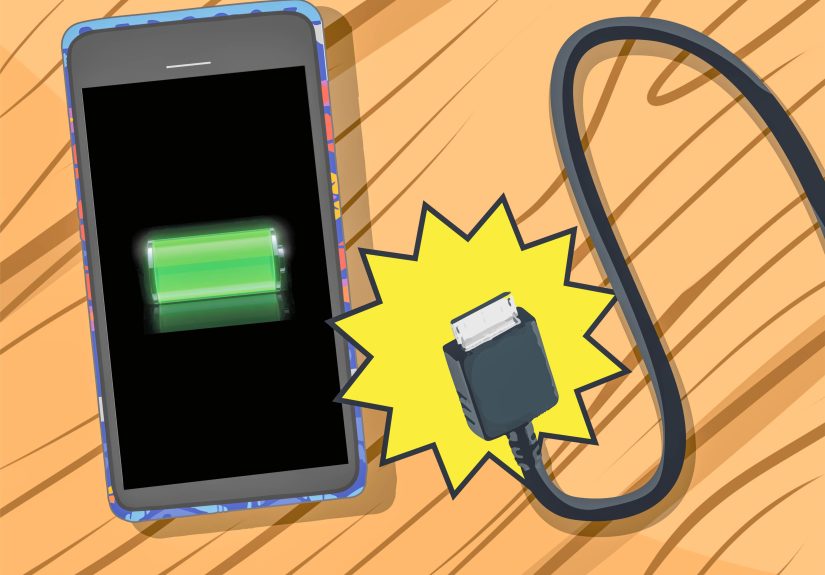
How to Charge Your Phone and Make the Battery Last
Most people do not think about battery life until the phone dies at the worst possible moment, usually while using maps in an unfamiliar neighborhood. To avoid that cinematic experience, build a few basic habits:
- Charge your phone regularly, especially before travel.
- Lower screen brightness if the battery is draining fast.
- Use Battery Saver or Low Power Mode when needed.
- Turn off features you are not using, like Bluetooth or hotspot.
- Keep apps updated and close anything that is clearly misbehaving.
If your battery drains unusually fast, check for apps running in the background, heavy screen use, poor signal, or lots of location tracking.
How to Stay Safe on a Cell Phone
Learning how to use a cell phone also means learning how not to get tricked by one. Scammers love phones because they can call, text, spoof numbers, and create fake urgency in seconds.
Phone safety basics
- Do not trust caller ID completely. Scammers can spoof numbers.
- Do not click suspicious links in texts.
- Do not share passwords, verification codes, or banking details by phone or text.
- Block and report spam calls and junk texts.
- Keep your operating system and apps updated.
- Use a screen lock and enable phone-finding features.
If unwanted calls are driving you crazy, use call blocking or call labeling tools on your phone or through your carrier. The National Do Not Call Registry can reduce sales calls from companies that follow the law, but it will not stop scammers, so blocking tools and healthy skepticism still matter.
Common Beginner Mistakes to Avoid
- Ignoring updates: Old software can mean more bugs and weaker security.
- Installing too many apps: More is not always better. Sometimes more is just more notifications.
- Leaving every permission on: Review what apps can access.
- Using the same weak password everywhere: Please do not make it “1234.” The scammers thank you.
- Never learning settings: A few minutes in Settings can solve many everyday annoyances.
- Panicking when something moves: Most phones can be fixed with calm tapping, not interpretive sighing.
Final Thoughts
The best way to learn how to use a cell phone is to use it for real tasks you care about. Call a family member. Send a photo. Set an alarm. Ask for directions. Add a grocery list. Turn on Do Not Disturb before bed. Small wins build confidence fast.
You do not need to know every feature to be “good with phones.” You just need to understand the basics, stay safe, and practice enough that the phone feels familiar instead of intimidating. Once that happens, your cell phone becomes exactly what it should be: a useful everyday tool, not a tiny stress machine in your pocket.
Experiences Related to How to Use a Cell Phone
For many people, learning to use a cell phone is not one dramatic moment. It is a series of tiny victories. The first time someone answers a call without accidentally hanging up feels surprisingly satisfying. The first successful text message can feel like cracking a secret code. And the first time a person uses maps to find a new coffee shop without asking for directions at a gas station, there is often a quiet little moment of pride.
Beginners often say the hardest part is not the technology itself. It is the fear of “messing something up.” That fear usually fades after a week or two of normal use. Once people realize that most mistakes are reversible, they become more willing to explore. They try the camera, open the settings menu, create a contact, or test voice typing. Then suddenly the phone starts feeling less like a puzzle and more like a helpful assistant.
There are also emotional experiences tied to using a cell phone. A grandparent who learns video calling may get to see a grandchild’s birthday candles from another state. Someone living alone may feel more connected just by texting family each morning. A worker commuting through a new city may rely on maps, transit apps, and mobile payments every day. In these moments, the phone becomes more than a gadget. It becomes a tool for independence, reassurance, and connection.
Of course, the experience is not always smooth. Nearly everyone has a story about texting the wrong person, silencing the ringer by accident, or holding the phone upside down while wondering why the camera looks strange. Plenty of people have tapped a pop-up too quickly, downloaded an app they did not need, or spent ten minutes searching for a message that was sitting in plain sight. These little missteps are normal. They are basically the entry fee for modern life.
What matters most is building habits that make the phone easier to use. Some people organize the home screen with just a few essential apps: Phone, Messages, Camera, Maps, and Photos. Others increase text size, turn on voice assistants, or use favorites lists for the contacts they call most. Small adjustments can completely change the experience. A phone that felt overwhelming on Monday can feel simple by Friday once the settings match the user’s needs.
Many experienced users also say that a cell phone becomes more valuable over time because of the routines it supports. Morning alarms, reminders to take medication, weather checks before leaving the house, grocery lists, shared calendars, and quick photo snapshots all become part of daily life. The phone is no longer just for emergencies or chatting. It becomes a central organizer for ordinary tasks.
In the end, the experience of learning how to use a cell phone is deeply personal. Some people learn for convenience, some for safety, and some because life almost requires it now. But once they get comfortable, most users discover the same thing: a cell phone can save time, reduce stress, and help people stay connected, informed, and capable. That is a pretty solid return from one little device you can carry in your pocket.