Table of Contents >> Show >> Hide
- Why Is My iPhone Video Playing With No Sound?
- 11 Quick Fixes for iPhone Video Playing With No Sound
- 1. Turn Up the Media Volume While the Video Is Playing
- 2. Turn Off Silent Mode or Check the Action Button
- 3. Tap the Video Itself to Unmute It
- 4. Disconnect Bluetooth Headphones, Speakers, or Car Audio
- 5. Test Another Video and Another App
- 6. Clean the Speaker Openings Carefully
- 7. Restart the App and Restart Your iPhone
- 8. Update iOS and Update the App
- 9. Check Whether the Video Was Recorded Without Audio
- 10. Review Camera Audio Settings for New Recordings
- 11. Reset Settings or Contact Apple Support
- App-Specific Fixes for iPhone Video No Sound
- How to Tell If the Problem Is the Video, the App, or the iPhone
- Extra Experience: Real-World Lessons From Fixing iPhone Videos With No Sound
- Conclusion
You press play on an iPhone video, the picture moves, everyone on screen appears to be having a dramatic moment, and yet your phone delivers the emotional range of a silent refrigerator. No music. No voice. No background noise. Just vibes.
If your iPhone video is playing with no sound, do not panic and do not immediately accuse your phone of betrayal. In most cases, the problem is simple: volume is low, Silent mode is interfering with an app, Bluetooth is sending sound somewhere else, the video was muted, or the microphone did not record audio in the first place.
This guide walks through 11 quick fixes for iPhone video no sound problems, including videos in Photos, Safari, YouTube, Instagram, WhatsApp, screen recordings, and videos you recorded yourself. We will start with the easy stuff first because, honestly, sometimes the “technical issue” is just a volume slider hiding in plain sight like a tiny villain.
Why Is My iPhone Video Playing With No Sound?
An iPhone video may play without sound for several reasons. The audio may be muted inside the video player, your iPhone volume may be turned down, Silent mode may affect the app you are using, or audio may be routed to AirPods, Bluetooth speakers, a car stereo, or another external device. In other cases, the video file may have no audio track, the iPhone speaker may be blocked, or a software bug may need a restart or update.
The fastest way to troubleshoot is to separate the problem into three simple questions:
- Is the sound missing from every video? This points to iPhone volume, speaker, Bluetooth, or iOS settings.
- Is the sound missing only in one app? This points to app mute settings, app bugs, or app permissions.
- Is the sound missing only from one specific video? The video may have been recorded, edited, uploaded, or sent without audio.
Now let’s fix the sound before your iPhone decides to audition for a 1920s silent film.
11 Quick Fixes for iPhone Video Playing With No Sound
1. Turn Up the Media Volume While the Video Is Playing
Start with the most obvious fix because it is also the one that fools people the most. Open the video, press play, and use the volume buttons on the side of your iPhone while the video is actively playing.
This matters because iPhone volume can behave differently depending on what you are doing. Ringer volume and media volume are not always the same thing. You may have a loud ringtone but silent video playback, which feels rude, but it happens.
Also check the volume icon inside the video player. Apps like YouTube, Instagram, WhatsApp, and some web players may have their own mute button. Tap the speaker icon if you see one. If the icon shows a slash through it, the video is muted.
2. Turn Off Silent Mode or Check the Action Button
On many iPhone models, the Ring/Silent switch sits on the side of the device. If you see orange, Silent mode is on. Flip the switch toward the screen to turn Silent mode off. On newer iPhone models with an Action button, press and hold the Action button if it is assigned to Silent mode, or go to Settings > Sounds & Haptics and turn Silent mode off.
Silent mode does not mute every type of media in every situation, but some apps may respond to it differently. For example, social media apps and messaging apps sometimes treat Silent mode as a signal to start videos muted. That is why Instagram Reels, WhatsApp Status videos, or other in-app videos may suddenly act like they have taken a vow of silence.
After turning off Silent mode, close the video and replay it. In many cases, the sound comes back immediately.
3. Tap the Video Itself to Unmute It
Some apps automatically start videos muted. This is common in social media feeds because nobody wants a random lunch-break video blasting in a quiet room like a tiny public announcement system.
On Instagram Reels, tap the video while it is playing to turn sound on or off. On YouTube, check whether the player volume icon is muted. In Safari or another browser, tap the video controls and look for a speaker icon. In WhatsApp, make sure the phone volume is up and that the video is not being treated as muted media.
This is especially important if your iPhone sound works in the Photos app but not in one specific app. When that happens, the iPhone speaker is probably fine. The app is the more likely suspect.
4. Disconnect Bluetooth Headphones, Speakers, or Car Audio
Your iPhone may be playing the video sound perfectlyjust not where you expect it. Audio can be routed to AirPods in another room, a Bluetooth speaker in your backpack, your car stereo in the driveway, or a device you forgot was connected.
Open Control Center, tap the audio output icon, and check where the sound is going. You can also go to Settings > Bluetooth and temporarily turn Bluetooth off.
If the sound suddenly returns through your iPhone speaker, congratulations: your video was not broken. It was just whispering into another gadget.
5. Test Another Video and Another App
Before changing every setting on your iPhone, test the problem. Open a different video in the Photos app. Then open a video in another app, such as YouTube or Safari. If only one video has no sound, the file may not contain audio. If every video in every app has no sound, the issue is probably system-wide.
Here is a quick diagnosis:
- Only one video has no sound: The original video may have been muted, edited incorrectly, or recorded without audio.
- Only one app has no sound: Check that app’s mute controls, update the app, or reinstall it.
- No videos have sound anywhere: Check volume, Bluetooth, speaker openings, iOS updates, and speaker health.
This small test saves time. It also prevents you from blaming the entire iPhone when the real problem is one suspicious video file behaving like it has secrets.
6. Clean the Speaker Openings Carefully
If your iPhone video sound is very low, muffled, crackly, or missing from the speaker, check the speaker openings. Dust, pocket lint, makeup, sand, or a badly fitted case can block sound. Remove the case and screen protector if they cover any speaker area.
Use a clean, dry, soft-bristled brush to gently clean the speaker opening. Do not use liquid cleaners. Do not jam sharp objects into the speaker. Your iPhone is a phone, not a treasure chest that needs picking open with a needle.
After cleaning, play the video again and raise the volume. If sound is still missing or distorted across all media, the speaker may need service.
7. Restart the App and Restart Your iPhone
Apps glitch. iPhones glitch. Technology is amazing, but sometimes it needs the digital equivalent of a nap.
First, close the app that has no video sound. Reopen it and test the video again. If that does not work, restart your iPhone. For many recent iPhone models, press and hold the side button and either volume button until the power slider appears. Turn the iPhone off, wait a few seconds, and turn it back on.
If your iPhone is frozen or not responding, a force restart may help. On newer models, press and quickly release Volume Up, press and quickly release Volume Down, then press and hold the side button until the Apple logo appears.
A restart can clear temporary audio routing bugs, app playback glitches, and weird “why is this happening?” moments that have no satisfying explanation.
8. Update iOS and Update the App
If the video has no sound after an iOS update, after installing a new app version, or only in one app, check for updates. Go to Settings > General > Software Update to see whether an iOS update is available.
Then open the App Store, tap your profile icon, and check for app updates. Update YouTube, Instagram, WhatsApp, Google Photos, TikTok, Facebook, or whichever app is having the sound issue.
Updates often fix compatibility problems, playback bugs, and audio issues that appear after system changes. In plain English: sometimes the app and iOS are not fighting; they just need couples counseling in the form of an update.
9. Check Whether the Video Was Recorded Without Audio
If a video you recorded on your iPhone has no sound, test your microphone. Open Voice Memos, make a short recording, and play it back. Then record a quick video in the Camera app and play it in Photos.
If Voice Memos and new Camera videos both have sound, your microphone is probably working. The silent video may have been recorded while the microphone was blocked, while another app was using audio, or with a setting that affected the recording.
Also check whether the video came from a screen recording. On iPhone, screen recordings can include microphone audio only if the microphone option is turned on before recording. To do that, open Control Center, touch and hold the Screen Recording button, tap Microphone, and then start recording.
If the microphone was off during the original screen recording, you cannot magically restore narration that was never captured. Sadly, there is no “enhance the missing sound” button, no matter what crime shows taught us.
10. Review Camera Audio Settings for New Recordings
If your issue happens with videos you record yourself, check your Camera audio settings. On supported iPhone models, go to Settings > Camera > Record Sound. Depending on your iPhone model, you may see options such as Spatial Audio, Stereo, or Mono.
Earlier iPhone models may offer Record Stereo Sound. Stereo recording uses multiple microphones to capture left and right audio. That can sound more natural, but if one microphone is blocked by a case, finger, tripod grip, or wind muff, the result may sound uneven or strangely quiet.
For simple talking-head videos, quick family clips, or videos where clear speech matters more than fancy sound direction, try recording a short test in Mono or with different sound settings if your model supports them. Then compare playback.
Also remove the case before recording a test video. Some thick or poorly designed cases partially cover microphones. Your case may look rugged and heroic, but if it blocks audio, it is basically a tiny plastic soundproof room.
11. Reset Settings or Contact Apple Support
If you have tried volume, Silent mode, Bluetooth, app updates, iOS updates, speaker cleaning, and multiple videos still play with no sound, it may be time for deeper troubleshooting.
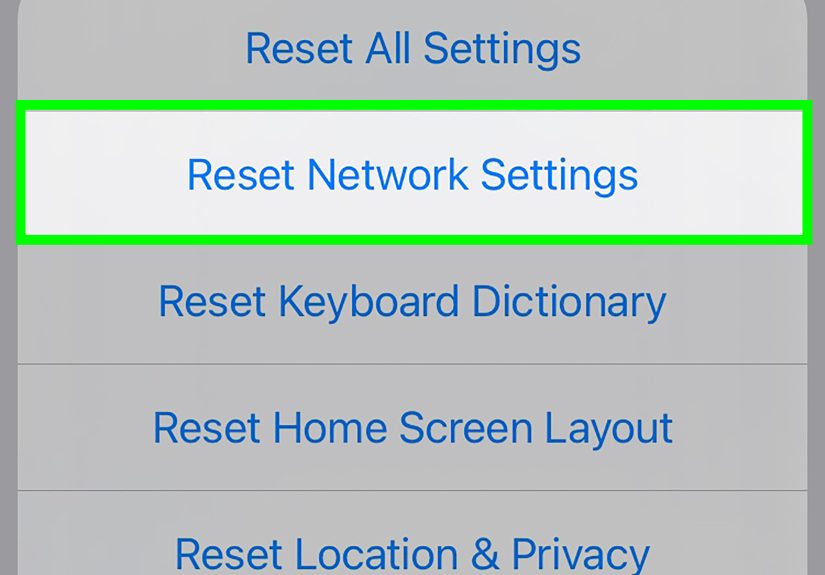
You can reset iPhone settings without erasing your personal data by going to Settings > General > Transfer or Reset iPhone > Reset > Reset All Settings. This resets system settings such as network settings, keyboard dictionary, location settings, privacy settings, and Apple Pay cards. It does not delete your photos, videos, apps, or messages, but you may need to reconfigure preferences afterward.
If the speaker button is dimmed, sound is distorted, or no audio works across calls, music, videos, and alerts, the issue may be hardware-related. In that case, contact Apple Support or visit an Apple Store or authorized service provider.
App-Specific Fixes for iPhone Video No Sound
No Sound on YouTube Videos
If YouTube has no sound on iPhone, check the YouTube player’s mute icon, raise the iPhone media volume while the video is playing, close and reopen the app, and restart your iPhone. If the issue continues, update YouTube from the App Store. You can also test YouTube in Safari to see whether the issue is app-specific.
No Sound on Instagram Reels or Stories
Instagram often starts videos muted in feeds. Tap the Reel or Story while it is playing to turn sound on. Also turn off Silent mode and raise the media volume. If only Instagram is affected, update the app, close it completely, and reopen it.
No Sound on WhatsApp Videos or Status
For WhatsApp videos, turn up your iPhone speaker volume, turn off Silent mode, and replay the video. If a video was sent as a GIF or without an audio track, there will be nothing to hear. If WhatsApp alone has the issue, update the app and restart your iPhone.
No Sound on iPhone Screen Recordings
If your screen recording has no voice, the microphone may have been off when you recorded it. Before starting a new recording, open Control Center, touch and hold the Screen Recording button, turn Microphone on, and then start recording. For privacy and copyright reasons, some apps may also restrict internal audio capture.
How to Tell If the Problem Is the Video, the App, or the iPhone
The easiest way to diagnose an iPhone video sound problem is to use comparison. Play one local video in Photos, one streaming video in YouTube or Safari, and one audio-only file such as a song, podcast, or Voice Memo.
If music works but one video does not, the video file is probably the problem. If Photos works but Instagram does not, the app is probably the problem. If nothing works, including calls on speakerphone, the issue may involve iPhone audio settings, Bluetooth routing, speaker blockage, or hardware.
Use this quick checklist:
- Sound works in Music but not one video: Check whether the video has an audio track.
- Sound works in Photos but not social apps: Check app mute controls and Silent mode.
- Sound works through AirPods but not speaker: Check speaker openings and audio output.
- Sound works nowhere: Restart, update iOS, reset settings, or contact support.
Extra Experience: Real-World Lessons From Fixing iPhone Videos With No Sound
After helping people troubleshoot iPhone video sound issues, one pattern shows up again and again: the problem usually looks more dramatic than it is. People assume their iPhone speaker is broken, their video is ruined, or the latest iOS update has personally chosen them as a target. In reality, many no-sound issues come from tiny settings that are easy to miss.
One common experience happens with social media videos. A person opens Instagram, taps a Reel, sees the video playing, and hears nothing. They check another Reel. Still nothing. Then they open Photos, play a personal video, and the sound works fine. That is the big clue. The iPhone speaker is not broken. The problem is inside Instagram or related to Silent mode. Tapping the video, pressing volume up while the Reel is playing, or turning off Silent mode often fixes it instantly.
Another frequent case involves Bluetooth. Someone watches a video and hears nothing from the iPhone speaker. After several minutes of frustration, they discover the sound is connected to AirPods in a charging case, a Bluetooth speaker downstairs, or the car stereo parked outside. This is why checking Control Center is so useful. If the audio output is not set to iPhone, your speaker may stay quiet even though the video is technically playing sound.
Screen recordings create a different kind of confusion. Many users record tutorials, gameplay, app demos, or FaceTime-related content and later discover the video has no voice. The most common reason is simple: the microphone was not turned on before recording. The iPhone records the screen, but it does not automatically record your narration unless the microphone option is enabled. This is painful when the recording was important, but it is preventable for next time. Always do a five-second test recording before capturing something long.
Recorded videos can also lose sound because of physical microphone blockage. It sounds silly until it happens. A finger covers the mic. A phone case blocks a microphone opening. A tripod clamp presses against the bottom of the phone. Wind overpowers the voice. The video looks great, but the sound is faint or missing. For important recordings, remove bulky cases, keep your hand away from the microphone areas, and record a short test clip first.
There is also the “one bad file” situation. A video downloaded from a website, saved from a messaging app, or exported from an editor may simply not include audio. The iPhone cannot play sound that does not exist in the file. Test other videos before blaming your device. If all other videos sound normal, the silent file may have been uploaded, compressed, converted, or exported incorrectly.
The most practical habit is to troubleshoot in layers. Start with volume. Check mute. Check Bluetooth. Test another app. Restart. Update. Only after those steps should you worry about resets or repairs. This approach is faster, calmer, and much cheaper than assuming the worst.
In short, an iPhone video playing with no sound is usually fixable. The trick is not to randomly tap everything like you are defusing a movie bomb. Work through the likely causes one by one, and the audio usually comes back before your patience leaves the building.
Conclusion
When an iPhone video plays with no sound, the best fix depends on where the silence happens. If every video is silent, check volume, Bluetooth, speaker openings, iOS updates, and system settings. If only one app is silent, look for that app’s mute button, update it, and restart it. If only one video is silent, the file may have no audio or may have been recorded without microphone input.
The good news is that most iPhone video sound problems are not permanent. Start with the quick fixes: turn up media volume, turn off Silent mode, unmute the video player, disconnect Bluetooth, and restart the app. Then move to updates, recording settings, screen recording microphone options, and hardware checks if needed.
Your iPhone is capable of producing sound. Sometimes it just needs a polite reminder, a setting change, or a tiny rescue mission from the Bluetooth menu.