Table of Contents >> Show >> Hide
- Quick Snapshot: What You’re Actually Getting
- What “AC1600” Really Means (And Why Your Speed Test Won’t Hit 1600)
- Hardware & Design: The Practical Bits You’ll Notice Day-to-Day
- Setup: From Box to Browsing Without Tears
- Performance: What to Expect in Real Homes
- Feature Deep Dive: The Stuff You’ll Actually Use
- 1) NETGEAR genie: Simple Management, Less Guesswork
- 2) Guest Network: Keep Visitors Friendly, Not Inside Your Stuff
- 3) QoS: Prioritizing What Matters (So Gaming Doesn’t Feel Like Dial-Up)
- 4) ReadySHARE (USB 3.0): Sharing Storage and Printers
- 5) Operating Modes: Router, Access Point, Bridge, and More
- Security & Firmware: The Part People Skip (And Shouldn’t)
- Is the R6250 Still Worth It in 2026?
- Buying & Using Tips (So You Don’t Accidentally Adopt a Problem)
- Wrap-Up: The R6250’s Best Life
- Bonus: Real-World Experiences With the NETGEAR R6250 (About )
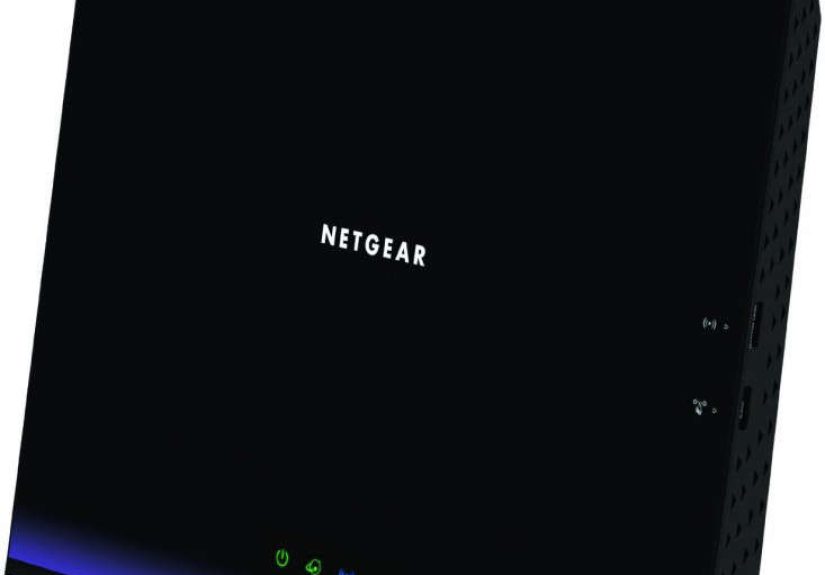
The NETGEAR R6250 is one of those “classic” home routers that helped a lot of people graduate from
Wi-Fi that technically exists to Wi-Fi that can actually stream a movie without turning into a slideshow.
It’s an AC1600, dual-band, Wi-Fi 5 (802.11ac) router with Gigabit Ethernet and a USB 3.0 portbasically,
it was built for the era when “smart home” meant “a TV, a laptop, and maybe a printer that refuses to behave.”
Today, the R6250 is older, often found used or refurbished, and living in a world where Wi-Fi 6/6E/7 routers are
flexing like they just left the gym. But “older” doesn’t automatically mean “bad.” If you understand what it’s good at
(and what it isn’t), the R6250 can still be a solid, budget-friendly workhorse for many homesespecially if your internet
speed is modest and you don’t need the newest standards.
Quick Snapshot: What You’re Actually Getting
- Wi-Fi class: AC1600 (marketing shorthand for combined theoretical speeds)
- Bands: Simultaneous dual band (2.4 GHz + 5 GHz)
- The “1600” breakdown: Up to 300 Mbps on 2.4 GHz + up to 1300 Mbps on 5 GHz (theoretical link rates)
- Ethernet: Gigabit WAN + Gigabit LAN ports (great for wired gaming/streaming boxes)
- USB: One SuperSpeed USB 3.0 port (ReadySHARE storage/printer sharing)
- Software/features: NETGEAR genie interface, guest network, QoS, parental controls, and multiple operating modes
What “AC1600” Really Means (And Why Your Speed Test Won’t Hit 1600)
Router labels are like fast-food photos: inspirational, not literal. “AC1600” doesn’t mean you’ll see 1600 Mbps
on your phone. It’s a combined marketing number built from two different bands:
2.4 GHz (up to 300 Mbps) plus 5 GHz (up to 1300 Mbps). Your device connects to one band at a time,
and real-world throughput is always lower than the link rate because of overhead, interference, distance, and the fact that
physics is a strict parent.
The good news: for typical home use, you don’t need a lab-perfect 1300 Mbps link rate. What you want is
stable coverage, reasonable speed, and low drama.
That’s where dual band helpsespecially if you steer heavier devices (TVs, laptops, consoles) to 5 GHz and keep
lightweight devices (smart plugs, doorbells, older gadgets) on 2.4 GHz.
Band Strategy That Actually Works
- 5 GHz: Faster, usually less congested, better for streaming and gamingbest within the same floor or nearby rooms.
- 2.4 GHz: Longer reach and better wall-penetration, but slower and more interference-pronegreat for IoT devices and farther corners.
Hardware & Design: The Practical Bits You’ll Notice Day-to-Day
The R6250 uses a 3×3 radio on 5 GHz (supporting the 1300 Mbps class link rates) and a 2×2 radio on 2.4 GHz
(supporting up to 300 Mbps). That mix is one reason it was a strong performer in its class: the 5 GHz side is the “fun lane,”
while 2.4 GHz is the “reliable old road” for compatibility.
You also get a single USB 3.0 port for ReadySHARE features. That matters if you want a simple, router-based way to share files
(like a USB drive for family photos) or share a USB printer to multiple computers. It’s not a replacement for a real NAS,
but for casual home sharing, it can be surprisingly handy.
Gigabit Ethernet: The Quiet Hero
If you’ve ever tried to game over Wi-Fi while someone else is streaming 4K video and another person is “just checking something”
(translation: downloading half the internet), you already know: wired connections reduce chaos.
With Gigabit Ethernet, the R6250 can anchor devices like:
- Game consoles (more stable latency than Wi-Fi in many homes)
- Streaming boxes (Apple TV, Roku, smart TV Ethernet)
- Desktop PCs for work/school
- Network switches to expand wired ports
Setup: From Box to Browsing Without Tears
Setup is typically straightforward: connect modem → connect router → power on → open a browser and follow the setup wizard.
NETGEAR’s “genie” interface was designed to be approachable for non-networking folks, and the router’s default Wi-Fi name and password
are printed on the device label, so you can get connected quickly.
Smart Placement Tips (Because Location Is 80% of “Wi-Fi Quality”)
- Central is king: Put the router near the middle of the home, not tucked in the basement corner like a forgotten holiday decoration.
- Elevate it: A shelf beats the floor. The floor is where Wi-Fi dreams go to die.
- Avoid interference magnets: Microwaves, cordless phones, thick concrete, and big metal objects can all degrade signal.
- Use wired backhaul when possible: If you later add access points or mesh nodes, wired connections are the stability cheat code.
Performance: What to Expect in Real Homes
In independent throughput testing back when draft 802.11ac routers were battling for bragging rights, the R6250 performed strongly for its class,
especially on the 5 GHz band. The big takeaway for modern buyers isn’t the exact lab numberit’s what it suggests:
the 5 GHz radio is genuinely capable when paired with compatible clients and reasonable placement.
Here’s a realistic way to think about it in 2026:
-
If your internet plan is 100–300 Mbps, the R6250 can often keep up well for typical streaming, browsing, Zoom calls,
and console downloadsespecially if you wire the most important devices. -
If your plan is 500 Mbps–1 Gbps, the router can still work, but you may not consistently see the full speed over Wi-Fi,
and newer routers will usually deliver better efficiency and multi-device performance. -
If you have many modern devices and lots of simultaneous traffic (multiple 4K streams, large cloud backups, gaming, smart cams),
Wi-Fi 6/6E gear will feel smoother under load.
A Concrete Example
Imagine a two-story home with a 300 Mbps cable plan:
one person streams HD video, one person games online, two phones are doomscrolling, and a laptop is on a video call.
If you put the TV and console on Ethernet and keep the video-call laptop on 5 GHz, the R6250 can feel stable and “modern enough.”
If everything fights for Wi-Fi and the router is placed behind a TV inside a cabinet, even the newest router will sulkso don’t do that.
Feature Deep Dive: The Stuff You’ll Actually Use
1) NETGEAR genie: Simple Management, Less Guesswork
The genie interface is the control center for your network: Wi-Fi names, passwords, guest network, and advanced features live there.
For most households, the win is that it’s not intimidatingso you’re more likely to do the important things, like changing default settings,
updating firmware, and setting up a guest network.
2) Guest Network: Keep Visitors Friendly, Not Inside Your Stuff
A guest network is one of those features you don’t appreciate until someone visits and asks for Wi-Fi,
and you realize you’re about to give them access to your shared devices. Guest networks create a separate Wi-Fi space for visitors,
reducing the chance that a random device is browsing your network like it pays rent.
3) QoS: Prioritizing What Matters (So Gaming Doesn’t Feel Like Dial-Up)
Quality of Service (QoS) is about priority. The R6250 includes QoS features aimed at improving streaming and gaming smoothness by giving
higher priority to latency-sensitive traffic. In practice, QoS can help when:
- Someone is uploading huge files while another person is on a video call
- Cloud backups try to dominate your upstream bandwidth
- Online gaming gets “spiky” latency during household peak usage
QoS isn’t magic, but it can reduce the “why is everything lagging?” momentsespecially on slower upload connections.
4) ReadySHARE (USB 3.0): Sharing Storage and Printers
The USB 3.0 port supports ReadySHARE features for sharing a USB drive across the network and for USB printer sharing.
This can be useful if you want a simple shared folder for household files or if you have a USB printer that multiple computers need to access.
Just remember: router USB sharing is convenient, but it’s not a high-performance NAS.
Practical use cases:
- “Family Dropbox Lite”: A shared folder for photos, scanned docs, and school files.
- Printer sharing: One USB printer available to multiple computers using NETGEAR’s USB control utility.
- Media access: Some setups can share media to compatible devices on the network.
5) Operating Modes: Router, Access Point, Bridge, and More
The R6250 supports multiple modesuseful if you’re upgrading your network in stages. For example:
- Access Point mode: Turn the R6250 into an AP connected to a main router (handy if you upgrade to mesh later).
- Bridge / client modes: Useful in certain layouts where you need the router to connect in different roles.
- WDS: Wireless Distribution System options exist for certain repeater/bridge scenarios (with compatibility caveats).
Security & Firmware: The Part People Skip (And Shouldn’t)
If you’re using the R6250 in 2026, firmware matters. Older routers have a longer history, and the R6250 family was included in widely reported
security issues years agomeaning it’s especially important to keep it updated. NETGEAR has continued to publish firmware updates for the R6250,
including releases that explicitly mention security fixes.
Security Basics That Pay Off
- Update firmware first (before you start tweaking advanced settings).
- Use WPA2 with AES and a strong passphrase (longer is better than “clever”).
- Disable remote management unless you truly need it.
- Turn off WPS if you don’t use push-button pairing.
- Change the admin password from defaults and store it securely.
One important reality check: the R6250 documentation emphasizes standards-based Wi-Fi security (WPA2/AES).
That’s still acceptable for many homes, but modern routers increasingly support WPA3, which can be a meaningful upgrade in certain environments.
If you’re in a dense apartment building or you’re security-conscious, newer hardware may be worth it.
Is the R6250 Still Worth It in 2026?
The honest answer: it depends on what you need, what you’re paying, and what you expect.
If you can get an R6250 cheaply (and it’s in good condition), it can be a great “value router” for:
- Internet plans up to a few hundred Mbps
- Small-to-medium homes where the router can sit centrally
- Homes that benefit from Gigabit Ethernet for key devices
- People who want USB sharing for light-duty storage or printer sharing
On the other hand, you might want to skip it if:
- You’re buying new and the price is close to modern Wi-Fi 6 routers
- You have gigabit internet and want the best Wi-Fi performance across many devices
- You want WPA3, better device handling under load, and newer radio efficiency
- You’re building a bigger home network and prefer mesh with wired backhaul
Buying & Using Tips (So You Don’t Accidentally Adopt a Problem)
If You’re Buying Used/Refurbished
- Check for firmware update capability and confirm it boots reliably.
- Inspect power adapter and ports (loose Ethernet jacks are not a fun surprise).
- Factory reset it before use, then update firmware.
- Plan your network name/password so reconnecting devices is painless.
If You’re Using It as an Access Point
This can be a smart way to reuse the R6250: let a newer router handle the “brains,” and let the R6250 provide coverage in another area
over Ethernet. It’s like hiring your old router as a helpful assistant instead of making it be the CEO.
Wrap-Up: The R6250’s Best Life
The NETGEAR R6250 is a capable dual-band AC router that can still deliver solid everyday performance when used in the right scenario.
Its strengths are practical: a strong 5 GHz radio for its class, Gigabit Ethernet for stability, and a USB 3.0 port for ReadySHARE convenience.
Treat it like a reliable, older tool: keep it updated, place it well, wire what you can, and it will usually behave.
If you’re chasing the newest standards or managing a high-density device household, a modern Wi-Fi 6/6E router is the smoother path.
But if your goal is dependable coverage and sensible performancewithout spending a tonthe R6250 can still earn its keep.
Bonus: Real-World Experiences With the NETGEAR R6250 (About )
The most common “lived experience” theme with the R6250 is that it tends to feel easy and stable when you use it like a normal human,
and annoying when you ask it to perform miracles from a bad location or outdated settings. In reviews and owner feedback over the years,
people often highlight that initial setup is straightforward: plug it in, connect to the preset Wi-Fi credentials, run the wizard, and you’re online.
That matters because many routers aren’t technically hardthey’re just emotionally exhausting. The R6250 usually avoids that vibe.
Range is another frequently mentioned positive. In a typical suburban home, if the router sits in a reasonably central spot, the 2.4 GHz band can keep
basic devices connected farther out, while 5 GHz handles the speed work closer in. Many households report that streaming and general browsing feel smooth,
especially compared to older 802.11n routers. And once you start using the Gigabit Ethernet ports for “important” deviceslike a game console or a smart TV
the network often feels calmer. Wired devices stop fighting for airtime, leaving Wi-Fi for phones, tablets, and laptops.
Performance-wise, the R6250’s 5 GHz band is where it earns compliments. In testing back in its prime, it showed strong 5 GHz throughput for an AC1600 router,
and that generally matches what users feel at home: if your phone or laptop supports 5 GHz well, the connection tends to be snappy in the same room and nearby rooms.
When people complain about speed, it’s often because they’re connected to 2.4 GHz in a busy neighborhood, or because distance and walls are doing what walls do:
blocking radio signals with stubborn confidence.
The occasional negative experience is also pretty consistent. Some users mention periodic connection drops or inconsistent performanceoften solved (or at least improved)
by a firmware update, a factory reset, or better placement. In older households that accumulate devices like dust bunnies under a couch, the router can feel strained
when many gadgets compete at once. That’s less a “this router is terrible” situation and more a reminder that Wi-Fi 5 hardware doesn’t manage crowded airtime as elegantly
as newer Wi-Fi 6 gear. Another real-world quirk: the USB sharing features are convenient, but expectations matter. Sharing a printer or accessing a USB drive for documents is great;
trying to treat it like a high-performance storage server can feel slow or finicky, depending on device formats and usage patterns.
The best “R6250 experience” tends to come from a simple recipe: update the firmware, disable settings you don’t need (like remote management),
split your bands clearly so you can choose 5 GHz when you want speed, and wire the high-priority devices. Do that, and the R6250 often feels like that dependable friend
who shows up on time, doesn’t cause drama, and quietly keeps your house online.