Table of Contents >> Show >> Hide
- What Is LinkClump for Chrome?
- Why People Still Search for LinkClump
- How LinkClump Works in Real Life
- The Modern Chrome Reality: Original LinkClump vs Newer Forks
- Best Settings for Opening Multiple Links at the Same Time
- Who Should Use LinkClump?
- Common Problems and How to Avoid Them
- LinkClump Is Great, but It Works Best with Good Tab Habits
- Final Thoughts
- Extended Experience: What It Actually Feels Like to Use LinkClump for Chrome
There are two kinds of internet users: people who open one link at a time like calm, civilized adults, and people doing research at 11:48 p.m. with 37 tabs open, three iced coffees deep, muttering, “I just need to compare a few more things.” If you belong to the second group, welcome home. LinkClump for Chrome has long been the kind of tool that makes chaotic browsing feel weirdly efficient.
At its core, LinkClump is simple: instead of clicking links one by one like you are hand-addressing wedding invitations, you drag across multiple links and open them all at once. For researchers, SEO specialists, students, shoppers, recruiters, editors, and anyone who lives inside search results, that is not a cute little convenience. It is a serious time-saver.
There is one important modern twist, though. When people search for LinkClump for Chrome today, they may be talking about the original extension, its older reputation, or one of the newer Manifest V3-compatible forks and successors now circulating in the Chrome ecosystem. The workflow is the same, the goal is the same, and the productivity win is still very real: select multiple links, open them fast, and stop wasting your wrist on repetitive clicking.
This guide breaks down how LinkClump works, why people still love it, what settings make it genuinely useful, and how to use a LinkClump-style Chrome extension without turning your browser into a tab tornado with emotional damage.
What Is LinkClump for Chrome?
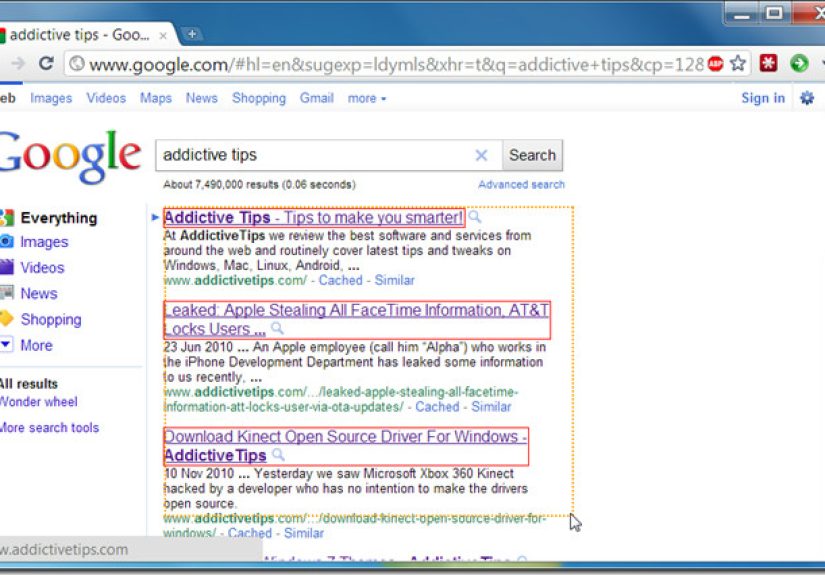
LinkClump is a Chrome extension for opening multiple links at the same time. Instead of manually opening each result in a new tab, you hold a trigger key or mouse combination, drag a selection box around the links you want, and let the extension do the rest. In one gesture, you can open several pages in new tabs, copy a batch of URLs, save them as bookmarks, or send them into a new window depending on the version and settings you use.
That sounds tiny until you think about how often you repeat the same action online. Search a topic. Open five articles. Return to search results. Open seven more. Compare products. Check sources. Copy references. Repeat until your soul leaves your body. LinkClump short-circuits that loop.
The reason this extension became so popular is that it solves a very specific annoyance. Chrome is excellent at tabbed browsing, but by itself it does not make batch-opening selected links effortless. LinkClump fills that gap by turning a slow, repetitive task into one quick motion.
Why People Still Search for LinkClump
People do not search for LinkClump because it is flashy. They search for it because it is practical. A good productivity tool does not need fireworks. It just needs to remove friction, save time, and avoid being annoying. LinkClump checks all three boxes.
It speeds up research
If you work in SEO, journalism, academic writing, sales research, competitive analysis, or content planning, opening multiple sources fast is half the job. Batch-open the top results from a search page, scan them, and decide which pages deserve your attention. That alone can shave real time off daily workflows.
It helps comparison shopping
Maybe you are comparing laptops, office chairs, phone plans, or the seven different air fryers that all promise to change your life forever. Opening product pages in bulk makes side-by-side comparison easier and helps you move from “I am browsing” to “I am actually deciding.”
It reduces repetitive clicking
There is nothing glamorous about saving 60 clicks in a day. But that kind of micro-efficiency adds up fast. LinkClump is one of those tools that feels small until you use it for a week and suddenly ordinary browsing feels painfully slow without it.
It gives you control over links
Many LinkClump-style extensions let you filter which links are included, choose whether they open in tabs or windows, and add delays between tab launches. That matters, because opening 25 links instantly can be impressive for about four seconds, right before your laptop starts sounding like a leaf blower.
How LinkClump Works in Real Life
The workflow is refreshingly uncomplicated. Install the extension, set your preferred trigger, and go to a page with several links. That could be a Google results page, a news roundup, a directory, a forum thread, or a product listing page. Then:
- Hold the trigger combination you configured.
- Click and drag to draw a selection box around the links you want.
- Release the mouse.
- The selected links open according to your action settings.
That is the basic experience, but the details make the tool powerful. Depending on the extension version or fork, you may be able to:
- Open links in new tabs
- Open links in a new window
- Copy all selected URLs to the clipboard
- Bookmark selected links
- Filter links that contain or exclude certain words
- Use Smart Select to favor meaningful links over random page clutter
- Set delays between tab openings to keep Chrome from choking on too much enthusiasm
That last feature deserves applause. Because yes, opening 40 tabs in a burst is technically possible. It is also how you accidentally convert “research session” into “browser survival exercise.”
The Modern Chrome Reality: Original LinkClump vs Newer Forks
This is where the topic gets more interesting. The original LinkClump earned its reputation years ago, but Chrome’s extension ecosystem changed as Manifest V3 rolled out. As a result, many users today encounter newer versions, forks, or alternatives that preserve the same core idea.
So when someone says, “Use LinkClump for Chrome,” they often mean one of two things:
- The classic LinkClump workflow they have used for years
- A newer LinkClump-style extension that keeps the drag-to-open experience alive in current Chrome builds
That distinction matters because the best LinkClump experience in Chrome today may come from a maintained fork rather than the original release. For everyday users, the practical takeaway is simple: focus less on the exact family tree and more on whether the extension is current, well-reviewed, compatible with modern Chrome, and clear about permissions.
In other words, you are not marrying the extension. You are hiring it. Check whether it still shows up for work.
Best Settings for Opening Multiple Links at the Same Time
Choose a trigger that does not fight your habits
If your trigger overlaps with something you already do in Chrome, you will hate the extension in record time. Many users prefer a combination such as Shift plus drag or a mouse button plus a modifier key. The best setup is the one you can remember and use accidentally exactly never.
Turn on Smart Select when pages are cluttered
Web pages are messy. Menus, ads, recommended posts, footer junk, social buttons, and mystery links hiding everywhere like digital raccoons. Smart Select helps prioritize the links that actually matter. If you are using LinkClump on search results or article lists, this feature can save you from opening half the internet by mistake.
Use filters for cleaner results
Some versions let you include or exclude links containing certain words. That is especially useful when you only want product pages, articles, profile pages, or domains matching a particular pattern. It is a small setting with a big quality-of-life payoff.
Add a slight delay for heavy batches
Launching a wall of tabs too fast can stress Chrome, especially if you are on older hardware or every page is loaded with video, scripts, and ad networks that never sleep. A short delay between openings can make the experience smoother and save your computer from sounding personally offended.
Use new windows for big projects
If you are opening an entire research cluster, consider sending selected links to a separate window. That keeps your main browsing session clean and helps you mentally separate “daily browsing” from “deep work mode.” It is also helpful when tab groups start breeding.
Who Should Use LinkClump?
Almost anyone who works with lists of links can benefit from LinkClump for Chrome, but it is especially helpful for these users:
SEO professionals and content marketers
Open multiple search results, competitor articles, backlink opportunities, or source pages in seconds. When you are analyzing SERPs or building content briefs, LinkClump feels less like an extension and more like a second set of hands.
Students and researchers
Collect sources from search pages, databases, directories, and online libraries more efficiently. It is perfect for those moments when your paper needs ten sources and your motivation is already negotiating with you.
Online shoppers
Batch-open product pages, compare specifications, and sort through reviews without repeatedly returning to a category page. It is especially useful during sales events when every listing screams “limited-time deal” as if the blender is about to achieve sentience.
Recruiters, sales teams, and analysts
Open company pages, candidate profiles, lead sources, and contact pages quickly. It cuts friction out of repetitive review tasks and lets you spend more time evaluating information rather than hunting for it.
Editors and link checkers
Need to verify a series of links in a draft, resource page, or directory? LinkClump makes the job dramatically less tedious.
Common Problems and How to Avoid Them
Too many tabs open at once
This is not really a bug. It is user optimism in action. Set a reasonable delay, open smaller batches, and use tab groups or a tab-saving extension if your research habit turns Chrome into a digital hoarder’s garage.
The extension grabs the wrong links
Try Smart Select, tweak your drag area, or use filtering options. Dense pages can contain dozens of invisible or low-value links, and a little configuration goes a long way.
Performance feels sluggish
Remember that the extension is only part of the equation. Chrome itself is doing the heavy lifting of opening and rendering pages. Fewer simultaneous openings, better tab organization, and closing unused extensions can help.
You are unsure about extension safety
This is the correct amount of paranoia. Always review permissions, install from reputable listings, remove extensions you no longer use, and keep your browser tidy. A helpful extension should make your workflow faster, not your privacy shakier.
LinkClump Is Great, but It Works Best with Good Tab Habits
Here is the truth nobody wants to hear: LinkClump does not magically fix bad browsing habits. It amplifies them. If you are organized, it makes you faster. If you are chaotic, it helps you become chaotic at scale.
That is why the smartest way to use LinkClump is alongside better Chrome habits. Use tab groups. Close what you are done with. Move major batches into separate windows. Save tabs you plan to revisit later. Give your browser at least a tiny chance to remain a workplace instead of a landfill.
Used wisely, LinkClump turns Chrome into a much better research and productivity environment. Used recklessly, it turns your desktop into a hostage situation. The line between the two is about four minutes and one overconfident drag gesture.
Final Thoughts
Open multiple links at the same time with LinkClump for Chrome, and you immediately understand why this tool built such a loyal following. It removes pointless repetition, speeds up research, and makes heavy browsing workflows feel more intentional. For power users, that is gold.
The modern extension landscape means you should pay attention to which version or fork you install, but the core value has not changed: select a batch of links, act on them instantly, and move on with your work. Whether you are doing SEO research, comparison shopping, editorial checks, or plain old curiosity-fueled internet spelunking, LinkClump remains one of the simplest ways to make Chrome feel smarter.
And honestly, any tool that saves time without making you read a 47-page manual deserves at least a polite nod. Maybe even a standing ovation. A short one. We still have tabs to open.
Extended Experience: What It Actually Feels Like to Use LinkClump for Chrome
Using LinkClump for Chrome does not feel dramatic at first. It feels small. You install it, test it on a search results page, drag across five links, and watch them open in a neat burst. Your first thought is usually something like, “Oh, that’s handy.” Then two days later, you catch yourself on a computer without it and suddenly realize how much clicking you used to tolerate for no good reason.
One of the most noticeable changes is mental rhythm. Regular browsing has a stop-and-start pattern: click a link, wait, go back, click another, wait, lose your place, wonder why one tab is playing audio from nowhere, and start bargaining with fate. LinkClump smooths that out. You collect a set of pages in one motion, then move into review mode. That feels faster, but it also feels cleaner, like your brain no longer has to babysit the mechanical part of the process.
It is especially good for search-heavy work. Suppose you are researching “best standing desks for small spaces,” “local citation strategies,” or “causes of declining email open rates.” Normally, you would cherry-pick pages one by one, trying to avoid junk results and keep your place in the SERP. With LinkClump, you can open the top relevant results in seconds and spend your energy evaluating content instead of performing tab choreography with your mouse.
There is also a strange sense of control that comes from using it well. You stop feeling like Chrome is happening to you and start feeling like you are directing traffic. That is a bigger deal than it sounds. Productivity is not just about raw speed; it is also about reducing tiny frustrations that chip away at focus. LinkClump is good at eliminating one of those frustrations completely.
Of course, it can go sideways too. The first time you accidentally open more links than intended, you learn humility quickly. It is the browser equivalent of reaching for one potato chip and somehow walking away with a full picnic basket. But once you fine-tune the trigger keys and selection habits, the extension becomes surprisingly reliable. After that, it starts earning a permanent spot in your workflow.
For many people, that is the real magic of LinkClump for Chrome. It does not try to reinvent browsing. It just removes one repetitive pain point so effectively that the web feels less clunky and more responsive. That is not flashy, but it is the kind of practical improvement people stick with for years.