Table of Contents >> Show >> Hide
- What Is a Windows 8 Product Key?
- Way 1: Check Your Email, Retail Box, Receipt, or Microsoft Order History
- Way 2: Look for the Product Key on a COA Sticker or Device Label
- Way 3: Retrieve the Embedded Windows 8 Key from BIOS or UEFI
- Way 4: Use a Reputable Product Key Finder Tool or Contact Support
- How to Know Which Method Fits Your Situation
- Common Mistakes to Avoid
- Best Practices After You Find Your Windows 8 Product Key
- Extra Experience: Real-World Lessons from Finding a Windows 8 Product Key
- Conclusion
- SEO Tags
Somewhere between “I’ll save this receipt forever” and “Where did that tiny sticker go?” many Windows users lose track of their product key. If you are trying to reinstall Windows 8, revive an old laptop, activate Windows 8.1, or simply document your software licenses before the next digital spring cleaning, finding your Windows 8 product key can feel like searching for a house key in a sofa that has eaten three remotes and a granola bar.
The good news: there are several legitimate ways to locate it. The not-so-good news: Windows 8 changed how product keys worked on many factory-built PCs. Instead of always printing the key on a big Certificate of Authenticity sticker, many manufacturers embedded the key in the computer’s BIOS or UEFI firmware. That means the key may not be visible on the outside of your device, but it may still be inside the machine, quietly minding its own business like a very boring treasure chest.
This guide explains four practical ways to find your Windows 8 product key, including checking your purchase records, looking for physical labels, retrieving an OEM key from firmware, and using trusted recovery tools. The focus is simple: recover your own valid license, avoid shady “free key” traps, and keep your computer activation process legal, safe, and headache-resistant.
What Is a Windows 8 Product Key?
A Windows 8 product key is a 25-character code used to activate a legitimate copy of Windows. It usually looks like five groups of letters and numbers separated by hyphens. Think of it as the software’s proof of purchase, except less glamorous than a concert ticket and far more likely to be printed in microscopic text.
Windows uses activation to confirm that your copy of the operating system is genuine and being used according to the license terms. Depending on how you obtained Windows 8, your key may be located in a confirmation email, inside retail packaging, on a Certificate of Authenticity sticker, in your PC’s firmware, or in records held by the manufacturer or retailer.
Before you begin, remember one important detail: Windows 8 and Windows 8.1 are no longer supported by Microsoft for regular security updates and technical support. If you are recovering a key for an old computer, do it carefully, especially if the device connects to the internet. Finding the key may help with reinstallation, documentation, or data recovery, but running an unsupported operating system long-term is not ideal for security.
Way 1: Check Your Email, Retail Box, Receipt, or Microsoft Order History
The easiest way to find your Windows 8 product key is also the least exciting: check your paperwork. Yes, paperwork. The thing everyone promises to organize one day, preferably during a three-day weekend that never arrives.
If You Bought Windows 8 Online
If you purchased Windows 8 as a digital download from Microsoft or an authorized retailer, search your email inbox for terms such as:
- Windows 8 product key
- Windows 8 purchase
- Microsoft order
- Windows download
- activation key
- digital receipt
Check your inbox, archived mail, spam folder, and any old email account you may have used at the time. Product keys are often included in purchase confirmation messages, digital delivery receipts, or account order pages. If you bought Windows through a retailer such as Amazon, Best Buy, Newegg, or another authorized seller, log in to that retailer account and review your order history.
If You Bought a Retail Copy
If Windows 8 came in a retail box, the product key may be printed on a card, label, DVD sleeve, or Certificate of Authenticity included with the packaging. This is where many people discover that “safe place” actually means “a mystery drawer with old cables and a charger for a phone that no longer exists.”
Look carefully through the original box, installation disc sleeve, manuals, and any small cards. Some keys are printed in tiny text, so use good lighting. A phone camera zoom or magnifying glass can help if the label is faded or the print appears to have been designed by a committee of ants.
If Windows Came With Your Computer
If your PC came with Windows 8 preinstalled, you may not have received a traditional printed key. Many Windows 8-era laptops and desktops used OEM activation, where the product key is embedded in the BIOS or UEFI firmware. Still, check the computer’s case, battery compartment, bottom panel, or documentation. Some devices may have a Windows logo sticker or a Certificate of Authenticity label, though many Windows 8 machines no longer show the full key externally.
Way 2: Look for the Product Key on a COA Sticker or Device Label
Older Windows PCs often had a Certificate of Authenticity, commonly called a COA sticker, attached to the bottom of a laptop, the side of a desktop tower, under the battery, or inside a removable panel. With Windows 8, however, things became more complicated. Many manufacturers stopped printing the full product key on the outside of the machine and instead embedded it electronically.
That does not mean you should skip the sticker hunt. It is still worth checking:
- The bottom of the laptop
- Under the removable battery
- The back or side of a desktop tower
- Inside the original laptop box
- The warranty booklet or quick-start guide
- A recovery disc sleeve, if one was included
When you find a sticker, distinguish between a product key and a product ID. A Windows product key is the 25-character activation code. A product ID is usually displayed inside Windows after installation and is not the same thing. The product ID may look official, but it will not activate Windows. It is more like a name tag at a conference: useful for identification, not for getting through the locked front door.
What If the Sticker Is Faded?
If your sticker is damaged, take a clear photo before touching it further. Increase contrast, zoom in, and compare similar characters carefully. The letters B and 8, G and 6, O and 0 can cause confusion. If the key is unreadable, contact the computer manufacturer or the retailer. They may not always be able to recover the key for you, but they can often confirm the original Windows edition and suggest recovery options.
Do not scrape, heat, peel, or clean the sticker with harsh chemicals. Product key stickers are not archaeological artifacts. Treat them gently, or the last five readable characters may vanish into legend.
Way 3: Retrieve the Embedded Windows 8 Key from BIOS or UEFI
For many Windows 8 computers sold by manufacturers such as Dell, HP, Lenovo, Acer, ASUS, and others, the original product key is embedded in the motherboard firmware. This is part of OEM activation. During a proper reinstall, Windows can often read the embedded key automatically and activate once connected to the internet.
This is one of the most important Windows 8 product key facts: if the PC originally shipped with Windows 8, the key may be stored in firmware rather than printed on a sticker. That key usually matches the edition installed by the manufacturer, such as Windows 8 Core, Windows 8 Pro, or Windows 8.1. If you install the wrong edition, activation may fail even if the embedded key is valid.
Use Command Prompt to Check for an OEM Key
On a Windows 8 or Windows 8.1 system, you can try this command:
To run it:
- Press Windows + X.
- Choose Command Prompt or Command Prompt (Admin).
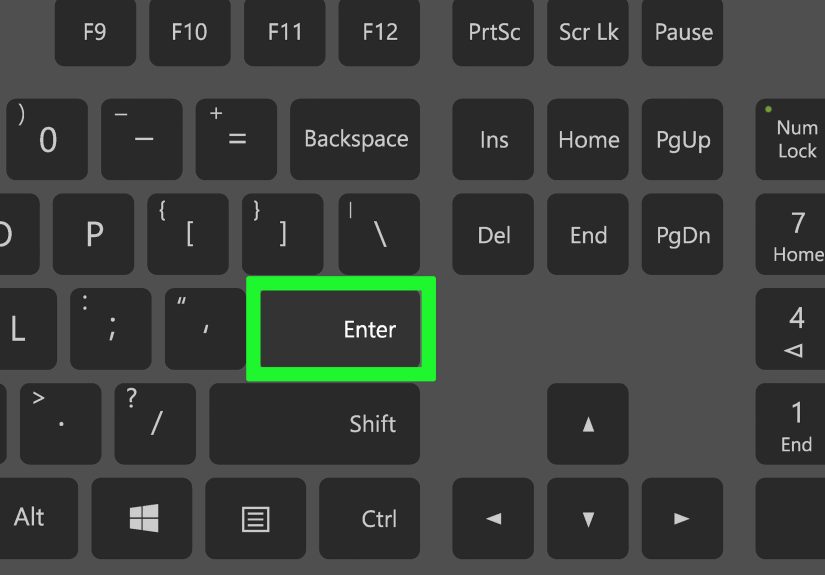
- Type the command above and press Enter.
- If the system has an embedded OEM key, it may display the 25-character product key.
If nothing appears, do not panic. The command only works when a readable OEM key is stored in firmware. Retail keys, volume license keys, upgraded installations, or some repaired motherboards may not return a result.
Use PowerShell as an Alternative
You can also try PowerShell:
Open PowerShell, paste the command, and press Enter. Again, this method is mainly useful for OEM systems with a firmware-embedded Windows 8 product key.
Why This Method Matters
This approach is especially useful when you are reinstalling Windows 8 on the same machine. If the motherboard is original and the correct Windows edition is installed, activation may happen automatically. For example, if a laptop shipped with Windows 8 Core, installing Windows 8 Pro may not activate with the embedded Core key. Windows licensing is picky that way. It is not being dramatic; it is just following the rules.
If you replaced the motherboard, the embedded key may be gone or different. In that case, you may need recovery media from the manufacturer, proof of purchase, or a new license.
Way 4: Use a Reputable Product Key Finder Tool or Contact Support
If the built-in commands do not show your Windows 8 product key, a reputable product key finder tool may help. These tools scan your system and display license information stored in Windows or firmware. They can be useful when the system still boots but your paperwork has vanished into the same universe as missing socks.
Choose Tools Carefully
Only download key finder utilities from trusted official websites. Avoid random “free Windows key” pages, cracked software forums, pop-up download buttons, and tools that ask you to disable antivirus protection. A legitimate product key recovery tool should help you recover your own license, not sell you a suspicious key from a digital alley.
Belarc Advisor is one well-known system information tool that displays details about installed software and hardware. Its official documentation says the computer profile is kept private on the local PC and not sent to a web server. Other tools may also retrieve embedded keys, but always check the official source, user reputation, and security warnings before installing anything.
Before running any tool, create a restore point if possible, scan the installer with antivirus software, and avoid bundlers that include extra programs. If a download page has five giant buttons and only one is real, close the tab and go make tea. Your computer deserves better.
When to Contact Microsoft, the Retailer, or the Manufacturer
If none of the recovery methods work, contact the party connected to your license:
- Microsoft: if you bought Windows directly from Microsoft or need activation help.
- The retailer: if you bought a retail or digital copy from an authorized store.
- The PC manufacturer: if Windows came preinstalled on your laptop or desktop.
Have your proof of purchase, device serial number, model number, and any activation error codes ready. Support teams are much happier when you arrive with details instead of “my computer is being weird,” although, to be fair, computers are often being weird.
How to Know Which Method Fits Your Situation
Use this quick guide:
- You bought Windows 8 online: search your email and order history first.
- You bought a boxed copy: check the box, DVD sleeve, card, or COA.
- Windows came preinstalled: check for an embedded BIOS or UEFI key.
- The PC still boots: try Command Prompt, PowerShell, or a trusted key finder.
- The PC does not boot: check documents, stickers, manufacturer recovery options, or your old drive from another working PC.
The right method depends on how Windows 8 was originally purchased. Retail licenses and OEM licenses behave differently. A retail key may be transferable depending on the license terms. An OEM key is usually tied to the original hardware, especially the motherboard. That distinction matters when you are reinstalling Windows, upgrading hardware, or trying to move a license to another machine.
Common Mistakes to Avoid
Do Not Confuse Product Key and Product ID
The Windows product ID shown in system settings is not your activation key. It can help identify the installation, but it cannot replace the 25-character product key. Copying the product ID and trying to use it as a key is like showing a library card at airport security. Interesting, but not useful.
Do Not Use Random Keys from the Internet
Searching for “free Windows 8 product key” is a fast way to find scams, malware, blocked keys, or stolen license information. Even if a key appears to work temporarily, it may fail later. Worse, the website may install unwanted software or steal personal data.
Do Not Install the Wrong Windows Edition
A Windows 8 Core key will not activate Windows 8 Pro. A Windows 8 Pro key will not activate a mismatched edition. Before reinstalling, identify the original edition that came with your PC. Manufacturer recovery media usually handles this automatically.
Do Not Wait Until the Hard Drive Dies
If your old Windows 8 machine still starts, recover and store your product key now. Also back up your important files. Hard drives rarely send a polite calendar invite before failing.
Best Practices After You Find Your Windows 8 Product Key
Once you recover your product key, store it somewhere safer than a sticky note attached to a monitor. Good options include a password manager, a printed copy kept with purchase records, or a secure encrypted document. Label it clearly with the device name, Windows edition, purchase date, and whether it is OEM or retail if you know.
For example:
Do not post your product key online, send it in public forums, or store it in a plain text file named “WINDOWS KEY DO NOT LOSE.txt” on the desktop. That filename is basically a welcome mat for trouble.
Extra Experience: Real-World Lessons from Finding a Windows 8 Product Key
Recovering a Windows 8 product key is not always a neat three-minute job. In real life, it often starts with optimism, continues with crawling under a desk, and ends with someone whispering, “Why are there seven VGA cables in this drawer?” From years of helping people with old Windows installations, one pattern appears again and again: the key is usually not gone; the owner is just looking in the wrong place first.
For factory-built Windows 8 laptops, the most common surprise is the missing sticker. Many users expect to flip the laptop over and find a printed 25-character code. Instead, they find a Windows logo sticker, a serial number, regulatory text, and maybe a crumb from 2014. That is normal for many Windows 8 devices. The product key may be embedded in the firmware, and the system may activate automatically when the correct edition is installed.
One practical experience is to identify the computer’s original Windows edition before reinstalling. This matters more than people think. A user may download Windows 8.1 Pro because “Pro sounds better,” then wonder why activation refuses to cooperate. If the embedded key belongs to Windows 8 Core, the installer and activation system expect that edition. The key is not broken; it is just being asked to unlock the wrong door.
Another lesson: keep the old drive until everything is working. Even if you plan to replace the hard drive or install an SSD, do not wipe the old disk immediately. If the old Windows installation still boots, you can try built-in commands or trusted license tools before starting fresh. If it does not boot, the old drive may still contain useful files, receipts, screenshots, or documents. Treat it like a dusty filing cabinet, not a disposable coaster.
Emails are another gold mine. Many people search only their current inbox, but Windows 8 purchases often happened years ago. Check old Gmail, Outlook, Yahoo, school, work, or ISP email accounts. Search for “Microsoft,” “Windows 8,” “product key,” “order confirmation,” and the retailer’s name. The product key may be sitting in an archived message, patiently waiting like a tiny digital librarian.
When using product key finder tools, the best habit is caution. Download from the official developer website, avoid mirror sites, and never install anything that pressures you to disable security software. Some tools may show the installed key, an OEM marker, a partial key, or a firmware key. Read the results carefully. If the tool only shows the last five characters, that may be useful for identification but not enough for reinstalling.
Finally, document the result. The whole point of finding your Windows 8 product key is to avoid repeating the same treasure hunt later. Save the key in a password manager, print a copy for your records, and write down the device model. Future you will be grateful. Future you may still misplace a USB drive, but at least Windows activation will not be the villain of the day.
Conclusion
Finding your Windows 8 product key is mostly about knowing where your type of license hides. If you bought Windows online, check your email and order history. If you purchased a boxed copy, inspect the packaging and COA materials. If Windows came preinstalled, look for an embedded BIOS or UEFI key using Command Prompt, PowerShell, or the correct recovery process. If those options fail, a reputable product key finder or official support channel may help.
The smartest approach is to recover your key legally, store it securely, and avoid suspicious websites offering “free” keys. A product key is small, but it can save hours of reinstall drama. And honestly, your weekend deserves better than arguing with an activation screen.