Table of Contents >> Show >> Hide
- Why spell check may be off in the first place
- 1. Turn on spell check in Windows settings
- 2. Enable spell check on your Mac in Keyboard settings
- 3. Turn on spell check in your browser
- 4. Enable spell check inside the apps you actually use
- 5. Fix the language and dictionary settings
- Quick signs your spell check is finally working
- Final thoughts
- Extra experiences: what using spell check on PC or Mac is actually like
- SEO Tags
If your computer keeps letting typos stroll through your writing like they own the place, it may be time to wake up spell check. Whether you are drafting an email, polishing a resume, writing a report, or sending a message you really hope does not contain “pubic relations” instead of “public relations,” spell check can save your dignity one red underline at a time.
The good news is that spell check is usually already built into your PC or Mac. The bad news is that it loves hiding in menus with names like Typing, Proofing, or Text Input like a shy intern at an office party. This guide walks you through five practical ways to enable spell check on PC or Mac, including system-wide settings, browser options, app-based tools, and the sneaky language settings that often stop everything from working.
Let’s turn your laptop back into the typo-catching sidekick it was born to be.
Why spell check may be off in the first place
Before diving into the fixes, it helps to know why spell check sometimes goes missing. In many cases, the feature is not actually broken. It is simply disabled in one place, active in another, and confused by language settings in a third. A Windows laptop might have spell check turned on at the system level but off in Chrome. A Mac might check spelling in Pages but not in a browser text box. Word might underline mistakes in one document but ignore them in another because the proofing language is set incorrectly.
In other words, spell check can be less “universal magic” and more “a bunch of small switches scattered around your device.” Once you know where those switches live, the problem gets much easier to fix.
1. Turn on spell check in Windows settings
If you use a Windows PC, the first place to start is the built-in typing settings. This is the closest thing to a system-wide spell check control for everyday typing.
How to enable it
- Open Settings.
- Click Time & language.
- Select Typing.
- Turn on Autocorrect misspelled words.
- Turn on Highlight misspelled words.
- Optionally turn on Show text suggestions when typing on the physical keyboard.
That last option is not exactly spell check, but it works like a helpful cousin. It suggests words as you type, which can reduce mistakes before they become full-blown keyboard crimes.
This method is especially useful if you type in Windows apps that support built-in spelling features, including newer versions of Notepad and some form fields. It is a strong first move because it gives Windows permission to help instead of sitting there silently while you type “definately” for the 900th time.
When this works best
Windows typing settings are ideal for people who want broader spelling help across the system, not just inside one specific app. If you write in note-taking apps, built-in editors, or Windows-native tools, this is the best place to start.
Common problem
If you turn these switches on and still do not see misspelled words highlighted, the issue is often your keyboard or proofing language. We will get to that in Way 5, because language settings are the plot twist in half of all spell check mysteries.
2. Enable spell check on your Mac in Keyboard settings
Mac users get a built-in spell check system too, and it is surprisingly polished. In macOS, spell check is closely tied to keyboard and text input settings, which means it can work across many apps instead of being limited to one program.
How to enable it
- Click the Apple menu.
- Open System Settings.
- Click Keyboard.
- Find Text Input and click Edit.
- Set Spelling to Automatic by Language or your preferred language.
- Turn on options like automatic correction if you want more aggressive typo help.
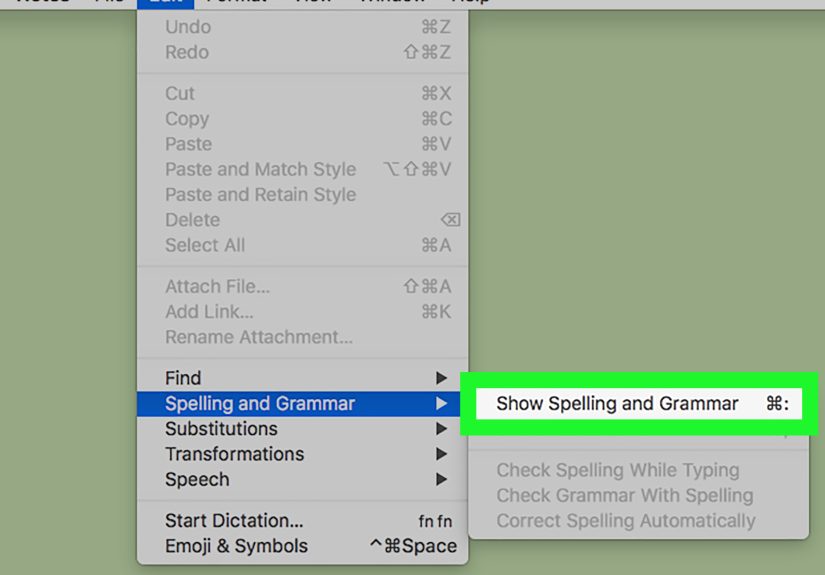
Once enabled, your Mac can check spelling in many Apple apps and other supported programs. You can also manually run a spelling check from the menu bar in many apps by clicking Edit > Spelling and Grammar > Check Document Now.
Helpful Mac shortcuts
If you like keyboard shortcuts, macOS has a couple worth remembering. Command + ; jumps to the next misspelled word, while Shift + Command + : opens the Spelling and Grammar window in many apps. It feels a little fancy, like proofreading with a monocle.
When this works best
This option is perfect if you write mostly in Mac-native apps like Pages, TextEdit, Notes, Mail, or Keynote. It is also handy if you regularly switch between languages, because macOS can be set to detect language automatically in supported apps.
3. Turn on spell check in your browser
If most of your writing happens online, system settings alone may not be enough. Browsers often have their own spelling tools, and if those are off, you can type a typo-riddled masterpiece into a form, email draft, or social media post without a single warning.
In Google Chrome
- Open Chrome.
- Click the three-dot menu.
- Go to Settings.
- Click Languages.
- Under Spell check, turn on Check for spelling errors when you type text on web pages.
Chrome may offer both basic and enhanced spell check. Basic is more privacy-friendly and uses your device’s spell check provider. Enhanced can offer stronger suggestions, but it may send text to Google for processing. If you type confidential information into web forms, that difference matters.
In Mozilla Firefox
- Open Firefox.
- Click the menu button.
- Choose Settings.
- Under General, find Language and Appearance.
- Turn on Check your spelling as you type.
Firefox can also use dictionaries for different languages. If the option is on but nothing is being flagged, the missing piece may be the dictionary itself rather than the spell check setting.
In Microsoft Edge
Edge includes writing assistance and spell checking too. If you use Edge on a PC or Mac, check the language settings and writing assistance options. This is especially useful if you work in web apps all day and want help beyond plain spelling, including grammar and clearer phrasing.
Why browser spell check matters
Browser-level spell check is one of the most practical fixes because so much modern writing lives in the browser. Think Gmail, Google Docs, Slack, job applications, project tools, and comment boxes where one typo can make you look rushed, tired, or like you typed with oven mitts on.
4. Enable spell check inside the apps you actually use
Sometimes the issue is not your computer or your browser. It is the app. Programs like Microsoft Word, Google Docs, Gmail, and Acrobat often have their own spell check controls, and these can override or ignore your system settings.
Microsoft Word and Office
In Word, spell check settings live under proofing tools. On Windows, you can go to File > Options > Proofing and make sure spell checking is turned on. You can also use AutoCorrect Options to automatically fix common misspellings as you type.
For a manual check, F7 is the classic shortcut in Office. It runs spelling and grammar review in Word and other Office apps. If Word seems inconsistent, check the document’s proofing language under Review > Language. One wrong language selection can make perfectly correct American English look suspicious.
Google Docs
If you write in Google Docs, open your document and go to Tools > Spelling and grammar. Make sure Show spelling suggestions and, if you want it, Show grammar suggestions are turned on. Google Docs can also run a more visible spell check review and lets you add words to your personal dictionary.
Gmail
Gmail includes spelling and grammar help directly in the compose window. If you write most of your emails in the browser, this can be enough on its own. Gmail also automatically corrects some common misspellings, which is helpful if you are firing off messages quickly and your fingers are working a different shift than your brain.
Adobe Acrobat
If you edit PDFs in Acrobat, you can use the app’s spelling tools and dictionary controls. This matters more than people realize, especially in workplaces where final edits often happen inside a PDF instead of the original document.
The big takeaway
If spell check works in one program but not another, stop blaming your keyboard and check the app’s own settings. Many spelling problems are really just app-by-app settings wearing a fake mustache.
5. Fix the language and dictionary settings
This is the fix people skip, and it is often the one that actually solves the problem.
Spell check depends on language. If your device, browser, or app thinks you are writing in the wrong language, it may either miss obvious errors or flag perfectly correct words as wrong. A writer using American English could suddenly see “color” accepted in one place and “favourite” underlined in another. That is not your computer being dramatic. It is your proofing language being mismatched.
What to check
- Make sure your preferred language is installed on your PC or Mac.
- Set the proofing language to the language you actually write in, such as English (United States).
- Turn on Detect language automatically in Word or Office if you write in more than one language.
- Add common names, brand terms, and technical vocabulary to your personal or custom dictionary.
- Install or enable the right browser dictionary if Firefox or another browser is not checking correctly.
Why custom dictionaries matter
If you write about products, medicine, programming, or industry-specific topics, ordinary spell check may think your vocabulary is nonsense. Adding recurring terms to a personal dictionary keeps useful words from being underlined every 12 seconds. Your work looks cleaner, and you avoid the weird moment where your software acts like your company name is a typo.
Best use case
This fifth method is the key for students, professionals, marketers, and anyone who switches between brands, proper nouns, and multiple languages. It is not flashy, but it is often the difference between spell check “kind of working” and actually being reliable.
Quick signs your spell check is finally working
After enabling the settings above, test your setup with a few intentionally misspelled words like recieve, seperate, or definately. If spell check is doing its job, you should see red underlines, suggestion menus, or automatic corrections depending on the app.
If nothing happens, try testing in more than one place: a browser text box, a Word document, and a built-in notes app. This helps you figure out whether the problem is system-wide or limited to one program.
Final thoughts
Enabling spell check on PC or Mac is usually not about finding one magical master switch. It is about knowing where your writing happens and turning on the right tool for that environment. Windows has built-in typing help. macOS ties spell check to keyboard and text input settings. Browsers like Chrome, Firefox, and Edge have their own spelling controls. Apps like Word and Google Docs add another layer. And if all else fails, language and dictionary settings are usually the hidden culprit.
The good news is that once everything is set up, spell check becomes one of those background tools you barely notice until it saves you from an embarrassing typo. It is like a quiet friend who only speaks up when you are about to send “Best regsrds” to your boss.
So go ahead: flip the switches, test your settings, and let your computer catch the mistakes before the internet does.
Extra experiences: what using spell check on PC or Mac is actually like
There is a practical side to spell check that does not always show up in setup guides. On paper, it sounds like a boring feature: turn on a setting, get a red underline, move on with your life. In real use, though, spell check can completely change how confident people feel when they write on a computer.
Take the everyday work email. You open your laptop early in the morning, coffee in one hand, keyboard in the other metaphorically speaking, and start replying to messages before your brain has fully reported for duty. That is exactly when spell check earns its paycheck. It catches the missing letters, doubled words, and accidental nonsense created when your fingers are typing faster than your thoughts. Without it, small mistakes can make a rushed email look sloppier than it really is.
Students have a similar experience. A term paper or discussion post may be full of solid ideas, but one screenful of preventable spelling errors can distract from the argument. Spell check is not a substitute for editing, of course. It will not save a weak thesis statement or fix a paragraph that wanders off like a shopping cart with one bad wheel. But it does help writers present their ideas more clearly, which matters in school and in professional life.
Mac users often notice how smooth spell check feels inside apps like Pages or Mail once it is enabled properly. The corrections feel built in, not bolted on. Windows users often appreciate the broader productivity side, especially when typing suggestions, autocorrect, and app-level proofing all work together. In both cases, the biggest change is not just cleaner spelling. It is less hesitation. People stop second-guessing every sentence because they know the computer will flag obvious problems.
Writers, editors, marketers, and customer support teams tend to develop an even more personal relationship with spell check. When you write all day, tiny errors multiply fast. One wrong product name, one misspelled client surname, or one typo in a headline can create extra work later. Over time, spell check becomes part safety net, part routine. You still proofread, but you are no longer doing every bit of error-catching alone.
There is also a surprisingly human side to it. People who struggle with spelling, type in a second language, or deal with dyslexia often find that enabling spell check lowers the stress of digital writing. It creates a little more breathing room. You can focus on what you want to say instead of worrying that one typo will overshadow the whole message. That is a small feature with a big quality-of-life payoff.
And yes, there is the occasional comic moment. Most people have at least one story about spell check either saving them from disaster or creating a new one through overconfident autocorrect. But even with the occasional weird suggestion, most users would rather have spell check on than off. A slightly nosy writing assistant beats sending a typo into the world forever.
In the end, enabling spell check on PC or Mac is not just about technical settings. It is about making writing easier, cleaner, and less stressful in the moments that matter, whether you are emailing a client, updating a resume, finishing homework, or posting something online that you do not want to regret five minutes later.