Table of Contents >> Show >> Hide
- Where to Find Yahoo Mail Settings
- The Most Important Yahoo Mail Settings to Manage
- 1. Appearance, Theme, Font Size, and Message Layout
- 2. Writing Email Settings: Signatures, Sender Name, and Reply-To
- 3. Mailboxes and Connected Accounts
- 4. Folders and Filters for a Cleaner Inbox
- 5. Blocked Addresses and Privacy Controls
- 6. Vacation Response and Auto Replies
- 7. Notifications Without Constant Interruption
- 8. Security Settings: Passwords, 2-Step Verification, and Account Key
- 9. Third-Party Email Apps and Sync Settings
- 10. Forwarding and Premium Features
- How to Manage Yahoo Mail Settings Like a Pro
- Common Problems Yahoo Mail Settings Can Solve
- Real-World Experiences Managing Yahoo Mail Settings
- Conclusion
- SEO Tags
Yahoo Mail is a lot like a kitchen junk drawer. It starts out neat, then suddenly it’s full of newsletters, random login alerts, coupon codes you swore you’d use, and one very important email that has somehow gone missing between “40% off sneakers” and “Your package has shipped.” The good news? Yahoo Mail gives you plenty of settings to clean up the chaos, personalize your inbox, and make your email work the way you want.
If you have been poking around Yahoo Mail and wondering where signatures, filters, blocked senders, notifications, security tools, and mailbox options are hiding, this guide walks you through it all. Whether you want a cleaner inbox, stronger privacy, better organization, or fewer distractions, managing your Yahoo Mail settings can turn your account from a digital catch-all into something far more useful.
Below, you’ll learn how to find your Yahoo Mail settings, what each major setting does, which options matter most for everyday users, and how to adjust your account without getting lost in a maze of menus. No tech jargon overload. No robotic step list. Just practical help in plain English.
Where to Find Yahoo Mail Settings
In current Yahoo Mail on desktop, most account controls live inside the Settings area. Depending on the version or screen you see, you may open settings from More options > Settings or from a gear-style menu that leads to More Settings. Once you are there, Yahoo groups options into categories such as appearance, writing email, mailboxes, filters, security, notifications, and more.
This matters because Yahoo does not keep every option in one giant page. Some controls, like themes and layout, sit under Appearances. Others, like your display name, reply-to address, signature, and forwarding, live under Mailboxes. Blocking senders sits under Security and Privacy. Vacation replies have their own section. In other words, if you cannot find a setting, you are probably looking in the wrong tab, not losing your mind.
A smart first move is to click through each main category once before changing anything. That gives you a mental map of the dashboard. Think of it as the email version of finding the light switches before sunset.
The Most Important Yahoo Mail Settings to Manage
1. Appearance, Theme, Font Size, and Message Layout
If you stare at your inbox all day, the visual setup matters more than people admit. Yahoo Mail lets you adjust the inbox theme, spacing, font size, and message layout so the screen feels easier to read and less cluttered.
These controls are especially useful if your inbox feels cramped, your eyes are tired, or you simply want the app to look less like a fluorescent office hallway. A larger font size can make scanning messages easier. Wider spacing can reduce visual clutter. And the preview pane can help you read messages without constantly opening and closing emails like a caffeinated woodpecker.
If you like multitasking, try a right-side or bottom preview pane. If you prefer simplicity, stick with a cleaner list view. There is no universally “best” layout here. The right choice is the one that makes reading email faster and less annoying.
2. Writing Email Settings: Signatures, Sender Name, and Reply-To
If you ever send emails for work, freelance projects, appointments, or even neighborhood coordination, your writing settings deserve attention. Yahoo Mail lets you control how your outgoing messages appear to other people.
Start with your sender name. This is the name recipients see in their inbox. If your account still shows an outdated nickname, an old last name, or something you created in 2011 while going through a mysterious “xXx” phase, now is the time to fix it. A clear sender name makes your messages more recognizable and more likely to be opened.
Next comes your signature. A good email signature does not need to be fancy. In fact, simple usually wins. For personal use, your name and maybe one contact detail are enough. For business use, include your full name, title, company, website, and a phone number if relevant. Resist the temptation to create a signature that looks like a mini Vegas billboard. The point is clarity, not fireworks.
You should also review your reply-to address, especially if you use multiple accounts. If replies are being routed somewhere unexpected, this setting may be the culprit. It is one of those tiny details nobody thinks about until important emails start vanishing into the void.
3. Mailboxes and Connected Accounts
Yahoo Mail also allows you to manage mailboxes in one place. This is helpful if you want to connect another email account and read messages from multiple addresses inside Yahoo Mail. It can save time if you juggle a personal inbox, a side-project email, and maybe that one old account you keep only because airlines insist on sending boarding updates there.
Inside the mailbox settings, you can often edit the mailbox description, your display name, your reply-to address, and your signature. This is useful because different accounts may need different identities. Your family email tone probably should not be identical to your consulting email tone. “Sent from my chaos cave” is funny once. Probably not twice.
If you manage multiple inboxes, use clear naming conventions. Label one account “Personal,” another “Work,” another “Orders,” or whatever makes sense for your life. Small naming decisions reduce large daily confusion.
4. Folders and Filters for a Cleaner Inbox
If Yahoo Mail settings had a hall of fame, folders and filters would be first-ballot inductees. These tools do the heavy lifting when it comes to organization.
Folders let you store messages by topic, client, project, shopping category, travel, receipts, school, or anything else. Filters automatically send certain incoming emails to those folders based on rules you set. That means newsletters can go to “Read Later,” receipts can go to “Orders,” and messages from your boss can go exactly where they belong: somewhere visible enough that you do not accidentally ignore them for six days.
A practical folder system might include:
- Receipts and Orders
- Work or Clients
- Travel
- Bills
- Family
- Newsletters
The trick is not to create fifty folders you will never use. Create a handful of broad, useful categories. Then build filters for repeat senders, common subjects, or recurring message types. That way, your inbox stops being a dumping ground and starts acting like a sorting desk.
Filters are also great for low-urgency email. Promotions, shipping alerts, social updates, and auto-generated notices do not need front-row seating in your inbox every minute of the day. Let them wait in a folder until you are ready.
5. Blocked Addresses and Privacy Controls
Some emails deserve a polite unsubscribe. Others deserve immediate exile. Yahoo Mail gives you blocked address controls under security and privacy settings so you can stop messages from specific senders from bothering you.
This is useful for persistent spam, suspicious senders, or contacts you truly do not want in your inbox. But do not go block-happy. If an important sender accidentally lands on your blocked list, you may wonder why messages stopped arriving. If you suddenly stop receiving email from a person, brand, or service, check blocked addresses first.
It is also smart to review your privacy-related settings once in a while, especially if you have had strange login issues, suspicious activity, or sudden changes in your mailbox behavior. If filters, blocked addresses, signatures, or reply settings look wrong, treat that as a red flag and review your account security right away.
6. Vacation Response and Auto Replies
If you are going to be away, Yahoo Mail’s vacation response can save you from sending the same explanation over and over. You can set a date range, write a response, and let Yahoo reply automatically while you are offline.
This is handy for vacations, business travel, medical leave, exam weeks, or any period when you will be slow to respond. A good vacation reply should be short, clear, and calm. Tell people you are away, note when you expect to return, and include an alternate contact only if necessary.
Yahoo also supports custom vacation responses for specific domains, which is surprisingly useful. For example, you could send one message to work contacts and a simpler version to everyone else. That is a nice touch if you want your auto-reply to sound professional without turning every pizza coupon into a formal memo.
7. Notifications Without Constant Interruption
Email notifications are supposed to help. Sometimes they just turn your phone into a needy toddler. Yahoo Mail gives you options to control notifications both in the app and, in some cases, through desktop browser prompts.
The best strategy is selective notification, not total chaos. You do not need an alert every time a store announces a “last chance” sale that somehow happens three times a week. Turn on notifications only for the kinds of messages that matter. If available, choose category-based alerts instead of all-message alerts.
Also remember that app notifications may depend on both the Yahoo Mail app settings and your device’s system notification settings. If you are not getting alerts, the problem may be your phone permissions rather than Yahoo itself.
8. Security Settings: Passwords, 2-Step Verification, and Account Key
If your Yahoo Mail settings are well organized but poorly secured, you are basically putting a deadbolt on a tent. Security matters.
At minimum, use a strong password and enable 2-step verification. That extra sign-in step can use a phone number, an authenticator app, or in some cases a security key. Yes, it adds a few seconds to sign-in. It also adds a major barrier for anyone trying to break into your account, which is a trade worth making.
Some Yahoo users may also see Account Key, a feature tied to Yahoo mobile app approval. If you already use it, you can manage or turn it off in your account security settings. If you use third-party mail apps like Outlook, Thunderbird, or Apple Mail, you may also need an app password instead of your usual account password.
This is one of the most overlooked Yahoo Mail settings. People connect Yahoo to another app, type in their normal password, get an error, and assume the internet has personally betrayed them. Usually the fix is simply generating an app password in Yahoo account security and using that instead.
9. Third-Party Email Apps and Sync Settings
If you use Yahoo Mail through a desktop client or mobile email app, check your sync settings carefully. Yahoo supports IMAP access for third-party apps, which is usually the better choice because it syncs your actions across devices. Read, archive, move, or delete something in one place, and it reflects elsewhere.
That is much better than manually cleaning one inbox while a second device keeps acting like nothing happened. If you rely on multiple devices, synced access is your friend.
And if a third-party app stops sending or receiving mail, sign in to Yahoo on the web first and send yourself a test email. That quick test helps you figure out whether the issue is the Yahoo account itself or the external app configuration.
10. Forwarding and Premium Features
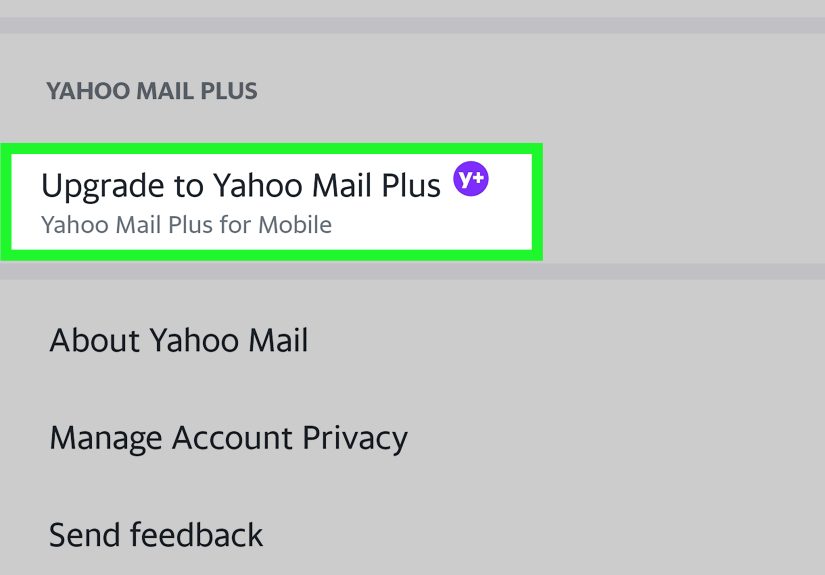
If you want Yahoo Mail to forward incoming messages to another email address automatically, check the forwarding option under mailbox settings. But there is a catch: automatic forwarding is tied to Yahoo Mail Plus and may not appear in every locale.
So if you go searching for forwarding and it is nowhere to be found, do not panic. You may not be missing it. It may simply not be available on your account level or in your region.
How to Manage Yahoo Mail Settings Like a Pro
If you want the biggest payoff with the least effort, manage your Yahoo Mail settings in this order:
- Security first: password, 2-step verification, account review.
- Identity next: sender name, signature, reply-to address.
- Inbox control: folders, filters, blocked senders.
- Comfort upgrades: theme, font size, layout, spacing.
- Lifestyle settings: vacation response, notifications, forwarding.
This order works because it tackles risk before convenience, then convenience before aesthetics. In other words, secure the house, organize the rooms, then pick the curtains.
Common Problems Yahoo Mail Settings Can Solve
Many Yahoo Mail frustrations are really settings problems in disguise. If you are missing messages, check filters, blocked addresses, spam, and reply-to settings. If your name looks wrong to recipients, review your sending name and mailbox settings. If your phone stays silent, check app notifications and device permissions. If a desktop app refuses to connect, confirm your IMAP setup and app password.
And if your mailbox suddenly behaves strangely, like sending weird mail, showing unexpected changes, or rerouting messages, review your security immediately. A hacked account often leaves clues in settings before it leaves clues anywhere else.
Real-World Experiences Managing Yahoo Mail Settings
In real life, most people do not decide to manage Yahoo Mail settings because they are bored on a Tuesday and want adventure. They do it because something has gone wrong, or at least mildly ridiculous. The inbox gets too messy. Important mail disappears. A signature looks outdated. Notifications become unbearable. Or a family member says, “I emailed you three times,” and you have to do the digital equivalent of checking under the couch cushions.
One of the most common experiences is the “I only meant to check one email” problem. You open Yahoo Mail for a quick task, and suddenly you are buried under shipping confirmations, sale alerts, social updates, travel promos, and newsletters from stores you do not remember loving this much. This is usually the moment when filters and folders stop sounding optional and start sounding life-changing. Once people build even three or four useful rules, the inbox feels calmer almost immediately.
Another common experience is identity cleanup. Someone created a Yahoo account years ago with a casual display name, then later started using it for more serious communication. That is when the sender name and signature settings become surprisingly important. A simple change from a vague nickname to a real name can make messages look more trustworthy and professional. It is a small adjustment with a big effect.
Security settings also tend to become urgent only after a scare. Maybe someone notices unfamiliar activity, or maybe login prompts start appearing out of nowhere. Once that happens, enabling 2-step verification suddenly feels less like an optional tech feature and more like common sense. People who add the extra layer of protection usually wish they had done it earlier.
Then there is the notification fatigue problem, which is very real. At first, alerts feel helpful. Then every buzz starts to feel like your inbox is tapping you on the shoulder every four minutes asking, “Did you see this? What about this? And this?” Switching to selective notifications can make email feel manageable again. A quieter phone is not just pleasant. It is productive.
Even the visual settings matter more than expected. Changing the layout, spacing, theme, or font size will not magically answer your messages for you, but it can make Yahoo Mail less tiring to use. And when a tool is easier on the eyes, people are more likely to keep it organized. That sounds minor until you realize most inbox problems are caused by avoidance.
The overall experience of managing Yahoo Mail settings usually comes down to this: a few thoughtful tweaks can make email feel much less overwhelming. Not exciting, perhaps. But definitely satisfying. Like finally untangling a drawer full of chargers and finding the one you actually need.
Conclusion
Learning how to manage your email settings on Yahoo! Mail is really about taking back control of your inbox. Once you know where the settings live and what each category does, Yahoo Mail becomes much easier to personalize. You can clean up clutter with filters, improve professionalism with a better signature and sender name, reduce distractions through smarter notifications, and protect your account with stronger security.
The best part is that you do not have to change everything at once. Start with security, fix your identity settings, organize your inbox, and then customize the look and feel. A few small updates can make Yahoo Mail faster, cleaner, safer, and far less stressful to use.
And honestly, that is the dream: an inbox that works for you instead of one that behaves like a raccoon knocked over a filing cabinet.