Table of Contents >> Show >> Hide
- First, What Counts as an “Archived” Email in Gmail?
- Before You Delete Anything: A 60-Second Safety Check
- Method 1: Bulk Delete Archived Emails on Desktop Using Search (Fastest)
- Method 2: Delete Archived Emails in the Gmail App Using All Mail + Batch Select (Mobile-Friendly)
- Troubleshooting: “Why Can’t I Find or Delete My Archived Emails?”
- Practical Cleanup Strategy: Don’t Delete RandomlyDelete in Waves
- Extra: Real-World Experiences People Have When Deleting Archived Gmail (About )
- Conclusion
Archiving in Gmail is like shoving clutter into a magical closet: the room (your Inbox) looks clean, but the stuff is definitely still in the house.
Eventually, that closet gets packed, Gmail feels heavier, search results get noisier, and your inner minimalist starts whispering,
“Okay, but… can we actually get rid of some of this?”
Good news: deleting archived emails is totally doable, and you don’t need a computer science degree or a cleansing ritual involving sage.
You just need to know where archived messages live (spoiler: All Mail), how to filter for “not in Inbox,”
and how to delete in bulk without accidentally yeeting your tax records into the void.
First, What Counts as an “Archived” Email in Gmail?
In Gmail, “Archive” doesn’t move messages into a separate folder the way some email apps do. Instead, Gmail removes the Inbox label.
That message still exists in your account, usually under All Mail (and under any labels you’ve applied).
So when you want to delete archived emails, what you’re really doing is: find emails that are in All Mail but not in Inbox,
then move them to Trash (and optionally empty Trash to permanently delete them).
Before You Delete Anything: A 60-Second Safety Check
This is the part where Future You taps you on the shoulder and says, “Hey, remember that one email with the warranty, the code, the receipt,
the legal thing, the thing you swore you’d file properly? Yeah. About that.”
- Search for “must-keep” topics first: receipts, contracts, “invoice,” “password,” “2FA,” “tax,” “medical,” etc.
- Scan for big attachments: if you’re cleaning storage, deleting emails with attachments can help more than deleting plain text.
- Remember Trash rules: deleting sends mail to Trash, where it can be recovered until it’s emptied (or auto-emptied later).
Method 1: Bulk Delete Archived Emails on Desktop Using Search (Fastest)
If you want maximum speed and minimum suffering, do this on the Gmail website (desktop browser).
Desktop Gmail has the best bulk-selection toolsmeaning you can delete hundreds or thousands of archived emails in minutes.
Step 1: Use a Search That Targets Archived Mail
In the Gmail search bar, start with this idea: All Mail minus Inbox.
The goal is to surface messages that aren’t currently sitting in your Inbox (which includes archived messages).
Try search queries like these:
in:all -in:inbox(broad: finds mail in All Mail that isn’t in Inbox)in:all -in:inbox -in:sent(cuts out Sent Mail, if you only want received mail)category:promotions in:all -in:inbox(targets promo clutter that’s been archived)older_than:1y in:all -in:inbox(older archived mailgreat for cleanup)has:attachment in:all -in:inbox(archived emails with attachments)from:[email protected] in:all -in:inbox(specific sender cleanup)
If you’re not sure which operators to use, click the small filter/slider icon in the search bar (advanced search) and build your query with fields like
sender, date range, keywords, and attachment status.
Step 2: Select Everything That Matches (Not Just the First Page)
Gmail shows results in pages (often 50 at a time). Here’s the trick most people miss:
- Click the checkbox at the top-left of the message list (this selects the current page).
-
Look for the message that appears above the listsomething like
“Select all conversations that match this search”and click it.
This is the “go big” button.
Step 3: Click Delete (Trash Icon)
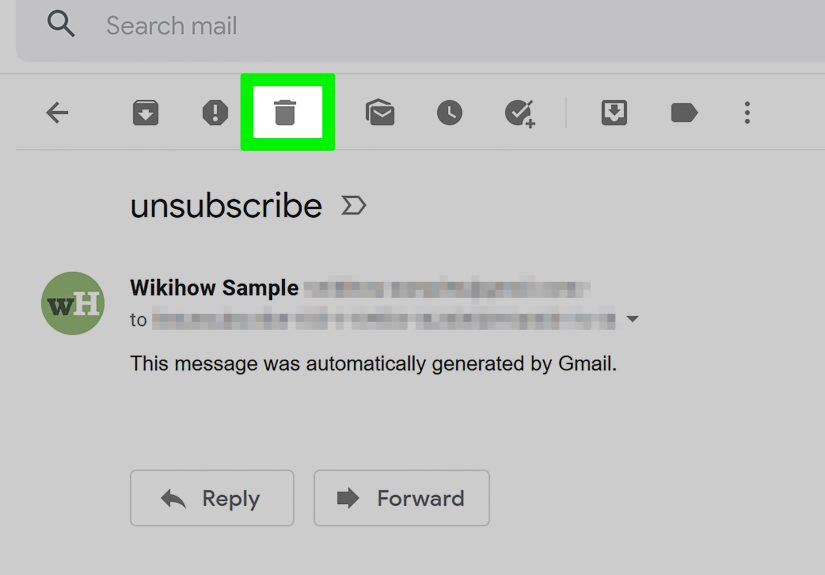
Now click the Trash icon. Gmail will move the selected messages to Trash.
That’s your “deleted” state, and you can still undo or recover until Trash is emptied.
Step 4 (Optional): Empty Trash for a True “Gone Gone” Delete
If you’re deleting archived emails to free space or you want the clean break, go to Trash and choose
Empty Trash now. Be careful: once Trash is emptied, recovery is much harder (and sometimes impossible).
Pro Examples: Targeted Cleanup Without Regret
Want to delete aggressively without accidentally nuking important stuff? Use “smart narrow” searches:
-
Old promos:
category:promotions older_than:2y in:all -in:inbox
Great for the “I once considered buying a yoga wheel in 2019” era. -
Social noise:
category:social older_than:1y in:all -in:inbox
Because you probably don’t need your cousin’s 2018 “joined a group” notification anymore. -
Big attachment cleanup:
has:attachment older_than:1y in:all -in:inbox
If storage is your pain point, this is often high-impact. -
One sender at a time:
from:[email protected] in:all -in:inbox
Perfect for newsletters you archived for “later reading” (we all lie to ourselves sometimes).
Method 2: Delete Archived Emails in the Gmail App Using All Mail + Batch Select (Mobile-Friendly)
If you’re on your phone, you can still delete archived emailsjust expect a little more tapping.
Mobile apps are great for quick cleanup sessions (waiting in line, commuting, avoiding eye contact in elevators, etc.).
Step 1: Open All Mail (Where Archived Messages Live)
- Open the Gmail app.
- Tap the menu (three lines).
- Scroll and tap All Mail.
Now you’re looking at the giant river of your email life: received, sent, labeled, archivedeverything except what’s in Spam and Trash.
Archived mail blends in here, so the next step is filtering.
Step 2: Filter for “Not in Inbox” Using Search
In the search bar, type a query that pulls up archived messages (same concept as desktop):
in:all -in:inboxolder_than:1y in:all -in:inboxcategory:promotions in:all -in:inbox
This helps you avoid deleting current Inbox messages by mistake and makes the mobile batch-delete feel less like you’re trying to drain a swimming pool with a teaspoon.
Step 3: Batch Select and Delete
- Touch and hold an email to enter selection mode.
- Select more emails by tapping the sender icons (or checkmarks) next to messages.
- Tap the Delete (trash can) icon.
Some versions of the Gmail app also let you select a batch (often up to around 50 at a time) and repeat the process for the next batch.
The key is using search to keep your batches consistent and targeted.
Bonus: Make Future Deleting Easier With Swipe Actions
A common reason people end up with a mountain of archived mail is that “swipe to archive” becomes muscle memory.
If you’d rather swipe-delete going forward, update your swipe actions in Gmail settings so cleanup is faster next time.
- Android: Gmail app → Settings → General settings → Swipe actions → set left/right swipe to Delete.
- iPhone/iPad: Gmail app → Settings → Inbox customizations → Mail swipe actions → set to Trash.
Troubleshooting: “Why Can’t I Find or Delete My Archived Emails?”
I don’t see “All Mail” in the menu
In some Gmail layouts, All Mail is tucked under “More.” Tap “More” and look again.
If you’re using Gmail through another mail app (like Apple Mail), it may treat Archive differently than the Gmail app does.
I deleted messages but they still show up somewhere
Check whether you’re viewing results that include Trash (some searches can surface mail “anywhere”).
Normally, once a message is moved to Trash, it shouldn’t appear in All Mail.
If things look weird, refresh, wait a moment for sync, or verify you’re not in a combined inbox view.
Will deleting archived mail also remove it from labels/folders?
Yes. Gmail doesn’t store multiple physical copies of a message for each label.
When you delete the message, you’re moving that single message to Trashso it disappears from labels and views (unless you recover it from Trash later).
Can I recover something I deleted?
Usually, yesif it’s still in Trash. You can move it back to Inbox or a label.
Once Trash is emptied (manually or automatically), recovery is much harder and not guaranteed.
Practical Cleanup Strategy: Don’t Delete RandomlyDelete in Waves
If you want a cleaner Gmail without panic-sweating over every message, do it in waves:
- Wave 1: Promotions + Social older than 1–2 years.
- Wave 2: Specific senders you recognize as “clutter factories.”
- Wave 3: Archived mail with attachments (if storage matters).
- Wave 4: Anything left that you truly don’t need (your call, your consequences).
This approach makes it easier to catch mistakes earlyespecially if you wait a day before emptying Trash.
Think of Trash as your “cooling-off period,” not your final destination.
Extra: Real-World Experiences People Have When Deleting Archived Gmail (About )
People usually don’t wake up and think, “Today I will delete my archived emails.” It’s more like:
Gmail throws a storage warning, search starts feeling like a junk drawer, or your Inbox is clean but you still feel digitally haunted.
What’s funny is how often the same stories repeatdifferent humans, same email chaos.
One common experience: the “I archived everything for years because I’m organized” realization.
Archiving feels responsible, like putting papers in a filing cabinet. But then you open All Mail and it’s basically a time capsule of
every coupon, every flight deal, every “confirm your account” message from apps you don’t even remember downloading.
At that moment, people tend to swing from “I should keep everything” to “Burn it all down.”
The best outcomes usually happen in the middle: delete the obvious noise first (old promotions, social updates, marketing drip campaigns),
then pause before touching anything that smells like paperwork.
Another classic: the “I tried to delete on my phone and gave up” episode.
Mobile deletion is doable, but it can feel like trying to clean a garage with a toothbrush.
People start strongselecting a few emails here and therethen realize there are thousands.
That’s when the search bar becomes the hero. The moment someone learns to search
older_than:1y plus category:promotions plus -in:inbox, the cleanup stops being emotional and starts being mechanical.
Instead of deciding email-by-email, they decide category-by-category.
It’s weirdly calming, like turning chaos into a checklist.
Then there’s the “oops, I meant to delete but I keep archiving” crowd.
This usually happens when swipe gestures are set to Archive and your thumb has been trained like a working dog.
People don’t even realize they’re archiving; it just happens at the speed of muscle memory.
Changing swipe actions to Delete/Trash can feel dramatic at first, like switching from “politely filing paperwork” to “shredding junk mail on sight,”
but it’s one of the most effective behavior fixes for anyone who’s serious about keeping Gmail lean.
Finally, a surprisingly common emotion after a real cleanup: relief.
Not because email is inherently heavy, but because digital clutter is still clutter.
When people delete archived mail in a targeted wayespecially the stuff older than a couple yearsthey report that Gmail search gets sharper,
they stop stumbling over outdated threads, and they feel more in control.
The trick is treating deletion like a process, not a dramatic one-time event.
Do a wave, let Trash sit for a bit, then empty it when you’re confident.
It’s the email equivalent of cleaning your closet and keeping the donation bag by the door for a day before dropping it off.
Conclusion
Deleting archived emails in Gmail isn’t hardit’s just hidden behind Gmail’s “labels, not folders” logic.
If you remember one thing, make it this: archived mail = not in Inbox.
Use search to isolate it, delete in bulk on desktop when you can, and use mobile batches when you’re on the go.
With a little strategy (and maybe a swipe-setting upgrade), you can keep your Gmail from turning into a digital attic.