Table of Contents >> Show >> Hide
- What “No Signal” Actually Means (and Why It’s So Common)
- 60-Second Quick Fix Checklist (Try This First)
- Step-by-Step Troubleshooting: Firestick No Signal Fixes That Actually Work
- 1) Confirm You’re on the Right HDMI Input (The Most Common “Facepalm” Fix)
- 2) Reseat the Firestick (and Don’t Be GentleBe Correct)
- 3) Fix Power Issues (Because HDMI Problems Sometimes Start at the Wall Outlet)
- 4) Do a Proper Power Cycle (The HDMI Handshake Reset)
- 5) Try Another HDMI Port (and Then Another TV, If You Can)
- 6) Remove Soundbars/AV Receivers/HDMI Switches (Temporarily) to Isolate the Problem
- 7) Understand (and Work Around) HDCP Handshake Problems
- 8) Fix a Resolution Mismatch (Firestick “No Signal” After Changing TV or Settings)
- 9) Toggle HDMI-CEC (Because Sometimes the “Smart” Features Get Confused)
- 10) Restart the Firestick (Soft Reset) and Check for Updates
- 11) Factory Reset (Last Resort, but It Works More Often Than You’d Think)
- 12) When It’s Probably Hardware (and What to Do Next)
- Common “No Signal” Scenarios (So You Can Diagnose Faster)
- How to Prevent Firestick No Signal Problems (Future You Will Be Grateful)
- Real-World Experiences: Firestick “No Signal” Stories (and What Actually Fixed Them)
- Conclusion
Your TV says “No Signal”, your Fire TV Stick is plugged in, and your couch is suddenly the front row seat at a
one-device comedy show. The punchline? It’s almost always something boring (and fixable): the wrong HDMI input, a loose connection,
not enough power, or an HDMI “handshake” issue between the Firestick and the TV.
This guide walks you through Firestick no signal troubleshooting from fastest to most “okay, now we’re doing science.”
You’ll also get a few real-world examples, plus a long “been there” experience section at the end so you don’t feel alone in the HDMI trenches.
What “No Signal” Actually Means (and Why It’s So Common)
When your TV shows No Signal, it’s not judging your streaming taste. It’s telling you it can’t detect a usable video signal
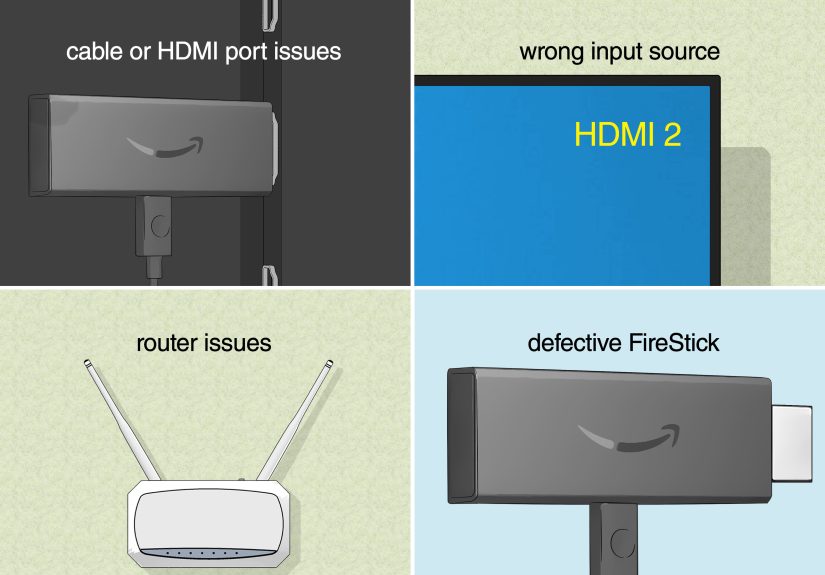
coming from that HDMI port. With a Fire TV Stick, that usually points to one of these categories:
- Input mismatch: The TV is listening to HDMI 2, but your Firestick is yelling from HDMI 1.
- Connection problems: The stick isn’t fully seated, an extender/adapter is flaky, or the port is temperamental.
- Power problems: The Firestick is underpowered (especially when powered from a TV USB port), so it boots weird or not at all.
- Handshake/HDCP issues: HDMI devices negotiate copy protection and resolution; when that fails, you can get a blank screen or no signal.
- Resolution incompatibility: The Firestick is set to a display mode your TV/AVR can’t handle.
- Intermediary device drama: Soundbars, AV receivers, HDMI switches, and splitters can break the chain.
60-Second Quick Fix Checklist (Try This First)
If you want the “skip the monologue, get to the action” version, do these in order:
- Select the correct HDMI input using the TV remote (Input/Source) and choose the port the Firestick is plugged into. (Yes, really.)
- Unplug the Firestick’s power for 30–60 seconds, then plug it back in.
- Switch HDMI ports (move from HDMI 1 to HDMI 2 or 3).
- Use the wall power adapter that came with the Firestick (don’t power it from the TV’s USB port while troubleshooting).
- Remove extras: unplug HDMI switches, splitters, capture devices, and try the Firestick directly in the TV.
If you still see Fire TV no signal or a black/blank screen, keep goingyour fix is probably just one layer deeper.
Step-by-Step Troubleshooting: Firestick No Signal Fixes That Actually Work
1) Confirm You’re on the Right HDMI Input (The Most Common “Facepalm” Fix)
TVs do not always auto-switch to the correct HDMI input. If your Firestick is plugged into HDMI 2 but your TV is set to
HDMI 1, you’ll get “No Signal” no matter how inspirational your troubleshooting playlist is.
- Use the TV remote (not the Firestick remote) and press Input or Source.
- Select the matching HDMI label (HDMI 1 / HDMI 2 / etc.).
- If your TV shows a little preview thumbnail per input, look for the Fire TV logo or home screen.
This sounds basic because it is basicand it fixes a huge percentage of “Firestick not showing up on HDMI” complaints.
2) Reseat the Firestick (and Don’t Be GentleBe Correct)
Fire TV Sticks can look plugged in when they’re actually “half-plugged in,” especially on wall-mounted TVs where the port faces sideways.
Pull the stick out and reinsert it firmly. If you have the included HDMI extender/dongle, try it both ways:
- Direct connection: Firestick straight into the TV (fewer failure points).
- With extender: Useful if the TV’s port is tight, recessed, or puts pressure on the stick.
Intermediary adapters and hubs can contribute to blank screen behaviortesting direct-to-TV is a reliable way to isolate that.
3) Fix Power Issues (Because HDMI Problems Sometimes Start at the Wall Outlet)
If your Firestick isn’t getting stable power, it can boot-loop, show a black screen, or fail the HDMI handshake. Power is one of the top culprits
behind “no signal” that mysteriously disappears when you jiggle something (a classic clue that power is marginal).
- Use the original power adapter and USB cable that came with the device when troubleshooting.
- Avoid powering from a TV USB port during diagnosis (some ports don’t supply enough current consistently).
- If you swapped cables, try a shorter USB cable (long/cheap cables can drop voltage).
Real-life example: If your Firestick works for 10 minutes and then the TV shows “No Signal,” it can be a power sag that causes a restartyour TV just
reports the end result.
4) Do a Proper Power Cycle (The HDMI Handshake Reset)
HDMI devices “negotiate” when they connect. If the negotiation gets stuck, you want a clean reset of the chain.
- Turn off the TV.
- Unplug the Firestick’s power.
- (Optional but helpful) Disconnect other HDMI devices from the TV to simplify the handshake.
- Unplug the TV from power for a few minutes.
- Plug the TV back in, then power the Firestick back on.
This kind of full reset sequence is a classic “no signal” cure because it clears residual states in the TV and HDMI devices.
5) Try Another HDMI Port (and Then Another TV, If You Can)
HDMI ports fail. Also, some HDMI ports behave differently (for example, one port might support a certain feature set better than another).
- Move the Firestick from HDMI 1 to HDMI 2 (or 3).
- If available, test the Firestick on another TV or monitor to identify whether the problem follows the stick or stays with the TV.
If it works on a second TV, your original TV’s port, settings, or intermediary devices are the likely issue. If it fails everywhere, the Firestick (or its power setup)
is the prime suspect.
6) Remove Soundbars/AV Receivers/HDMI Switches (Temporarily) to Isolate the Problem
Soundbars and AV receivers are greatuntil they aren’t. If your Firestick is routed through an AVR, soundbar, HDMI switch, or splitter, that device becomes part of the
handshake chain. One incompatible setting, and your TV shows “No Signal.”
The best diagnostic move is simple: plug the Firestick directly into the TV. If it suddenly works, reconnect your gear one device at a time until the
failure returns.
7) Understand (and Work Around) HDCP Handshake Problems
HDCP is copy protection that rides along HDMI. If the TV/monitor doesn’t support the required HDCP versionor a splitter/switch “lies” about itthe video signal may not
display even if everything is plugged in correctly.
- If you’re using an older TV/monitor or a projector, check whether it’s HDCP compatible.
- Avoid questionable HDMI splitters/capture devices while troubleshooting.
- Try a different HDMI port; some devices handle HDCP negotiation better on specific ports.
Practical example: A Firestick that works when plugged directly into the TV but fails through an older receiver is often a compatibility/HDCP issue, not a “broken Firestick.”
8) Fix a Resolution Mismatch (Firestick “No Signal” After Changing TV or Settings)
Sometimes the Firestick is outputting a resolution or refresh rate the TV can’t display (or can’t display on that port with current settings). That can look like a no signal
message or a blank screen.
One official-style workaround is to cycle available resolutions with a remote shortcut:
press and hold Up and Rewind together for about five seconds, then allow the device to cycle display options until an image appears.
Once you have a picture, set your display to Auto or a known-safe option like 1080p (especially on older TVs and some AV receivers).
9) Toggle HDMI-CEC (Because Sometimes the “Smart” Features Get Confused)
HDMI-CEC lets devices control each other (turn on/off together, switch inputs automatically). It’s convenientuntil it’s not. If the TV and Firestick are fighting over control,
you can end up with a blank screen loop or input switching that feels haunted.
A common fix is to toggle the Fire TV’s HDMI-CEC device control setting off and back on (once you can see the menus).
10) Restart the Firestick (Soft Reset) and Check for Updates
If you can get any screen at all (logo, partial menu, intermittent video), restart the device and make sure it’s updated. A restart clears temporary glitches that can interfere
with display and app behavior.
- Remote restart shortcut: Many guides recommend holding Select + Play/Pause to trigger a restart.
- Update path: Settings > My Fire TV > About > Install Update (if available).
11) Factory Reset (Last Resort, but It Works More Often Than You’d Think)
A factory reset wipes your settings, apps, and account connections. It’s annoying, but it can fix stubborn software issues that survive restarts.
If you can access menus: Settings > My Fire TV > Reset to Factory Defaults.
If the settings won’t load (but you still have some display), some guides note a remote shortcut that can bring up the reset prompt by holding
Back and Right for around 10 seconds.
12) When It’s Probably Hardware (and What to Do Next)
If you’ve tried: correct input, multiple HDMI ports, stable wall power, direct-to-TV connection, and a full power cycleand the Firestick still shows no signal on more than one TV
you may be looking at hardware failure.
- Test on another TV: If it fails on every display, it’s likely the stick or its power cable/adapter.
- Consider replacement/support: Many troubleshooting guides recommend contacting support when standard fixes fail.
Common “No Signal” Scenarios (So You Can Diagnose Faster)
Scenario A: “It worked yesterday, now it’s No Signal.”
- TV input got changed (kids/pets/you half-asleep with the remote).
- The Firestick is underpowered and started glitching after an update.
- An HDMI handshake got stuckfull power cycle fixes it.
Scenario B: “Firestick works on one TV but not on my main TV.”
- That HDMI port is failing or configured differently than other ports.
- Intermediary devices (soundbar/AVR/switch) are causing handshake issues.
- HDCP compatibility differences between displays.
Scenario C: “No signal after I changed display settings / got a new TV / moved the stick.”
- Resolution mismatchtry the resolution cycling shortcut, then set to Auto/1080p.
- Different TV port requirementstry another HDMI input.
How to Prevent Firestick No Signal Problems (Future You Will Be Grateful)
- Use stable wall power and the original power adapter/cable.
- Keep it simple: If you add an HDMI switch, splitter, or older receiver, expect occasional handshake weirdness.
- Don’t crush the stick: Use the HDMI extender if the port angle stresses the connector.
- Keep software updated (Fire OS and TV firmware) to avoid compatibility hiccups.
- When in doubt, set display to Auto and avoid forcing fancy modes on older TVs.
Real-World Experiences: Firestick “No Signal” Stories (and What Actually Fixed Them)
This section is the “group chat” version of troubleshooting: what people actually run into, what they try first, and the one move that finally makes the TV stop acting like it’s never met the Firestick before.
If you’ve been staring at HDMI no signal long enough to start bargaining with inanimate objects (“I will clean the garage if you just show the home screen”), welcome. You are among friends.
Experience #1: The TV USB Port Betrayal
A common story goes like this: “My Firestick worked fine for months powered by the TV’s USB port… until it didn’t.” One evening it starts showing no signal after a reboot, or it flickers between the Fire TV logo and darkness.
The user swaps HDMI ports. Nothing. They restart. Nothing. They replace the HDMI cable. Still nothing.
The fix? Plugging the Firestick into the wall adapter (the one it came with) instantly stabilizes it. The reason this works is painfully practical: some TV USB ports don’t provide consistent power,
and even a small dip can cause the Firestick to crash mid-handshake. Once it’s properly powered, the HDMI connection “locks in” like it should. This is one of those fixes that feels too easy,
which is exactly why it’s so satisfying when it works.
Experience #2: The Soundbar/Receiver Middleman Problem
Another frequent scenario: the Firestick is plugged into an AV receiver or soundbar HDMI input, then the receiver connects to the TV. Everything looks wired correctly, but the TV says No Signal.
The user tries a different HDMI cablestill no. They unplug the Firestickstill no. They stare at the receiver like it owes them money.
The winning move is to bypass the middleman: connect the Firestick directly to the TV. Suddenly, it works. That instantly tells you the Firestick isn’t “dead.”
Instead, the receiver/soundbar is the bottleneckoften due to HDCP support differences, older HDMI standards, or a handshake that doesn’t recover well after power outages.
Once you identify that, you can troubleshoot the audio gear specifically (different port, firmware update, different HDMI cable, or plugging the receiver into the TV’s recommended eARC/ARC port).
But the key experience-based lesson is this: direct-to-TV testing is the fastest truth serum when you’re stuck.
Experience #3: The Resolution “Oops” That Looks Like No Signal
Some people get “no signal” right after changing display settings or moving the Firestick to a different TV. The logic is sneaky:
the Firestick may be outputting a resolution your TV can’t display (or can’t display on that specific HDMI port with its current “enhanced” settings).
To the user, it feels identical to a broken HDMI connection.
The fix is usually to force the Firestick back into a compatible mode by cycling resolutions using the remote shortcut (Up + Rewind held for about five seconds),
then choosing a safe default like Auto or 1080p. After that, everything returns to normallike the TV finally remembered it owns pixels.
This experience is especially common when someone upgrades to a new TV, plugs the Firestick into a different port than usual, or routes it through a device that doesn’t fully support 4K/HDR.
It’s not glamorous, but it’s real life.
Experience #4: The “Unplug Everything” Nuclear Option That Magically Works
There’s a certain moment in every troubleshooting saga when you stop doing delicate steps and go full “tech exorcism”: unplug the TV, unplug the Firestick, unplug the soundbar,
disconnect HDMI cables, wait a couple minutes, then plug it all back inslowly, like you’re reassembling a fragile spaceship.
As dramatic as it sounds, this works because it resets the HDMI handshake chain and clears odd states stuck in the TV’s HDMI controller.
People often report that a simple Firestick reboot didn’t help, but the full power cycle didespecially after storms, power outages, or a TV firmware update.
A reliable variation is to disconnect other HDMI devices temporarily and reconnect them one at a time. When the issue returns, you’ve found the troublemaker.
It’s not the most elegant fix, but it’s the most “I need my show back tonight” fixand sometimes that’s the only metric that matters.
Conclusion
A Firestick no signal error looks dramatic, but it’s usually a simple mismatch or handshake issue: wrong input, shaky HDMI connection, unstable power, or a resolution/HDCP hiccup.
Start with the easy wins (input, power, port swap), then isolate the chain by going direct-to-TV, and use the resolution reset if you suspect a display mismatch.
If it fails across multiple TVs with known-good power, it may be time to contact support or replace the device.