Table of Contents >> Show >> Hide
- The 60-Second “Stop the Recurring Charge” Checklist
- Before You Cancel: Make Sure You’re Canceling the Right Thing
- How PayPal Recurring Payments Work (So You Can Outsmart Them)
- How to Cancel PayPal Subscriptions on a Desktop (PayPal.com)
- How to Cancel PayPal Subscriptions in the PayPal App (iPhone & Android)
- If You Can’t Find the Subscription in PayPal
- After You Cancel: What Happens Next
- Refunds, Disputes, and “Please Give My Money Back” Options
- Stop the Bleeding If Charges Won’t Stop
- How to Prevent Surprise PayPal Subscriptions in the Future
- Security Note: PayPal “Subscription” Phishing Is a Real Thing
- FAQ: Quick Answers to Common PayPal Subscription Questions
- Experiences & Real-World Lessons: Canceling PayPal Subscriptions Without Losing Your Mind (Extra )
- Conclusion
Subscriptions are like glitter: easy to pick up, weirdly hard to get rid of, and you’ll find them months later in places they absolutely do not belong.
If you’ve ever looked at your PayPal activity and thought, “Who is THIS and why are they charging me every month?”you’re in the right place.
This guide walks you through exactly how to cancel PayPal subscriptions (also called automatic payments, billing agreements, or recurring payments),
how to stop future charges, what to do if you can’t find the subscription, and how to protect yourself from “subscription traps.”
The 60-Second “Stop the Recurring Charge” Checklist
- Confirm it’s actually billed through PayPal (not Apple/Google, your card directly, or PayPal Credit).
- Cancel the automatic payment in PayPal (desktop or app steps below).
- Save proof (screenshot + confirmation email).
- Check for the next billing date and whether a payment is already “in progress.”
- If charges continue: contact the merchant, then escalate with PayPal (and your bank/card if needed).
Before You Cancel: Make Sure You’re Canceling the Right Thing
PayPal can be the payment method behind several different kinds of “recurring” charges, and the cancellation method depends on which one you’re dealing with.
Do a quick sanity check first so you don’t cancel the wrong thing and keep getting charged anyway (the worst kind of “multitasking”).
Common recurring charge types (and where to cancel them)
- PayPal automatic payments (subscriptions/billing agreements): cancel inside your PayPal account.
- Apple App Store subscriptions (even if PayPal funds them): cancel in Apple’s subscription settings.
- Google Play subscriptions (even if PayPal is linked somewhere): cancel in Google Play subscriptions.
- Merchant charges your card directly (PayPal not involved): cancel with the merchant or your card issuer.
- PayPal Credit scheduled payments: cancel inside the PayPal Credit payment area (different from “subscriptions”).
Tip: open the transaction in PayPal and look for wording like “Automatic Payment,” “Billing Agreement,” “Subscription,” or a merchant profile that shows “active” status.
That’s your clue you can stop it from the PayPal side.
How PayPal Recurring Payments Work (So You Can Outsmart Them)
A PayPal recurring payment isn’t just “a charge.” It’s usually a permission slip you gave a merchant to charge your PayPal account in the future
often after a free trial, or when you click a tiny checkbox that basically says “Yes, you may adopt my wallet and raise it as your own.”
Why uninstalling an app doesn’t cancel anything
If you signed up for a service and authorized PayPal as a saved payment method, that permission can live on in PayPal even if you delete the app,
close the browser tab, move to a cabin in the woods, and take up knitting. The subscription can still be active until you cancel it properly.
How to Cancel PayPal Subscriptions on a Desktop (PayPal.com)
If you prefer the “big screen, fewer taps” approach, desktop is usually the easiest way to find and manage your PayPal subscriptions.
Step-by-step (desktop web)
- Log in to PayPal.com.
- Click the gear icon (Settings).
- Go to Payments.
- Select Subscriptions and saved businesses (sometimes shown as Automatic Payments).
- Choose the merchant/subscription you want to stop.
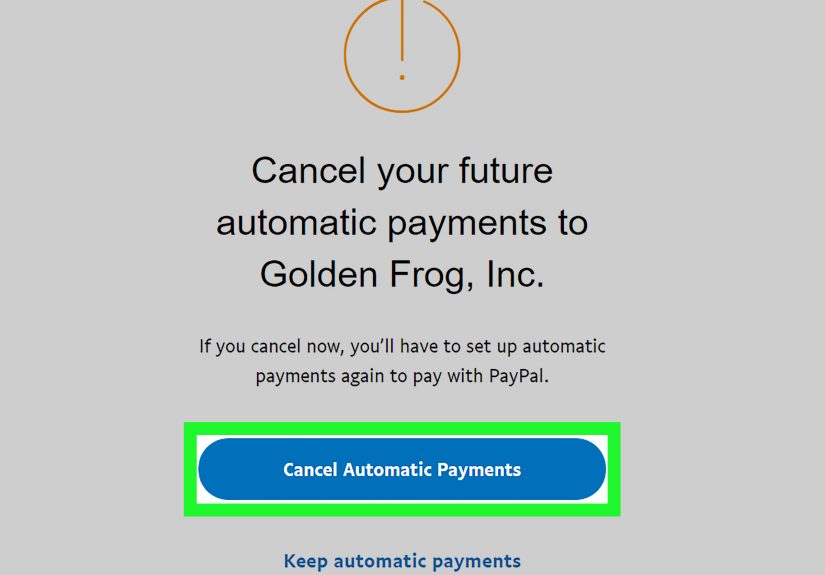
- Click Cancel (or the option to stop/remove PayPal as the payment method).
- Confirm the cancellation.
After canceling, take one screenshot showing the subscription status as canceled/inactive and keep any confirmation email PayPal sends.
Future-you will appreciate the receiptsespecially if the merchant tries to “oops” another charge through.
How to Cancel PayPal Subscriptions in the PayPal App (iPhone & Android)
The PayPal app can also manage recurring payments, but the menu labels can vary slightly by version.
The magic words to look for are usually “Automatic Payments” or “Subscriptions.”
Step-by-step (PayPal mobile app)
- Open the PayPal app and log in.
- Tap the Settings icon (often a gear).
- Find and open Automatic Payments (or Subscriptions / Payments depending on your app version).
- Select the merchant/subscription.
- Tap Remove PayPal as your payment method or Cancel.
- Confirm to finalize the cancellation.
Pro tip: If you’re not seeing “Subscriptions,” search for “Automatic” in PayPal’s help area or scan your settings menu carefully.
It’s sometimes hiding like it owes you money (which… honestly, it might).
If You Can’t Find the Subscription in PayPal
This is the most common roadblock: you’re sure you’re paying for something, but it doesn’t show in PayPal’s automatic payments list.
Usually, it’s one of these situations.
1) It’s billed through Apple (App Store)
If you subscribed on an iPhone/iPad app, the subscription might be managed by Appleeven if PayPal was used at some point.
Cancel it in your Apple subscription settings. If you don’t see a “Cancel” button, it may already be canceled.
2) It’s billed through Google Play
If you subscribed on Android, Google Play may control the billing. Cancel the subscription inside Google Play subscriptions.
Important: uninstalling the app does not cancel the subscription.
3) You’re logged into the “wrong” PayPal account
Many people have more than one PayPal login (old email, new email, business account, etc.). If you’re not seeing the subscription,
try logging into any other PayPal account you might have used when you signed up.
4) The merchant is charging your card directly
Sometimes PayPal is used once, but the merchant later charges your debit/credit card directly (or you entered card details separately).
In that case, PayPal won’t list it as an automatic payment. You’ll need to cancel through the merchant or your card issuer.
5) It’s a scheduled PayPal Credit payment, not a subscription
PayPal Credit payments are managed in a different area than subscriptions. If your issue is a scheduled PayPal Credit payment,
look for the PayPal Credit payment section and cancel the scheduled payment there (if it hasn’t processed yet).
After You Cancel: What Happens Next
Canceling an automatic payment usually stops future charges, but timing matters.
Here’s what to expect so you don’t get spooked by a last-minute charge and assume PayPal ignored you (PayPal heard you; the calendar just didn’t).
You may still have access until the end of the billing period
Many services keep your access until your paid time runs out. So you can cancel today and still watch/stream/use the service until the cycle ends.
That’s normal.
A charge already in progress might still go through
If the next payment was already initiated (or you were billed right before you canceled), you might still see that charge.
That doesn’t automatically mean the cancellation failedjust that the billing event was already underway.
Always verify status
Go back into Subscriptions/Automatic Payments and confirm it shows as canceled/inactive. Save proof.
Treat it like canceling a gym membership: polite optimism, backed by documentation.
Refunds, Disputes, and “Please Give My Money Back” Options
Canceling stops future payments. It doesn’t automatically refund past payments.
If you were charged unexpectedly (free trial ended, forgot to cancel, duplicate subscription, etc.), try this approach:
Step 1: Ask the merchant first
Many companies will refund a recent chargeespecially if you cancel quickly and stay polite.
When you contact them, include:
- Date and amount of the charge
- The email/PayPal transaction ID (if available)
- Why you believe a refund is reasonable (trial ended, accidental sign-up, didn’t receive service, etc.)
Step 2: Use PayPal’s resolution options if needed
If the merchant won’t cooperate and you have a valid reason, PayPal may allow you to open a dispute depending on the transaction type and circumstances.
If you believe the charge is unauthorized (you didn’t sign up at all), treat it as a security issue and act quickly.
Step 3: Escalate with your bank/card issuer (last resort)
If PayPal isn’t the right channel (or if the merchant keeps charging in a way that bypasses PayPal), you may need to dispute through your bank/card.
Keep in mind: banks may have their own timelines, paperwork, and rules.
Stop the Bleeding If Charges Won’t Stop
If you canceled but charges keep showing up, don’t just keep refreshing your account like it’s going to develop empathy.
Use a layered approach.
1) Confirm the subscription is actually canceled in PayPal
Go back to the merchant entry in Subscriptions/Automatic Payments and verify it’s canceled/inactive.
If it still shows active, cancel again and capture proof.
2) Contact the merchant and revoke permission
Tell the company you are withdrawing authorization for automatic payments and that you want the subscription canceled.
Ask for written confirmation (email is fine).
3) Stop payments through your bank when appropriate
For certain types of preauthorized electronic transfers, U.S. consumer protections can allow you to request a stop payment through your financial institution.
Timing mattersmany rules require notice before the scheduled transfer dateso act fast if a charge is coming up.
4) Change your strategy, not just your payment method
Switching cards can help in some cases, but it’s not a guaranteed fix. Some merchants (and some payment ecosystems) can update payment credentials behind the scenes.
The cleanest solution is canceling at the source and getting confirmation.
How to Prevent Surprise PayPal Subscriptions in the Future
Canceling is good. Not having to cancel in the first place? Even better. Here are practical habits that reduce recurring payment chaos:
Do a monthly “Subscriptions & Saved Businesses” sweep
Set a recurring reminder (monthly is fine) to check PayPal’s subscription/automatic payments area.
Treat it like checking the fridge before grocery shoppingslightly annoying, extremely cost-effective.
Set trial-end reminders the moment you sign up
If you start a 7-day or 30-day free trial, create a calendar alert for a few days before it ends.
This single habit saves real money and prevents “I forgot” fees.
Use clearer labels in your notes
The merchant name in PayPal might not match the brand you recognize (think: “XYZ Digital Services LLC” instead of “CoolStreaming+”).
When you sign up, write down what it appears as in billing to avoid future detective work.
Watch for subscription “dark patterns”
Some companies make canceling harder than signing up on purpose. If you can’t find an obvious cancellation path, search the company’s help pages,
check your confirmation email, and document everything. The more friction you feel, the more likely it’s designed that way.
Security Note: PayPal “Subscription” Phishing Is a Real Thing
A quick warning: scammers have used legitimate-looking PayPal subscription emails to trick people into calling fake support numbers or sharing personal info.
If you get an alarming message about a subscription you don’t recognize:
- Don’t call phone numbers listed in suspicious emails.
- Log in to PayPal directly (type the site/app yourself) and check your subscriptions there.
- Report suspicious messages through official PayPal channels if something looks off.
FAQ: Quick Answers to Common PayPal Subscription Questions
Does canceling in PayPal stop future charges immediately?
It stops future automatic payments under that agreement. You may still see a charge if it was already processing or billed right before cancellation.
Always confirm the status shows canceled/inactive after you finish.
Will I lose access the moment I cancel?
Usually no. Many services keep access until the end of your current billing cycle, but policies vary by merchant.
Why don’t I see a “Cancel” button?
If you don’t see a cancel option, it may already be canceled, or it may not be a PayPal-managed subscription. Check Apple/Google subscriptions and your card statements.
Is “automatic payment” the same as a subscription?
In PayPal language, yesautomatic payments can include subscriptions, billing agreements, and other saved merchant permissions for future charges.
What if the merchant still charges me after I canceled?
First confirm the PayPal automatic payment is canceled. Then contact the merchant for confirmation and refund if appropriate.
If needed, escalate using PayPal’s dispute tools or your bank/card issuer’s dispute/stop-payment process.
Experiences & Real-World Lessons: Canceling PayPal Subscriptions Without Losing Your Mind (Extra )
People usually imagine canceling a PayPal subscription as one clean click followed by instant financial peace. In real life, it’s often more like cleaning a closet:
you start with one obvious mess, then discover a second mess behind it, then you find a mystery box labeled “Important 2019” that is absolutely not important.
Here are a few common, real-world scenarios that come up when people try to stop recurring paymentsand what tends to work best.
Scenario #1: The “Free Trial Amnesia” charge. Someone signs up for a free trial using PayPal because it feels safer than typing in card details.
The trial ends, a monthly charge appears, and the reaction is immediate: “I never agreed to this!” (Spoiler: the checkbox was checked.)
The smoothest fix is usually to cancel the automatic payment in PayPal right away, then contact the merchant politely and quickly.
Many companies are more willing to refund if it’s the first billing cycle and you cancel promptly. The key lesson: cancel first, then ask for the refund
don’t wait a week while hoping your account magically develops a conscience.
Scenario #2: The “I canceled… I think?” uncertainty spiral. Another common experience is canceling the subscription, but not trusting it.
The app shows one menu, the website shows another, and now you’re living in fear of the next billing date like it’s a jump scare.
The habit that reduces stress here is saving proof: screenshot the canceled status and keep the confirmation email.
If a charge hits later, you’re not arguing from memory; you’re arguing from evidence. Also, people often find that checking the status again after a few minutes
(or after logging out and back in) helps confirm the cancellation “stuck.”
Scenario #3: The “It’s not in PayPal anywhere” mystery. This one feels like a prank: you see the charge on your bank statement, but PayPal doesn’t show an active subscription.
In many cases, it turns out the subscription is managed through Apple or Google Play, or the merchant is charging a card directly.
The big lesson: follow the billing trail. If the original sign-up happened inside a mobile app, Apple/Google subscription settings are the first places to check.
And if the charge descriptor doesn’t clearly say PayPal, it might not be PayPal-managed at all.
Scenario #4: The “Canceled but still charged” headache. When this happens, it’s often a timing issue (the payment was already initiated),
or it’s a separate billing path (a second account, a second subscription, or a merchant charging outside the PayPal agreement).
People get the best results by (1) confirming PayPal shows the agreement canceled, (2) contacting the merchant for written confirmation, and (3) escalating only if needed.
Jumping straight to a bank dispute can work, but it can also create extra frictionso it’s usually better as a last step, not the first.
The overall takeaway from these experiences is simple: PayPal is a powerful tool for tracking recurring payments, but you still have to be intentional.
Know where you subscribed, cancel at the correct source, keep proof, and don’t ignore the early warning signslike the moment a “free” trial asks you to “save” PayPal for future purchases.
That’s the subscription equivalent of a cat staring at your glass of water: something is about to happen.
Conclusion
Canceling PayPal subscriptions is straightforward once you know where to look: Settings → Payments → Subscriptions/Automatic Payments.
From there, you can stop recurring charges, update payment methods, and keep your account from turning into a monthly “surprise box.”
If you can’t find the subscription, check Apple/Google subscriptions, confirm you’re in the right PayPal account, and follow the billing trail.
And whenever money is involved, save proofbecause “I’m pretty sure I canceled it” is not a legal document.