Table of Contents >> Show >> Hide
- Why Checking Printer Ink Levels Matters
- Before You Start: Make Sure Windows Can See Your Printer
- Method 1: Check Printer Ink Levels in Windows Settings
- Method 2: Check Ink Levels from Control Panel
- Method 3: Use the Printer Manufacturer’s App or Status Monitor
- Method 4: Check Ink Levels from the Printer Screen or Web Interface
- What If Windows Does Not Show Ink Levels?
- Ink Levels vs. Toner Levels: What Is the Difference?
- How Accurate Are Printer Ink Level Readings?
- Best Practices to Avoid Surprise Ink Problems
- My Real-World Experience Checking Printer Ink Levels on Windows
- Conclusion
Note: This guide is based on real Windows printer settings and common support guidance from major printer brands, including HP, Canon, Epson, Brother, and Microsoft Windows support documentation. It is written for everyday Windows users who want practical steps without needing a degree in “printer whispering.”
Few office mysteries are as annoying as clicking “Print,” hearing your printer wake up like a grumpy robot, and then receiving a page that looks like it survived a rainstorm. Is the black cartridge empty? Is cyan staging a silent protest? Did Windows forget your printer exists again? Before you blame the printer, the computer, the Wi-Fi, or Mercury in retrograde, check your printer ink levels.
Learning how to check printer ink levels on Windows can save time, paper, and a surprising amount of emotional energy. Whether you use Windows 10, Windows 11, an HP DeskJet, Canon PIXMA, Epson EcoTank, Brother inkjet, or another home-office printer, there are several reliable ways to see your remaining ink or toner levels.
This guide walks you through 4 ways to check printer ink levels on Windows, including Windows Settings, Control Panel, manufacturer printer apps, and the printer’s own screen or web interface. We will also cover what to do when ink levels do not appear, why the readings may be “estimated,” and how to avoid getting tricked by a printer that claims it is “fine” while printing like a haunted typewriter.
Why Checking Printer Ink Levels Matters
Printer ink levels are not just a tiny detail hidden inside a boring settings menu. They affect print quality, color accuracy, page output, and whether your printer can finish an important document before you leave for school, work, or a meeting.
Low ink can cause faded text, streaky images, missing colors, uneven lines, and pages that look like they were printed during a printer’s existential crisis. In some cases, your printer may stop printing entirely if one cartridge is empty, even if you only need black-and-white output. This depends on the printer model and cartridge system.
Checking ink levels early helps you avoid last-minute panic. It also helps you decide whether you need to replace a cartridge, refill an ink tank, clean the printhead, or troubleshoot a driver issue. The good news is that Windows gives you several routes to check printer status, and most printer manufacturers offer dedicated tools that display ink or toner levels more clearly.
Before You Start: Make Sure Windows Can See Your Printer
Before checking ink levels, confirm that your printer is properly connected. This sounds obvious, but printers enjoy making simple things dramatic.
If your printer is connected by USB, make sure the cable is firmly plugged into both the printer and your computer. If it is wireless, confirm that the printer and Windows PC are on the same Wi-Fi network. Also make sure the printer is powered on, not asleep, not offline, and not stuck with a paper jam or open cartridge door.
On Windows 11, go to Start > Settings > Bluetooth & devices > Printers & scanners. On Windows 10, go to Start > Settings > Devices > Printers & scanners. If your printer appears in the list, Windows recognizes it. If it does not, add it first or reinstall the printer driver from the manufacturer’s official support page.
Method 1: Check Printer Ink Levels in Windows Settings
The easiest place to start is the Windows Settings app. This method is clean, quick, and works especially well when your printer driver shares supply information with Windows.
How to Check Ink Levels on Windows 11
- Click the Start button.
- Open Settings.
- Select Bluetooth & devices.
- Click Printers & scanners.
- Select your printer from the list.
- Look for options such as Printer properties, Printing preferences, Open print queue, or a supply-level section.
- If available, open the Maintenance, Services, Supplies, or Estimated Ink Levels tab.
How to Check Ink Levels on Windows 10
- Click Start.
- Choose Settings.
- Go to Devices.
- Select Printers & scanners.
- Click your printer.
- Select Manage.
- Open Printing preferences or Printer properties.
- Check for an ink, toner, supplies, status, maintenance, or services tab.
Not every printer shows ink levels directly in Windows Settings. If you do not see anything useful, do not panic. It usually means your printer needs its full software package, not just the basic Windows driver. Many printers print perfectly with a basic driver, but ink-level reporting often requires the manufacturer’s app or status monitor.
Method 2: Check Ink Levels from Control Panel
Control Panel may feel like an older neighborhood in Windows, but it is still useful for printer settings. In fact, some printers show more options in Control Panel than in the newer Settings app.
Steps to Check Ink Levels Using Control Panel
- Press Windows + R on your keyboard.
- Type control and press Enter.
- Click Hardware and Sound.
- Open Devices and Printers.
- Find your printer icon.
- Right-click your printer.
- Select Printing preferences, Printer properties, or Printer status.
- Look for tabs named Maintenance, Services, Status, Ink Levels, or Supply Levels.
This method is especially useful for printers from Canon, Epson, and older HP models, because their driver utilities often appear inside the printer preferences window. For example, Canon printers may include a Maintenance tab with a View Printer Status button. Epson printers may show an EPSON Status Monitor button under Maintenance or Utility. Brother printers may connect to a Status Monitor or Brother Utilities panel.
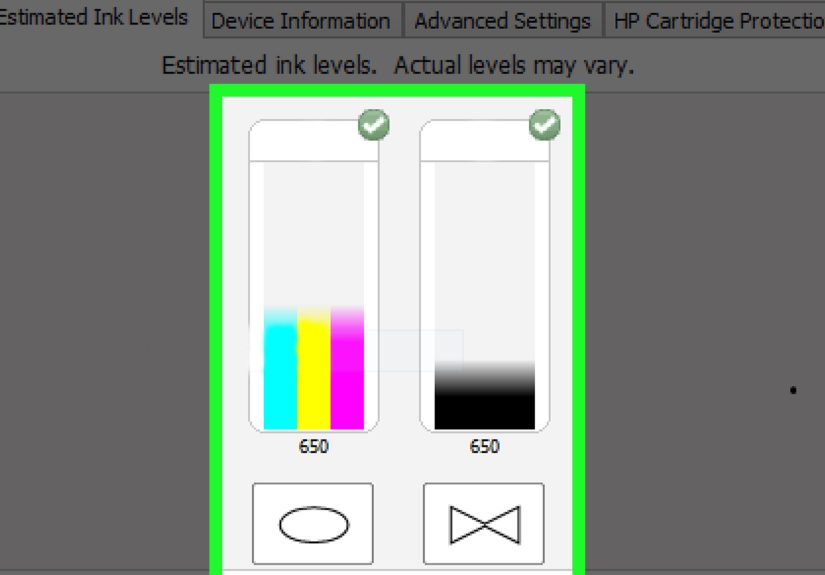
If the ink-level screen appears, remember that most printers show estimated ink levels. That means the reading is based on cartridge data, printed page counts, sensor information, or software calculations. It is usually helpful, but not always perfect. Think of it like your car’s fuel gauge: useful, but you still should not wait until it is emotionally screaming at you.
Method 3: Use the Printer Manufacturer’s App or Status Monitor
For most modern printers, the manufacturer’s app is the most reliable way to check ink or toner levels on Windows. Windows can sometimes show supply information, but official printer software usually gives you a clearer dashboard, better alerts, troubleshooting tools, and replacement cartridge details.
HP Printers: Use the HP App or HP Smart
If you use an HP printer, install or open the HP app or HP Smart on your Windows computer. After adding your printer, the home screen usually displays Estimated Supply Levels next to the printer image. You may see separate indicators for black ink, tri-color ink, individual color cartridges, or toner depending on the model.
For many HP printers, you can also check ink or toner levels through HP Printer Assistant if the full software package is installed. If your ink levels do not appear, download the full software and driver package from HP’s official setup page for your exact printer model.
Canon Printers: Use Canon IJ Status Monitor
Canon inkjet printers often use Canon IJ Status Monitor. To access it on Windows, open your printer’s Printing preferences, go to the Maintenance tab, and click View Printer Status. From there, you may see estimated ink levels and cartridge status. Some Canon tools also include an Ink Details option for more specific information.
Canon’s display may vary depending on the printer model, driver version, and region. If the button is missing, reinstall the Canon driver and utility software for your model.
Epson Printers: Use EPSON Status Monitor
Epson users can usually check ink levels through EPSON Status Monitor or EPSON Status Monitor 3. Open the printer driver window, choose the Maintenance or Utility tab, and click the status monitor button. A graphic display typically shows the amount of ink remaining.
For Epson EcoTank printers, you may see tank-level information differently from cartridge-based Epson printers. Some EcoTank models encourage users to visually inspect the ink tanks on the printer itself, because the tanks are physically visible. Still, Epson software can help monitor printer condition, maintenance needs, and warnings.
Brother Printers: Use Brother Status Monitor
Brother inkjet printers commonly use Brother Status Monitor, which may be installed with the full Brother software package. You can often open it from the Windows taskbar, Start menu, or Brother Utilities. Choose your printer model, open Tools, and select Status Monitor. The display may show ink status, remaining page estimates, or cartridge warnings.
If Brother Status Monitor is missing, install the full driver and software package from Brother’s official support site. Basic drivers may allow printing but not supply monitoring.
Other Brands
For Dell, Lexmark, Xerox, Ricoh, and other printer brands, look for a brand-specific utility, printer assistant, toner monitor, or embedded web page. The wording may differ, but common labels include Supplies, Consumables, Cartridge Status, Estimated Toner, or Device Status.
Method 4: Check Ink Levels from the Printer Screen or Web Interface
Sometimes the fastest way to check printer ink levels is not through Windows at all. Many printers have a small LCD screen, touchscreen, or built-in web dashboard that shows supply levels directly.
Use the Printer’s Display Panel
On printers with a screen, look for menu options such as:
- Ink Levels
- Estimated Ink Levels
- Supply Status
- Cartridge Information
- Maintenance
- Setup
- Printer Status
HP, Canon, Epson, and Brother printers often place these options under Setup, Maintenance, Tools, or Status. The exact path depends on the model. If your printer has a touchscreen, swipe through the home screen icons and look for an ink-drop symbol, cartridge icon, or supplies icon.
Use the Printer’s Web Interface
Many network printers include an embedded web server. This lets you type the printer’s IP address into a browser and open a local printer dashboard. From there, you can often view ink or toner levels, network settings, print logs, maintenance alerts, and device information.
To find your printer’s IP address on Windows, go to Settings > Bluetooth & devices > Printers & scanners, select your printer, and open Printer properties or Printer information. You may also print a network configuration page from the printer’s menu.
Once you have the IP address, type it into your web browser’s address bar. For example, it may look like 192.168.1.45. Do not change advanced settings unless you know what they do. You are visiting for ink levels, not performing open-heart surgery on your printer.
What If Windows Does Not Show Ink Levels?
If you cannot find ink levels in Windows, the problem is usually one of five things: missing software, a basic driver, an offline printer, a communication issue, or a printer model that does not report levels to Windows.
Install the Full Printer Software
Windows may install a basic driver automatically, especially for plug-and-play USB printers or network printers. That basic driver may be enough to print, but not enough to display ink or toner information. Visit the official support page for your printer brand, enter your exact model number, and install the full software package for Windows 10 or Windows 11.
Restart the Printer and Computer
Yes, it is the classic tech-support move, but it works more often than anyone wants to admit. Turn off the printer, wait about 30 seconds, turn it back on, and restart your Windows PC. This can refresh the connection between the printer, driver, and status monitor.
Check the Printer Connection
If the printer is wireless, confirm that it is connected to the same Wi-Fi network as your computer. If the printer recently changed networks, got a new router, or was moved across the house, Windows may still see it but fail to retrieve status data.
Update or Reinstall the Driver
Open Printers & scanners, remove the printer, restart your computer, and reinstall the printer using the latest official driver. Avoid random driver-download websites. Printer drivers need to be trustworthy because they interact closely with Windows.
Check the Printer Itself
Some older or budget printers simply do not report precise ink levels to Windows. Others only show warnings when ink is low, rather than displaying a percentage. In that case, use the printer’s display panel, print a supply-status report, or inspect the cartridge/tank system if your model allows it.
Ink Levels vs. Toner Levels: What Is the Difference?
Inkjet printers use liquid ink, usually stored in cartridges or tanks. Laser printers use toner, a fine powder stored in toner cartridges. The checking process is similar on Windows, but the labels may differ.
For inkjet printers, look for Ink Levels, Estimated Ink Levels, or Cartridge Status. For laser printers, look for Toner Levels, Supply Levels, Consumables, or Remaining Page Yield.
Laser printers often estimate toner by page count and coverage. Inkjet printers may estimate ink based on cartridge data, print usage, and sensor readings. Neither system is perfect, but both are useful for planning replacements before the printer decides to ruin your Tuesday.
How Accurate Are Printer Ink Level Readings?
Most printer ink readings are estimates, not laboratory measurements. A cartridge may show low ink even if it can still print a few pages. Another cartridge may appear to have ink but produce faded output because the printhead is clogged or the cartridge is not flowing properly.
Here are a few examples:
- If black text prints gray or streaky, black ink may be low, clogged, or set to draft mode.
- If photos look strange, one color cartridge may be low even if black ink is fine.
- If the printer says ink is low after a new cartridge, the cartridge may not be seated correctly.
- If levels do not update, the printer software may need restarting or reinstalling.
For best results, combine the software reading with real print behavior. If Windows says you have ink but the page looks terrible, run a nozzle check, printhead cleaning, or alignment from the printer’s maintenance menu.
Best Practices to Avoid Surprise Ink Problems
Checking ink levels is helpful, but prevention is even better. Keep one spare black cartridge or bottle if you print often. For color printers, replace only the colors that are low unless your model uses a combined tri-color cartridge.
Print something at least occasionally if you own an inkjet printer. Ink can dry in nozzles when the printer sits unused for weeks. Also, avoid turning the printer off by unplugging it directly from the wall. Many printers perform maintenance cycles when powered down properly from the power button.
Use the correct paper type and print quality setting. Draft mode saves ink, but it may make documents look faded. High-quality photo mode uses more ink but produces better images. Matching the setting to the job helps you control ink use without sacrificing results.
My Real-World Experience Checking Printer Ink Levels on Windows
After dealing with many Windows printer setups, one thing becomes clear: checking ink levels is easy when the full printer software is installed, and weirdly mysterious when it is not. Windows often recognizes a printer quickly, but recognition and full communication are not the same thing. A printer may appear ready, print a test page, and still refuse to show supply levels because Windows is using a generic driver.
One common scenario happens after upgrading from Windows 10 to Windows 11. The printer still prints, so everything seems fine. Then the user tries to check ink levels and the supply tab is gone. The fix is usually not dramatic. Installing the latest software package from HP, Canon, Epson, or Brother brings back the missing status monitor. It is like giving Windows the printer’s actual phone number instead of asking it to communicate through a neighbor.
Another practical lesson: manufacturer apps are usually worth installing, even if they feel unnecessary at first. HP’s app, Canon’s status monitor, Epson’s utility tools, and Brother Status Monitor can save time because they gather printer information in one place. They may also warn about low ink, firmware issues, paper jams, offline status, and maintenance needs. For a home user, that can prevent a lot of guessing.
However, I would not rely blindly on the percentage or bar graphic. A cartridge showing “low” may still print a few acceptable pages, especially text documents. On the other hand, a cartridge showing ink remaining may still produce poor output if the printhead is clogged. When print quality drops, check both the ink level and the maintenance tools. A nozzle check or printhead cleaning can solve problems that look like empty ink but are actually dried ink or blocked nozzles.
Wireless printers add another twist. If ink levels disappear suddenly, the printer may have changed IP addresses or lost a stable connection to the router. Restarting the router, printer, and computer can restore communication. For stubborn setups, removing and re-adding the printer in Windows often helps. It is not glamorous, but neither is arguing with a machine that refuses to print a shipping label.
For families, students, and small offices, the best habit is simple: check ink levels before important print jobs. Do not wait until five minutes before leaving the house to discover that magenta has vanished from society. If you print school projects, tax documents, shipping labels, business forms, or photos, keeping a spare cartridge or refill bottle is a small investment in peace.
Finally, remember that printer ink systems differ. Cartridge printers may show individual cartridge levels or one combined color cartridge. Tank printers may require visual inspection. Laser printers show toner instead of ink. Older printers may offer only low-ink warnings. Once you learn how your specific printer reports supplies, checking levels becomes a 30-second task instead of a mini detective story.
Conclusion
Knowing how to check printer ink levels on Windows helps you avoid faded pages, emergency cartridge runs, and the classic printer drama that appears right before an important deadline. Start with Windows Settings, try Control Panel, use your printer manufacturer’s official app, and check the printer’s display or web interface when needed.
If ink levels do not appear, install the full driver and software package for your exact printer model. The basic Windows driver may print documents, but manufacturer software usually provides better supply information. And remember: ink levels are estimates, so pair them with what your printed pages are actually telling you.
Your printer may never become your favorite device, but with these four methods, it can at least become less mysterious. That is progress. Small, ink-scented progress.