Table of Contents >> Show >> Hide
- What Is LED Flash for Alerts on iPhone?
- How to Disable Led Flash for Alerts on an iPhone in 4 Easy Steps
- Quick Step Summary
- Why Your iPhone Flash Was Blinking in the First Place
- Should You Turn Off LED Flash Alerts?
- When Keeping LED Flash Alerts On Makes Sense
- How to Turn Off Flash on Silent Only
- What If Your iPhone Still Flashes After Turning It Off?
- Does Turning Off LED Flash Affect the Flashlight or Camera?
- Does LED Flash for Alerts Drain Battery?
- LED Flash Alerts vs. Notification Sounds vs. Vibration
- Best Notification Setup After Disabling LED Flash
- Common Mistakes When Turning Off iPhone Flash Notifications
- Experience Notes: Living With and Without LED Flash Alerts
- Conclusion
- SEO Tags
If your iPhone suddenly starts blinking like it is auditioning for a tiny nightclub, do not panic. That bright flash on the back of your phone is usually not a hardware problem, a ghost notification, or your iPhone trying to communicate in Morse code. Most of the time, it is a built-in accessibility feature called LED Flash for Alerts.
This feature makes the iPhone camera flash blink when calls, texts, alarms, and other alerts arrive. It can be extremely helpful for people who are deaf, hard of hearing, working in noisy places, or simply tired of missing notifications. But if you do not need it, the flashing light can become distracting fast. It can light up a bedroom at midnight, startle people in meetings, reflect off a restaurant table, or make your phone look like it is taking emergency selfies.
The good news is simple: you can disable LED flash alerts on an iPhone in less than a minute. This guide walks you through the exact steps, explains why the setting exists, covers newer iOS wording, and gives practical troubleshooting tips if the flash keeps coming back like a clingy app notification.
What Is LED Flash for Alerts on iPhone?
LED Flash for Alerts is an iPhone accessibility setting that uses the camera flash as a visual notification signal. When it is turned on, the LED light near the rear camera can blink when you receive alerts. On many iPhone models and iOS versions, the feature works mainly when the device is locked. In newer iOS versions, Apple may label the broader menu as Flash for Alerts, where users can choose options such as LED flash, screen flash, or both.
Think of it as a visual ringtone. Instead of relying only on sound or vibration, the iPhone adds a burst of light. Very useful in the right situation. Slightly dramatic in the wrong one.
How to Disable Led Flash for Alerts on an iPhone in 4 Easy Steps
Follow these steps to turn off flash notifications on your iPhone. The wording may vary slightly depending on your iOS version, but the path is nearly the same.
Step 1: Open the Settings App
Unlock your iPhone and open the Settings app. It is the gray gear icon that quietly holds the keys to almost everything your iPhone does, including why it keeps flashing like a paparazzi camera.
If you cannot find Settings, swipe down from the middle of the Home Screen and type Settings into Search.
Step 2: Tap Accessibility
Scroll down and tap Accessibility. This section includes many tools designed to make the iPhone easier to see, hear, touch, and use. LED flash alerts are located here because they are meant to help users notice alerts visually.
Accessibility settings are not only for people with permanent needs. Many iPhone users turn these features on temporarily for work, school, travel, sleep, workouts, or loud environments. That is why this menu is packed with practical tools that can help almost anyone.
Step 3: Tap Audio/Visual
Inside Accessibility, look for the Hearing section and tap Audio/Visual. On some newer iOS versions, this may appear as Audio & Visual. Same idea, slightly different outfit.
This screen contains settings related to sound balance, mono audio, headphone accommodations, and visual alert options. Scroll toward the bottom if you do not see the flash alert setting right away.
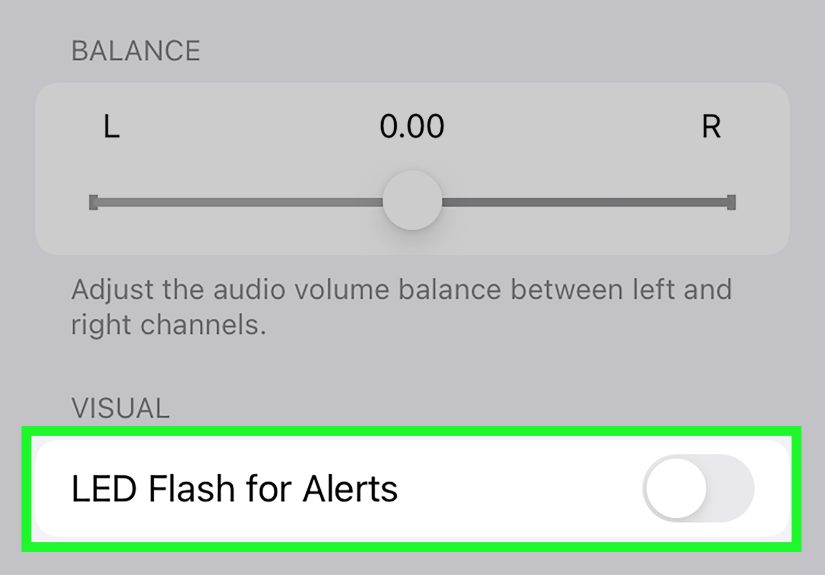
Step 4: Turn Off LED Flash for Alerts
Tap LED Flash for Alerts or Flash for Alerts, depending on your iOS version. Then turn the main switch off. When the toggle is gray, the feature is disabled. When it is green, your iPhone is still ready to blink dramatically at the next notification.
If you see separate choices such as LED Flash, Screen, or Both, turn off the flash option you no longer want. To stop the rear camera light from flashing, make sure LED Flash is disabled. To stop all flashing alerts, turn off the main Flash for Alerts switch.
Quick Step Summary
- Open Settings.
- Tap Accessibility.
- Tap Audio/Visual or Audio & Visual.
- Tap LED Flash for Alerts or Flash for Alerts, then turn it off.
Why Your iPhone Flash Was Blinking in the First Place
If you did not turn this feature on yourself, you may be wondering why your iPhone started flashing at all. There are several common reasons.
Someone Enabled It While Exploring Settings
Many people discover iPhone settings by tapping around. That is perfectly normal. It is also how a quiet phone becomes a pocket-sized lighthouse. LED Flash for Alerts may have been enabled accidentally while adjusting accessibility, sound, or notification settings.
It Was Turned On for Silent Mode
Some users enable flash alerts because they keep their iPhone on silent. The flash can help them notice calls or texts without using sound. If the blinking only happens when your phone is muted or locked, this setting is probably the reason.
You Updated iOS and Noticed the Setting More
iOS updates can refresh menu labels, add options, or make existing features easier to find. If your iPhone has a newer software version, the setting may appear under the broader name Flash for Alerts. This may include choices for rear LED flash, screen flash, or both.
A Family Member or Friend Helped Set Up the Phone
If someone helped configure your iPhone, they may have enabled LED flash alerts to make notifications easier to notice. Helpful? Yes. Surprising during a midnight text? Also yes.
Should You Turn Off LED Flash Alerts?
You should disable LED flash alerts if the blinking light bothers you, distracts others, or no longer serves a useful purpose. The feature is optional. Turning it off will not stop notifications, calls, messages, alarms, banners, badges, or vibration. It only stops the camera flash from blinking for alerts.
That means your iPhone will still behave normally. Messages will still arrive. Calls will still ring or vibrate depending on your sound settings. Apps will still send alerts if notifications are allowed. Your phone simply retires from its second career as a tiny emergency beacon.
When Keeping LED Flash Alerts On Makes Sense
Even if you are here to turn the feature off, it is worth knowing why it exists. LED flash alerts can be genuinely useful in several situations.
- Noisy environments: Useful in workshops, gyms, public areas, or busy homes.
- Silent mode: Helpful when sound is off but visual alerts are still needed.
- Hearing accessibility: Important for users who may not hear notification tones clearly.
- Phone face down: The rear flash may be easier to notice when the iPhone is lying screen-down.
- Missed-call prevention: Useful for people who often miss calls while focused on other tasks.
So, the feature is not silly. It is practical. It just depends on where you are. In a noisy kitchen, it is helpful. In a dark movie theater, it is basically a social crime wearing a camera lens.
How to Turn Off Flash on Silent Only
Some iPhone versions include an option called Flash on Silent. This setting controls whether the LED flash works when your iPhone is in silent mode. If you like flash alerts sometimes but not when your phone is muted, check this option before turning off the entire feature.
Go to Settings > Accessibility > Audio/Visual > LED Flash for Alerts. If you see Flash on Silent, turn it off. This prevents the flash from blinking while the phone is in silent mode, while still allowing you to keep other alert behavior available if desired.
What If Your iPhone Still Flashes After Turning It Off?
If your iPhone continues flashing after you disable LED Flash for Alerts, try these practical fixes.
Restart Your iPhone
A restart can refresh settings that did not apply correctly. Turn your iPhone off, wait a few seconds, then turn it back on. This is the classic tech support move because, annoyingly, it often works.
Check for Screen Flash Settings
On newer iOS versions, the flash alert menu may include a screen flash option. If the rear camera flash is off but the display still flashes, return to Accessibility > Audio & Visual > Flash for Alerts and disable Screen or turn off the main flash alert switch.
Review App Notifications
Flash alerts are connected to notifications, so it also helps to manage noisy apps. Go to Settings > Notifications, choose an app, and adjust alerts, sounds, badges, or Lock Screen behavior. This will not directly control the LED flash setting, but it can reduce the number of alerts that trigger attention-grabbing behavior.
Check Focus Modes
If you use Focus modes such as Do Not Disturb, Sleep, Work, or Personal, review those settings under Settings > Focus. Focus modes can change how notifications appear and when they are delivered. They usually do not turn LED flash alerts on by themselves, but they can make notification behavior feel inconsistent.
Update iOS
If the setting behaves oddly, install the latest available iOS update. Go to Settings > General > Software Update. Updates often include bug fixes, menu refinements, and accessibility improvements.
Does Turning Off LED Flash Affect the Flashlight or Camera?
No. Disabling LED Flash for Alerts does not turn off your iPhone flashlight, camera flash, or photography features. You can still use the flashlight from Control Center, take flash photos, scan documents, and use the camera normally.
The setting only controls whether the LED light blinks for notifications. Your flashlight is safe. Your late-night snack missions remain fully illuminated.
Does LED Flash for Alerts Drain Battery?
LED flash alerts can use a small amount of battery because the camera flash requires power. For most users, the battery impact is minor unless notifications arrive constantly. However, if your iPhone receives hundreds of alerts a day, the repeated flashing may contribute to battery use along with sound, vibration, screen wake, and background activity.
If you are trying to improve battery life, turning off LED flash alerts is one small step. You may also want to reduce unnecessary notifications, lower screen brightness, use Low Power Mode, and review background app refresh settings.
LED Flash Alerts vs. Notification Sounds vs. Vibration
iPhone notifications can reach you in several ways. LED flash alerts are visual. Sounds are audible. Vibration is physical. Banners and Lock Screen alerts are screen-based. Badges are the little red circles that quietly judge you from app icons.
The best setup depends on your lifestyle. A student may prefer vibration and banners. A parent cooking dinner may benefit from flash alerts. A person in meetings may want silent notifications with no flash. A deep sleeper may need stronger alert combinations. There is no single perfect setup, only the one that keeps your phone helpful without making it obnoxious.
Best Notification Setup After Disabling LED Flash
Once you turn off LED flash alerts, consider creating a cleaner notification system. This keeps important alerts visible without turning your phone into a blinking gadget from a spy movie.
Use Sounds for Important Contacts
Assign custom ringtones or text tones to important people. That way, you can tell who is contacting you without needing a bright flash.
Use Focus Modes for Different Parts of the Day
Set up Focus modes for work, school, sleep, driving, or personal time. Focus helps reduce distractions while still allowing important people or apps to reach you.
Clean Up App Notifications
Go through your notification list and ask one simple question: “Do I actually need this app interrupting my life?” If the answer is no, turn off its notifications or remove sounds and Lock Screen alerts.
Keep Vibration On When Needed
If you still want discreet alerts, vibration may be a better choice than flash. It is private, quiet, and far less likely to make nearby people think lightning just happened indoors.
Common Mistakes When Turning Off iPhone Flash Notifications
Many users think the flash is controlled from the Camera app or Flashlight button. It is not. The Camera flash controls photos and videos. The Flashlight button controls manual light. Notification flashing is controlled in Accessibility.
Another common mistake is turning off notification sounds but leaving LED flash alerts enabled. That creates a silent-but-flashy phone, which is not always the peaceful result people wanted.
Finally, some users only disable Flash on Silent and wonder why the flash still works in other situations. If you want no flash alerts at all, turn off the main LED Flash for Alerts or Flash for Alerts switch.
Experience Notes: Living With and Without LED Flash Alerts
After using iPhones in different daily situations, LED flash alerts feel like one of those features that can be brilliant or annoying depending entirely on context. In a loud place, it can save the day. In a quiet bedroom, it can feel like your phone hired a lighting director.
For example, imagine keeping your iPhone on a desk while working with headphones on. A visual flash can help you catch an important call without constantly checking the screen. That is genuinely useful. It reduces the nervous habit of tapping the phone every few minutes just to see whether something happened.
Now move the same feature into a dark room at night. A single notification can bounce light off the wall, ceiling, glass, and maybe your soul. If your phone is on a nightstand and a group chat wakes up, the flashing can become more dramatic than the message deserves. Nobody needs a camera flash announcement for “haha same.”
In meetings, classrooms, coffee shops, and shared spaces, turning off LED flash alerts can also feel more polite. Notification sounds are already distracting, but a blinking camera flash adds a visual interruption. Even if the phone is face down, the flash can reflect off a table. People may glance over, wondering whether you just received breaking news or accidentally activated a tiny lighthouse.
Battery-conscious users may also prefer disabling it. The flash itself is not usually a major battery villain, but every alert behavior adds up. A phone that lights up, vibrates, plays sounds, and flashes for every app notification is doing a lot of unnecessary work. Reducing alert noise can make the iPhone feel calmer and more intentional.
One useful approach is to keep LED flash alerts off by default and rely on Focus modes, vibration, and custom notification tones. If you often miss calls in loud environments, you can turn the feature back on temporarily. This gives you control without letting every shopping app coupon blink at you like it has urgent government business.
Another practical tip is to audit notifications after disabling the flash. Many people discover that the problem was not only the blinking light. It was the number of apps allowed to interrupt them. Delivery apps, games, social platforms, stores, email accounts, and random apps you downloaded once in 2021 may all be competing for attention. Turning off LED flash alerts solves the light show, but cleaning up notifications solves the bigger attention problem.
For users helping parents, grandparents, or friends set up an iPhone, it is worth explaining what the feature does before disabling it. Some people rely on visual alerts because they do not hear tones well or because they keep the phone muted. In that case, turning it off may make them miss important calls. A better compromise might be disabling Flash on Silent, adjusting notification sounds, or allowing flash alerts only when they truly help.
The best experience comes from matching the setting to real life. If the flash helps you catch important alerts, keep it. If it annoys you, turn it off. If it helps during the day but bothers you at night, combine it with better Focus and notification settings. Your iPhone should fit your routine, not behave like it is trying to get attention at a concert.
In short, disabling LED flash alerts is not just a tiny settings change. It is part of making your iPhone calmer, smarter, and less likely to surprise everyone in the room. Four steps, one quieter phone, zero accidental disco vibes.
Conclusion
Learning how to disable LED Flash for Alerts on an iPhone is quick, simple, and surprisingly satisfying. Open Settings, go to Accessibility, tap Audio/Visual, and switch off LED Flash for Alerts or Flash for Alerts. That is all it takes to stop your iPhone from blinking whenever notifications arrive.
The feature is useful for many people, especially anyone who benefits from visual alerts. But if the flash distracts you, wakes you up, drains attention, or creates awkward moments in public, turning it off is the right move. Your alerts will still work. Your phone will still notify you. It will just do so without pretending to be a camera crew.