Table of Contents >> Show >> Hide
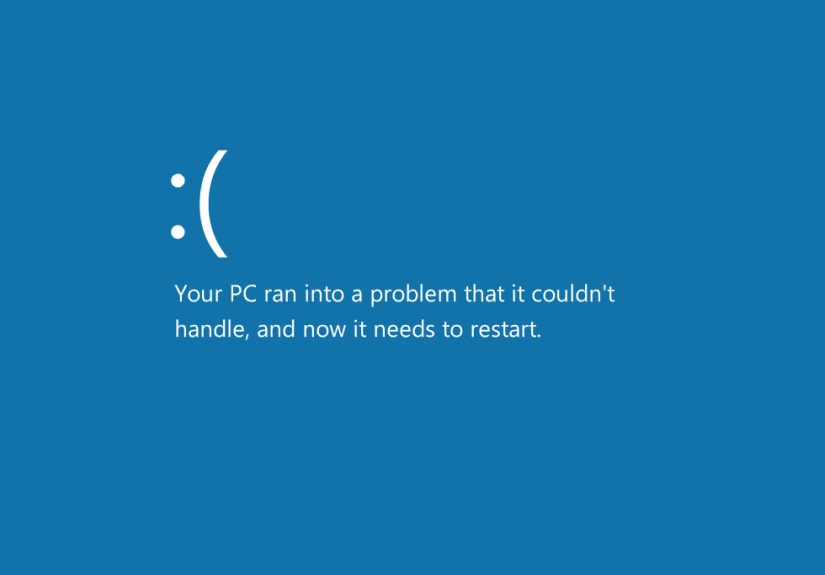
Experiencing a “STOP 0x0000005C” error on your computer is never a fun moment, especially if you’re in the middle of something important. This error, commonly known as the HAL_INITIALIZATION_FAILED stop code, is a frustrating issue that occurs during Windows startup. In this article, we’ll explore the causes of this error and provide step-by-step solutions on how to fix it. Whether you’re dealing with a corrupted system file, outdated hardware drivers, or issues in the BIOS, we’ve got you covered.
What is STOP 0x0000005C (HAL_INITIALIZATION_FAILED)?
The STOP 0x0000005C error code, or HAL_INITIALIZATION_FAILED, typically points to a failure in initializing the Hardware Abstraction Layer (HAL) during Windows boot-up. HAL is a crucial component of the operating system responsible for facilitating communication between the hardware and the software. When there’s an issue with HAL initialization, your computer is unable to load properly, leading to a system crash.
This error can happen due to several reasons, ranging from corrupted files and outdated drivers to issues with the system’s hardware configuration. It’s important to address the issue promptly to avoid further complications like data loss or hardware damage.
Common Causes of the STOP 0x0000005C Error
Understanding the potential causes of the HAL_INITIALIZATION_FAILED error will help in narrowing down the troubleshooting steps. Below are some common culprits:
- Corrupted System Files: If key Windows files are damaged or missing, it can prevent the proper initialization of HAL, leading to this stop error.
- Outdated or Incorrect Drivers: Faulty or incompatible drivers, particularly for hardware components, can cause conflicts with HAL initialization.
- BIOS Settings: Incorrect or outdated BIOS settings may lead to hardware issues that prevent Windows from starting up correctly.
- Hardware Issues: Malfunctioning RAM, CPU, or motherboard can also trigger this error if they interfere with HAL initialization.
- Recent System Changes: Software updates, hardware changes, or a system upgrade can sometimes introduce conflicts that result in this stop error.
How to Fix STOP 0x0000005C (HAL_INITIALIZATION_FAILED)
Now that we have a better understanding of the issue, let’s dive into how to fix this error. We’ll go through a series of troubleshooting steps that you can follow to get your system back up and running.
1. Boot into Safe Mode
If you’re unable to boot into Windows normally, the first thing you should try is booting into Safe Mode. Safe Mode allows Windows to start with a minimal set of drivers and services, which can help you troubleshoot the issue. Here’s how to boot into Safe Mode:
- Restart your computer and press the F8 key repeatedly as the computer boots.
- From the Advanced Boot Options menu, select Safe Mode.
- Press Enter and let the system boot into Safe Mode.
Once in Safe Mode, you can start addressing the possible causes of the error, such as updating drivers or running system repairs.
2. Perform a System File Check
Corrupted or missing system files are one of the most common reasons for the HAL_INITIALIZATION_FAILED error. To check and repair these files, use the System File Checker (SFC) tool:
- Open the Start menu and type cmd in the search box.
- Right-click on Command Prompt and select Run as administrator.
- In the Command Prompt window, type sfc /scannow and press Enter.
- Wait for the scan to complete and follow any on-screen instructions to fix corrupted files.
Running this command will help fix any corrupted system files that may be causing the error.
3. Update Drivers
Outdated or incompatible drivers can cause conflicts that lead to system errors like the HAL_INITIALIZATION_FAILED stop code. To ensure your drivers are up to date:
- Open Device Manager (type it in the Start menu search bar).
- Expand the categories to find the hardware components with outdated drivers.
- Right-click on the device and select Update Driver.
- Choose to search automatically for updated driver software.
If updating the drivers doesn’t solve the issue, you may need to uninstall and reinstall certain drivers.
4. Check BIOS Settings
Incorrect BIOS settings can also prevent Windows from starting properly. To resolve this, you’ll need to reset your BIOS to its default settings:
- Restart your computer and press the F2, Del, or Esc key (depending on your motherboard) to enter the BIOS setup.
- Look for an option that says Load Default Settings or Load Optimized Defaults and select it.
- Save the changes and exit the BIOS setup.
Once your BIOS is reset, restart your computer and see if the error persists.
5. Test Hardware Components
Sometimes, the STOP 0x0000005C error is caused by faulty hardware. If you’ve recently made hardware changes or upgrades, it’s a good idea to test your system components:
- RAM: Use a tool like MemTest86 to check for any issues with your RAM.
- Hard Drive: Run a disk check utility to ensure your hard drive is functioning properly.
- Motherboard/CPU: If you’re experiencing frequent errors, it might be worth testing your CPU and motherboard for defects.
6. Perform a System Restore
If the error appeared after a recent change (such as installing new software or a Windows update), performing a system restore to revert to a previous working state can resolve the issue:
- In Safe Mode, search for System Restore in the Start menu and select it.
- Follow the prompts to restore your system to a point before the error occurred.
7. Reinstall Windows
If none of the above solutions work, reinstalling Windows might be the only way to resolve the STOP 0x0000005C error. Be sure to back up your important files before proceeding with a clean installation.
Experiences and Insights on Fixing HAL_INITIALIZATION_FAILED
When it comes to troubleshooting the HAL_INITIALIZATION_FAILED error, the experience can be both frustrating and enlightening. From my experience, one of the most common culprits is corrupted system files. These files can get damaged during updates, software installations, or improper shutdowns. In some cases, simply running a system file check with the sfc /scannow command can resolve the issue in a matter of minutes.
Another common cause that I’ve seen in my own work is BIOS misconfigurations. Modern motherboards come with numerous settings that can affect system performance, and if one of them is set incorrectly, it can prevent the system from booting. In one case, a client was able to resolve the HAL_INITIALIZATION_FAILED error simply by resetting the BIOS to its default settings, restoring the system to a functional state.
If you’re unable to resolve the issue with these fixes, don’t hesitate to seek help from a professional. Sometimes, the error can be caused by more complex hardware failures that may require expert assistance. I once worked on a system where the error was eventually traced to a failing motherboard, which had to be replaced before the system would boot normally again.
Conclusion
The STOP 0x0000005C (HAL_INITIALIZATION_FAILED) error can be frustrating, but it’s not an insurmountable issue. By following the troubleshooting steps outlined in this articlesuch as booting into Safe Mode, updating drivers, and checking BIOS settingsyou should be able to resolve the issue and get your system back to normal. If all else fails, reinstalling Windows or seeking professional help may be necessary.
Remember, patience and persistence are key. With the right approach, you’ll be able to fix this error and continue working without further interruption.
sapo: The STOP 0x0000005C (HAL_INITIALIZATION_FAILED) error can prevent Windows from starting. Discover proven methods to fix this error and get your system back to normal with simple solutions like Safe Mode, system checks, and hardware tests.