Table of Contents >> Show >> Hide
- What Is an Android Bootloader?
- Why Lock the Bootloader Again?
- Before You Lock the Bootloader: Read This First
- What You Need to Lock the Bootloader
- How to Lock the Bootloader on Android
- Brand-Specific Notes
- How to Check If the Bootloader Is Locked
- Common Problems and Fixes
- Safety Tips for Locking the Bootloader
- Personal Experience: What Locking the Bootloader Feels Like in Real Life
- Conclusion
Locking the bootloader on Android sounds like something only a hoodie-wearing developer would do at 2 a.m. while surrounded by charging cables. In reality, it is a practical security step for anyone who has finished experimenting with root, custom ROMs, beta builds, factory images, or Android development tools and now wants the phone back in a safer, more normal state.
This guide explains how to lock the bootloader on Android, what to check before doing it, which commands are commonly used, and why you should never relock a bootloader while running the wrong firmware. Think of it as putting the front door back on the house after remodeling the kitchen. Useful? Absolutely. Something you should do carefully? Also absolutely.
What Is an Android Bootloader?
The bootloader is the small but powerful program that starts before Android itself. Its job is to check what software is allowed to boot, load the operating system, and protect the device from unauthorized system changes. When the bootloader is locked, the phone usually boots only software signed and approved for that device. When it is unlocked, the device may allow custom firmware, modified boot images, custom recoveries, root files, or experimental builds.
For developers and Android enthusiasts, an unlocked bootloader is useful. It opens the door to installing custom ROMs, rooting the phone, testing system images, recovering broken software, and exploring Android more deeply. For everyday use, however, an unlocked bootloader can reduce security, trigger warning screens, break some banking or payment apps, and make the phone less trustworthy to Android’s security checks.
Why Lock the Bootloader Again?
Most people lock the bootloader again after they have returned the phone to official stock firmware. A locked bootloader helps Android Verified Boot confirm that the operating system has not been modified. This is important because Android security depends on trust: the bootloader checks the system, the system checks important partitions, and the user gets a device that behaves like a normal retail phone again.
You may want to relock the bootloader if you are selling the phone, giving it to a family member, sending it for repair, fixing SafetyNet or Play Integrity problems, removing the unlocked bootloader warning, or returning from a custom ROM to the manufacturer’s official Android build. In many cases, relocking is the final step after flashing the correct factory image or official firmware package.
Common Benefits of Locking the Bootloader
- Improves device security by enforcing verified software checks.
- Removes or reduces boot-time unlocked warning screens on many devices.
- Helps restore the phone closer to its original factory condition.
- May improve compatibility with banking, payment, streaming, or workplace apps.
- Reduces the risk of unauthorized flashing through fastboot.
Before You Lock the Bootloader: Read This First
Here is the golden rule: never lock the bootloader unless the phone is running the correct official firmware for its exact model, region, and hardware variant. This is the part where many Android horror stories begin. A user flashes the wrong ROM, relocks the bootloader, and suddenly the phone becomes a very expensive rectangle with commitment issues.
Locking the bootloader normally wipes all user data. Photos, downloads, app data, local files, authenticator backups, and anything not synced or backed up can disappear. Before touching fastboot commands, back up everything important. Use Google backup, cloud storage, a computer, or an external drive. If you have two-factor authentication apps, banking apps, crypto wallets, or school/work accounts, confirm you can restore access before wiping the phone.
Pre-Lock Checklist
- Back up your files, photos, contacts, messages, and app data.
- Remove root, Magisk modules, custom kernels, and modified boot images.
- Restore the official boot, vendor_boot, recovery, system, vendor, product, and vbmeta partitions if they were changed.
- Flash the correct official firmware for your exact model number.
- Boot into Android once after flashing stock firmware to confirm it works.
- Check that both A/B slots are healthy on devices with seamless updates.
- Charge the battery to at least 50 percent.
- Use a reliable USB cable and a stable computer connection.
What You Need to Lock the Bootloader
In most cases, you need a Windows, macOS, or Linux computer with Android Platform Tools installed. Platform Tools include ADB and Fastboot, the command-line utilities used to communicate with Android devices. You also need USB debugging enabled if you plan to reboot into the bootloader from Android using ADB.
Some brands use extra tools. Google Pixel devices commonly use factory images, OTA packages, the Android Flash Tool, and fastboot commands. Xiaomi, Redmi, and POCO devices often use Mi Flash with official fastboot ROMs. Sony Xperia devices may require Sony’s own flashing tools to return to official software. Samsung is different because many Galaxy models do not use the same standard fastboot bootloader workflow, and U.S. Samsung models are often locked down by carrier or OEM policy.
Basic Tools
- Android Platform Tools from Google.
- Official firmware for your exact device model.
- USB cable with data transfer support.
- A computer with terminal, Command Prompt, or PowerShell access.
- Device drivers, especially on Windows.
How to Lock the Bootloader on Android
The exact process depends on your phone, but the general fastboot method is similar on many Android devices that support bootloader relocking. The safest version of the process is simple: restore official firmware first, verify the phone boots normally, then relock.
Step 1: Back Up the Phone
Start with a complete backup. Do not assume your files will survive. Bootloader state changes commonly erase user data to protect privacy. Copy important photos, videos, documents, downloads, and app exports to another location. If your phone contains school files, work files, passwords, wallet recovery information, or authentication codes, treat the backup step seriously.
Step 2: Install Android Platform Tools
Install the latest Android Platform Tools on your computer. Open a terminal inside the Platform Tools folder and check that ADB and Fastboot are available. On Windows, you may need USB drivers from the device manufacturer. On macOS and Linux, drivers are usually less troublesome, although permission settings can still cause connection problems.
Step 3: Enable USB Debugging
On the phone, open Settings, go to About phone, and tap Build number several times until Developer options are enabled. Then go to Developer options and turn on USB debugging. Connect the phone to the computer and approve the debugging prompt on the phone screen.
If your device appears in the list, the computer can communicate with it. If it says unauthorized, unlock the phone screen and approve the prompt. If nothing appears, change the cable, USB port, or driver.
Step 4: Restore Official Stock Firmware
This is the most important step. Locking a bootloader while unofficial or mismatched firmware is installed can cause boot loops or a soft brick. For a Google Pixel, use the correct factory image or full OTA package for the exact model and build path. For Xiaomi, use the official fastboot ROM for the correct region and model. For Sony, use supported Xperia tools and official software packages. For OnePlus, Motorola, Nothing, ASUS, and other brands, use the official firmware or recovery method recommended for that exact device.
After flashing stock firmware, boot the phone normally at least once. Confirm that Wi-Fi works, the touchscreen works, the build number looks correct, and the system is not stuck on a modified or custom build. This small check can save you from a big headache.
Step 5: Reboot Into Bootloader Mode
Once the device is confirmed to be running official firmware, reboot into bootloader mode. You can usually do this with ADB:
You can also power off the phone and use a button combination. On many Android devices, holding Power and Volume Down starts the bootloader or fastboot screen. The exact combination depends on the brand.
Step 6: Confirm Fastboot Connection
In the terminal, run:
If you see a device serial number, fastboot is connected. If the command returns nothing, try another cable, install drivers, switch USB ports, or use a different computer. Fastboot connection problems are common, but they are usually fixable.
Step 7: Lock the Bootloader
On many modern Android devices, the main command is:
Older devices may use:
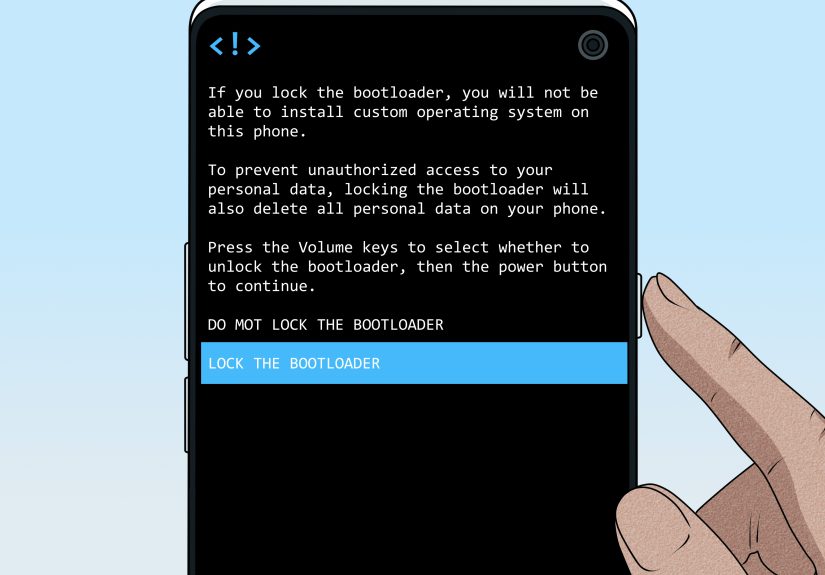
Your phone should display a confirmation screen. Read it carefully. Use the volume and power buttons to confirm only if you are sure the device is running the correct official firmware. After confirmation, the phone will usually wipe data and reboot.
Step 8: Set Up Android Again
After the wipe, Android should boot to the setup screen. Complete setup, connect to Wi-Fi, sign in, and restore your backup. If you were relocking the bootloader to prepare the device for sale, stop at the welcome screen instead of signing in with your personal account.
Brand-Specific Notes
Google Pixel
Pixel phones are among the most straightforward Android devices for bootloader locking and unlocking. The safest approach is to flash the correct factory image or sideload the full OTA image, boot successfully, and then run fastboot flashing lock. Pixel devices with A/B slots deserve extra attention. After major bootloader updates, both slots may need to be updated properly before relocking, especially when anti-rollback protections are involved.
Xiaomi, Redmi, and POCO
Xiaomi devices can be tricky because region matters. A China model, Global ROM, India ROM, EEA ROM, and carrier-specific build may not be interchangeable. Mi Flash may offer options such as clean all, save user data, or clean all and lock. The “clean all and lock” option can relock the bootloader after flashing, but choosing it with the wrong ROM can cause serious boot problems. Match the ROM to the exact device before locking.
Samsung Galaxy
Samsung bootloader behavior varies widely by model, region, and carrier. Many U.S. Galaxy phones do not support user bootloader unlocking in the same way as Pixel or OnePlus devices. International models may have different rules, and unlocking can trip Knox-related security flags. Locking or returning to stock firmware on Samsung usually involves Odin firmware flashing rather than standard fastboot commands.
OnePlus, Motorola, Sony, and Other Brands
Many OnePlus and Motorola devices use fastboot-style commands, but exact support varies by model. Sony Xperia devices may require Sony’s official tools to restore software, and Sony notes that some flashing tools work only with unlocked bootloaders and limited supported models. The lesson is simple: do not treat all Android phones as identical. The command may look universal, but the consequences are very device-specific.
How to Check If the Bootloader Is Locked
After setup, you can check bootloader status in a few ways. Some phones show the lock state in Developer options. Others show a warning screen at boot only when unlocked. You can also reboot to fastboot and run:
or:
Command support varies. Some devices return clear values such as unlocked: no, while others use different wording. If the phone boots normally without an unlocked bootloader warning and fastboot reports a locked state, you are likely done.
Common Problems and Fixes
Fastboot Does Not Detect the Phone
Try a different USB cable first. Many charging cables do not support data properly. Use a rear USB port on a desktop computer, avoid USB hubs, and install the manufacturer’s USB driver on Windows. Also make sure the phone is in bootloader mode, not regular Android recovery or fastbootd, because some commands work only from the bootloader screen.
The Command Says It Is Not Allowed
Some devices block locking or unlocking commands depending on OEM policy, carrier restrictions, or device state. Make sure OEM unlocking is enabled before attempting bootloader changes. On certain phones, once you return to stock and lock the bootloader, unlocking again may require waiting periods, account binding, or may not be available at all.
The Phone Boot Loops After Locking
A boot loop after relocking usually means the installed firmware does not pass verification. The phone may have a mismatched boot image, wrong region firmware, modified vbmeta, custom recovery, or incomplete stock restore. In that case, you may need to unlock again if possible and flash the correct official firmware. If unlocking is blocked, professional repair or official service may be required.
Banking Apps Still Do Not Work
Locking the bootloader helps, but it is not always a magic wand. Some apps check more than bootloader status. They may also look at Play Integrity results, firmware build fingerprints, root leftovers, device certification, or tampered system partitions. Make sure the phone is fully stock, updated, Play Protect certified, and free of root management apps.
Safety Tips for Locking the Bootloader
The safest mindset is to move slowly. Do not paste random commands from a forum without understanding what they do. Do not relock while using a custom ROM unless that ROM officially supports locked bootloader operation and provides clear instructions. Do not mix firmware from different regions. Do not assume that a guide for one model applies to another model with a similar name.
Also, keep your battery charged and avoid interruptions. A power loss during flashing is not fun. It is the Android equivalent of removing cookies from the oven halfway through and wondering why they taste like regret.
Personal Experience: What Locking the Bootloader Feels Like in Real Life
The first time you lock a bootloader, the process feels more dramatic than it actually is. The command is short, the screen warning is serious, and your brain immediately starts asking, “Did I download the right firmware? Did I back up the photos? Why is my heart doing cardio?” That nervousness is normal. Bootloader work is simple when done correctly, but unforgiving when rushed.
In real-world Android repair and enthusiast communities, the most common mistake is not the command itself. It is skipping the preparation. People often focus on fastboot flashing lock as if it is the entire job. It is not. The real job is making sure the phone is completely ready before that command is entered. The command is just the final handshake.
For example, imagine someone installed a custom ROM on a Pixel, rooted it with Magisk, changed the boot image, and later decided to sell the phone. The correct path is not simply “remove Magisk and lock.” The safer path is to flash or sideload the official Pixel firmware, boot it once, check that Android works normally, confirm the build is correct, and only then relock. That extra verification step turns a risky guess into a controlled process.
Xiaomi devices create a different kind of lesson. Many users see the “clean all and lock” option in Mi Flash and assume it is convenient. It can be convenient, but only when the ROM is correct for the phone. Flashing a mismatched regional ROM and locking the bootloader can trap the device in fastboot or prevent it from booting. The lesson is painfully clear: convenience buttons still require careful reading.
Samsung teaches another lesson: Android is not one single experience. A guide that works beautifully on a Pixel may be useless on a Galaxy model that does not expose standard fastboot commands. Samsung firmware restoration often revolves around Odin, model-specific firmware files, carrier codes, and Knox behavior. If you approach every Android phone with the same fastboot recipe, Samsung will quickly remind you that it did not attend that meeting.
The best experience comes from treating bootloader locking like a checklist, not a race. Back up first. Identify the exact model number. Download official firmware from a trustworthy source. Confirm the region. Restore stock partitions. Boot once. Then lock. This approach may feel slow, but it is much faster than spending an entire weekend trying to revive a phone that refuses to boot.
Another practical tip is to keep notes. Write down your original build number, current firmware version, model code, and any commands you used. If something goes wrong, those notes can help you retrace your steps. They can also help repair technicians or support communities understand what happened. “I flashed something and now it is sad” is less useful than “I flashed build X on model Y, then ran command Z.”
Finally, remember why you are locking the bootloader in the first place. For most users, the goal is peace of mind. A locked bootloader means the phone is closer to its intended security state. It is better prepared for daily use, resale, repair, or app compatibility. Once everything is back to stock and locked correctly, the device feels less like a science experiment and more like a phone again. And sometimes, after a long journey through custom recoveries and flashing tools, boring is beautiful.
Conclusion
Learning how to lock the bootloader on Android is not just about typing one fastboot command. It is about understanding what the bootloader does, restoring the correct stock firmware, protecting your data, and respecting the differences between Android brands. The standard command, fastboot flashing lock, is simple, but the preparation behind it matters more than the command itself.
If your phone is fully stock, correctly flashed, backed up, and ready, locking the bootloader can improve security and return the device to a cleaner factory-like state. If your firmware is modified, mismatched, or uncertain, pause before locking. Android will not reward guesswork here. Be patient, verify everything, and your phone should come out the other side secure, clean, and ready for normal life.