Table of Contents >> Show >> Hide
- Why a Bluetooth Device Stops Reconnecting to an iPhone
- How to Reconnect a Bluetooth Device on an iPhone Quickly
- Step-by-Step Easy Fixes
- 1. Check the Basics First
- 2. Turn Bluetooth Off and Back On
- 3. Forget the Device and Pair It Again
- 4. Put the Accessory Back Into Pairing Mode
- 5. Restart Your iPhone
- 6. Disconnect the Accessory From Other Devices
- 7. Check Bluetooth Permissions for the App
- 8. Update Your iPhone
- 9. Reset Network Settings
- Device-Specific Reconnection Tips
- Mistakes That Make Bluetooth Reconnection Harder
- When to Contact Apple or the Device Maker
- Real-World Experiences Reconnecting Bluetooth on an iPhone
- Conclusion
If your Bluetooth device suddenly stops playing nice with your iPhone, welcome to one of modern life’s most annoying little dramas. One minute your earbuds are serenading you on the treadmill, and the next minute your iPhone is acting like it has never met them before. Rude.
The good news is that most iPhone Bluetooth problems are fixable in a few minutes. In many cases, you do not need a repair, a replacement, or a long emotional conversation with your wireless speaker. You just need the right order of fixes.
This guide breaks down exactly how to reconnect a Bluetooth device on an iPhone, why the connection may have failed, and what to do when the problem keeps coming back. Whether you are reconnecting AirPods, a car stereo, a keyboard, a smartwatch, a game controller, or a speaker, these easy fixes can help you get back to normal fast.
Why a Bluetooth Device Stops Reconnecting to an iPhone
Before jumping into the fixes, it helps to know what usually causes the problem. In most cases, the issue comes down to one of these common troublemakers:
- The Bluetooth accessory is not charged enough to pair properly.
- The device is not in pairing or discovery mode.
- Your iPhone still remembers an old, faulty connection.
- The accessory is already connected to another phone, tablet, or laptop.
- iPhone Bluetooth settings need a refresh.
- An app permission or software update is getting in the way.
- Interference, distance, or old saved network settings are causing connection hiccups.
That means the fix is usually less “my iPhone is broken forever” and more “my iPhone needs a tiny reality check.”
How to Reconnect a Bluetooth Device on an iPhone Quickly
If you want the short version first, here is the fastest path:
- Make sure the Bluetooth device is charged and turned on.
- Bring it close to your iPhone.
- Go to Settings > Bluetooth and make sure Bluetooth is on.
- Tap the i next to the device name and choose Forget This Device.
- Put the accessory back into pairing mode.
- Wait for it to show up under Other Devices, then tap to reconnect.
If that does not work, do not panic. The deeper fixes below are the ones that usually solve stubborn iPhone Bluetooth connection problems.
Step-by-Step Easy Fixes
1. Check the Basics First
Yes, this is the boring step. Yes, it matters anyway.
Make sure your Bluetooth accessory is:
- Turned on
- Charged or connected to power
- Close to the iPhone
- Not already connected to another device nearby
Many Bluetooth accessories will refuse to reconnect if their battery is low. Wireless earbuds, speakers, and even keyboards can act half-alive when they are nearly out of power. They may appear in the Bluetooth list but still fail to connect properly.
Real-life example: if your AirPods case has barely any charge left, the iPhone may see the AirPods and then fail to complete the connection. It feels mysterious, but it is often just a battery problem wearing a fake mustache.
2. Turn Bluetooth Off and Back On
This is the classic reset move, and it works more often than people expect.
Go to Settings > Bluetooth, switch Bluetooth off, wait about 10 seconds, and turn it back on. Then try reconnecting the accessory again.
Use the Settings app rather than relying only on Control Center. This gives the Bluetooth radio a cleaner reset and helps rule out a temporary glitch.
3. Forget the Device and Pair It Again
If your iPhone remembers the device but keeps refusing to connect, remove the old connection and start fresh.
Here is how to do it:
- Open Settings.
- Tap Bluetooth.
- Find the device under My Devices.
- Tap the i next to its name.
- Tap Forget This Device.
Next, put the accessory into pairing mode again. Once it appears under Other Devices, tap it to reconnect.
This is often the best fix when an iPhone says a Bluetooth device is “Not Connected” forever, like it is holding a grudge.
4. Put the Accessory Back Into Pairing Mode
This step matters a lot. A device that is merely turned on is not always ready to reconnect. It usually needs to be in pairing mode or discovery mode.
That may mean:
- Holding the power button for several seconds
- Pressing a dedicated Bluetooth button
- Opening and resetting the charging case
- Using the accessory’s companion app
If you have ever stared at a speaker that looks awake but invisible, this is usually the missing step. Your iPhone cannot reconnect to what it cannot see.
5. Restart Your iPhone
When Bluetooth gets weird, a simple iPhone restart can clear temporary software bugs.
For most newer iPhones:
- Press and hold either volume button and the side button.
- Drag the power-off slider.
- Wait about 30 seconds.
- Turn the iPhone back on.
Then try pairing again.
If your iPhone is frozen or not responding, a force restart may help. That is more of an emergency move, but it can refresh the system when Bluetooth settings are stuck.
6. Disconnect the Accessory From Other Devices
This is one of the most overlooked reasons a Bluetooth device will not reconnect to an iPhone.
Some accessories, especially headphones, speakers, and car systems, will automatically connect to the last device they used. So if your earbuds paired with your laptop this morning, your iPhone may be trying to reconnect while the earbuds are already busy elsewhere.
Try turning off Bluetooth on nearby tablets, laptops, or other phones. Then try again on your iPhone.
This is especially common in households where one pair of headphones is mysteriously shared by everyone, whether they admit it or not.
7. Check Bluetooth Permissions for the App
Some Bluetooth accessories rely on a companion app to set up, manage, or finish the connection. If the app does not have Bluetooth permission, the accessory may refuse to cooperate.
Go to Settings > Privacy & Security > Bluetooth and make sure the relevant app has permission turned on.
This matters for smart health devices, certain speakers, trackers, hearing devices, and accessories that use extra app-based features.
8. Update Your iPhone
If you are running older software, updating iOS is worth trying. Bluetooth bugs sometimes get fixed in software updates, and Apple regularly pushes improvements that affect device compatibility and connection stability.
Go to Settings > General > Software Update and install the latest available update for your device.
This step is especially smart if the accessory worked before an iPhone update, or if it stopped reconnecting after a recent iOS change.
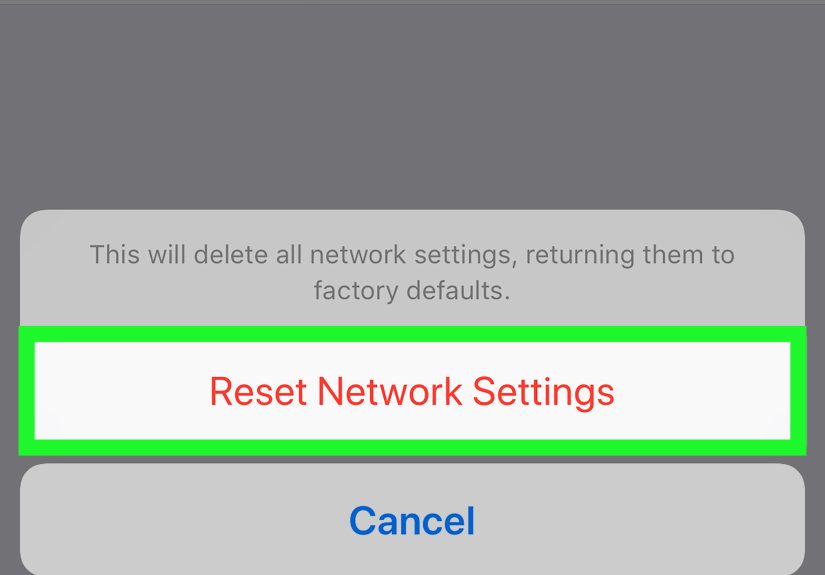
9. Reset Network Settings
If nothing else works, this is the strongest built-in fix on the iPhone side.
Go to:
Settings > General > Transfer or Reset iPhone > Reset > Reset Network Settings
This can fix stubborn Bluetooth issues, but there is a catch: it also clears saved Wi-Fi networks, passwords, VPN settings, and related network preferences. So use it when simpler fixes fail, not as your opening move like an action movie hero.
After the reset, reconnect to Wi-Fi and then pair the Bluetooth device again from scratch.
Device-Specific Reconnection Tips
AirPods and Wireless Earbuds
If AirPods or other earbuds will not reconnect, check the charge level of both the earbuds and the case. Then place them back in the case, close the lid, wait a few seconds, and try again. If needed, forget the device in Bluetooth settings and reset the earbuds before re-pairing.
Many earbuds also have their own reset process. That process is often the real fix when one bud connects and the other one decides to enter a period of personal reflection.
Car Bluetooth Systems
Car Bluetooth issues can be trickier because the problem may be on the car’s side, not the iPhone’s. Remove the iPhone from the car’s paired devices menu, then forget the car in your iPhone Bluetooth settings. Restart both if possible, then pair again.
Also make sure your car is not trying to reconnect to an old phone that is still saved in the system. Vehicles can be surprisingly loyal to outdated pairings.
Bluetooth Speakers
If a speaker does not reconnect, check whether it is already linked to another device in the room. Some speakers also support only one active audio connection at a time. Turn the speaker off and on, re-enter pairing mode, and reconnect from your iPhone.
Keyboards, Controllers, and Other Accessories
For accessories like keyboards, game controllers, and styluses, make sure they are supported by the iPhone model and the iOS version you are using. If the accessory needs a companion app or firmware update, check that as well.
Mistakes That Make Bluetooth Reconnection Harder
Sometimes people accidentally make the problem worse. Here are a few common mistakes to avoid:
- Trying to reconnect without putting the accessory back into pairing mode
- Ignoring low battery warnings
- Leaving the accessory connected to another device
- Resetting everything before trying the simple fixes
- Using only Control Center and never checking full Bluetooth settings
- Skipping app permissions for smart accessories
The lesson here is simple: before blaming your iPhone, make sure the accessory is actually ready to be found.
When to Contact Apple or the Device Maker
If you have tried all the steps above and the Bluetooth device still will not reconnect, it may be time to go beyond home troubleshooting.
Reach out for help if:
- The accessory does not appear in Bluetooth settings at all
- The device fails to connect with multiple phones
- The iPhone cannot connect to any Bluetooth accessories
- The issue started after physical damage, water exposure, or a failed update
- The accessory needs a firmware update or a factory reset you cannot perform yourself
If the iPhone connects fine to one device but not another, the accessory is likely the problem. If the iPhone refuses to connect to anything Bluetooth-related, the issue may be deeper on the phone side.
Real-World Experiences Reconnecting Bluetooth on an iPhone
A lot of Bluetooth advice sounds simple until you are standing in a parking lot trying to get your phone to connect to your car before navigation starts barking directions from the wrong place. That is why real-world experience matters.
One common situation happens with wireless earbuds. You open the case, see them listed under My Devices, tap the name, and nothing happens. It looks like the earbuds should connect, but they just sit there. In real use, the fix is often not complicated at all. The earbuds may be low on battery, one earbud may not be seated correctly in the case, or they may still be connected to a nearby laptop. People often waste ten minutes digging through iPhone menus when the real solution is charging the case and turning Bluetooth off on the laptop sitting two feet away.
Car Bluetooth creates a different kind of headache. A driver may think the iPhone is failing, but the car system often keeps trying to reconnect to an older saved phone. This is especially common in families where more than one person has used the same vehicle. In practice, deleting the old phone profile from the car and re-pairing the iPhone from scratch fixes the issue much faster than restarting the iPhone over and over again.
Speakers are another classic example. A Bluetooth speaker may reconnect beautifully at home and then refuse to work at a friend’s house. In many cases, the speaker is simply still paired to someone else’s device nearby. Bluetooth can be convenient, but it can also behave like a clingy ex. It remembers things you wish it would forget.
There are also moments when the iPhone is the problem. After a software update, some users notice that accessories connect less reliably for a while. Restarting the iPhone, updating apps, and re-pairing the accessory usually clears it up. And when that still does not work, resetting network settings has saved many people from buying a replacement they did not need.
The biggest lesson from real-life Bluetooth reconnection problems is this: most failures are not dramatic hardware disasters. They are usually small setup issues, stale pairings, power problems, or settings that need a quick refresh. Once you go through the fixes in the right order, the problem often disappears faster than expected.
Conclusion
If you need to reconnect a Bluetooth device on an iPhone, start with the simple stuff: charge the accessory, keep it nearby, toggle Bluetooth, forget the device, and pair it again. If that does not solve the problem, restart your iPhone, check permissions, update iOS, and use a network settings reset only when necessary.
Most Bluetooth problems on iPhone are annoying, but not serious. The trick is knowing which fix to try first and not jumping straight to the nuclear option. In other words, do not bulldoze your settings when all you needed was a charged speaker and a fresh pairing mode.
Note: This article is based on current Apple support guidance and widely used U.S. troubleshooting best practices as of March 2026, rewritten into an original web-ready format.