Table of Contents >> Show >> Hide
- First, Know What Type of Fortnite Card You Have
- Before You Redeem: The 6 Things That Save Headaches
- How to Redeem a Fortnite V-Bucks Gift Card (PC & Consoles)
- How to Redeem Platform Gift Cards for Fortnite (If You Bought the “Wrong” Card on Purpose)
- Fortnite Gift Card Not Working? Here’s How to Fix It
- Security Tips (Because Fake V-Bucks Scams Never Take a Day Off)
- Quick FAQ
- Experience Notes: of Real-World Tips Players Actually Need
- Conclusion
If you’re staring at a Fortnite gift card and wondering, “Do I redeem this in Fortnite, on my console, or in the mysterious void of the internet?” you’re not alone. Fortnite gift card redemption is easy once you know which kind of card you actually have. And yes, that little detail matters a lot.
This guide walks you through how to redeem a Fortnite gift card (including V-Bucks cards) on PC, Xbox, PlayStation, and Nintendo Switch consoles, plus the most common mistakes that make players want to throw their controller into a bean bag. We’ll keep it practical, clear, and friendly because your V-Bucks should go to your account, not to a random login from 2019.
First, Know What Type of Fortnite Card You Have
Before you redeem anything, check the card packaging or the back of the card. There are usually two common paths:
1) Fortnite V-Bucks Card (Most Common)
This is the retail V-Bucks card many players buy in stores. These are typically redeemed through Epic’s Fortnite V-Bucks card page, not directly inside your console store. After entering the PIN, Epic walks you through the rest.
2) Platform Gift Card (Xbox / PlayStation / Nintendo eShop)
This is not a “Fortnite” card, but it can still be used for Fortnite purchases. You redeem the code in your platform store (Microsoft/Xbox, PlayStation Store, or Nintendo eShop), then use the account balance to buy V-Bucks or Fortnite content.
Pro tip: If the card says “V-Bucks” on it, use the Fortnite/Epic redemption flow. If it says Xbox, PlayStation Store, or Nintendo eShop, redeem it on that platform first.
Before You Redeem: The 6 Things That Save Headaches
1) Sign in to the correct account
This is the #1 mistake. Epic specifically recommends checking your account and display name before redeeming, especially if you play on multiple devices or use multiple console accounts. If your display name looks unfamiliar, stop and fix that first.
2) Keep the receipt
If you bought a physical V-Bucks card, keep the receipt until the redemption is complete. If something goes wrong (damaged code, invalid code, region issue), support may ask for proof of purchase.
3) Check the region/country
Fortnite V-Bucks cards are region-locked. That means the card’s region must match your Epic account country/region. PlayStation and Nintendo also enforce region matching for many voucher/download codes. If the country doesn’t match, the code may fail even if the code itself is valid.
4) Enter the code exactly as shown
Different platforms use different code formats:
- Xbox / Microsoft: usually 25-character code
- PlayStation: usually 12-digit voucher code
- Nintendo: usually 16-character download code
And yes, one wrong character is enough to ruin your evening.
5) Link your accounts properly (Epic + console)
For Fortnite V-Bucks cards, Epic may ask you to sign in with your Epic account or your console account and confirm linking. If your Xbox or PlayStation account isn’t linked correctly, you may not see the platform you expected.
6) Don’t scratch the code like you’re mining for diamonds
On physical V-Bucks cards, scratch gently. Epic specifically warns users to avoid damaging the PIN when removing the protective coating. “Aggressive coin scraping” is a surprisingly common enemy.
How to Redeem a Fortnite V-Bucks Gift Card (PC & Consoles)
This is the main redemption flow for a retail Fortnite V-Bucks card.
Step 1: Go to the official V-Bucks card redemption page
Sign in to your Epic Games account first (or the console account you want to use). If you already play Fortnite, you already have an Epic account, even if you normally play on a console.
Step 2: Start the redemption process
On the V-Bucks card page, click Get Started. Epic may also allow QR code scanning from the back of some cards. If scanning doesn’t work, you can manually enter the PIN.
Step 3: Enter the V-Bucks card PIN
Scratch off the back of the card carefully and enter the PIN exactly as shown. Epic’s guidance says to enter the PIN with no dashes.
Step 4: Select your platform
Choose the platform where you want to apply the V-Bucks. Epic notes that the list only shows devices/platforms linked to your current Epic account. So if you don’t see Xbox, PlayStation, or Switch, double-check you’re signed into the correct Epic account.
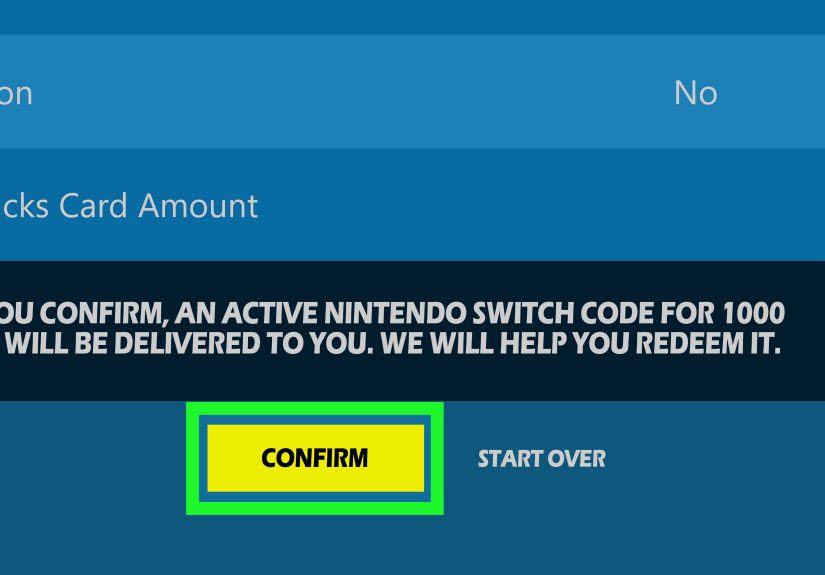
Step 5: Review and confirm
Check the account details, selected platform, and new balance before clicking Confirm. This is your last “Oops, wrong account” checkpoint.
What happens next depends on your platform
PC, Nintendo Switch, or Mobile
Epic’s V-Bucks redemption flow indicates that if you redeem to PC, Switch, or mobile, you can launch Fortnite and spend your V-Bucks after confirmation.
Xbox or PlayStation
This is the part many players miss: Epic may generate a secondary code (often 12 or 25 characters) after you confirm. You then need to redeem that generated code in your Microsoft/Xbox or Sony/PlayStation account to complete the process. Epic says this code is also emailed to you.
Bottom line: For Xbox and PlayStation players, the Fortnite V-Bucks card redemption is a two-step process: Epic first, then your platform account.
How to Redeem Platform Gift Cards for Fortnite (If You Bought the “Wrong” Card on Purpose)
Good news: an Xbox, PlayStation, or Nintendo gift card still works for Fortnite purchases. You just redeem it as platform credit, then buy V-Bucks in the game or store.
Xbox Series X|S / Xbox One (and Windows PC)
Xbox redemption uses a 25-character code. You have a few options:
On Xbox Series X|S or Xbox One
- Press the Xbox button to open the guide.
- Select Store.
- Open the side menu and choose Redeem.
- Enter the 25-character code and follow the prompts.
On Windows PC via Microsoft Store
- Open Microsoft Store.
- Select your account/profile (top-right).
- Choose Redeem code or gift cards.
- Enter the 25-character code and continue.
On Windows PC via Xbox App
- Open the Xbox app.
- Select your gamerpic, then Settings.
- Select Redeem under “Redeem a code.”
- Enter the 25-character code and follow the prompts.
After the balance or content is applied, you can use it toward Fortnite items, V-Bucks, or other eligible content in the Xbox ecosystem.
PlayStation (PS5, PS4, Web, and App)
PlayStation voucher codes are typically 12 digits. You can redeem them in multiple places.
On PS5
- Open PlayStation Store.
- Press the triangle button to open the menu.
- Select More > Redeem Code.
- Enter the 12-digit code and select Redeem.
On PS4
- Open PlayStation Store.
- Scroll to the bottom of the sidebar and select Redeem Codes.
- Enter the 12-digit code and confirm.
On Web Browser
- Go to PlayStation Store and sign in.
- Select your profile.
- Choose Redeem Code.
- Enter the 12-digit voucher and continue.
On PlayStation App
- Open the PS Store section in the app.
- Open the menu.
- Select Redeem Code.
- Enter the 12-digit code and confirm.
Once your PlayStation wallet is funded, you can buy Fortnite V-Bucks or content through the store or in-game checkout.
Nintendo Switch (Console or Online)
Nintendo download codes are usually 16 characters. Nintendo supports both console redemption and web redemption for eligible codes.
On Nintendo Switch (Console)
- Open Nintendo eShop from the HOME Menu.
- Select the account you want to use.
- Select Enter Code on the left side.
- Enter the 16-character code.
- Select OK to confirm.
After confirmation, the content will download (or the balance/content will be applied, depending on the code type).
Online (Browser)
- Go to the Nintendo redeem page.
- Sign in to your Nintendo Account.
- Enter the 16-digit code and select Next.
- Re-enter your password and select Redeem.
Important: Nintendo notes that you must have accessed the Nintendo eShop on your Switch with your Nintendo Account at least once before you can redeem codes online.
Fortnite Gift Card Not Working? Here’s How to Fix It
Here are the most common problems and what to do next.
1) Region mismatch (the silent code killer)
If you get a territory or region error, the card/coupon region likely doesn’t match your account region. Epic, PlayStation, and Nintendo all mention region-based redemption restrictions. Check your account country/region and compare it to the card packaging.
For Epic V-Bucks cards, Epic also notes that country changes are limited and not always possible (plus there are restrictions and timing limits), so don’t assume changing regions is a quick fix.
2) You redeemed on the wrong account
This happens a lot in households with shared consoles. Always verify the display name (Epic), PSN account, Xbox account, or Nintendo Account before entering the code. Some platforms allow you to check transaction history to confirm whether the code was already redeemed.
3) The code says invalid
Try the basics first:
- Re-enter the code carefully
- Check the code length (12, 16, or 25 depending on platform)
- Confirm the code hasn’t expired (PlayStation vouchers may expire)
- Make sure the code type matches the store (don’t enter a Nintendo code on PlayStation, etc.)
4) Damaged or unreadable code
If the code is damaged, support options vary by platform. PlayStation specifically advises contacting the retailer if the voucher code was printed on a receipt, and contacting PlayStation Support for other damaged vouchers (with proof of purchase and card photos). Nintendo and Epic also recommend keeping receipts for issue resolution.
5) Child account restrictions (PlayStation)
On PlayStation, wallet top-up voucher codes generally can’t be redeemed directly on child accounts. The family manager typically needs to redeem the wallet top-up and then manage spending limits.
6) Xbox or PlayStation V-Bucks card redemption stops halfway
If you redeemed a V-Bucks card through Epic and it generated a secondary code, finish the second step on your Microsoft/Xbox or Sony/PlayStation account. A lot of players think they’re done after Epic shows the confirmation screen but on Xbox and PlayStation, that secondary code is the final unlock step.
Security Tips (Because Fake V-Bucks Scams Never Take a Day Off)
- Only redeem through official Epic, Xbox, PlayStation, or Nintendo pages/apps.
- Never share your full code in chat, DMs, or “support” messages on social media.
- Do not trust websites promising “free V-Bucks” for card activation.
- Keep the card and receipt until the V-Bucks or balance shows correctly in your account.
Quick FAQ
Can I transfer V-Bucks to another account?
Generally, no. Epic’s Fortnite V-Bucks card page states V-Bucks are not transferable between accounts. If you redeemed to the wrong account, Epic says support may be able to help in some cases.
Do I redeem a Fortnite V-Bucks card inside Fortnite?
Usually, no. Retail V-Bucks cards are typically redeemed through Epic’s Fortnite V-Bucks card web flow first, then finalized on the platform (for Xbox/PlayStation) if needed.
Can I use a platform gift card to buy Fortnite V-Bucks?
Yes. Redeem the platform gift card (Xbox, PlayStation, or Nintendo) to your platform account balance, then use that balance to purchase V-Bucks or Fortnite content.
What if my code was already used?
Check account transaction history first. If you still believe it’s an error, contact the platform’s support and have your proof of purchase ready.
Experience Notes: of Real-World Tips Players Actually Need
Let’s talk about the part nobody puts on the gift card packaging: the “human” part. In real life, Fortnite gift card redemption problems usually don’t happen because the system is broken. They happen because people are moving too fast, juggling multiple accounts, or redeeming on a different device than they normally use. (In other words: totally normal gamer behavior.)
A common example: a player buys a V-Bucks card for an Xbox account, signs into Epic on a laptop, and accidentally uses an old Epic login they forgot was linked to a different console profile. Everything looks fine at first, and then suddenly the V-Bucks are not where they expected. The fix is simple before redeeming: check the display name and linked platform accounts. It takes 10 seconds and saves a support ticket.
Another classic issue is the “I redeemed it on Epic, why don’t I have V-Bucks yet?” moment on PlayStation and Xbox. This is where the secondary code catches people off guard. Epic’s flow may generate another code that must be redeemed on Sony or Microsoft. If you stop after the first confirmation, it can feel like the card disappeared. It didn’t the process just wasn’t finished.
Families run into a different set of problems. Parents often buy PlayStation or Xbox gift cards for kids, but child account restrictions can block wallet top-ups or create confusion around who should redeem the code. The easiest routine is to redeem wallet funds on the adult/family manager account when required, then control spending from there. It’s not the most exciting thing in the world, but it beats explaining to an impatient 12-year-old why the new skin isn’t showing up.
Region mismatches are the sneakiest problem of all. A card bought while traveling, imported from another country, or ordered from a third-party marketplace can fail even when the code is typed perfectly. Players often assume “a code is a code,” but stores and platforms don’t always work that way. If the card region and account region don’t match, the redemption can be blocked. This is why buying from a local, reputable retailer matters.
One more practical tip: redeem codes when you’re calm, not when your squad is already yelling “ready up!” The fastest way to mistype a 16- or 25-character code is to do it while wearing a headset and trying to answer three questions at once. Redeem first, verify the balance or content, then jump into the game. Future-you will be grateful.
And finally, keep your receipt. It’s not glamorous. It’s not legendary loot. But if your code is damaged or unreadable, that receipt can be the difference between “problem solved” and “well… that was an expensive piece of cardboard.”
Conclusion
Redeeming a Fortnite gift card is easy once you match the card type to the right redemption path. For retail V-Bucks cards, start with Epic’s Fortnite V-Bucks card flow. For Xbox, PlayStation, or Nintendo gift cards, redeem the code in that platform’s store first, then use the balance for Fortnite purchases. The biggest success factors are simple: use the correct account, check the region, and complete every step (especially the Xbox/PlayStation secondary code step).
Do that, and your V-Bucks should land exactly where they belong in your account, ready for that skin you definitely “needed.”