Table of Contents >> Show >> Hide
- Before You Panic: Know Where Your Contacts Were Saved
- Method 1: Restore Deleted Contacts from Google Contacts Trash
- Method 2: Undo Recent Contact Changes in Google Contacts
- Method 3: Restore Contacts from Android Backup
- Method 4: Restore Deleted Contacts on Samsung Phones
- Method 5: Import Contacts from a SIM Card or VCF File
- Troubleshooting: Why Your Contacts Still Aren’t Showing Up
- How to Prevent Contact Loss Next Time
- Real-World Recovery Experiences and Lessons Learned (Extended)
- Experience 1: The “I Only Deleted One Contact” Situation
- Experience 2: The “My Contacts Vanished After a Phone Upgrade” Problem
- Experience 3: The “Sync Was Off and I Didn’t Know” Surprise
- Experience 4: The “Bulk Cleanup Disaster”
- Experience 5: The “Samsung Phone, Many Options, Mild Confusion” Case
- Experience 6: The “Everything Came Back… Twice” Moment
- Conclusion
You open your Android phone, tap Contacts, and boomsomeone important is gone. Maybe it was your boss. Maybe it was your dentist. Maybe it was “Pizza Place (the good one),” which is honestly the biggest emergency of all.
The good news: in many cases, deleted contacts on Android can be restored. The less-fun news: how you restore them depends on where those contacts were stored in the first placeGoogle account, phone storage, SIM card, Samsung services, or a backup file.
This guide walks you through the safest and most effective ways to restore deleted contacts on an Android device, step by step. We’ll cover Google Contacts Trash, Android backup restore options, Samsung-specific recovery methods, SIM and VCF imports, and a troubleshooting checklist for when your missing contact plays hide-and-seek.
Before You Panic: Know Where Your Contacts Were Saved
Android contacts can live in different places, and that’s why recovery methods vary. Your contact may have been stored in:
- Your Google Account (most common and easiest to recover)
- Device storage (local phone storage, less flexible)
- SIM card (old-school but still common)
- Samsung Cloud (on supported Samsung devices)
- A previous backup file (such as a VCF export or PC backup)
If your contacts were saved to your Google Account, you’re in luck: recovery is usually quick, and syncing can bring them back across devices automatically.
Method 1: Restore Deleted Contacts from Google Contacts Trash
If you deleted a contact that was synced with Google, check the Trash first. Google typically keeps deleted contacts there for up to 30 days before permanent removal.
Option A: Restore on a Computer (Fastest and Easiest)
- Open Google Contacts in your browser while signed in to the same Google account used on your phone.
- In the left sidebar, click Trash.
- Select the deleted contact (or multiple contacts).
- Click Recover.
Once recovered, the contact should sync back to your Android phone automatically if sync is enabled.
Option B: Restore in the Android Contacts App
- Open the Contacts app on your Android phone.
- Go to Fix & manage (or a similar menu, depending on your device).
- Tap Trash.
- Select the contact and tap Recover.
Important: On many Android phones, Trash-based recovery in the Contacts app works only when contact sync is enabled and your phone is online. So yes, airplane mode is not helping right now.
Method 2: Undo Recent Contact Changes in Google Contacts
If your contact list was changed by accidentmaybe a sync glitch, bulk deletion, or a very enthusiastic cleanup sessionyou can use Google Contacts’ Undo changes feature.
This is a powerful option because it can roll your contacts back to a previous point in time (within the last 30 days). But it restores the whole contact set, not just one person, so use it carefully.
How to Undo Changes
- Open Google Contacts on a computer.
- Click Settings in the top-right area.
- Select Undo changes.
- Choose the time window (for example, 10 minutes ago, 1 hour ago, yesterday, or a custom time).
- Click Confirm.
Pro tip: Before doing a full rollback, export your current contacts first. That way, if the rollback removes newer contacts you actually wanted to keep, you can import them back later. It’s like creating a save point before a boss battle.
Method 3: Restore Contacts from Android Backup
If the contact doesn’t appear in Trash, your next best move is restoring from an Android backup (Google backup / Google One backup, depending on your device and Android version).
This is especially useful if you switched phones, factory-reset your device, or deleted contacts that were not syncing properly at the time.
How to Restore Contacts from Backup
- Open Settings on your Android phone.
- Tap Google.
- Tap Set up & restore (or a similar path like Backup & restore, depending on the device).
- Tap Restore contacts.
- If you use multiple Google accounts, choose the correct account.
- Select the source device/backup.
- Turn off SIM/device storage restore if you only want account-based contacts.
- Tap Restore.
Android usually avoids creating duplicates during this process by restoring only contacts that aren’t already on the phone.
Important Backup Notes
- Restore behavior can vary by phone brand and Android version.
- Backups restore more reliably when the new phone is on the same or newer Android version than the old device.
- If your contacts were already saved to your Google Account, they may simply reappear after sign-in and syncno manual restore needed.
If you’re using a Pixel phone, Google’s backup tools are especially well integrated, but Google also notes that some data categories (like certain synced account data) may restore differently than local files.
Method 4: Restore Deleted Contacts on Samsung Phones
Samsung devices give you a few extra recovery paths, which is great news if you’re on a Galaxy phone and bad news only if you were hoping this would be a one-button process.
Option A: Samsung Recycle Bin / Trash (Quick Recovery)
Some Samsung devices include a contact recovery option through a recycle bin or trash-style workflow. If your deleted contact is recent, check Samsung’s built-in recovery menus first.
- Open your Samsung contact or device storage management settings (varies by model).
- Look for Recycle Bin or a deleted-items section.
- Select the deleted contact.
- Tap Restore.
On many Samsung setups, deleted items are retained for up to 30 days, so timing matters.
Option B: Restore from Samsung Cloud
If you use Samsung Cloud (on supported devices/carriers), you can restore contacts from a previous cloud backup.
- Open Settings on your Samsung phone.
- Tap your Samsung account at the top.
- Tap Samsung Cloud.
- Choose Restore data.
- Select the backed-up device and restore the contact-related data.
Heads-up: Samsung Cloud availability and features vary by carrier and software version. Some devices support syncing contacts directly, while others rely more on backup/restore categories.
Option C: Restore from a Smart Switch Backup (PC or Mac)
If you previously backed up your Samsung phone to a computer using Smart Switch, you may be able to restore contacts from that backup file.
- Open Smart Switch on your PC or Mac.
- Connect your Samsung phone via USB.
- Click Restore.
- Select your backup data (or specific categories like contacts).
- Start the restore and approve permissions on your phone if prompted.
Smart Switch is especially useful when recovering data after a phone reset, replacement, or major software issue.
Method 5: Import Contacts from a SIM Card or VCF File
Not all missing contacts are truly deleted. Sometimes they were stored in a different place and just aren’t showing in your current contact list. In those cases, importing can bring them back instantly.
Import from a SIM Card
- Insert the SIM card into your Android phone (if it isn’t already).
- Open the Contacts app.
- Tap Organize (or a similar menu).
- Tap Manage SIM.
- Select the contacts and choose the Google account to import into.
- Tap Import.
This is a great fix when contacts were saved to SIM on an older phone and never fully synced to Google.
Import from a VCF File
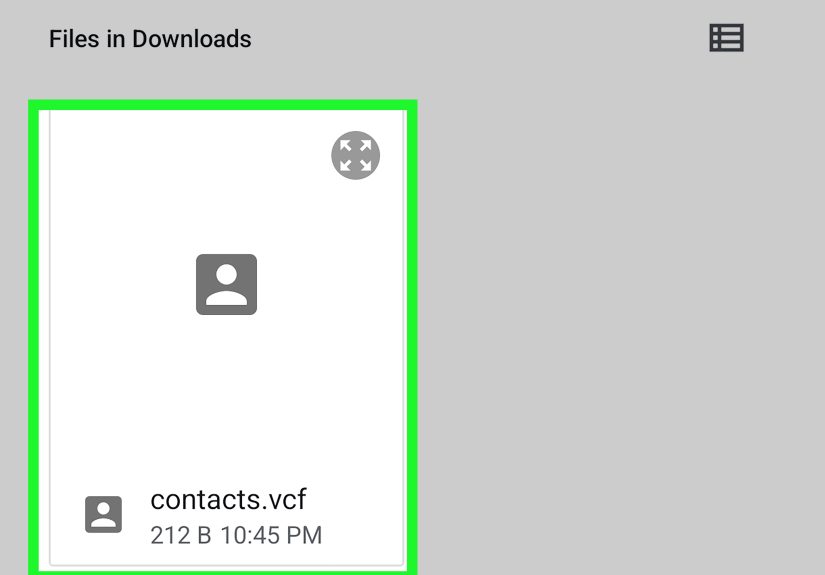
If you exported contacts before (or another phone app created a contact file), look for a .VCF file in your device storage, Downloads folder, or cloud drive.
- Open the Contacts app.
- Tap Organize.
- Tap Import from file.
- Choose the Google account where you want the contacts saved.
- Select the VCF file.
Done right, this can recover dozens (or hundreds) of contacts in one shotvery satisfying, very dramatic.
Troubleshooting: Why Your Contacts Still Aren’t Showing Up
If you tried the methods above and your contact is still missing, use this checklist before assuming the worst:
1) You’re Signed Into the Wrong Google Account
This is incredibly common. Many people use multiple Gmail accounts. Check which account your Contacts app is displaying and switch to the one where the contacts were originally stored.
2) Contact Sync Is Turned Off
If sync is off, recovered contacts may not appear on your phone right away. Turn on Google Contacts sync in your device settings and give it a minute.
3) The Contact Was Stored Locally, Not in Google
Local device contacts and SIM contacts don’t always sync automatically. That means Google Trash won’t help if the contact was never in your Google account. Check SIM import, local backup files, or manufacturer backup tools instead.
4) The Contact Was Deleted More Than 30 Days Ago
Trash-based recovery usually has a time limit. After that, your options narrow to backups, imports, or manufacturer-specific recovery tools.
5) The Contact Came from Another App
Some contacts are tied to apps like Outlook, Exchange, or other services. In some cases, the fix is simply reinstalling or re-signing into that app so the contacts sync back.
6) You’re Looking at a Filtered Contact View
Some phones let you filter contacts by account, label, or source. Make sure your Contacts app is set to show all contacts, not just one account or one category.
How to Prevent Contact Loss Next Time
Once you recover your contacts, take 5 minutes to “future-proof” your address book. Your future self will be grateful, and much less stressed.
Best Practices for Android Contact Backup
- Turn on Google Contacts sync for device and SIM contacts when available.
- Save new contacts to your Google account (not device-only storage).
- Export a VCF backup monthly if contacts are mission-critical.
- Use manufacturer tools like Samsung Cloud or Smart Switch if you’re in that ecosystem.
- Check backups before switching phones so you don’t discover the problem during setup.
Think of it this way: backing up contacts is boring until it becomes the smartest thing you’ve done all year.
Real-World Recovery Experiences and Lessons Learned (Extended)
Here are a few common, real-world-style recovery scenarios that happen all the timeand what they teach you about restoring deleted contacts on Android.
Experience 1: The “I Only Deleted One Contact” Situation
A user deletes one old contact, then realizes a few minutes later it was the wrong person. Classic. In this case, Google Contacts Trash is usually the fastest win. The contact is still in Trash, it takes under a minute to recover, and the restored entry syncs right back to the phone.
Lesson: For recent deletions, always check Trash first. Don’t jump straight to factory resets, third-party recovery apps, or random “phone booster” tools that promise miracles and deliver advertisements.
Experience 2: The “My Contacts Vanished After a Phone Upgrade” Problem
This happens a lot during phone upgrades. A person signs into a new Android phone and expects every contact to appear instantly. Instead, only a few names show up. The missing entries were often saved to the old phone’s device storage or SIM card, not to Google.
The fix is usually one of these:
- Import contacts from the SIM card
- Restore contacts from a Google backup
- Use the old phone’s manufacturer backup tool (like Samsung Smart Switch)
Lesson: “Saved on phone” and “saved to Google” are not the same thing. If you upgrade devices often, store contacts in your Google account by default.
Experience 3: The “Sync Was Off and I Didn’t Know” Surprise
Someone assumes their contacts are backed up because they use Gmail every day. Fair assumptionbut contact sync was turned off. They delete a contact, open Google Contacts on a computer, and… nothing. No Trash entry. No sync history. No easy restore.
At that point, the person may still recover contacts using:
- A local backup file (VCF)
- A Samsung Cloud backup (if enabled)
- A desktop backup tool (such as Smart Switch or Motorola Software Fix backup)
Lesson: Don’t assume backup is on. Check it. Android gives you several backup options, but they only help if they were enabled before the problem happened.
Experience 4: The “Bulk Cleanup Disaster”
This one hurts. A user tries to merge duplicates or delete spam contacts and accidentally wipes out half the address book. The best recovery tool here is often Undo changes in Google Contacts on the web, because it can roll back the entire contact list to a point before the cleanup.
But there’s a catch: if new contacts were added after that point, a rollback may hide them too. Smart users export current contacts first, do the rollback, then re-import anything genuinely new.
Lesson: Bulk edits are powerful. So is Undo. Use both with a backup file in your pocket.
Experience 5: The “Samsung Phone, Many Options, Mild Confusion” Case
Samsung users often have multiple possible recovery paths: Google Contacts, Samsung Cloud, Smart Switch backups, and sometimes a recycle-bin style option. That’s goodbut it can be confusing if you don’t know which system your contacts were using.
The fastest way to solve it is to ask one question: Where were the contacts originally saved? If the answer is Google, use Google tools. If the answer is Samsung backup, use Samsung Cloud or Smart Switch. If the answer is “I have no idea,” check all three in that order: Google Trash, Samsung restore, then import/backup files.
Lesson: More backup systems are better than oneuntil you forget which one you used. Pick a primary system and stick with it.
Experience 6: The “Everything Came Back… Twice” Moment
Yes, duplicate contacts. The party nobody wanted. This can happen when a user restores from backup and also imports a VCF file, or when the phone syncs the same contacts from multiple accounts (Google + Outlook + Samsung account, for example).
The good news is duplicates are annoying, not fatal. Most contact apps (especially Google Contacts) have tools for merging duplicates. It’s a cleanup problem, not a data-loss problem.
Lesson: Restore in stages. First restore one source, confirm the contacts appear correctly, then add other sources only if needed.
Conclusion
If you need to restore deleted contacts on Android, the fastest path is usually Google Contacts Trash. If that doesn’t work, try Undo changes, Android backup restore, Samsung tools, or importing from a SIM/VCF file. The key is knowing where your contacts were stored and moving through recovery methods in the right order.
And once you recover your contacts, flip on sync and create a backup. Because contact recovery is a lot more fun in a tutorial than in real life.