Table of Contents >> Show >> Hide
- What Is a Macro in Excel?
- Why Use Macros in Excel?
- Before You Run Macros: Understand Macro Security
- How to Enable the Developer Tab in Excel
- How to Record Your First Macro in Excel
- How to Run Macros in Excel
- How to Save a Workbook That Contains Macros
- How to Enable Macros in a Trusted Workbook
- How to View or Edit Macro Code
- Best Practices for Running Macros in Excel
- Common Problems When Running Macros
- Beginner Example: Create and Run a Simple Formatting Macro
- Should Beginners Learn VBA?
- Extra Experience: Practical Lessons From Running Excel Macros
- Conclusion
Note: This beginner-friendly guide is based on current Excel and Microsoft 365 macro guidance, including macro recording, VBA editing, macro security settings, trusted documents, trusted locations, and macro-enabled workbook behavior.
If Excel were a kitchen, macros would be the little robot chef that chops the onions, stirs the sauce, cleans the counter, and somehow remembers where you left the measuring spoon. In plain English, an Excel macro is a saved set of actions that you can run again and again. Instead of formatting the same report every Monday, copying data between sheets, inserting formulas, resizing columns, and whispering motivational quotes to your spreadsheet, you can ask a macro to do it for you.
This complete beginner’s guide explains how to run macros in Excel, how to enable the Developer tab, how to record your first macro, how to run a macro safely, and how to fix common problems. You do not need to be a programmer to begin. You only need Excel, a repeatable task, and the bravery to click a few buttons without treating the spreadsheet like it might bite.
What Is a Macro in Excel?
A macro in Excel is a sequence of commands that automates repetitive work. Most Excel macros are powered by VBA, short for Visual Basic for Applications. VBA is Microsoft’s programming language for automating tasks in Office apps such as Excel, Word, Outlook, PowerPoint, and Access.
For beginners, the easiest way to create a macro is with the Macro Recorder. When you turn on the recorder, Excel watches your actions, such as selecting cells, applying formatting, entering formulas, sorting data, or creating a report layout. Then Excel converts those actions into VBA code behind the scenes. It is a bit like screen recording, except instead of creating a video, Excel creates instructions it can replay later.
Why Use Macros in Excel?
Macros are useful when you perform the same task more than once. If you only need to bold one heading, a macro is overkill. That is like using a forklift to move a sticky note. But if you clean up sales reports every week, prepare monthly dashboards, rename sheets, format invoices, or import data from a recurring file, macros can save serious time.
Common Tasks You Can Automate With Macros
- Formatting tables, headers, dates, and currency values
- Cleaning imported data by removing blank rows or extra spaces
- Sorting and filtering reports
- Copying data from one worksheet to another
- Creating standard charts or pivot table layouts
- Generating recurring weekly or monthly reports
- Adding formulas to specific columns
- Printing or exporting prepared sheets
The main benefit is consistency. A well-made macro performs the same steps the same way every time. It does not get bored, skip a column, forget the font size, or decide that today is a “creative interpretation of accounting” day.
Before You Run Macros: Understand Macro Security
Macros are powerful because they can automate actions. That power is also why Excel treats them carefully. A trusted macro can save hours. A malicious macro from an unknown source can damage files, expose data, or run unwanted commands. For that reason, modern Microsoft 365 apps often block or restrict macros from files downloaded from the internet, and Excel uses security settings to control when macros can run.
The golden rule is simple: only run macros from people, companies, and files you trust. If a random spreadsheet arrives by email promising free money, miracle tax refunds, or “urgent invoice details,” do not enable macros. Your computer deserves better friends.
Safe Macro Habits for Beginners
- Save a backup copy before running a new macro.
- Run unfamiliar macros only in files from trusted sources.
- Avoid enabling all macros permanently unless your organization specifically requires it.
- Use macro-enabled workbooks with the .xlsm file extension.
- Test macros on sample data before using them on important files.
- Ask your IT team before changing security settings on a work computer.
How to Enable the Developer Tab in Excel
The Developer tab is where Excel keeps macro tools, VBA tools, form controls, and other advanced features. It is not always visible by default, so your first step is to invite it to the ribbon party.
Enable the Developer Tab on Windows
- Open Excel.
- Select File.
- Choose Options.
- Select Customize Ribbon.
- In the right-hand list, check Developer.
- Select OK.
You should now see the Developer tab in the Excel ribbon. Congratulations. You have unlocked the door to macro land. Please wipe your feet before entering.
Enable the Developer Tab on Mac
- Open Excel.
- Select Excel in the menu bar.
- Choose Preferences.
- Select Ribbon & Toolbar.
- Check Developer in the main tabs list.
- Save your changes.
How to Record Your First Macro in Excel
The Macro Recorder is the best starting point for beginners because it lets you create a macro without writing code manually. Here is a simple example: recording a macro that formats a report heading.
Step 1: Prepare Your Worksheet
Open a workbook and create a small sample sheet. For example, type a report title in cell A1, such as “Monthly Sales Report.” It is better to practice on a sample workbook first, not your company’s master finance file named something terrifying like “Final_Final_REAL_Q4_DO_NOT_TOUCH.xlsx.”
Step 2: Start Recording
- Go to the Developer tab.
- Select Record Macro.
- Enter a macro name, such as FormatReportTitle.
- Choose where to store the macro.
- Add a short description if helpful.
- Select OK.
Macro names cannot contain spaces. Use clear names like CleanSalesData, FormatInvoice, or CreateMonthlyReport. Avoid mystery names like Macro1, DoThing, or Bob. Future you will not be amused.
Step 3: Perform the Actions
Now do the steps you want Excel to remember. For the report title example, you might select cell A1, make the text bold, increase the font size, apply a fill color, center the text, and widen the column.
Be careful while recording. The Macro Recorder captures many of your actions, including accidental clicks. If you click the wrong cell, Excel may record that too. Macros are obedient, not psychic.
Step 4: Stop Recording
Return to the Developer tab and select Stop Recording. Your macro is now saved and ready to run.
How to Run Macros in Excel
Once a macro exists, Excel gives you several ways to run it. Beginners usually start with the Macros dialog box. Later, you can assign macros to buttons, shapes, keyboard shortcuts, or Quick Access Toolbar commands.
Method 1: Run a Macro From the Developer Tab
- Open the workbook containing the macro.
- Select the Developer tab.
- Click Macros.
- Select the macro you want to run.
- Click Run.
This is the most straightforward method. It is perfect when you are learning, testing, or running a macro occasionally.
Method 2: Run a Macro With a Keyboard Shortcut
When recording a macro, Excel lets you assign a keyboard shortcut. For example, you might use Ctrl + Shift + R for a report-formatting macro. Use shortcuts carefully because they can override built-in Excel shortcuts. You do not want to accidentally replace a familiar command with a macro that reformats your worksheet like a confetti cannon.
Method 3: Run a Macro From a Button
Buttons are excellent for workbooks you use often. You can insert a shape, right-click it, choose Assign Macro, and select the macro you want. Then anyone using the workbook can click the button to run the automation.
For example, you could create a big friendly button labeled “Clean Data” or “Generate Report.” This is much better than telling a coworker, “Open the macro dialog, find the thing called Macro7, and hope for the best.”
Method 4: Add a Macro to the Quick Access Toolbar
You can also add a macro button to the Quick Access Toolbar so it is always easy to reach. This works well for personal macros you use across multiple files, such as formatting selected cells or applying a standard page setup.
How to Save a Workbook That Contains Macros
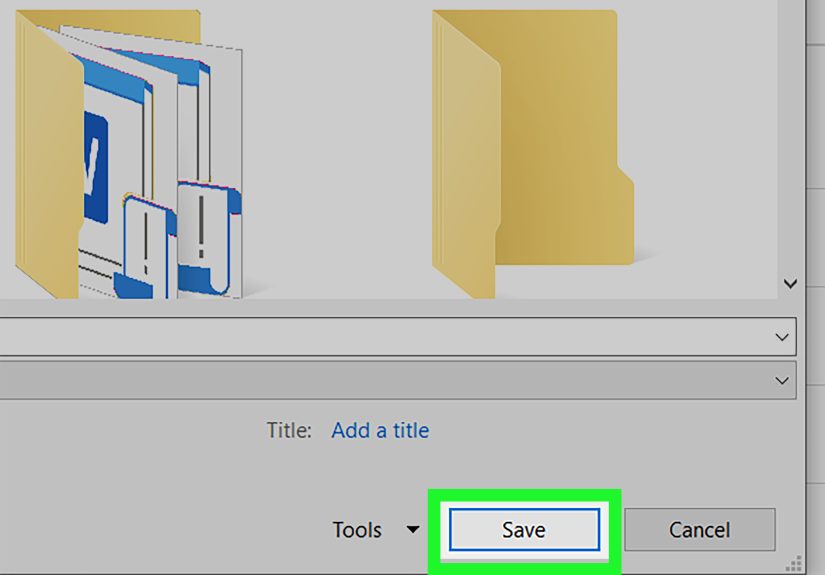
Regular Excel workbooks use the .xlsx file format, but .xlsx files do not save VBA macro code. If your workbook contains macros, save it as an Excel Macro-Enabled Workbook with the .xlsm extension.
Save as a Macro-Enabled Workbook
- Select File.
- Choose Save As.
- Pick a location.
- Open the file type menu.
- Select Excel Macro-Enabled Workbook (*.xlsm).
- Click Save.
If you forget this step and save as .xlsx, Excel may warn you that macros cannot be saved in that file type. Listen to the warning. It is not being dramatic this time.
How to Enable Macros in a Trusted Workbook
When you open a workbook containing macros, Excel may show a security warning. If you created the file yourself or received it from a trusted source, you may be able to enable content.
Enable Macros From the Security Warning
- Open the workbook.
- Look for the security warning near the top of the file.
- Select Enable Content only if you trust the file.
Once you trust a document, Excel may remember that choice. However, if the file came from the internet, email, or a shared download location, Excel may apply stricter blocking. In that case, you may need to use approved company procedures, move the file to a trusted location, or ask IT for help.
How to View or Edit Macro Code
After recording a macro, you can inspect the VBA code. This is a great way to learn how Excel translated your clicks into instructions.
Open the Visual Basic Editor
- Go to the Developer tab.
- Select Visual Basic.
- In the Project Explorer, find your workbook.
- Open the module that contains your macro.
You may see code that looks intimidating at first. Do not panic. VBA is just instructions written in a specific format. A recorded macro might include commands for selecting ranges, applying formatting, copying values, or changing sheet settings.
Example of a Simple Macro
This macro makes the text in cell A1 bold, changes the font size to 16, and centers it. Not exactly rocket science, but it is a nice beginning. Every Excel wizard starts somewhere.
Best Practices for Running Macros in Excel
Start With a Clear Goal
Before recording or running a macro, write down the task you want to automate. A good macro has a clear purpose, such as “format imported sales report” or “copy completed rows to archive sheet.” If your goal is vague, the macro will be vague too, and vague automation is how spreadsheets become haunted.
Use Copies for Testing
Macros can change data quickly, and many macro actions cannot be undone with the standard Undo command. Always test on a duplicate workbook before running a macro on important information. If the test works, then use it on the real file.
Name Macros Clearly
Use descriptive names without spaces. Good names explain the purpose immediately. For example, FormatWeeklyReport is better than Macro2. Your workbook may eventually contain several macros, and clear names prevent confusion.
Keep Macros Small at First
Beginners often try to automate a giant process all at once. Instead, start with small tasks. Record one macro to format headings, another to clean blank rows, and another to sort the data. Small macros are easier to test, fix, and understand.
Document What the Macro Does
Add a description when recording the macro, and consider adding comments in the VBA code later. This helps anyone who opens the workbook understand what the macro is supposed to do. That “anyone” may be you three months from now, staring at the screen with coffee and mild regret.
Common Problems When Running Macros
The Macro Does Not Appear
If your macro does not appear in the Macros dialog box, check whether the workbook was saved as an .xlsm file. Also make sure the macro is stored in the open workbook or in your Personal Macro Workbook.
Macros Are Disabled
If Excel blocks macros, review the security warning. The file may be from the internet, stored in an untrusted location, or restricted by company policy. Do not lower your security settings blindly. If you are using a work computer, your organization may manage macro settings centrally.
The Macro Runs on the Wrong Cells
Recorded macros may use fixed cell references. If you recorded actions on cell A1, the macro may always return to A1. To avoid surprises, select the correct starting cell before recording, or later edit the VBA code to make the macro more flexible.
The Macro Makes a Mistake
If the macro does something unexpected, close the workbook without saving if possible. Then reopen a clean copy and review the macro steps. This is why backups are not optional. They are the spreadsheet equivalent of a seat belt.
Beginner Example: Create and Run a Simple Formatting Macro
Let’s walk through a practical example. Suppose you receive a weekly sales export that always needs the same cleanup: bold the header row, apply filters, autofit columns, and freeze the top row.
Record the Macro
- Open a sample sales workbook.
- Go to Developer > Record Macro.
- Name it FormatSalesReport.
- Click OK.
- Select the header row.
- Apply bold formatting.
- Turn on filters.
- Autofit the columns.
- Freeze the top row.
- Click Stop Recording.
Run the Macro
- Open a fresh copy of the weekly report.
- Go to Developer > Macros.
- Select FormatSalesReport.
- Click Run.
In a few seconds, Excel repeats the formatting steps. This kind of macro is perfect for beginners because it is useful, easy to understand, and not too risky when tested on a copy.
Should Beginners Learn VBA?
You can run and record macros without becoming a VBA expert. However, learning basic VBA helps you make macros smarter. The Macro Recorder is useful, but it often records extra steps. As you gain confidence, you can remove unnecessary code, add variables, create message boxes, loop through rows, and build macros that adapt to different data sizes.
Start small. Learn how to read recorded code, identify cell references, and understand basic commands. You do not need to memorize everything. Even experienced Excel users search for syntax. The secret is knowing what you want Excel to do and learning how to ask clearly.
Extra Experience: Practical Lessons From Running Excel Macros
The first real lesson about Excel macros is that they reward preparation. A macro is not magic; it is a very fast assistant that follows instructions exactly. If the instructions are clean, the result feels magical. If the instructions are messy, the macro will faithfully make a mess at impressive speed. That is why experienced Excel users usually spend more time planning the workflow than recording the macro itself.
One helpful habit is to standardize your worksheet before recording anything. Make sure column names are consistent, blank rows are removed, and the data starts in the same place each time. A macro that expects headers in row 1 may behave strangely if next week’s report has a logo, two blank lines, and a cheerful note from accounting at the top. Consistent structure makes automation easier.
Another lesson is to test macros in stages. Do not build a giant macro that imports data, deletes rows, creates formulas, builds charts, emails the boss, and plays a victory trumpet on the first try. Instead, create one section at a time. Test the formatting part. Then test the cleaning part. Then test the reporting part. When something breaks, you will know where to look.
It also helps to keep a “practice workbook” for experiments. This is a safe place to record macros, edit VBA, make mistakes, and learn without risking important files. Many beginners become nervous because macros can change data quickly. A practice workbook removes that fear. You can break things, fix things, and break them again in the noble tradition of learning technology.
When working with shared files, communication matters. If you add a macro button to a workbook used by a team, label it clearly. Add instructions near the button, such as “Click after pasting new weekly data.” If the macro requires users to select a range first, say so. A good macro workbook should not feel like a puzzle box guarded by a spreadsheet goblin.
Security is another area where real-world experience matters. Many people see an “Enable Content” button and click it automatically. Do not build that habit. Instead, ask: Do I trust the source? Was I expecting this file? Does the workbook need macros to perform its purpose? A cautious approach protects your files and your computer. For business use, signed macros, trusted locations, and IT-approved workflows are usually better than casual enabling.
Finally, remember that not every task needs a macro. Excel also includes formulas, Power Query, pivot tables, templates, and built-in automation features. Macros shine when you need to repeat a sequence of actions, especially actions that involve formatting, moving through sheets, or combining multiple steps. The best Excel users choose the simplest reliable tool for the job.
Once you get comfortable, macros can change the way you work. A task that used to take 20 minutes may take 20 seconds. A boring cleanup process becomes a button. A complicated report becomes repeatable. And perhaps most importantly, you get fewer opportunities to make tiny manual errors while your coffee is still negotiating with your brain.
Conclusion
Learning how to run macros in Excel is one of the most practical ways to become faster, more accurate, and more confident with spreadsheets. Start by enabling the Developer tab, recording a simple macro, saving your workbook as an .xlsm file, and running the macro from the Developer tab. Then gradually explore buttons, shortcuts, VBA editing, and safer ways to manage trusted files.
The key is to respect both sides of macros: productivity and security. Use macros to automate repetitive work, but only enable macros from sources you trust. Test on copies, keep backups, and build your skills one small automation at a time. Before long, Excel will feel less like a grid of endless chores and more like a helpful assistant that actually enjoys repetitive tasks. Lucky Excel.