Table of Contents >> Show >> Hide
- What “Tethering” Means (and Why You Should Care)
- Quick Answer: The 3 Ways to Tether Your Phone to a Laptop
- Before You Start: The 60-Second Checklist
- Choose the Best Method: Wi-Fi vs USB vs Bluetooth
- Method 1: Wi-Fi Hotspot (Fast, Flexible, and the Default Choice)
- Method 2: USB Tethering (Stable, Secure, and Often the Best for Work)
- Method 3: Bluetooth Tethering (When You Need “Good Enough”)
- Data Use, Speed, and the “Why Is My Bill Screaming?” Section
- Security Tips: Don’t Turn Your Hotspot Into a Neighborhood Block Party
- Troubleshooting: Fix the Usual Hotspot Headaches
- Best Practices for Everyday Tethering (So It Feels Effortless)
- FAQ: Fast Answers to Common Tethering Questions
- Real-World Tethering Experiences (500+ Words of “Learned the Hard Way”)
- Experience #1: The Airport Wi-Fi Login Loop
- Experience #2: The Hotel “Premium Wi-Fi” Upsell
- Experience #3: The Zoom Call That Ate Your Data
- Experience #4: The “Connected, No Internet” Spiral
- Experience #5: The Cable That Was Only a “Charging Cable”
- Experience #6: The “I’ll Just Leave My Hotspot On” Regret
- Conclusion
Your home Wi-Fi is down. The café Wi-Fi wants your firstborn child’s email address. The hotel Wi-Fi is “complimentary” in the same way airplane snacks are “dinner.” Enter: tetheringusing your phone’s cellular data to get your laptop online.
This guide walks you through Wi-Fi hotspot, USB tethering, and Bluetooth tethering for both iPhone Personal Hotspot and Android hotspot tethering, with real troubleshooting, real safety tips, and zero “click here to do the thing” fluff.
What “Tethering” Means (and Why You Should Care)
Tethering is simply sharing your phone’s internet connection with another deviceyour laptop, tablet, or a coworker who “forgot” to pay their own phone bill (again). Your phone becomes the internet source, and your laptop connects to it like it would connect to any other network.
Quick Answer: The 3 Ways to Tether Your Phone to a Laptop
- Wi-Fi Hotspot (most common): Phone creates a private Wi-Fi network your laptop joins.
- USB Tethering (most stable): Phone connects by cable and shares data like a wired modem.
- Bluetooth Tethering (slow but power-friendly): Useful when Wi-Fi is crowded or you want lower power draw.
Before You Start: The 60-Second Checklist
1) Confirm your plan supports hotspot/tethering
Many U.S. carriers include hotspot data on most plans, but the amount (and speed) varies. Some plans require hotspot to be enabled on the account. If you don’t see hotspot/tethering options, your carrier plan may be the reason.
2) Update software (yes, really)
Hotspot issues are often fixed by updatesespecially after major iOS/Android or Windows/macOS releases. If your hotspot has ever “vanished,” “half-worked,” or “worked yesterday,” updating can help.
3) Bring power (or accept your fate)
Hotspots burn battery. USB tethering can charge your phone while sharing data (depending on your laptop/adapter), which is one reason it’s a road-warrior favorite.
4) Set a strong hotspot password
A hotspot password is not the place for “password123” or your dog’s name. Use a long passphrase. You’re creating a mini Wi-Fi network, not a public suggestion box.
Choose the Best Method: Wi-Fi vs USB vs Bluetooth
| Method | Speed | Stability | Battery Impact | Best For | Common Gotchas |
|---|---|---|---|---|---|
| Wi-Fi Hotspot | Usually fastest | Good | High | Multiple devices, quick setup | Interference, password issues, wrong band (2.4 vs 5 GHz) |
| USB Tethering | Fast | Excellent | Lower (often charges phone) | Work calls, travel, crowded Wi-Fi spaces | Cable/driver quirks, Android-to-Mac limitations |
| Bluetooth Tethering | Slowest | Fair | Lower than Wi-Fi | Light browsing, emergencies, reducing Wi-Fi congestion | Pairing problems, random disconnects, not great for video calls |
Method 1: Wi-Fi Hotspot (Fast, Flexible, and the Default Choice)
iPhone: Turn on Personal Hotspot
- Open Settings on your iPhone.
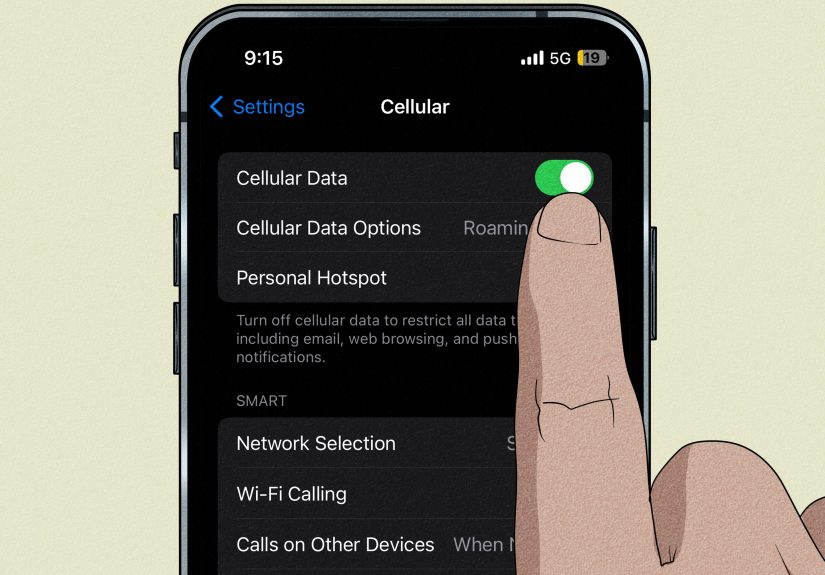
- Tap Cellular (or Mobile Service), then tap Personal Hotspot.
- Turn on Allow Others to Join.
- Tap Wi-Fi Password and set a strong password (or confirm it).
Pro tip: On Apple devices signed into the same Apple Account, Instant Hotspot can make connecting easieryour Mac may simply show your iPhone hotspot in the Wi-Fi list without you doing a ritual dance around Settings.
Android: Turn on Wi-Fi Hotspot
- Open Settings.
- Go to Network & internet (or Connections).
- Tap Hotspot & tethering (or Mobile Hotspot and Tethering).
- Tap Wi-Fi hotspot / Mobile Hotspot and turn it on.
- Set a hotspot name (SSID) and password. Choose security settings if offered.
Many Android phones also let you toggle hotspot from Quick Settings (swipe down twice from the top). If the hotspot tile is missing, you can often add it by editing Quick Settings.
Connect Your Laptop to the Hotspot (Windows and macOS)
Windows
- Click the Wi-Fi icon on the taskbar.
- Select your phone’s hotspot network name.
- Click Connect, enter the hotspot password, and confirm.
macOS
- Click the Wi-Fi icon in the menu bar (or open Wi-Fi in System Settings).
- Select your phone’s hotspot name.
- Enter the password if prompted.
Make Wi-Fi Hotspot Faster and More Reliable
- Pick the right band: Use 5 GHz for speed at short range; use 2.4 GHz for better range and better “through walls” performance.
- Keep devices close: A hotspot is not a Wi-Fi router with fancy antennas. Treat it like a small, overworked lighthouse.
- Limit connected devices: The more devices connected, the more bandwidth and battery you burn.
- Rename your hotspot: Make it recognizable (e.g., “Huy-Hotspot”) but not “FREE_PUBLIC_WIFI_NO_SCAM” because… come on.
Method 2: USB Tethering (Stable, Secure, and Often the Best for Work)
USB tethering is underrated. It’s typically more stable than Wi-Fi hotspot, can be more secure (no broadcast Wi-Fi network), and may keep your phone charged while you work.
iPhone to Laptop via USB (Windows or Mac)
- On iPhone, turn on Personal Hotspot (Settings → Cellular → Personal Hotspot).
- Connect your iPhone to your laptop with a USB cable (USB-C or Lightning depending on your iPhone).
- If prompted, tap Trust This Computer on your iPhone and enter your passcode.
- Wait a moment: your laptop should detect the iPhone as a network connection automatically. If Wi-Fi is on and it keeps preferring Wi-Fi, turn Wi-Fi off briefly to force the laptop to use the wired link.
If Windows doesn’t recognize the iPhone connection right away, a driver/software component may be missing. In many cases, installing Apple’s device connectivity software (commonly bundled with Apple device utilities) resolves it.
Android to Windows via USB Tethering
- Connect your Android phone to your Windows laptop with a USB cable.
- On your phone, open Settings → Network & internet → Hotspot & tethering.
- Turn on USB tethering.
- Your Windows laptop should create a new network connection automatically.
Android to Mac via USB: The Important Catch
Many Macs don’t natively support Android USB tethering without extra software/drivers. Android’s own help guidance even flags this limitation. If you’re on a Mac and want the simplest path, use Wi-Fi hotspot first, or Bluetooth tethering for light needs.
Method 3: Bluetooth Tethering (When You Need “Good Enough”)
Bluetooth tethering is usually slower than Wi-Fi and USB, but it can be useful when Wi-Fi is flaky or you want a connection that’s less “broadcast-y” than a hotspot.
iPhone Bluetooth Tethering (Mac or Windows)
- Turn on Bluetooth on both iPhone and laptop.
- Pair the devices (on the laptop, find the iPhone in Bluetooth settings and pair).
- Turn on Personal Hotspot on iPhone.
- On your laptop, connect to the iPhone as a network device via Bluetooth (steps vary slightly by OS version).
Android Bluetooth Tethering
- Pair your Android phone with your laptop via Bluetooth.
- On Android, go to Hotspot & tethering.
- Turn on Bluetooth tethering.
- On the laptop, choose the phone as a network connection option (or “Access Point”) if prompted.
Data Use, Speed, and the “Why Is My Bill Screaming?” Section
Tethering uses your cellular data. That’s not automatically badbut laptops are data-hungry by default. The culprit isn’t just browsing; it’s all the stuff happening in the background:
- Cloud sync (Drive/Dropbox/iCloud): uploading and downloading quietly.
- Operating system updates: Windows and macOS love updates like a golden retriever loves mud.
- HD/4K video calls and streaming: huge data burners.
- App updates and auto-play media.
Set your hotspot connection as “Metered” on Windows
If you tether often, set the hotspot Wi-Fi network as a metered connection in Windows. This can reduce automatic background downloads and help prevent surprise update megabytes turning into surprise gigabytes.
Security Tips: Don’t Turn Your Hotspot Into a Neighborhood Block Party
- Use a strong password and avoid reusing your normal passwords.
- Turn hotspot off when done so no one connects later.
- Check connected devices occasionally (many phones show a list of connected devices).
- Avoid sensitive logins on sketchy networksyes, even when you’re tethering, your laptop might still auto-join something else.
- Don’t name your hotspot something tempting like “Free Wi-Fi.” A boring name is a safe name. “Phone-Hotspot-5G” is the networking equivalent of wearing a plain hoodie and minding your business.
Troubleshooting: Fix the Usual Hotspot Headaches
Problem: The hotspot network doesn’t show up on my laptop
- Make sure hotspot is actually turned on (and “Allow Others to Join” on iPhone is enabled).
- Toggle Wi-Fi off/on on the laptop and refresh available networks.
- Turn Airplane Mode off (on both devices).
- Restart the phone hotspot and the laptop (annoying, yes; effective, also yes).
- If you can choose bands, switch between 2.4 GHz and 5 GHz.
Problem: Laptop connects, but there’s “No internet”
- Confirm your phone itself has working cellular data (open a webpage on the phone).
- Turn mobile data off/on, then hotspot off/on.
- Check you haven’t hit your plan’s hotspot limit or throttling threshold.
- Disable VPN temporarily (VPNs can interfere with hotspot routing sometimes).
- Try a different website/app to confirm it’s not a single-site issue.
Problem: Hotspot is painfully slow
- Move the phone near a window or to a place with better signal.
- Reduce connected devices (especially streaming devices).
- Switch to USB tethering for stability and often better sustained performance.
- If your laptop is clinging to a weak Wi-Fi network, “Forget” it so it stops auto-joining the wrong thing.
Problem: USB tethering isn’t working
- Try a different cable (some cables charge but don’t transmit data reliably).
- Try a different USB port on the laptop.
- Unlock your phone and approve any “Trust” prompts.
- On Android, confirm USB tethering is toggled on after plugging in.
- On Windows, run the built-in network troubleshooter and ensure drivers are up to date.
Problem: Bluetooth tethering disconnects
- Re-pair the devices (remove the pairing on both sides and pair again).
- Keep devices close. Bluetooth is not long-range Wi-Fi.
- Use Bluetooth tethering for lighter tasks; switch to Wi-Fi/USB for calls and downloads.
Best Practices for Everyday Tethering (So It Feels Effortless)
- Create a “Tethering routine”: Plug in phone → enable hotspot/tethering → connect laptop → set metered → work → turn it all off.
- Keep a short USB-C cable in your bag for quick USB tethering (less mess, fewer tangles).
- Use auto-off features on Android hotspots when no devices are connected to save battery.
- Know your carrier’s hotspot policy: some plans throttle hotspot after a high-speed allotment is used.
- Have a backup plan: If Wi-Fi hotspot is flaky, USB tether. If USB is blocked, use Bluetooth. If all else fails, scream quietly and reboot.
FAQ: Fast Answers to Common Tethering Questions
How many devices can connect to my phone hotspot?
It depends on the phone and carrier settings. Many phones support multiple devices, often up to around 5–10. Performance drops as you add more devices (because your phone is doing all the work).
Can I tether while traveling internationally?
Usually yes, but roaming rules apply. International hotspot use can be expensive without the right travel plan. Check your carrier’s international data options before you rely on tethering abroad.
Is USB tethering more secure than a Wi-Fi hotspot?
Often, yesbecause you aren’t broadcasting a Wi-Fi network. But your overall security still depends on what you do online (use HTTPS sites, keep devices updated, and consider a reputable VPN for sensitive work).
Will tethering slow down my phone?
It can. Running a hotspot uses battery and processing power, and your phone’s apps can also consume the same data connection while the hotspot is active. For best results, close heavy apps while tethering.
Real-World Tethering Experiences (500+ Words of “Learned the Hard Way”)
Let’s talk about how tethering works in the wildwhere Wi-Fi is unreliable, deadlines are real, and your laptop chooses the worst possible moment to auto-download a “small” update the size of Nebraska.
Experience #1: The Airport Wi-Fi Login Loop
A classic: you connect to airport Wi-Fi, open a browser, and it should show the login page. Instead, it shows… nothing. Or it shows the login page that reloads forever like it’s trying to summon a portal. Tethering is the fastest escape hatch here. In practice, the smoothest airport move is USB tethering: plug phone in, enable tethering, and you’re online without competing with 700 other travelers all trying to stream “just one more episode.”
Experience #2: The Hotel “Premium Wi-Fi” Upsell
Many hotels offer “free Wi-Fi” that is technically internet in the way a kiddie pool is technically the ocean. If you need stable video calls, tethering is often better than the lobby network. A helpful tactic is to use Wi-Fi hotspot on 5 GHz if you’re close to your phone, or switch to 2.4 GHz if you’re farther away or your room has thick walls. And yes, placing your phone near a window can make a dramatic difference in cellular signal.
Experience #3: The Zoom Call That Ate Your Data
Video calls are sneaky. You start with “just a quick 20 minutes,” then it becomes a 75-minute meeting featuring screen sharing, camera on, and someone’s dog doing an interpretive dance in 1080p. If tethering is your main connection, set Windows to metered, pause cloud backups, and consider turning your camera off when you’re not speaking (your data plan will send you a thank-you note).
Experience #4: The “Connected, No Internet” Spiral
This one feels personal for everyone: your laptop says it’s connected to the hotspot, but pages won’t load. The best real-world fix list is boringbut it works: toggle hotspot off/on, toggle mobile data off/on, restart the phone, and make sure you didn’t wander into a cellular dead zone. If you’re in a building with weak signal, moving the phone just a few feet can be the difference between “no internet” and “everything is fine.”
Experience #5: The Cable That Was Only a “Charging Cable”
USB tethering is glorious… until it isn’t. A surprisingly common issue is a USB cable that charges but doesn’t reliably transfer data. In real life, this looks like: you plug in the phone, flip on USB tethering, and nothing changes on the laptop. Trying a different cable or USB port solves it more often than people want to admit. (It’s okay. We’ve all trusted a random cable we found in a drawer like it was a family heirloom.)
Experience #6: The “I’ll Just Leave My Hotspot On” Regret
Leaving a hotspot on all day can drain battery fast, heat up your phone, and invite accidental connectionsespecially if your password is weak or you shared it once with a friend who shares it with their friend who shares it with… you get it. The healthiest habit is to treat tethering like turning on a portable generator: use it when needed, then turn it off when you’re done.
The big takeaway from real-world use is simple: Wi-Fi hotspot is convenient, USB tethering is reliable, and Bluetooth is a backup. If you build a quick routinemetered connection on Windows, strong password, hotspot off when doneyou’ll stop thinking of tethering as a “tech trick” and start treating it as just another tool you control.
Conclusion
Tethering your cellphone internet to a laptop is one of those modern superpowers that feels tiny until you’re stuck with bad Wi-Fi and a real deadline. Use Wi-Fi hotspot for quick multi-device access, switch to USB tethering when you need stability (and possibly a charging boost), and keep Bluetooth tethering in your back pocket for light tasks and odd situations.
Do the basicsstrong password, watch your data, set Windows as meteredand your laptop can stay online anywhere your phone gets signal. Which is honestly the closest most of us get to teleportation.