Table of Contents >> Show >> Hide
- What Is Voice Guide on Samsung TVs (and Why Is My TV Narrating Everything)?
- The 2 Easy Ways to Turn Off Voice Guide on a Samsung TV
- Way 1: Use the Remote Shortcut (Fastest)
- Way 2: Turn Off Voice Guide from Settings (Most Reliable)
- Make Voice Guide Stay Off: Common Problems (and Fixes)
- Quick Tips to Prevent Accidental Voice Guide Activation
- Extra: Real-World Experiences and “Why Is This Happening to Me?” Moments (500+ Words)
- Conclusion
If your Samsung TV suddenly started talkingreading every menu item out loud like it’s auditioning for an audiobook
you didn’t break anything. You just turned on Voice Guide, Samsung’s built-in screen reader. It’s meant to help
people who are blind or have low vision navigate the TV, but it’s also extremely easy to enable by accident (usually with a long press
on the wrong button when you’re trying to lower the volume before a loud commercial detonates your living room).
The good news: turning it off is quick. Below are two easy ways that work on most modern Samsung Smart TVs (Tizen-based models),
plus a few troubleshooting tips if the option is hiding or keeps coming back.
What Is Voice Guide on Samsung TVs (and Why Is My TV Narrating Everything)?
Voice Guide is an accessibility feature that speaks what’s on your screenmenu labels, settings, app names, and navigation feedback.
When it’s on, you may hear a voice announce things like “Settings,” “Accessibility,” or “HDMI 1” as you move around the interface.
It’s not the same thing as a voice assistant like Bixby or Alexa, and it’s not usually tied to the microphoneVoice Guide is mainly about screen narration.
Voice Guide vs. Audio Description (Quick Reality Check)
People often mix these up because both involve extra narration:
- Voice Guide reads the TV interface (menus and options).
- Audio Description narrates what’s happening in a show/movie (for example, “She walks into the room…”).
If the voice only happens while you’re watching content (and not while navigating menus), you may need to turn off Audio Description
in Accessibility or inside a specific app (like Netflix, Prime Video, or Disney+). Don’t worrywe’ll cover that in the troubleshooting section.
The 2 Easy Ways to Turn Off Voice Guide on a Samsung TV
Try Way 1 firstit’s usually the fastest. If your remote or TV model doesn’t show the shortcut menu, jump to Way 2.
Way 1: Use the Remote Shortcut (Fastest)
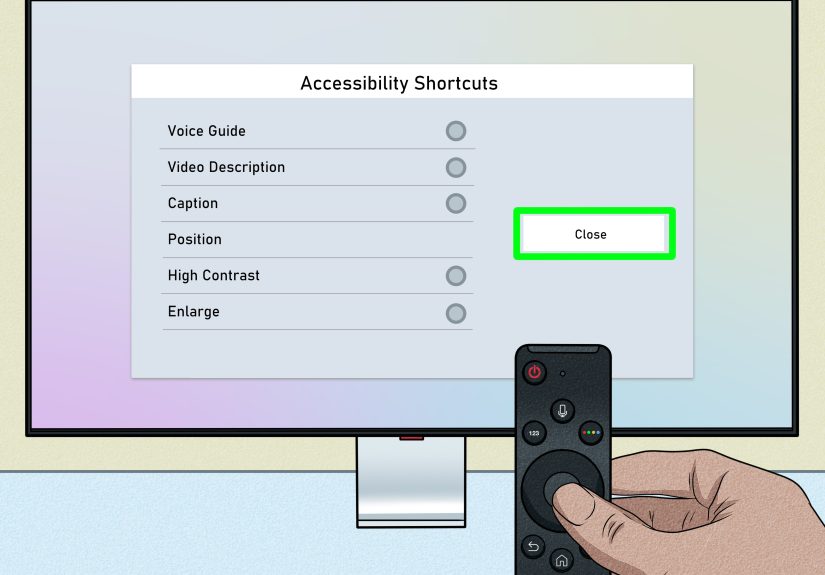
On many Samsung remotes (including Smart Remote / One Remote styles), you can open Accessibility Shortcuts with a long press on the volume control.
This is the method that’s easiest to do accidentally… and also the easiest to undo on purpose.
Steps
- Press and hold the Volume button (the +/- rocker) for about 2 seconds.
- When the Accessibility Shortcuts menu appears, highlight Voice Guide.
- Toggle Voice Guide to Off.
- Exit the menu and enjoy the sweet sound of silence (or at least the sound of your show).
If nothing happens when you hold Volume
- Try holding it a little longer (some models need closer to 3 seconds).
- Make sure you’re holding the Volume rocker, not the Channel rocker.
- On a few older or different remote layouts, an accessibility shortcut may be triggered by another long-press button (varies by model/year).
Way 2: Turn Off Voice Guide from Settings (Most Reliable)
If the shortcut menu doesn’t show up, go straight through the TV’s settings. The wording may vary slightly depending on your Samsung TV model and software version,
but the path is usually very similar.
Steps (Common Path on Modern Samsung Smart TVs)
- Press the Home button on your remote.
- Open Settings (sometimes a gear icon) and choose All Settings if you see it.
- Go to General or General & Privacy.
- Select Accessibility.
- Open Voice Guide Settings.
- Set Voice Guide to Off.
Alternate menu paths you might see
Samsung’s menu labels can shift a bit by TV year and region. If you don’t see the exact wording above, look for these near-matches:
- Settings > General > Accessibility > Voice Guide Settings
- Settings > System > Accessibility > Voice Guide (some older models)
- Settings > Accessibility (if Accessibility is surfaced as a top-level option)
Make Voice Guide Stay Off: Common Problems (and Fixes)
1) “I turned it off… but it keeps coming back.”
Most of the time, Voice Guide returns because it’s being re-enabled by a button shortcutoften a stuck button, a fidgety toddler,
or a remote getting squished between couch cushions like it’s training for a survival show.
- Check your remote: Make sure the Volume rocker isn’t physically stuck or continuously pressed.
- Replace/charge batteries: Weak batteries can cause odd remote behavior (phantom inputs).
- Power cycle the TV: Turn the TV off, unplug it for about 30 seconds, then plug it back in.
- Re-pair the remote (if it’s a Bluetooth Smart Remote): If the remote is acting weird, re-pairing can help.
2) “The TV is talking, but it’s only during movies/shows.”
That’s often Audio Description, not Voice Guide. Here’s where to check:
-
On the TV: Settings > General (or General & Privacy) > Accessibility > look for Audio Description and turn it off
(if your model shows it). -
Inside streaming apps: Many apps have their own audio track setting. Look for “Audio,” “Language,” or an “Audio & Subtitles” menu
while content is playing and switch from an “Audio Description” track to a standard track. - On cable/satellite boxes: Your TV may be innocent; your set-top box might have its own accessibility narration enabled.
3) “I can’t find Accessibility anywhere.”
If your TV menus look different from the steps above:
- Use the Search function in Settings (if available) and type Voice Guide or Accessibility.
- Look for a menu called General, System, or SupportAccessibility often lives under one of those.
- Check for All Settings (some TVs show a quick settings panel first, then the full settings list).
4) “Is there a way to turn it off with my voice?”
Some Samsung TV setups support voice commands through the remote’s microphone button (when configured), but results vary by model and voice service.
If your remote has a mic button and voice control is working, you can try a command like “Turn off Voice Guide.”
If it doesn’t work, the settings method above is the dependable route.
Quick Tips to Prevent Accidental Voice Guide Activation
- Be gentle with long presses on the Volume rockermany models use it for Accessibility Shortcuts.
- Teach the household the “2-second fix”: hold Volume, toggle Voice Guide off, move on with life.
- Keep a note near the TV (seriously). The fastest troubleshooting tool is the one you don’t have to Google mid-panic.
- Update software if menus are glitchy: Settings > Support > Software Update (wording varies).
Extra: Real-World Experiences and “Why Is This Happening to Me?” Moments (500+ Words)
Voice Guide has a special talent: it tends to turn on at the exact moment you’re least prepared to troubleshoot itlike five minutes before guests arrive,
during the season finale, or right when you finally got the input set correctly after battling HDMI ports like they’re mythical creatures.
While every household’s situation is different, there are a handful of common scenarios people report again and again.
The “I Was Just Turning the Volume Down” Scenario
This is the classic. Someone holds the Volume rocker a beat too long, the TV interprets it as “Let’s open Accessibility Shortcuts,” and suddenly the interface
has a narrator. The person swears they did nothing. The TV swears it’s helping. The truth is: both are technically correct.
In these cases, the fix is almost always the samehold Volume again, toggle Voice Guide off, and you’re back in business.
Once you know the shortcut exists, it becomes less of a mystery and more of an “Oh, that trick again.”
The “Kids + Remote = Chaos” Scenario
If there are kids in the home, the remote is basically a toy that happens to control a television. It gets mashed, sat on, used as a microphone, used as a wand,
and occasionally used as a drumstick. Accessibility features are often one long press away, so it’s surprisingly easy for Voice Guide to get enabled during
enthusiastic button mashing. A practical approach here is to show everyone the two-step solution. It’s faster than trying to “protect” the remote forever.
Some families even keep a spare remote in a drawer and bring it out only when the main remote has been… thoroughly loved.
The “It Only Happens in One App” Scenario
Sometimes the complaint isn’t “the TV talks during menus,” but “the show is narrating actions during scenes.”
That’s when Audio Description (either at the TV level or inside the streaming app) is usually the real culprit.
People often assume Voice Guide is responsible because it’s the best-known accessibility setting, but Audio Description lives in different places depending on
the app. A common fix is to start the content, open the app’s audio/subtitle menu, and switch audio tracks back to standard. Once that track is corrected,
everything feels “normal” againno more surprise narration describing a character picking up a cup of coffee like it’s a major plot twist.
The “My TV Won’t Stop Popping Up Accessibility Shortcuts” Scenario
This one is rarer but frustrating: the Accessibility Shortcuts menu keeps appearing, or a button seems to trigger repeatedly.
In many cases, it’s not the TV “haunted by helpfulness,” but a remote that’s sending repeated inputssticky buttons, low battery behavior,
or a remote wedged somewhere pressing Volume nonstop. The real-world fix tends to be very unglamorous: remove the remote batteries, clean around the buttons,
replace batteries, and restart the TV. If you use a universal remote, it’s also worth checking whether it has a programmed long-press command mapped to
Accessibility Shortcuts.
The “I’m Helping a Parent (or a Guest) Over the Phone” Scenario
Voice Guide issues are surprisingly common in “help desk” situationssomeone calls and says, “My TV is talking,” and you have to guide them without seeing the screen.
The easiest coaching script usually goes like this: “Hold the Volume button down for a couple seconds. Do you see an Accessibility menu? Great. Move to Voice Guide and turn it off.”
If they can’t find it, the backup script is: “Home button, Settings, General, Accessibility, Voice Guide Settings.”
Once someone learns that there are two routesshortcut and full settingsthey’re far less likely to panic next time.
Bottom line: Voice Guide is useful, but it’s also easy to toggle accidentally. Knowing the shortcut and the settings path gives you controland it turns a confusing moment
into a 30-second fix. Your TV can go back to being a screen instead of a chatty roommate.
Conclusion
Turning off Voice Guide on a Samsung TV is usually quick: either use the Volume-button Accessibility Shortcuts menu or head into
Settings > Accessibility > Voice Guide Settings. If the talking continues only during shows, check for Audio Description
in Accessibility or within the streaming app’s audio track options. Once you know where the toggles live, you’ll spend less time fighting menus
and more time watching what you actually turned the TV on for.