Table of Contents >> Show >> Hide
- Before We Start: What Does “Switch Cells” Mean in Excel?
- Way #1: Use Drag-and-Drop + Shift to Switch Cells Without Overwriting
- Way #2: Cut + Insert Cut Cells (Keyboard-Friendly, Precise, and Safer Than It Looks)
- Way #3: Swap with Formulas (Perfect for Big Lists, No Risk to the Original Data)
- Quick Decision Guide: Which Cell-Switching Method Should You Use?
- Common Problems When You Switch Cells in Excel (and How to Not Hate Your Life)
- Conclusion
- Bonus: of Real-World Cell-Swapping War Stories
Switching cells in Excel sounds like it should be as easy as swapping seats on an airplane: “You take 12A, I’ll take 12B, nobody cries.” And yet… Excel can absolutely make people cry if you drag the wrong thing and overwrite half your sheet.
The good news: once you know the right moves, switching (a.k.a. swapping or rearranging) cells, rows, or columns is fast, safe, and weirdly satisfying. Below are three practical ways to switch cells in Excelranging from “quick mouse trick” to “I have a macro and I’m not afraid to use it.”
Before We Start: What Does “Switch Cells” Mean in Excel?
People use “switch cells” to describe a few different jobs:
- Swap two cells’ contents (A1 and B1 trade places).
- Swap two rows or columns (Column A and Column B exchange positions).
- Move a range somewhere else without overwriting what’s there.
The method you choose depends on what you’re switching and what you’re protectingvalues, formulas, formatting, or all of the above. (Excel treats these like different love languages. It’s complicated.)
Way #1: Use Drag-and-Drop + Shift to Switch Cells Without Overwriting
This is the fastest “hands-on” method when you’re working with adjacent cells, rows, or columns and want to keep the layout intact. The magic ingredient is the Shift key, which tells Excel: “Don’t overwriteinsert.”
Best for
- Swapping adjacent cells or adjacent columns/rows
- Reordering columns in a table-like dataset
- Moving data while keeping everything else from getting bulldozed
How to switch two adjacent cells (quick swap)
- Click the first cell you want to move (example: A1).
- Hover over the border of the selected cell until your cursor becomes a four-headed arrow (move cursor).
- Hold Shift.
- Drag the cell to its new spot (example: drop it where B1 is).
- Release the mouse, then release Shift.
If your goal is a true “A1 and B1 trade places” swap, you’ll usually do a tiny shuffle: move A1 out of the way (to an empty helper cell), move B1 into A1, then move the helper cell into B1. It’s a three-step dance, but it beats retyping values or risking overwrites.
How to switch (swap) adjacent columns or rows
- Select the entire column by clicking the column letter (example: click Column B).
- Hover on the selection border until the move cursor appears.
- Hold Shift and drag the column left or right.
- Watch for the thick insertion line that shows where the column will land.
- Drop it.
Same concept for rowsclick the row number, hold Shift, drag up or down. Think of it like parallel parking: wait for that thick line, then commit confidently.
Pro tip: Use Ctrl when you want a copy instead of a move
Dragging normally moves. Holding Ctrl while dragging copies. Combine shortcuts when needed:
- Shift + drag = move and insert (no overwrite)
- Ctrl + drag = copy (usually overwrites unless you’re inserting in the right context)
Common “oops” moments to avoid
- Dragging without Shift can overwrite the destination cells.
- Excel Tables may behave differentlytest on a small sample first.
- Merged cells can break the move or cause weird alignment. (Merged cells: still Excel’s most chaotic feature.)
Way #2: Cut + Insert Cut Cells (Keyboard-Friendly, Precise, and Safer Than It Looks)
If you want to switch cells in Excel with more controlespecially for columns and larger rangesuse Cut plus Insert Cut Cells. This moves data while shifting other cells out of the way, which helps you avoid overwriting.
Best for
- Switching columns or rows in a dataset
- Rearranging blocks of cells without destroying neighboring data
- People who trust keyboard shortcuts more than their mouse
Switch two columns (example: swap Column A and Column B)
- Select Column B (click the B at the top).
- Cut it: Ctrl + X.
- Right-click the column letter where you want it inserted (right-click Column A).
- Choose Insert Cut Cells.
This inserts the cut column and shifts the other one overno overwriting required. To fully “swap” positions, you may only need this one move if you’re inserting B before A (because A shifts to the right automatically).
Switch two rows (same idea)
- Select the row number you want to move.
- Press Ctrl + X.
- Right-click the destination row number.
- Select Insert Cut Cells.
Keyboard-only flavor (when you want to feel like a spreadsheet wizard)
You can do the “insert” step with a shortcut in many Excel desktop setups:
- Cut: Ctrl + X
- Select insertion point, then insert: Ctrl + + (plus)
Note: Shortcut behavior can vary by keyboard layout and Excel version, but the right-click menu option (Insert Cut Cells) is consistently reliable.
When this method is the right choice
If your sheet is “dense” (lots of data packed together), Insert Cut Cells is usually safer than dragging, because it clearly communicates what will shift and where the moved cells will land.
Way #3: Swap with Formulas (Perfect for Big Lists, No Risk to the Original Data)
Sometimes you don’t want to move anything yetyou just want to switch values logically, confirm it looks right, and then lock it in. That’s where formulas shine.
Best for
- Swapping values across many rows (hundreds or thousands)
- Keeping the original data intact while you test
- Situations where overwriting would be… career-limiting
Formula swap with helper columns (classic and reliable)
Let’s say Column A has First Name and Column B has Last Name, but you need them flipped.
- Insert two empty columns next to your data (or use a blank area).
- In the first helper column, reference the second original column (example: in C2 type =B2).
- In the second helper column, reference the first original column (example: in D2 type =A2).
- Fill down for all rows.
- Copy the helper columns, then use Paste Special > Values over Columns A and B.
- Delete helper columns if you don’t need them.
This method is boring in the best way: it’s predictable, reviewable, and easy to undo before you paste values.
Modern Excel bonus: swap pairs with a single formula (dynamic array approach)
If you’re on Microsoft 365 or a version that supports dynamic arrays, you can output a swapped pair without two helper columns. Example idea (placed in a two-cell-wide area):
Fill it down and you’ll get Column B’s value first, then Column A’s valuenicely swapped. When you’re happy, copy and paste values back into the original columns.
Switch rows and columns (when “switch cells” means rotate the layout)
If what you really mean is “turn this row into a column” (or vice versa), you have two common options:
- Paste Special > Transpose (fast, one-time conversion)
- TRANSPOSE function (live, formula-based layout switch)
Paste Special is great for finalizing. TRANSPOSE is great if the source data will change and you want the switched layout to update automatically.
Quick Decision Guide: Which Cell-Switching Method Should You Use?
- Need speed for a small swap? Use Shift + drag.
- Reordering columns/rows precisely? Use Cut + Insert Cut Cells.
- Swapping a big dataset safely? Use formulas + Paste Values.
Common Problems When You Switch Cells in Excel (and How to Not Hate Your Life)
1) Formulas break or show #REF!
Moving cells can change references. If you’re rearranging heavily, consider swapping with formulas first, then paste values to “freeze” results once verified.
2) Formatting goes sideways
Dragging and cutting can move formats with values. If you only want values, finish with Paste Special > Values (or Paste Values only) to avoid dragging the visual chaos along for the ride.
3) Filters and tables get cranky
If you’re working inside an Excel Table, switching columns can affect structured references, sorting, and filters. Test one swap first, and keep a backup copy of the sheet if it’s business-critical.
4) Merged cells refuse to cooperate
Merged cells can block moves, distort rows/columns, and generally act like the “Do Not Touch” sign on a museum exhibit. Unmerge first whenever possible.
Conclusion
Switching cells in Excel doesn’t have to be a high-stakes guessing game. If you remember just three things: Shift + drag for quick rearranging, Insert Cut Cells for clean moves, and formulas when you need safety at scaleyou’ll switch cell contents, swap columns, and rearrange rows like it’s a normal Tuesday.
And if it’s not a normal Tuesday? Use formulas first. Future-you will send you a thank-you email. (And Excel won’t.)
Bonus: of Real-World Cell-Swapping War Stories
The first time I truly respected the art of switching cells in Excel was the day I “quickly” reorganized a report five minutes before a meeting. You know the vibe: the boss wants Column D next to Column B, the client wants names flipped, and you want a new career. I dragged a column like a confident spreadsheet cowboy, dropped it, and immediately watched Excel overwrite a perfectly good set of values. That’s when I learned the difference between moving and moving without destroying things. Shift became my best friend.
Another time, I was cleaning a customer export where “Last Name” and “First Name” were reversed for 12,000 rows. Could I have cut and pasted? Sureif I wanted to play whack-a-mole with references and formatting for the rest of the afternoon. Instead, I used helper columns: one referencing the first name, one referencing the last name, filled them down, and then Paste Special > Values. The sheet stayed calm. I stayed calm. The coffee stayed hot. It was a rare win.
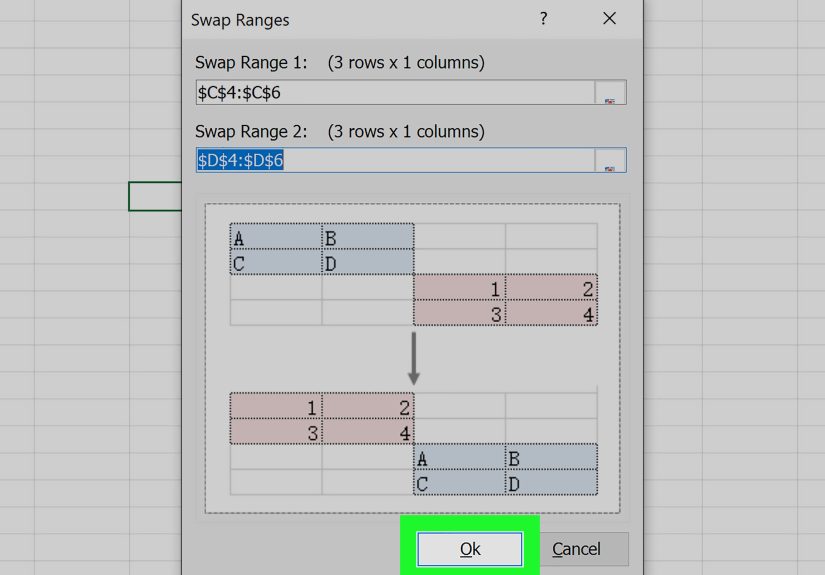
My favorite switching-cells moment, though, is when someone says, “Can we just swap these two sections?” and points to two non-adjacent ranges. That’s when you realize Excel is powerful, but it’s also literal-minded. It will not “swap” for you unless you give it a plan. The plan is usually a staging area: temporarily move Range A into a blank spot, move Range B into Range A’s old spot, then move the staging area into Range B’s old spot. It feels like moving couches through a narrow hallwayannoying, but doable if you don’t panic and start shoving.
Over time, you get a sense for what kind of swap you’re dealing with. If it’s a one-off fix, the mouse method is great. If it’s a structural change (columns, rows, big blocks), Insert Cut Cells is the grown-up choice. And if it’s a transformation you might need again (like switching two standardized report sections every month), you start thinking, “This smells like a macro.” Even if you never become a VBA wizard, the concept is freeing: repeatable work should be a button, not a ritual.
The real secret experience teaches you is this: the goal isn’t just to switch cells in Excelit’s to switch cells without losing trust in the spreadsheet. The moment a teammate can’t tell if a value moved correctly, you’ve created doubt, and doubt is how spreadsheets become legends (and not the good kind). So swap smart, preview when you can, and when in doubt, duplicate the sheet first. Storage is cheap. Explaining a broken report is expensive.