Table of Contents >> Show >> Hide
- Why Google Contacts Go Missing in the First Place
- 1. Use “Undo Changes” in Google Contacts
- 2. Recover Deleted Contacts from Trash
- 3. Restore Contacts from an Android Backup
- 4. Import a VCF or CSV Backup File
- 5. Turn Google Contacts Sync Back On
- 6. Re-Add Your Google Account on iPhone or iPad
- 7. Import Contacts from a SIM Card or Old Phone
- 8. Check the Right Account and Restore Access from the Right Place
- What to Do If None of These Methods Work
- How to Avoid This Mess Next Time
- Experiences People Commonly Have When Restoring Google Contacts
- Conclusion
- SEO Tags
Losing your contact list can feel like your phone just swallowed your entire social life, your work network, and that one plumber you swore you would save under a real name later. The good news is that missing Google Contacts are not always truly gone. In many cases, they are simply hidden, unsynced, sitting in Trash, stuck on an old device, or waiting patiently inside a backup file like tiny digital survivors.
If you need to restore Google Contacts, the smartest move is not to panic-tap every setting in sight. Start with the simplest fixes, then work your way toward backups, imports, and device-level recovery. Below are eight practical ways to recover deleted contacts, restore missing phone numbers, and get your address book back into fighting shape on Android, iPhone, and the web.
Why Google Contacts Go Missing in the First Place
Before jumping into recovery mode, it helps to know what probably happened. In most cases, missing contacts are caused by one of these problems: accidental deletion, turning off sync, using the wrong Google account, switching phones without restoring properly, saving numbers to device storage instead of Google, or importing contacts into the wrong place. In other words, your contacts may not be lost so much as they are hiding in the world’s most inconvenient place.
That matters because the right fix depends on the cause. If you accidentally merged contacts, you want a rollback. If you deleted a few people, Trash is usually faster. If you got a new phone and your contacts never showed up, you may need to restore from backup or turn sync back on. Think of this article as a recovery map, not a magic wand.
1. Use “Undo Changes” in Google Contacts
Best for: accidental mass edits, merges, deletions, or chaos with extra seasoning
One of the best Google Contacts recovery tools is also one of the most overlooked. If your contact list went sideways after a bad import, an accidental sync, or a mysterious editing spree that may or may not have happened while half-awake, use Undo Changes in Google Contacts.
This feature lets you roll your contact list back to an earlier point in time. It is especially helpful when the problem affected a lot of contacts at once. Maybe names were merged incorrectly. Maybe phone numbers disappeared. Maybe a sync app got creative in the worst possible way. Instead of fixing each contact one by one like a character in a tragedy, you can restore the whole list to a healthier version.
Open Google Contacts on the web, head to Settings, and choose the option to undo changes. Pick the time period that makes the most sense. If the problem happened this morning, do not rewind your entire life back to last week unless you enjoy solving new problems to fix the old one.
The catch is that this method rolls back your contact database, not just one entry. That means new contacts added after the selected restore point may disappear too. If you recently added important people, export your contacts first before doing a rollback. It is the digital equivalent of putting your valuables in a safe before remodeling the house.
2. Recover Deleted Contacts from Trash
Best for: one missing person, a handful of deleted numbers, or an “Oops” with consequences
If you deleted specific contacts, check Google Contacts Trash before doing anything dramatic. This is often the fastest way to restore deleted contacts in Google, especially if you know exactly which names vanished and when.
On the web, open Google Contacts and look for the Trash section. On Android, you can also use the Contacts app if your contacts are tied to the right Google account. Once there, select the contacts you want back and recover them. It is quick, painless, and much more satisfying than rebuilding numbers from old text threads like some kind of tech archaeologist.
Trash recovery is ideal when the rest of your address book still looks normal. You do not need a full rollback. You just need those missing contacts to stop acting like they moved to another planet. The only thing to watch is timing. After too long in Trash, deleted contacts are permanently removed, and at that point the recovery game gets much harder.
This is why it pays to check Trash first. It is the low-effort, high-reward move. In the contact recovery world, this is the equivalent of checking your pockets before buying a new wallet.
3. Restore Contacts from an Android Backup
Best for: new phones, reset devices, missing local contacts, or post-disaster cleanup
If your contacts disappeared after changing phones, resetting your device, or losing data stored locally on the phone instead of in Google Contacts, your next stop should be Android’s restore options. Android can restore contacts from a backup tied to your Google account, and this is often the missing piece when cloud sync alone does not bring everything back.
On many Android devices, you can go into Settings, open Google services, then Backup and restore, and choose Restore contacts. From there, you can select the account and, in some cases, the source device that contains the contacts you want to copy back. This is particularly useful if your old phone had device-stored or SIM-stored contacts that were included in backup or available for restoration.
This method shines when the problem is bigger than one deleted contact. Maybe the whole phone was wiped. Maybe setup on a new device skipped a restore step. Maybe your contact list is split between your Google account, the device itself, and a SIM card like a badly organized family reunion. Backup restore helps pull those pieces together.
It is also a good reminder of a simple truth: syncing is not exactly the same thing as backup. Sync keeps current data consistent. Backup helps when things go missing entirely. Both matter. One keeps your house tidy; the other helps after the tornado.
4. Import a VCF or CSV Backup File
Best for: anyone who exported contacts before trouble hit
If you ever exported your contacts to a VCF or CSV file, congratulations: Past You deserves a parade. Importing that file is one of the easiest ways to restore Google Contacts without depending on live sync or recent device backups.
Google Contacts supports importing contact files on the web, and Android also supports exporting contacts to a VCF file. That means you can create a backup before making big changes, then import it later if something goes wrong. This approach is especially useful for freelancers, sales teams, small business owners, and anyone whose contact list is basically their livelihood wearing a phone number.
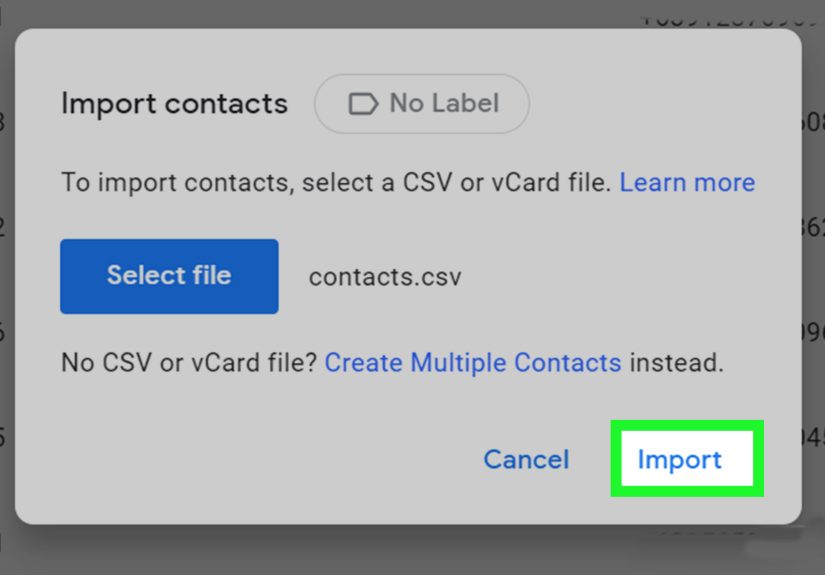
To use this method, open Google Contacts on a computer, choose Import, and upload your saved file. If your file came from another phone, another email platform, or an earlier export from Google Contacts, it can often rebuild most or all of your missing entries in one shot.
Just be careful not to turn your tidy address book into a duplicate festival. If your current list still contains some of the same people, import thoughtfully and review the results. Restoring contacts is great. Creating three versions of “Mom” with slightly different punctuation is less great.
5. Turn Google Contacts Sync Back On
Best for: contacts that look missing but were never actually deleted
Sometimes your contacts are still in your Google account, but your phone is acting like it has never met them. In that case, the problem may be sync. This is one of the most common reasons people think they need to restore Google Contacts when, in reality, they just need to reconnect the dots.
On Android, make sure you are viewing the correct Google account in the Contacts app. Then check whether contact sync is enabled for that account. Google also offers settings to sync device and SIM contacts automatically, which can help if numbers were stored outside your main Google account and never made the trip to the cloud.
When sync is off, your contact list may appear incomplete, outdated, or completely empty on one device while looking perfectly fine elsewhere. That mismatch can be maddening because it feels like your phone is gaslighting you. In reality, it is just failing at coordination.
Turn sync back on, give it a moment, and then check again. In many cases, the missing contacts return without any deeper recovery steps. This is why sync should always be on your troubleshooting list before you assume the worst. Sometimes the solution is not rescue. It is just permission.
6. Re-Add Your Google Account on iPhone or iPad
Best for: iPhone users who lost Google contacts after a sign-out, account removal, or setup glitch
If you use Google Contacts on an iPhone or iPad, missing contacts often come down to one simple issue: the Google account is no longer connected properly to the Contacts app. In that case, re-adding the account and enabling Contacts can restore access quickly.
Go to the iPhone’s settings, open the Contacts area, then the accounts section, and add your Google account if it is missing. If the account is already there, make sure contact syncing is turned on for it. This is a classic fix after changing passwords, removing an account temporarily, switching devices, or toggling settings without realizing the consequences.
Apple devices are excellent at many things, including making people forget where their contacts actually live. If your numbers are stored in Google but your iPhone is looking at iCloud or another account first, your contact list can seem incomplete. Reconnecting the Google account usually solves that mystery.
This is also a good time to confirm which account is acting as your main contact source. When multiple accounts exist on the same phone, the problem is not always missing data. Sometimes it is just data wearing the wrong nametag.
7. Import Contacts from a SIM Card or Old Phone
Best for: contacts that were never saved to Google in the first place
Here is a hard truth that catches a lot of people off guard: not every missing contact was ever in Google Contacts. Some numbers were saved on the SIM card. Others lived only on an old device. A few may have been stuck in another ecosystem entirely, quietly minding their business until you upgraded phones and everything got weird.
On Android, you can import contacts from a SIM card into your Google account through the Contacts app. On iPhone, Apple also supports importing SIM contacts. And if you are moving from Android to iPhone, Apple’s Move to iOS tool can transfer contacts during setup. Manual transfer options also exist if you miss that setup window.
This method is less about “recovery” in the dramatic sense and more about finally putting your contacts where they should have been all along: in an account that syncs, backs up, and follows you from device to device. Once imported into Google, those contacts become much easier to manage and much harder to lose.
If your old phone still turns on, this is absolutely worth checking. Many people think their contacts vanished, when really those numbers are sitting on a retired device like old band tees in the back of a closet.
8. Check the Right Account and Restore Access from the Right Place
Best for: people using multiple Google accounts, work accounts, iCloud, or other contact sources
Sometimes the best way to restore Google Contacts is not restoring anything at all. It is realizing you are signed into the wrong account. This happens more often than most people admit, especially if you use one Gmail for personal life, another for work, and a third that you created during a coupon-related emergency in 2017.
Check every account connected to your phone, tablet, and browser. Open Google Contacts on the web and confirm you are using the exact account that originally held the missing entries. On iPhone, check contact accounts. On Android, verify which account is selected in the Contacts app. If you also use iCloud, Outlook, Exchange, or another address book, look there too.
This matters because contacts do not disappear nearly as often as they appear to. They get filtered, hidden, unsynced, or filed under a different account. In practical terms, restoring access is sometimes the real recovery method.
And yes, this feels silly when the solution turns out to be “Oops, wrong Gmail.” But silly is better than lost forever.
What to Do If None of These Methods Work
If none of the eight methods above works, the likely issue is timing or storage location. If contacts were deleted from Trash long ago, they may be permanently gone. If they were never synced, never backed up, and never exported, there may be nothing for Google to restore. Painful, yes. Impossible to hear gracefully, also yes.
Still, do a final sweep before giving up. Check old phones, SIM cards, exported files on your computer, alternate Google accounts, iCloud, work accounts, and messaging apps where phone numbers might still exist. A missing contact can sometimes be rebuilt from call history, email signatures, invoices, or chat apps. It is not elegant, but it is better than starting from pure memory and accidentally texting the wrong Chris.
How to Avoid This Mess Next Time
The best Google Contacts recovery strategy is boring but effective: keep sync enabled, export a backup occasionally, store contacts in your Google account instead of only on the device, and double-check account settings when switching phones. If your contacts matter for business, create a backup routine. If your contacts matter for life, also create a backup routine. The universe does not care how important your dentist is to you.
In other words, treat your contact list like valuable data, because it is. Photos get all the emotional attention, but contacts are what keep your life actually moving.
Experiences People Commonly Have When Restoring Google Contacts
One of the most common experiences with Google Contacts recovery is the emotional roller coaster. First comes panic. Then denial. Then a weird burst of confidence where someone says, “It’s fine, I’m sure Google has it somewhere,” while opening seventeen tabs and making the situation much worse. After that comes the real lesson: restoring contacts is usually less about a single miracle button and more about figuring out where the data lived before it disappeared.
A lot of people discover this when switching to a new phone. They sign in, expect everything to appear instantly, and instead see an address book with six people in it, three of whom are businesses they called once in 2022. The natural assumption is that Google lost the data. But in real-world cases, the contacts were often saved to the old device, stored on a SIM card, or tied to a different Google account. Once they restore from backup or import the right source, the list comes back and the crisis ends with a sheepish laugh.
Another very common experience happens after accidental cleanup. Someone tries to “organize” contacts, merges duplicates, deletes old numbers, or experiments with a sync setting they do not fully understand. Five minutes later, important names are gone, work numbers are mismatched, and the contact list looks like it survived a small hurricane. This is where Undo Changes feels like a superhero entrance. People often do not know the feature exists until they need it, and when it works, it feels absurdly satisfying.
iPhone users often have their own version of the same drama. They assume their contacts are stored in one place, but the phone is actually juggling Google, iCloud, and maybe a work account too. A sign-out, password update, or settings change can make half the contact list disappear. Then, after twenty stressful minutes, they re-add the Google account, turn Contacts back on, and suddenly everyone reappears like they were backstage the whole time. The lesson there is simple: missing does not always mean deleted.
There is also the regret experience, and yes, it is painfully universal. This happens when someone remembers that Google lets you export contacts, and they realize they have been meaning to do that for years. Business owners, recruiters, freelancers, and salespeople tend to learn this lesson the hardest because their contacts are not just names. They are opportunities, invoices, leads, and relationships. Once they recover the data, they usually become evangelical about backups. They export a VCF, save a CSV, maybe even email a copy to themselves, and suddenly they are the most organized person in the room.
The biggest shared experience, though, is realizing that contact recovery is rarely about one trick. It is about layers: Trash, Undo Changes, backup restore, sync settings, imports, and account checks. People who recover their contacts successfully usually do one thing right: they move methodically instead of randomly. They check the simplest path first, then the deeper recovery options, and they stop assuming the worst before the evidence arrives. That is probably the best lesson of all. Your contacts may be missing, but they are often closer than they look.
Conclusion
If you need to restore Google Contacts, start with the easiest recovery options first: Undo Changes, Trash, backup restore, sync settings, and import tools. Most contact losses are recoverable when you move quickly and check the right account, device, and source file. The longer you wait, the narrower your options become. So yes, take a breath, but then take action. Your future self, your clients, and probably your mechanic will thank you.