Table of Contents >> Show >> Hide
- What Does “ERR_CONNECTION_RESET” Mean?
- Quick Triage: Is It You, the Site, or the Network?
- Common Causes of ERR_CONNECTION_RESET
- Fixes That Work Most Often (Start Here)
- Browser-Specific Fixes
- Network Fixes for Windows (The “Actually Fixes Stuff” Section)
- Network Fixes for macOS
- Mobile Fixes (Android & iPhone)
- Advanced Fixes (When the Basic Stuff Laughs at You)
- If You Own the Website (Or You’re the Person Everyone Pings on Slack)
- ERR_CONNECTION_RESET vs. Similar Errors
- Real-World “Yep, That’s ERR_CONNECTION_RESET” Experiences (500+ Words)
- Conclusion
You’re minding your business, clicking a link like a normal internet citizen, and suddenly Chrome throws a tantrum:
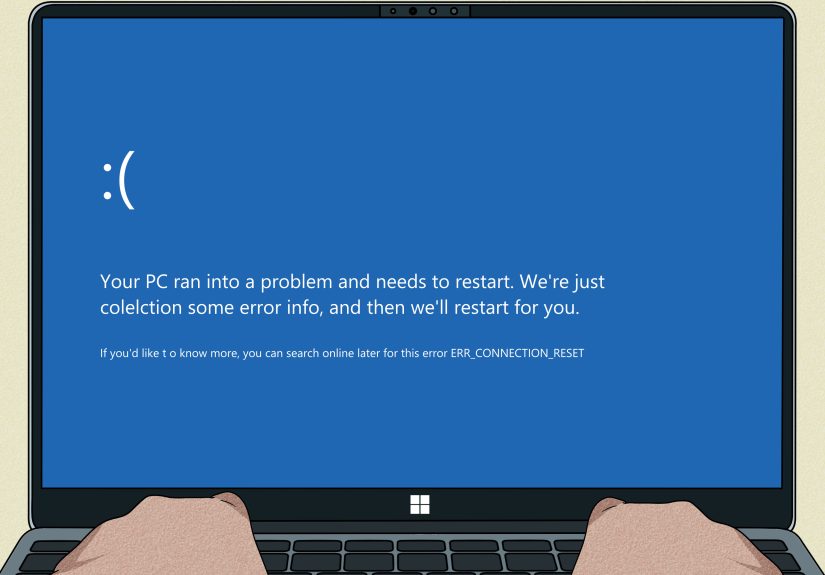
This site can’t be reached… ERR_CONNECTION_RESET. Translation: your browser and the website
were in the middle of a handshake and somebody yanked their hand back like, “Actually… no.”
The good news: this error is usually fixable. The better news: you don’t need a networking PhDjust a calm,
step-by-step approach. This guide explains what ERR_CONNECTION_RESET means, why it happens, and how to fix it
on Windows, macOS, and mobile (with browser-specific tips for Chrome, Edge, and Firefox).
What Does “ERR_CONNECTION_RESET” Mean?
ERR_CONNECTION_RESET is your browser’s way of saying, “I started connecting to the server, but the connection
got forcibly closed before the page could load.” Under the hood, this commonly lines up with a
TCP reseta sudden “stop talking” signal that ends the connection immediately.
In plain English: instead of a polite goodbye (“FIN”), someone slammed the door (“RST”). That “someone” could be:
the website’s server, a firewall, a proxy, your antivirus, your router, your VPN, or (occasionally) your browser itself.
What You Might See
- Chrome/Edge: This site can’t be reached +
ERR_CONNECTION_RESETornet::ERR_CONNECTION_RESET - Firefox:
PR_CONNECT_RESET_ERRORor “The connection was reset” - Apps/other tools: “Connection reset by peer”
Quick Triage: Is It You, the Site, or the Network?
Before you start resetting everything in sight (including your will to live), do these fast checks:
- Try another website. If everything fails, it’s likely your network or device.
- Try the same site on another device (same Wi-Fi). If it works elsewhere, your device/browser is the culprit.
- Try a different network (mobile hotspot). If the site works on hotspot, your Wi-Fi/router/ISP path is suspect.
- Try another browser. If Firefox works but Chrome fails, focus on Chrome-specific fixes (extensions, flags, cache, security scanning).
Common Causes of ERR_CONNECTION_RESET
1) Browser Cache, Cookies, or a Bad Extension
Corrupted cache entries, stale cookies, or a “helpful” extension that intercepts traffic (ad blockers, privacy tools,
antivirus extensions, corporate SSO plugins) can break the connection flow and trigger resets.
2) VPNs, Proxies, and “Secure” Network Tools
VPNs and proxies change your route to the internet. If that route is flaky, blocked, overloaded, or misconfigured,
connections can get reset. Corporate proxies and “web filters” can also terminate connections that violate policyeven
when you’re just trying to read a recipe.
3) Firewall/Antivirus Interference (Especially HTTPS Scanning)
Security software sometimes inspects encrypted traffic (HTTPS scanning). When it misreads a handshake, runs out of resources,
or doesn’t like a protocol feature (HTTP/2, HTTP/3, TLS updates), it can reset connections instead of letting them pass.
4) DNS Issues or a Confused Local Network Stack
Your device’s DNS cache can be wrong, your IP lease may need renewal, or your TCP/IP stack can get into a weird state.
This is why classic “flush DNS” and “reset Winsock/TCP/IP” steps still earn their keep.
5) Router Problems, MTU Mismatches, or Middleboxes
Home routers can glitch, especially after days of uptime. MTU issues (packet size problems) can also cause connections to
fail in ways that look like resets. And “middleboxes” (ISP gear, corporate gateways, load balancers) sometimes kill connections
when they detect something unexpected.
Fixes That Work Most Often (Start Here)
Step 1: Do the “Turn It Off and On Again” Trio
- Reload the page (try a hard refresh:
Ctrl+F5on Windows,Cmd+Shift+Ron Mac). - Restart your browser (close all windows, not just the tab).
- Restart your router/modem (power off 30 seconds, then back on).
Step 2: Try Incognito/Private Mode
Incognito disables many extensions by default and uses a fresh session. If the site loads there, the issue is usually
an extension, cookie, or cached data problem.
Step 3: Disable Extensions (Temporarily)
Disable extensions one by one, especially those that filter traffic: ad blockers, privacy tools, VPN add-ons,
security extensions, and download managers. Re-test after each change to identify the offender.
Step 4: Clear Cache and Cookies (Targeted First, Then All-Time)
Start by clearing data for just the problem site. If that doesn’t help, clear cached images/files and cookies for “All time.”
Yes, it’s annoying. Yes, it often works. No, you don’t need to apologize to your browser.
Browser-Specific Fixes
Google Chrome & Microsoft Edge: Reset Browser Settings
If the error happens on multiple sites (or keeps returning), reset settings:
- Chrome: Settings → Reset settings → “Restore settings to their original defaults”
- Edge: Settings → Reset settings → “Restore settings to their default values”
Chrome/Edge: Disable HTTP/3 (QUIC) as a Test
HTTP/3 runs over QUIC (UDP) and can be fantastic… until a network device or security tool hates it. As a troubleshooting
step, temporarily disable QUIC/HTTP/3:
- In Chrome, go to
chrome://flags(Edge:edge://flags). - Search for QUIC (or “HTTP/3”).
- Disable the relevant flag (wording varies by version), then relaunch the browser.
Chrome: If It’s “Chrome Only,” Check Experimental TLS Flags
Sometimes the connection reset appears only in Chrome due to an experimental TLS feature interacting badly with a network
or a server-side security service. If this started suddenly after an update, search chrome://flags for recently
enabled TLS-related experiments and temporarily disable them (then relaunch) to see if the resets stop.
Firefox: Troubleshoot Mode + Site Data Cleanup
Firefox has a built-in “Troubleshoot Mode” that disables extensions and some acceleration features:
- Menu → Help → Troubleshoot Mode
- If it works there, an extension or setting is likely the trigger.
Also clear cookies/site data for the problem domain (Firefox Settings → Privacy & Security → Cookies and Site Data).
Network Fixes for Windows (The “Actually Fixes Stuff” Section)
If the error persists across browsers, or across many websites, focus on Windows networking. Run these in an
Administrator Command Prompt (right-click → Run as administrator):
After that, restart your PC. This clears DNS cache, renews your IP lease, and resets key networking components.
Switch DNS to a Reliable Public Resolver
If your ISP DNS is slow or flaky, switch to a public DNS provider (common options include 1.1.1.1 or 8.8.8.8).
This can reduce resets caused by bad resolution or routing weirdness.
Disable Proxy Settings (Windows)
A misconfigured proxy can reset connections. Check:
Settings → Network & Internet → Proxy → turn off “Use a proxy server” (unless your workplace requires it).
Temporarily Disable Antivirus/Firewall (For Testing Only)
If disabling security software instantly fixes the issue, don’t leave it offadjust settings instead:
turn off HTTPS scanning, update the product, or whitelist the site/browser. If you’re on a managed device, ask IT.
Network Fixes for macOS
Renew DHCP Lease
System Settings → Network → select your connection → Details → TCP/IP → Renew DHCP Lease.
Flush DNS Cache (Terminal)
Then restart the browser and retry.
Mobile Fixes (Android & iPhone)
- Toggle Airplane Mode on/off to reset the connection quickly.
- Switch networks: Wi-Fi ↔ cellular. If one works, the other is the issue.
- Disable VPN/Private DNS temporarily (Android Private DNS can break some networks).
- Reset network settings (last resort): it clears saved Wi-Fi and Bluetooth pairings too.
Advanced Fixes (When the Basic Stuff Laughs at You)
Update Network Drivers (Windows)
Old or buggy drivers can cause unstable connections. Update your Wi-Fi/Ethernet adapter drivers via Device Manager
or your PC manufacturer’s support tool.
Try Changing MTU (If Resets Happen on Specific Networks)
MTU issues can cause weird breakages, especially on VPNs or certain ISPs. If resets appear only on one network,
adjusting MTU on your router or adapter may helpbut do this only if you’re comfortable with networking settings.
Check for “Helpful” Router Features
Some routers have keyword filtering, parental controls, or “security” filtering that can unintentionally block
legitimate traffic and trigger resets. If you see resets for specific categories of sites, review these settings.
If You Own the Website (Or You’re the Person Everyone Pings on Slack)
If users report ERR_CONNECTION_RESET for your site, the reset may be server-side or caused by infrastructure in front of it:
- Load balancers / proxies: idle timeouts or connection reuse issues can cause resets.
- WAF/CDN security: aggressive bot protection or false positives can terminate connections.
- TLS configuration: misconfigured ciphers, ALPN negotiation problems, or buggy middleboxes can reset handshakes.
- Capacity: overloaded servers drop connections (sometimes abruptly).
Check server logs, CDN/WAF logs, and consider packet capture on the edge if you need to confirm where the reset originates.
Also test across networks and browsers to spot patterns (e.g., “only HTTP/3” or “only certain ISPs”).
ERR_CONNECTION_RESET vs. Similar Errors
- ERR_CONNECTION_TIMED_OUT: nobody answered in time (slow server/network).
- ERR_CONNECTION_REFUSED: the server said “nope” (port closed or service down).
- DNS_PROBE_FINISHED_NXDOMAIN: DNS can’t find the domain (wrong address or DNS issue).
- SSL/TLS errors: handshake failed for certificate or protocol reasons (not necessarily a reset).
Real-World “Yep, That’s ERR_CONNECTION_RESET” Experiences (500+ Words)
Scenario #1: The coffee shop Wi-Fi that wants your soul.
You join a public network, open your browser, and immediately hit ERR_CONNECTION_RESET on random sites. The twist?
The Wi-Fi has a captive portal (a sign-in page) that didn’t load cleanly. Some networks intercept your first few requests
to redirect you to “Accept Terms,” and if that interception is sloppyor your device tries HTTPS firstthe connection can be
reset mid-flight. The fix is often hilariously low-tech: open a plain HTTP site (or try http://neverssl.com) to force
the portal to appear, then retry your real destination.
Scenario #2: The corporate proxy that is “just protecting you.”
On work networks, a proxy or security gateway may inspect traffic and enforce rules. Sometimes it doesn’t like a specific
site category, a new protocol feature, or even a certificate chain it can’t validate quickly. Instead of showing a friendly
block page, it may simply reset the connection. The symptoms are classic: the site works on your phone hotspot, fails on
office Wi-Fi, and the error appears across multiple browsers. In these cases, your best “fix” is evidence: note the exact time,
affected domain, and whether it works on another networkthen send that to IT. (Bonus points if you include that it happens
only with HTTP/3 enabled.)
Scenario #3: The antivirus that is very proud of itself.
Some security suites scan HTTPS traffic and add browser integrations. When they’re behaving, you never notice. When they’re not,
Chrome throws resets like confetti. A common pattern: turning off the firewall/HTTPS scanning makes pages load instantly.
That doesn’t mean “delete your antivirus.” It means the security layer is the bottleneckmaybe it’s outdated, misconfigured,
or choking on HTTP/2 streams. The practical fix is usually updating the security software, disabling HTTPS scanning, or adding
exceptions for the browser/site. (And if you’re feeling spicy: test with extensions disabled too, because security extensions
can double-dip into traffic inspection.)
Scenario #4: The router that’s been awake since 2022.
Home routers are tiny computers that sometimes act like tiny, tired computers. After weeks of uptime, NAT tables fill,
memory gets weird, and connections start failing. Resets may appear more often at night, during streaming, or when lots of
devices are online. Restarting the router “fixes it” because it clears state. The longer-term fix is updating firmware, reducing
unnecessary “security” features, and checking whether the router is simply underpowered for your household’s device count.
Scenario #5: “It only happens in Chrome.”
This one feels personal because it makes you question reality. Firefox loads the site; Chrome refuses. Often, the culprit is
something Chrome-specific: an extension, cached data, an experimental flag, or a protocol preference (like HTTP/3).
The fastest path is the simplest: Incognito test → disable extensions → clear site data → try disabling QUIC/HTTP/3 → reset
Chrome settings. When that sequence works, you don’t just fix the pageyou also gain the power to say “I told you it was the extension”
with the calm confidence of someone who has seen things.
Conclusion
ERR_CONNECTION_RESET looks dramatic, but it usually means a connection was forcibly closedoften by something in the middle
(VPN, proxy, firewall, antivirus, router) or by a browser-specific setting. Start with quick triage, move through browser cleanup
and extension checks, then reset your network stack if needed. If the error only happens on one network, suspect the router/ISP path.
If it only happens in one browser, suspect extensions, cache, or experimental protocol features.
And remember: the internet is basically a group chat where everyone is shouting through tubes. Sometimes a tube gets kinked.
Your job is to unkink the tubepreferably without throwing your laptop out the window.