Table of Contents >> Show >> Hide
- Before You Start: Know What Kind of “Broken” You’re Dealing With
- Step 1: Stop Further Damage and Keep the iPhone Stable
- Step 2: Check Whether an iCloud Backup May Already Exist
- Step 3: If the Screen Still Works, Run an iCloud Backup Immediately
- Step 4: Use a Mac or Windows PC for a Local Backup
- Step 5: Turn On Encrypted Backup for a More Complete Save
- Step 6: Verify That the Backup Finished Successfully
- Step 7: If You Cannot Unlock the Phone, Repair the Screen Long Enough to Back It Up
- Common Scenarios and the Best Backup Move
- Mistakes to Avoid
- Real-World Experiences: What This Usually Feels Like
- Final Takeaway
- SEO Tags
If your iPhone screen looks like it lost a fight with a sidewalk, do not panic just yet. A cracked or partially dead display does not always mean your photos, messages, notes, and app data are gone forever. In many cases, you can still back up an iPhone with a broken screen, but the method depends on one annoying little detail: whether the phone still turns on, unlocks, and responds enough to trust a computer or trigger iCloud Backup.
This guide walks through the smartest way to handle the situation without making things worse. You will learn when to use iCloud, when to use a Mac or Windows PC, when to encrypt a local backup, and when to stop poking the broken screen like it owes you money and get a repair involved instead.
Before You Start: Know What Kind of “Broken” You’re Dealing With
Not every broken iPhone screen is broken in the same way. That matters because your backup options change fast depending on what still works.
- Best-case scenario: The display is cracked, but the phone still powers on and touch mostly works.
- Middle scenario: The screen lights up, but touch is unreliable or only part of the screen responds.
- Hard mode: The phone vibrates or rings, but the display is black or completely unresponsive.
- Worst-case scenario: The iPhone will not boot at all.
If your iPhone still powers on and you can unlock it, your odds are good. If it cannot unlock, the job gets much harder because Apple’s backup tools are designed around security. That is great when a stranger grabs your phone. It is less fun when your phone is the stranger.
Step 1: Stop Further Damage and Keep the iPhone Stable
Your first job is not “back up now.” Your first job is “do not turn a cracked screen into a dead phone.” If the display glass is splintered, place a screen protector or even clear tape over the crack to reduce spreading while you work. Keep the phone dry, cool, and plugged into power if the battery is low.
Then check the basics:
- Does the iPhone turn on?
- Can you feel vibration, hear sounds, or receive calls?
- Can Face ID or Touch ID still unlock it?
- Can any part of the touchscreen respond?
This quick assessment tells you which backup method is realistic. If the phone is still functional, act before the display fails completely. Broken screens are famous for going from “slightly annoying” to “abstract art” with almost no warning.
Step 2: Check Whether an iCloud Backup May Already Exist
Here is the good news: your latest backup may already be sitting in iCloud, quietly doing its job while you were busy living your life. If iCloud Backup was enabled before the accident, the phone may already have a recent backup available for restore on a replacement iPhone.
Think about your habits. Was the phone usually connected to Wi-Fi at home? Did it charge overnight? Was iCloud storage available? If the answer is yes, there is a decent chance iCloud Backup has been running automatically.
You can also think through what may already be synced independently of backup. Photos may already be in iCloud Photos. Notes, contacts, calendars, reminders, Safari data, passwords, and messages may also be syncing, depending on your settings. That means even if your last full backup is not from yesterday, your most important data may still be newer than you think.
This step matters because it changes your stress level from “I must save everything right now” to “I may only need one clean restore on a replacement phone.” Emotionally, that is a beautiful upgrade.
Step 3: If the Screen Still Works, Run an iCloud Backup Immediately
If any usable touch remains, go for the cloud first. It is often the easiest way to back up an iPhone with a broken screen because you do not need to fuss with cables, computer permissions, or the dreaded “Trust This Computer” prompt.
How to do it
- Connect the iPhone to a charger.
- Join a reliable Wi-Fi network.
- Open Settings.
- Tap your name.
- Tap iCloud.
- Tap iCloud Backup.
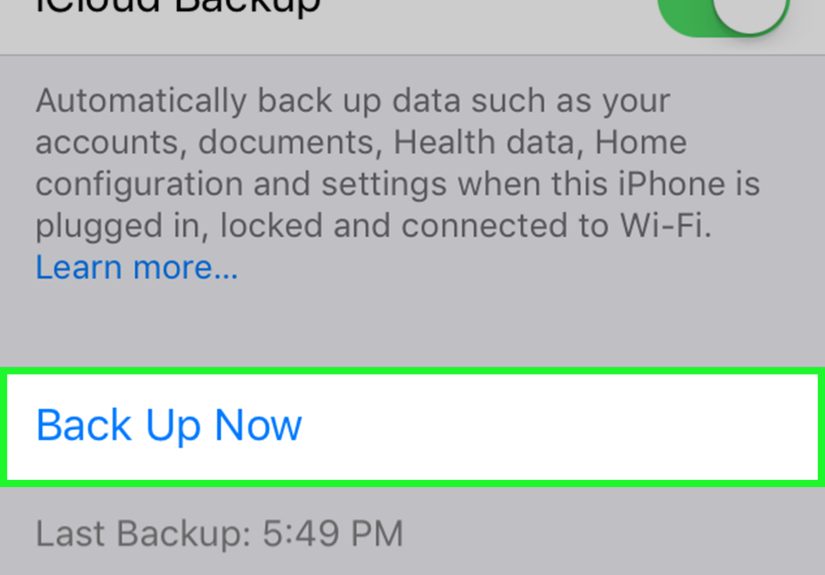
- Tap Back Up Now.
Stay on Wi-Fi until the backup finishes. If your iPhone is only partly responsive, this is one of those moments where you move slowly and carefully, like carrying soup in a moving car.
If you get an alert about not enough iCloud storage, you have two realistic choices: upgrade storage temporarily or switch to a computer backup. Do not waste precious battery arguing with the phone about cloud economics.
Example: If your screen only responds in the upper half, you may still be able to navigate Settings well enough to start the backup. Once it begins, leave the phone alone and keep it charging.
Step 4: Use a Mac or Windows PC for a Local Backup
If iCloud is not an option, your next move is a computer backup. On a Mac running macOS Catalina or later, use Finder. On a Windows PC, use the Apple Devices app. If your setup is older, iTunes may still be the tool in play.
This method is excellent because it can create a full local backup without relying on iCloud storage. It is also the method many people trust most when the screen situation feels one dropped spoon away from disaster.
How to do it
- Connect the iPhone to your Mac or PC with a cable.
- Open Finder, Apple Devices, or iTunes.
- Select the iPhone when it appears.
- Choose Back up all of the data on your iPhone to this computer.
- Click Back Up Now.
Here is the catch: if the computer has never been trusted by that iPhone, the phone may ask you to tap Trust and enter the device passcode. If the screen is too damaged to do that, the backup may fail before it even begins.
This is why people who previously synced with the same Mac or PC have a huge advantage. If the trust relationship already exists, the broken screen becomes a lot less powerful.
Example: A user who regularly connected their iPhone to a home MacBook can often plug in the damaged phone, see it appear in Finder, and start a backup immediately. A user trying a brand-new office PC for the first time may hit the trust prompt wall.
Step 5: Turn On Encrypted Backup for a More Complete Save
This step is not glamorous, but it is important. If you want the most complete local backup possible, choose an encrypted backup. Without encryption, certain data does not come along for the ride.
Encrypted local backups can include things like:
- Saved passwords
- Wi-Fi settings
- Health data
- Call history
That makes encryption the better option if you are preparing to move to a replacement iPhone and want the restored device to feel more like your real phone and less like an awkward cousin borrowing its name.
When prompted, create a backup password and save it somewhere safe. Not “I will totally remember this later” safe. Actually safe. Password manager safe. Written-down safe. Because forgetting that password turns your excellent backup into a locked treasure chest with no key.
Step 6: Verify That the Backup Finished Successfully
A backup that only exists in your imagination is not a backup. It is a wish. Verify it.
What to check
- In iCloud Backup, look for the last successful backup date and time.
- In Finder, Apple Devices, or iTunes, check the most recent backup timestamp.
- If you created an encrypted local backup, confirm it is marked as encrypted.
This is also the moment to think about what is and is not included. iCloud Backup generally covers data and settings that are not already syncing to iCloud. If you use iCloud Photos or Messages in iCloud, those items may sync separately instead of being stored inside each daily backup. That is normal, not a disaster.
If the backup fails, try the boring fixes first: a different cable, a different USB port, restarting the iPhone and computer, updating the Apple Devices app or iTunes, and trying a second computer. Boring fixes are rude that way. They work more often than we want to admit.
Step 7: If You Cannot Unlock the Phone, Repair the Screen Long Enough to Back It Up
This is the step many people do not want to hear, but it is often the truth. If your iPhone cannot boot, cannot display anything useful, or cannot accept touch input to unlock and trust a computer, there may be no fresh-backup shortcut hiding in the bushes. In that case, the most realistic path is to get the screen or related hardware working long enough to back up the device.
That does not always mean a full permanent repair. Sometimes a technician can restore enough function for you to unlock the iPhone, trust a computer, and create a backup before the formal repair or replacement happens.
Apple also recommends backing up before service whenever possible and preparing the device properly for repair. If you go the repair route, use a reputable provider and stay present with your device when required. Do not hand over your Apple Account password or device passcode to anyone who asks for it as a matter of routine.
If you are experienced and your model is eligible, Apple’s Self Service Repair program also exists, but this is not beginner craft time. Replacing an iPhone display is delicate work. If your goal is data recovery, “I watched half a video” is not the confidence level you want.
Common Scenarios and the Best Backup Move
Cracked screen, touch still works
Run an iCloud backup first, then a local encrypted backup if possible. Redundancy is your friend.
Screen shows image, touch mostly dead
Try biometric unlock, then connect to a previously trusted computer for a local backup. If that fails, seek a temporary repair.
Black screen, phone still vibrates or rings
You likely need a repair to make the phone usable long enough to unlock and back up. Do not count on a fresh backup without screen access.
Phone will not power on
Look for an existing iCloud backup or synced content first. If there is no usable backup, professional repair or recovery is the next step.
Mistakes to Avoid
- Do not factory reset first. That is like throwing out the filing cabinet because one drawer is jammed.
- Do not assume photos are gone just because the screen is broken. They may already be in iCloud Photos.
- Do not forget to verify the backup. Hope is not a file format.
- Do not trust random software promises. If the phone cannot unlock, most miracle tools are mostly miracle marketing.
- Do not wait too long. A damaged screen can worsen quickly, especially after another drop, moisture exposure, or battery swelling.
Real-World Experiences: What This Usually Feels Like
The funny thing about backing up an iPhone with a broken screen is that it is rarely a calm, elegant, tea-sipping experience. It is usually more like a small domestic thriller. One minute you are checking directions, the next minute your phone hits the pavement face-first and suddenly you are bargaining with electronics like they are emotional hostages.
Many people discover that the phone is not totally dead, just badly injured. The lock screen appears, but one corner no longer responds. Face ID works, yet swiping is a circus act. In those cases, the backup process becomes a weird test of patience. You find yourself tapping settings with surgeon-level concentration, afraid that one wrong move will close the only menu you managed to open. It is stressful, but it is also the moment when having iCloud Backup already turned on feels like discovering your past self left you a gift basket.
Other people get stuck at the trust prompt. The iPhone connects to the computer, Finder or Apple Devices sees it, and hope enters the room wearing a nice blazer. Then the phone says, in effect, “Tap Trust on the screen.” And the screen says, in effect, “Absolutely not.” That is when users learn the hard truth about Apple security: it protects your data very well, including from you on your worst day. Annoying? Yes. Smart? Also yes.
A common experience is realizing that not all data was trapped on the broken phone in the first place. Someone logs into a replacement device and finds contacts, calendars, notes, Safari tabs, and half their photos already there. The panic drops by about 60 percent immediately. The rest of the panic is reserved for the voice memo from last week, the message thread with grandma, and the mysteriously important receipt screenshot from nine months ago.
Then there is the repair-shop route. For some users, the most successful strategy is not a clever app or a secret cable. It is simply getting the display functional long enough to unlock the phone and run a backup. Not glamorous, but very real. A temporary screen fix can turn an impossible data recovery problem into a routine backup job in less than an hour.
The biggest lesson people take from this experience is brutally simple: set up backups before disaster, not after. Once you survive one cracked-screen backup scramble, you become the kind of person who enables iCloud Backup, checks local encrypted backups, and maybe even evangelizes to friends at dinner. That is how phone trauma becomes character development.
Final Takeaway
If you need to back up an iPhone with a broken screen, the winning strategy is simple: act fast, use iCloud if the phone still responds, use Finder or the Apple Devices app if the computer is already trusted, encrypt the local backup for a fuller save, and verify everything before you send the device in for repair. If the phone cannot unlock or display anything usable, a temporary repair may be the only practical route to a fresh backup.
In other words, your broken screen is a problem, but it is not always the end of the story. Sometimes it is just a very expensive reminder that backups are boring right up until they become heroic.