Table of Contents >> Show >> Hide
- What “Registered Name” Means on a Windows PC
- Before You Start
- How to Change the Registered Name on a Windows PC: 12 Steps
- Sign in with an administrator account
- Save your work and close extra apps
- Open the Run dialog
- Type regedit and press Enter
- Navigate to the correct registry path
- Find the RegisteredOwner entry
- Double-click RegisteredOwner
- Enter the new registered name
- Click OK to save the change
- Update RegisteredOrganization if needed
- Create missing entries if they aren’t there
- Restart your PC and verify the result
- What to Do If You Actually Wanted to Change Your Sign-In Name
- Common Problems and How to Fix Them
- Best Practices for a Cleaner Windows Setup
- Final Thoughts
- Real-World Experiences: What People Usually Run Into
- SEO Tags
So you opened your Windows PC, checked the registered name, and thought, “Who is this person, and why do they apparently own my computer?” It happens more often than you’d think. Maybe you bought a used laptop. Maybe you set up Windows in a hurry and let the default information slide. Or maybe your PC still thinks your name is an old Microsoft account, a typo, or a relic from your “I thought xXShadowNinjaXx was a good idea” phase.
The good news is that changing the registered name on a Windows PC is usually simple. The slightly less exciting news is that Windows uses a few different types of names. There’s your registered owner, your display name, your Microsoft account name, and even your user folder name. Those are not all the same thing, and mixing them up is how perfectly reasonable people end up yelling at Control Panel.
This guide focuses on how to change the registered name that Windows stores in the system, the one commonly tied to the RegisteredOwner value. We’ll also explain when you may need to change your account name instead, because sometimes Windows loves options almost as much as it loves hiding them.
What “Registered Name” Means on a Windows PC
Before diving into the steps, it helps to know what you’re changing. On a Windows PC, the registered name usually refers to the RegisteredOwner value stored in the Windows Registry. In many cases, Windows also stores a RegisteredOrganization value. These details may show up in the About Windows dialog when you run winver, and some apps may read them as part of system information.
This is not always the same as the name shown on your sign-in screen. If you use a Microsoft account, your visible name may come from your Microsoft profile. If you use a local account, it may come from the name set in User Accounts. In other words, changing the registered owner is like updating the name on the paperwork, while changing your account name is more like changing the name on the mailbox.
Before You Start
You’ll need administrator access to make this change. Because the method involves the Windows Registry, you should move carefully. The Registry is powerful, useful, and about as forgiving as a cat with trust issues. Make only the changes described here. If your PC is managed by a workplace or school, ask your IT admin before editing anything.
It’s also smart to note your current values before changing them. That way, if you ever need to undo the edit, you won’t be reconstructing old settings from memory like an archaeologist with a caffeine problem.
How to Change the Registered Name on a Windows PC: 12 Steps
-
Sign in with an administrator account
First, make sure you’re signed in to an account with administrator rights. Without that, Windows may let you look around but won’t let you save the changes you need. If this is a shared family computer, double-check that you’re not using a standard account.
-
Save your work and close extra apps
You probably won’t need to restart immediately, but you may want to later. Save any open documents and close apps you don’t need. It’s never fun to make a tiny system tweak and then realize you lost the world’s most important unsaved note titled “ideas.”
-
Open the Run dialog
Press
Windows + Ron your keyboard. This opens the Run box, which is one of those old Windows tools that never goes out of style because it does exactly what it says and doesn’t try to become a lifestyle platform. -
Type
regeditand press EnterIn the Run box, type
regeditand hitEnter. If Windows asks for permission through User Account Control, click Yes. This launches the Registry Editor, where the registered owner information lives. -
Navigate to the correct registry path
In Registry Editor, go to this path:
HKEY_LOCAL_MACHINESOFTWAREMicrosoftWindows NTCurrentVersionYou can expand the folders manually in the left pane, or paste the path into the Registry Editor address bar if your version supports it. Take your time here. Windows Registry paths are less “friendly map” and more “labyrinth designed by a wizard.”
-
Find the
RegisteredOwnerentryOnce you’re in
CurrentVersion, look in the right pane forRegisteredOwner. This is the key setting that stores the registered name on the PC. If you see it, you’re in business. -
Double-click
RegisteredOwnerDouble-click the
RegisteredOwnerstring value. A small window will open showing the current value in the Value data field. This is the old registered name that Windows is currently using. -
Enter the new registered name
Replace the existing text with the name you want to use. This can be your full name, your business name, or another label that makes sense for the device. Keep it professional if the computer is for work, and maybe avoid naming it after your pet raccoon unless that raccoon is on payroll.
-
Click OK to save the change
After typing the new value, click OK. That saves the updated registered owner information. One name changed, one tiny identity crisis resolved.
-
Update
RegisteredOrganizationif neededWhile you’re here, look for
RegisteredOrganization. If you want the PC to reflect a company, school, team, or household name, double-click that entry and change it too. If it doesn’t exist, you can usually create it by right-clicking the right pane, selecting New > String Value, and naming itRegisteredOrganization. Then open it and type the value you want. -
Create missing entries if they aren’t there
Sometimes
RegisteredOwnerorRegisteredOrganizationis missing. If that happens, right-click in the right pane, choose New > String Value, and create the missing name exactly as written. Then double-click it and enter your preferred value. Spelling matters here. Windows is many things, but forgiving about registry key names is not one of them. -
Restart your PC and verify the result
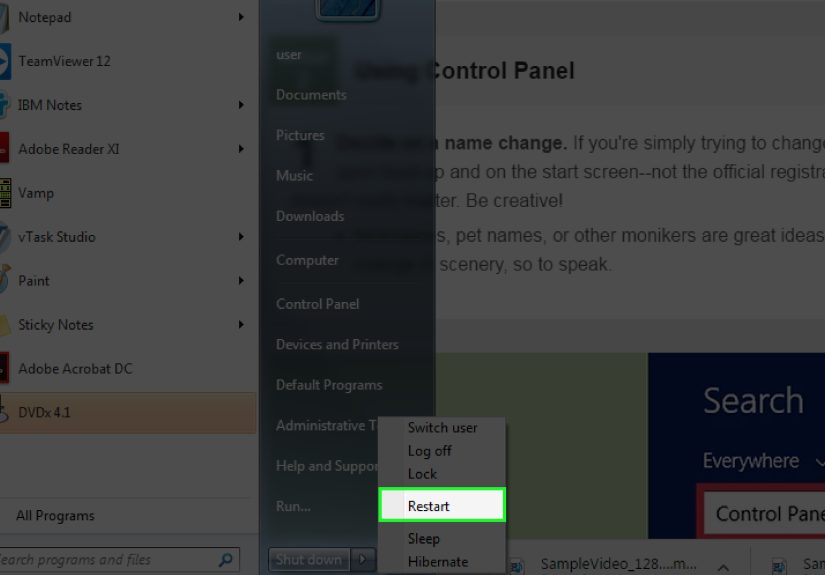
Close Registry Editor and restart your computer. After the restart, press
Windows + Ragain, typewinver, and pressEnter. The About Windows window should show the updated registered owner and, if you changed it, the organization. If the new information appears, congratulations: your PC now officially knows who it belongs to.
What to Do If You Actually Wanted to Change Your Sign-In Name
This is where a lot of people get tripped up. If you changed the registered owner but your lock screen, Start menu, or account picture still shows the old name, that doesn’t necessarily mean the edit failed. It usually means you changed the system registration name, not the user account display name.
For a Microsoft account
If you sign in with a Microsoft account, your display name is tied to your Microsoft profile. That means the correct fix is to edit the name on your Microsoft account online. After you save the new name, it may take some time to sync across Windows and Microsoft services. So if your PC is being dramatic and not updating instantly, give it a little time before assuming it has personal issues.
For a local account
If you use a local account, you can usually change the account name through Control Panel > User Accounts. This affects the display name used on the device. It’s a separate action from changing the registered owner, so don’t be surprised if one updates while the other stays the same.
Common Problems and How to Fix Them
The new name doesn’t appear in winver
Restart the PC first. If the old value still appears, reopen Registry Editor and confirm that you edited the correct path under HKEY_LOCAL_MACHINE. It’s easy to end up in a similar-looking location and wonder why nothing changed.
The value is missing
Create the missing string manually. Use the exact names RegisteredOwner and RegisteredOrganization. One extra space or wrong letter can stop the setting from working the way you expect.
Your sign-in name still shows the old information
That’s normal if you only changed the registered owner. Update the Microsoft account display name or local account name separately if that’s the result you want.
You want to rename the user folder too
That is a different task and comes with more risk. Renaming the folder under C:Users is not the same as changing the registered name or account display name. If that’s your real goal, treat it as a separate project and follow a dedicated method carefully.
Best Practices for a Cleaner Windows Setup
If you’re setting up a new or newly purchased PC, it’s worth reviewing all the identity-related labels early. Update the registered owner, confirm the account display name, and rename the PC itself if needed. That way, your device info, login name, and system details all match. It feels minor at first, but it saves confusion later when you troubleshoot software, register devices, or hand the PC off to someone else.
This is especially helpful for freelancers, small business owners, families sharing a device, and anyone refurbishing older hardware. A used PC with outdated ownership details can feel messy, even if it works perfectly. Cleaning up those labels gives the machine a fresh start and makes it feel like your computer instead of a digital hand-me-down with identity baggage.
Final Thoughts
Changing the registered name on a Windows PC sounds more mysterious than it really is. In most cases, it comes down to editing the RegisteredOwner value in the Registry, optionally updating RegisteredOrganization, and checking the result with winver. The important thing is knowing which name you actually want to change. If you want the system registration details, the registry method is the right move. If you want the visible sign-in name, you’ll need to update the account instead.
Once you understand the difference, the process becomes much easier and a lot less annoying. No more wondering why Windows changed one name but left three others behind like a forgetful roommate. Follow the 12 steps above, verify the result, and your PC’s registered identity should finally match reality.
Real-World Experiences: What People Usually Run Into
In real life, most people don’t go looking for the registered owner name just for fun. They usually stumble across it by accident. A common example is buying a secondhand desktop or laptop, opening winver, and seeing someone else’s name sitting there like they still pay rent. That moment creates instant confusion. The computer works, Windows is activated, the user can sign in just fine, but the system information still feels like it belongs to a stranger. Changing the registered owner is one of those small fixes that immediately makes the machine feel less borrowed and more personal.
Another common experience happens in home offices. Someone signs in with a Microsoft account during setup, later changes their name online, and then notices Windows still shows a mismatch in different places. One part of the system updates, another part clings to the past, and suddenly a perfectly normal person is deep in internet searches at 11:47 p.m. trying to decode the difference between a display name, a local account, a device name, and a registered owner. That confusion is normal. Windows has several naming layers, and they don’t always update together.
Small business users run into this too. A company may reuse laptops for interns, contractors, or new hires. The device gets cleaned up, but the registered owner still points to “John’s Surface” or an old organization name from three roles ago. It’s not catastrophic, but it looks sloppy. When staff are trying to keep inventory organized, register software properly, or prepare devices for audits, mismatched ownership details can become an unnecessary annoyance.
Families also experience this in funny ways. A parent sets up a PC years ago, a kid inherits the computer later, and suddenly the registered owner still says Mom’s name while the desktop background is a dragon, the browser has 62 tabs open, and the Downloads folder contains exactly one algebra worksheet and 400 screenshots. The fix is simple, but the mismatch tells a whole little history of the device.
One more frequent scenario involves people who think changing the registered owner will also rename the user folder under C:Users. Then they discover those are separate things, and the mood shifts quickly. The best lesson from all these experiences is simple: decide which Windows name you want to change before doing anything. If the goal is a cleaner system identity, changing the registered owner is perfect. If the goal is a different sign-in name or profile folder, that takes a different method. Once people understand that distinction, the process goes from frustrating to surprisingly easy.