Table of Contents >> Show >> Hide
- Why disable spell check in the first place?
- The short version
- How to disable spell check in Google Chrome
- How to disable spell check in Google Docs
- How to disable spell check in Google Slides
- Chrome vs. Docs vs. Slides: what actually changes?
- When you should not disable spell check completely
- Troubleshooting if spell check will not stay off
- Best practices for writers, students, and teams
- Real-world experiences with disabling spell check on Google Chrome, Docs, and Slides
- Conclusion
- SEO Tags
If spell check has ever “helped” you by turning your product name into a dictionary word, changing a person’s last name into nonsense, or underlining half your presentation like it’s personally offended by your vocabulary, welcome. You are among friends. Spell check is useful right up until it becomes that coworker who corrects your jokes, your brand terms, and your bilingual typing at the exact wrong moment.
The good news is that you can disable spell check on Google Chrome, Google Docs, and Google Slides. The slightly less good news is that these are three different systems, and they do not all behave the same way. Chrome has browser-level spell checking. Google Docs has spelling, grammar, and autocorrect options. Google Slides has its own spelling and autocorrect controls too. So if you turn one off and the squiggly lines still show up somewhere else, that is not your laptop being dramatic. It is just Google being Google.
In this guide, you’ll learn exactly how to disable spell check on Google Chrome, Docs, and Slides, when it makes sense to turn it off, when you should switch to a lighter setting instead, and how to avoid breaking your workflow in the process.
Why disable spell check in the first place?
Most people do not wake up and say, “Today I will rebel against red underlines.” Usually, there is a reason. In fact, there are several good ones.
- You write brand names, technical terms, or code snippets. Spell check loves treating legitimate words like mistakes.
- You work in more than one language. Mixed-language writing can make spell check act like it has lost the plot.
- You are giving a presentation. Nothing kills design confidence like a red underline under a proper noun on slide two.
- You care about privacy. Chrome’s Enhanced spell check can send text you type in the browser to Google to improve suggestions.
- You prefer a cleaner screen. Some people simply want fewer interruptions while drafting.
That last reason is underrated. Sometimes you want to write first and edit later. Spell check, grammar suggestions, autocorrect, blue underlines, red underlines, and automatic substitutions can turn a blank page into a judgmental little carnival. Disabling them can make drafting feel faster and less distracting.
The short version
If you only want the fast answer, here it is:
- Google Chrome: Go to Settings > Languages > Spell check, then turn spell check off.
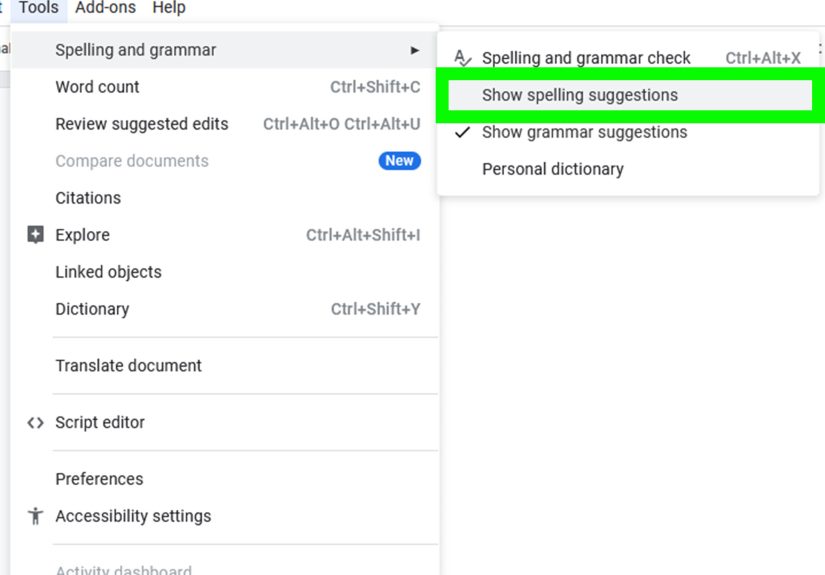
- Google Docs: Open a document, then go to Tools > Spelling and grammar and turn off spelling and grammar suggestions. For automatic corrections, go to Tools > Preferences > Substitutions.
- Google Slides: Open a presentation, then go to Tools > Spelling > Underline errors to disable spelling suggestions. For autocorrect, go to Tools > Preferences.
Now let’s do it properly, because menu labels can feel obvious only after you have already found them.
How to disable spell check in Google Chrome
Google Chrome uses browser-level spell check for text you type into web fields, search boxes, forms, email drafts, and many online editors. If Chrome is the source of your spelling suggestions, this is where to start.
Option 1: Turn Chrome spell check off completely
- Open Google Chrome.
- Click the three-dot menu in the upper-right corner.
- Select Settings.
- Click Languages.
- Find the Spell check section.
- Turn off Check for spelling errors when you type text on web pages.
Once that switch is off, Chrome stops checking spelling in text fields on the web. No more browser-level red underlines. No more uninvited corrections when you are naming a startup, typing a domain, or trying to write “colour” without being scolded by American software.
Option 2: Keep spell check on, but switch from Enhanced to Basic
This is the underrated middle ground. If you do not want to disable Chrome spell check entirely, you can often keep it on and switch from Enhanced spell check to Basic spell check.
Why does that matter? Because Basic spell check uses Chrome or your operating system’s spell checker and does not send the text you type to Google. Enhanced spell check offers stronger suggestions, but it is more aggressive and can raise privacy concerns for some users.
So if your real issue is not the existence of spell check but the feeling that it is a little too nosy or too eager, switching to Basic can be smarter than shutting everything off.
When Chrome spell check is not the problem
Here is the part that trips people up: turning off Chrome spell check does not always disable suggestions inside Google Docs or Google Slides. Those apps have their own spelling and autocorrect tools. In other words, Chrome and Google Docs are roommates, not twins.
If the red underline survives after you disable Chrome spell check, the browser is probably innocent. Move on to Docs or Slides settings next.
How to disable spell check in Google Docs
Google Docs has more than one writing assistant. That is helpful when you want polish, but not so helpful when you are trying to draft quickly or preserve unusual wording. In Docs, you may be dealing with three different features:
- Spelling suggestions
- Grammar suggestions
- Autocorrect and automatic substitutions
To get a truly quiet writing environment, you may need to adjust more than one setting.
Turn off spelling and grammar suggestions in Google Docs
- Open your document in Google Docs.
- Click Tools in the top menu.
- Hover over or select Spelling and grammar.
- Turn off Show spelling suggestions.
- Turn off Show grammar suggestions if you want a completely cleaner page.
That should remove the familiar red and blue underlines that appear while you type. If your document suddenly looks less judgmental, congratulations, you found the right menu.
Turn off autocorrect in Google Docs
Sometimes the problem is not underlining. Sometimes Google Docs actively changes what you typed. That is autocorrect, and it lives in a different place.
- Open a file in Google Docs.
- Click Tools.
- Select Preferences.
- Open the Substitutions section.
- Uncheck features you do not want, such as:
- Automatic capitalization
- Spelling corrections
- Automatic substitution
- Link detection
- Click OK.
This is the setting to change if Docs keeps “fixing” your spelling when you did not ask for help. It is also useful if you work with stylized spellings, product names, or formatting that Google thinks it can improve. Spoiler: it often cannot.
Use the personal dictionary instead of turning everything off
If you only have trouble with a few recurring words, disabling spell check entirely may be overkill. In that case, the better move is to add those words to your personal dictionary.
Go to Tools > Spelling and grammar > Personal dictionary, then add the terms you use often. This is especially useful for:
- Company names
- Industry jargon
- People’s names
- Regional spellings
- Creative brand language
In other words, if your issue is “Google Docs hates my vocabulary,” the personal dictionary lets you make peace without burning the whole system down.
How to disable spell check in Google Slides
Google Slides does not always get mentioned in spell-check guides, which is funny because it is often the place where people notice spelling suggestions the most. Why? Because presentation design is visual. A little red underline on a clean slide looks like a ketchup stain on a white shirt.
Turn off spelling suggestions in Google Slides
- Open your presentation in Google Slides.
- Click Tools.
- Select Spelling.
- Click Underline errors to turn it off.
That setting controls whether spelling issues are underlined in your presentations. Once it is off, the visual clutter should disappear across your slides.
Turn off autocorrect in Google Slides
If Slides is automatically changing capitalization, creating links, or swapping text in ways you did not request, do this:
- Open your presentation.
- Click Tools.
- Select Preferences.
- In General, uncheck the autocorrect options you do not want.
- In Substitutions, uncheck or remove specific automatic replacements.
- Click OK.
This is especially helpful if you create marketing decks, classroom slides, sales presentations, or conference visuals where capitalization and branded wording need to remain exactly as typed.
Chrome vs. Docs vs. Slides: what actually changes?
Here is the easiest way to think about it:
- Chrome spell check affects text fields across websites.
- Google Docs spelling and grammar affects document editing inside Docs.
- Google Slides spelling and autocorrect affects text editing inside presentations.
That means you may need to change more than one setting if you want a fully interruption-free workflow. Turning off Chrome does not magically silence Docs. Turning off Docs does not necessarily change Slides. These tools overlap, but they are not a single master switch.
When you should not disable spell check completely
Let’s be fair for a second. Spell check is not the villain in every story. Sometimes it is the only thing standing between you and a very embarrassing typo in a client email, school report, or deck title.
You may want to keep some form of spelling assistance if:
- You publish polished content directly from a browser
- You send a lot of professional emails
- You collaborate with a team that expects cleaner drafts
- You type quickly and correct later
- You rely on accessibility or editing support tools
In those cases, consider a more selective setup. For example, leave Chrome on Basic spell check, disable autocorrect in Docs, and keep Slides underlines off only when presenting. That setup gives you help without turning every text box into a debate.
Troubleshooting if spell check will not stay off
If you changed the setting and the suggestions keep returning, check these common causes:
1. You changed the wrong app
This is the classic one. Chrome, Docs, and Slides each have separate controls. Make sure you disabled the feature in the place where the problem appears.
2. An extension is doing the checking
Tools like Grammarly can add their own spelling and grammar suggestions, especially in Google Docs. If you still see underlines or side-panel edits after turning Google settings off, check your browser extensions.
3. You only disabled spelling, not autocorrect
Underlines and automatic replacements are different features. If text still changes as you type, review the Preferences and Substitutions settings in Docs or Slides.
4. You are switching devices
Some settings are easiest to manage on desktop, and some Google Docs autocorrect controls are specifically managed on a computer. If you make a change on one device and expect the same exact behavior everywhere, results can vary.
Best practices for writers, students, and teams
If you want a practical setup that keeps your screen clean without inviting chaos, try one of these approaches:
For writers
Disable grammar suggestions while drafting, keep a final spell-check pass at the end, and add recurring terminology to your personal dictionary.
For students
Turn off only the most distracting features, not everything. A cleaner page is nice, but accidentally handing in “pubic policy” instead of “public policy” is a plot twist nobody needs.
For business teams
Use personal dictionaries and controlled autocorrect settings instead of disabling all assistance across the board. Brand consistency matters, but so does catching obvious errors before a document goes live.
Real-world experiences with disabling spell check on Google Chrome, Docs, and Slides
One of the most common experiences people report is pure relief. The moment the underlines disappear, the page feels calmer. Writers who jump between brainstorming, note-taking, and rough drafting often say disabling spell check helps them stay in flow longer. Instead of stopping every few seconds to inspect a red line, they can finish the thought first and edit later. That sounds minor until you are trying to write fast. Then it feels like someone finally turned off a car alarm in your brain.
Another common experience comes from people who use unusual vocabulary every day. Marketers, software teams, researchers, and startup founders often work with internal names that spell check treats like accidental keyboard damage. Product labels, feature names, abbreviations, and mixed-case brand styles can trigger constant suggestions. In those cases, turning off spell check or reducing autocorrect is less about rebellion and more about survival. It saves time, reduces friction, and stops software from “correcting” the correct thing into the wrong thing.
Students and multilingual users often run into a different issue: context confusion. If you switch between English and another language, or even between U.S. and non-U.S. spellings, Google’s tools can become overconfident in the least helpful way possible. A sentence might be perfectly understandable, but spell check still circles it like a suspicious raccoon. Disabling the feature during drafting can make bilingual writing much smoother. Then, once the content is finished, a manual review works better than constant interruptions.
Presentation designers have their own version of this experience. In Google Slides, even a tiny underline can feel enormous because slides are visual by nature. A clean deck is supposed to look intentional. So when spell check underlines a proper noun, event name, or branded phrase, it pulls attention away from the message. Many people turn off spelling suggestions in Slides not because they hate accuracy, but because they need visual control. In design work, presentation matters. Red squiggles do not exactly scream “premium.”
Then there is the privacy-minded crowd, who often prefer switching Chrome from Enhanced spell check to Basic rather than keeping the stronger version on. For them, the experience is not about underlines at all. It is about control. They want help with obvious typos, but they do not want every typed phrase feeling like it might be inspected by a larger system. Basic spell check tends to feel like the compromise option: useful, less intrusive, and easier to live with.
Interestingly, many people who disable spell check eventually come back to a hybrid setup. They do not always keep everything off forever. Instead, they learn where spell check is helpful and where it is annoying. They might leave Chrome on Basic, turn off grammar suggestions in Docs, disable Underline errors in Slides, and use a personal dictionary for custom words. That kind of setup usually gives the best experience because it matches how people actually work instead of forcing one universal setting onto every task.
So yes, disabling spell check can absolutely improve your workflow. But the biggest lesson from real use is this: the best setup is rarely all-on or all-off. It is the one that removes friction where you create and keeps support where you polish.
Conclusion
If you want to disable spell check on Google Chrome, Docs, and Slides, the process is straightforward once you know where each setting lives. Chrome handles browser-wide spelling. Google Docs controls spelling, grammar, and autocorrect inside documents. Google Slides manages spelling suggestions and automatic text changes inside presentations. The key is knowing that these are separate layers.
If your goal is a distraction-free writing or design environment, turn off the features that interrupt your workflow. If your goal is cleaner privacy settings, choose Basic spell check in Chrome instead of Enhanced. And if your problem is only a handful of custom words, use the personal dictionary rather than throwing the whole spell-check system into the sea.
In short, disable what annoys you, keep what helps you, and never let a red squiggle bully your brand name again.