Table of Contents >> Show >> Hide
- What You’ll Learn
- The 10-Second Version (Apple Maps)
- How to Drop a Pin in Apple Maps on iPhone (Step-by-Step)
- 1) Drop the pin
- 2) Nudge it to the exact spot (the “No, not there… THERE” step)
- 3) Save it so it doesn’t disappear
- 4) Get directions to your pin
- 5) Share a dropped pin (so other people can find you without a group chat novel)
- 6) Copy latitude and longitude (when “near the fountain” isn’t a coordinate system)
- 7) Edit or delete pins (cleanup for your digital breadcrumbs)
- How to Send a Pin in Messages (iMessage)
- How to Drop a Pin in Google Maps on iPhone
- Pro Tips: Pin Accuracy, Parked Car Pins, and Privacy
- Troubleshooting: When Your Pin Acts Weird
- FAQ: Quick Answers
- Experience Corner: 500-ish Words of Real Pin-Dropping Life
- Conclusion
Ever tried to tell someone where you are and realized your instructions sound like a pirate map? “Okay, I’m near the tree… not that tree… the one that looks like a tree.” Yeah. No. Dropping a pin on your iPhone is the modern, socially acceptable way to say, “Here. Exactly here.” It’s fast, accurate, and it prevents your friends from doing laps around the parking lot like confused Roombas.
The 10-Second Version (Apple Maps)
- Open Apple Maps.
- Find the spot (search or zoom around).
- Touch and hold on the map until a marker appears.
- Tap Pin (or use the location card options to share/get directions).
That’s it. You just “pinned” a location. You’re basically a cartographer nowminus the parchment and sea monsters.
How to Drop a Pin in Apple Maps on iPhone (Step-by-Step)
Apple Maps calls this “marking a location,” but let’s be real: you’re dropping a pin. It’s perfect for meetups, trailheads, photo spots, entrances that aren’t obvious, or anywhere that doesn’t have a neat, searchable business name.
1) Drop the pin
- Open Maps.
- Zoom in on the area you want.
- Press and hold on the map until the marker appears.
Pro move: try to press on a blank area of the map (not on an existing business label), so Maps doesn’t select something you didn’t mean.
2) Nudge it to the exact spot (the “No, not there… THERE” step)
If your pin lands close-but-not-perfect, use Apple Maps’ refine option:
- Open the location card for your dropped pin.
- Tap Move, then drag the map until the pin is exactly where you want it.
- Confirm the placement.
This is clutch for parking lots, park entrances, apartment buildings with mysterious “Unit C is behind the portal” layouts, and any place where GPS is feeling a little dramatic.
3) Save it so it doesn’t disappear
A dropped pin can be temporary unless you save it. In newer iOS versions, saved pins live in your Places or Library area (often under Pinned).
- After dropping the pin, tap Pin (or save it from the card).
- Optionally rename it (“Trailhead Parking,” “Best Taco Truck,” “Do Not Meet Me Here Again”).
4) Get directions to your pin
Once the pin is down:
- Tap the pin to open its card.
- Tap Directions.
- Choose your travel mode (driving, walking, transit, etc.).
This is especially useful when the location is not a formal addresslike a specific entrance to a stadium, a trail turnoff, or a pickup point.
5) Share a dropped pin (so other people can find you without a group chat novel)
Sharing a pinned location is one of the best iPhone “why didn’t I do this sooner?” tricks.
- Drop or open the pin.
- Tap the Share icon on the location card.
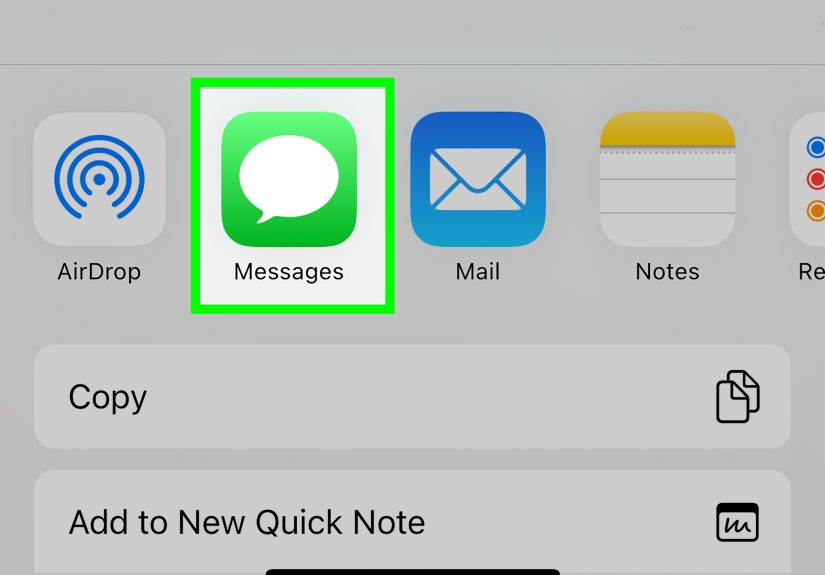
- Send it via Messages, Mail, WhatsApp, Slack, or whatever your group uses to plan chaos.
The recipient gets a link that opens in Maps, letting them start navigation instantlyno guessing, no “I’m by the vibes.”
6) Copy latitude and longitude (when “near the fountain” isn’t a coordinate system)
Need the exact coordinates for hiking, photography, boating, or just being delightfully specific? Apple Maps can show and copy the latitude and longitude for a saved pin.
- Open Places / Pinned, select your pin.
- Scroll to Coordinates.
- Press and hold to Copy.
Coordinates are the universal language of “Yes, the exact spot. Not the coffee shop across the street.”
7) Edit or delete pins (cleanup for your digital breadcrumbs)
If your map is starting to look like a detective’s corkboard:
- Go to Places / Pinned.
- Use the info options to rename, categorize, or remove a pin.
Keeping pins organized is underrated. Future-you will thank present-youpossibly with snacks.
How to Send a Pin in Messages (iMessage)
Sometimes you don’t want to open Maps, hunt around, and share from there. You just want to text someone a pin like a normal person with places to be. Messages can do that.
- Open Messages and enter a conversation.
- Tap the Plus button, then choose Location.
- Tap the pin option (often labeled as a map pin) and send.
This is perfect for “I’m already here” momentslike concerts, airports, festivals, or when you’re standing outside a building pretending you totally know which entrance is correct.
How to Drop a Pin in Google Maps on iPhone
If you bounce between Apple Maps and Google Maps (many people do), the pin-dropping concept is the same: press and hold to drop a pin, then use the place card to do useful things with it.
1) Drop a pin
- Open Google Maps.
- Zoom to the location.
- Touch and hold the spot until a pin drops.
2) Share the pinned location
- Tap the pin or place card at the bottom.
- Tap Share.
- Choose an app (Messages, email, etc.).
3) Save or label it (so you can find it later)
Google Maps is great for building your own “life map”:
- Save the location to a list (Favorites, Want to go, Starred places, or a custom list).
- Label it with a custom name (helpful for non-address spots like “Meetup Entrance” or “Best Viewpoint”).
If you travel, plan routes, or have a memory like a goldfish with a smartphone, labels and saved places are game-changers.
4) Bonus: send a pin to iPhone users (yes, it’s fine)
If you drop a pin in Google Maps and share it to someone on iPhone, they can still open it. They might open it in Google Maps (if installed) or via a browser-based map linkeither way, they’ll get the location.
Pro Tips: Pin Accuracy, Parked Car Pins, and Privacy
Zoom first, then press and hold
Want a pin that’s actually on the correct side of the street? Zoom in. The closer you are, the less your pin turns into “somewhere in this general zip code.”
Use coordinates when precision matters
Apple Maps can show coordinates for pinned places, which is helpful when an address doesn’t exist (beaches, trail junctions, big parks). If you’re sharing a location for a hike, a campsite, or a rendezvous point, coordinates reduce confusionespecially in areas with spotty signage.
Parked car: your iPhone can remember where you left it
If you’ve ever wandered a parking garage muttering “Level… what level?” your iPhone has your back. With the right settings, iPhone can automatically mark where you parked and show it in Apple Maps. It’s one of those features that feels like magic until you realize it’s just your phone being a responsible adult.
Static pin vs. live location
A pin is typically a snapshot: “Here is the spot.” Great for meetups and destinations. If you want people to see you moving in real time (like when you’re en route), use a real-time location sharing option such as:
- Find My (Apple’s go-to for live sharing)
- Google Maps location sharing
- Other chat apps with live location features
Translation: send a pin when you want them to go to a place. Share live location when you want them to find you.
Privacy gut-check
If you share a pin to your home, your kid’s school pickup spot, or your “secret” fishing spot, remember: a link is shareable. Send location info only to people you trust, and double-check the pin before you hit send. (Your future self does not want to explain why your boss got your “weekend nap spot” pin.)
Troubleshooting: When Your Pin Acts Weird
“I can’t drop a pinnothing happens.”
- Press and hold longer. A quick tap usually selects, it doesn’t pin.
- Try a blank area. If you press on a business label, the app may open that place instead of dropping a pin.
- Restart the app. Classic, but effective.
“My pin snaps to a nearby building.”
This can happen when maps try to “help” by associating your pin with the nearest recognized address or point of interest. If you need the pin on an exact spot (like a parking lot entrance), use the Move option in Apple Maps to refine placement, and verify by checking the location card details (including coordinates when available).
“The pin is accurate… but my friend still can’t find it.”
- Ask what app they’re opening it in (Apple Maps vs. Google Maps).
- Tell them to tap Directions from the pin card (not just stare at the map and hope the universe guides them).
- If it’s a huge venue, add context: “Use the north entrance” + the pin. Pins are powerful, not psychic.
“My location is off.”
If your phone’s location services are struggling, pins and navigation can drift. Check that Location Services are enabled and that the app has permission. If you’re indoors, near tall buildings, or underground, expect GPS to be a little… interpretive.
FAQ: Quick Answers
Can I drop multiple pins in Apple Maps?
You can drop a pin, then save it so it remains in your saved places. On newer iOS versions, you can keep multiple saved pins in your library/places area, which makes Apple Maps way more useful for planning.
Can I drop a pin without an address?
Yes. That’s one of the main reasons pins existmarking a spot that isn’t a neatly labeled address or business.
How do I remove a dropped pin?
Open the pin’s location card and look for a remove/delete option. If it’s saved in your pinned places, remove it from your saved list.
What’s better on iPhone: Apple Maps or Google Maps?
For iPhone-first convenience (Siri, Messages, Apple ecosystem), Apple Maps is great. For deep place info, lists, and cross-platform sharing, Google Maps is excellent. Many people use both: Apple Maps for navigation, Google Maps for research.
Experience Corner: 500-ish Words of Real Pin-Dropping Life
Let me paint you a picture: it’s Saturday, your group chat is doing that thing where everyone is “five minutes away” (which is a lie told by otherwise good people), and you’re trying to meet at a crowded outdoor market. There are 300 identical vendor tents, two live bands, and one friend who refuses to turn their ringer on. This is where pin-dropping becomes less “tech tip” and more “social survival skill.”
The first time I truly appreciated a pin was at a big park meetup. I texted “near the main entrance,” whichsurprisehas three main entrances, depending on how optimistic your city planners were that decade. Everyone arrived at a different “main” entrance, and our meetup turned into a scavenger hunt. Next time, I dropped a pin on the exact picnic table, shared it, and watched the chaos dissolve into a peaceful, civilized gathering where people arrived… correctly. It was so effective I briefly considered running for office.
Another pin hero moment: parking. You know that feeling when you exit a stadium and the parking lot looks like a post-apocalyptic grid of identical cars? If you’re not using some kind of “parked car” marker, you’re trusting your memory in a situation where your memory has already been assaulted by nachos, noise, and questionable halftime decisions. Dropping a pin (or letting your iPhone automatically remember) turns “Where did we park?” into “Follow the dot, my child.”
Pins are also undefeated for deliveries and pickups. I once met a rideshare at the wrong side of a convention center because the “official” address was basically a suggestion. The driver was on the opposite end, I was waving like a confused air-traffic controller, and we both lost ten minutes to the geography gods. Now, when I’m in a complicated place, I drop a pin on the exact pickup curb, then send it. The driver gets a precise target, and I get to keep my dignity.
Hiking is where pins go from helpful to essential. Trailheads can be sneaky, cell service can be flaky, and “turn left at the old gate” is advice that assumes you and the person you’re helping have agreed on what a gate looks like. Dropping a pin at the parking pull-offor sharing the coordinatescan save someone from wandering into “accidental extra adventure.” Which is fun in movies and less fun when you’re hungry and your water bottle is making that “I’m nearly empty” slosh.
The biggest lesson? A pin is a kindness. It’s you saying, “I respect your time and your sanity.” And honestly, that’s the most romantic thing you can do with a map app.
Conclusion
Dropping a pin on iPhone is one of those small skills that pays off constantly: meeting friends, saving a hidden gem, sharing a precise pickup spot, or navigating to a location that doesn’t have a neat address. In Apple Maps, it’s all about the press-and-hold, refining with Move, and saving/sharing from the location card. In Google Maps, it’s the same core moveplus strong labeling and list-saving for people who love planning. Use pins for places, use live location sharing for people, and you’ll never have to write “I’m by the thing” again.