Table of Contents >> Show >> Hide
- What Fast Weapon Switching Actually Does
- How to Enable Fast Weapon Switching in Counter Strike: 8 Steps
- Step 1: Figure Out Which Counter-Strike You Are Playing
- Step 2: Open the Settings or Options Menu
- Step 3: Go to Keyboard or Keyboard/Mouse Settings
- Step 4: In Legacy Games, Click the Advanced Button
- Step 5: Enable Fast Weapon Switch
- Step 6: Use the Console Command if the Menu Option Is Missing
- Step 7: In Counter-Strike 2, Set Up the Modern Equivalent
- Step 8: Test It in a Practice Match and Fine-Tune It
- Best Tips for Faster Weapon Switching
- Common Mistakes to Avoid
- Why This Setting Still Matters
- Player Experiences: What Fast Weapon Switching Feels Like in Real Matches
- Conclusion
If you have ever fumbled from rifle to pistol in the middle of a firefight and felt your keyboard judging you, welcome to the club. Fast weapon switching in Counter Strike is one of those tiny settings that can make the game feel dramatically smoother. It does not magically turn you into a Major-winning superstar, but it does make your controls feel sharper, more immediate, and far less likely to betray you during a panic reload moment.
There is one important catch, though: the phrase fast weapon switch means slightly different things depending on which Counter-Strike game you are playing. In classic versions like Counter-Strike 1.6, Condition Zero, and Counter-Strike: Source, Fast Weapon Switch is a recognizable toggle that makes number keys pull weapons instantly instead of opening a selection menu first. In newer setups, especially Counter-Strike 2, players usually recreate the same fast-feeling workflow with direct slot keys, last-weapon switching, and custom binds.
So this guide covers both worlds without pretending they are identical twins. Think of it as the practical, no-nonsense version of the topic: no myth-making, no dusty forum confusion, and no magical command that only worked on a laptop in 2007. Here is exactly how to enable fast weapon switching in Counter Strike in eight clear steps.
What Fast Weapon Switching Actually Does
Before diving into the steps, it helps to understand what you are enabling. In older Counter-Strike games, normal weapon selection often works like this: you press a number key, a weapon category highlights, and then you confirm or cycle. With Fast Weapon Switch enabled, pressing the correct number key equips the weapon immediately. That means fewer inputs, less hesitation, and less time staring at your HUD instead of the guy trying to remove you from the round.
In practical terms, fast weapon switching helps with:
- Snapping from rifle to pistol when your magazine runs dry
- Pulling out a knife quickly while rotating or moving
- Reducing accidental scrolling through the wrong weapon slot
- Creating a cleaner, more competitive input setup
- Making your muscle memory more reliable under pressure
It is worth saying out loud: fast weapon switching improves control flow, not game physics. It does not make bullets hit harder, it does not shorten every animation in the universe, and it does not transform the AWP into some kind of caffeinated laser hose. What it does do is remove extra friction between your brain and the weapon you want in your hand.
How to Enable Fast Weapon Switching in Counter Strike: 8 Steps
Step 1: Figure Out Which Counter-Strike You Are Playing
This is the most overlooked step, and it saves the most confusion. If you are playing a classic version such as Counter-Strike 1.6, Condition Zero, or Counter-Strike: Source, you are usually dealing with the traditional Fast Weapon Switch option or the old-school hud_fastswitch command.
If you are playing Counter-Strike 2, the old toggle is not the main attraction anymore. The modern approach is to use the developer console, direct weapon slots, and practical binds like switching to the last weapon used. In other words, the goal is the same, but the path is more modern and a little less checkbox-shaped.
If you skip this step, you can end up searching for a menu item that no longer exists, or typing a legacy command into the wrong game and wondering why nothing happens. That is not strategy. That is digital archaeology.
Step 2: Open the Settings or Options Menu
Launch the game and go to the main settings area. In older Counter-Strike titles, this is usually Options. In Counter-Strike 2, you will be looking for the settings gear icon. Either way, the idea is the same: you need to get into the keyboard and input settings first.
This may sound basic, but beginners often head straight into a match and try to fix controls while bullets are flying. That is a wonderful way to discover the menu key only after you are already spectating. Set this up before you queue.
Step 3: Go to Keyboard or Keyboard/Mouse Settings
Once inside the settings menu, head to the keyboard section. In older Counter-Strike games, the Fast Weapon Switch option is commonly tied to keyboard settings and sometimes hidden under an Advanced button. In Counter-Strike 2, this is also where you prepare for any bind-related setup, because your weapon controls, wheel behavior, and console access all live in this neighborhood.
Take a moment to look at your current binds while you are here. Many players rely too heavily on the mouse wheel, which sounds fine in theory until one scroll notch too many leaves you holding a grenade at the worst possible time. Fast weapon switching works best when paired with deliberate slot keys and a clean key layout.
Step 4: In Legacy Games, Click the Advanced Button
If you are in a classic Counter-Strike title, look for an Advanced button in the keyboard menu. This is where the traditional Fast Weapon Switch setting often lives. It is one of those options that is weirdly important for competitive comfort and weirdly easy to miss if you are just clicking around like a raccoon in a kitchen.
When you find it, open the advanced keyboard settings and look for Fast Weapon Switch.
Step 5: Enable Fast Weapon Switch
Check the box or turn on the Fast Weapon Switch option. Then apply the settings and close the menu.
That is the classic solution. Once enabled, number keys should pull weapons instantly instead of requiring an extra confirmation step. For example:
- 1 usually pulls your primary weapon
- 2 usually pulls your pistol
- 3 usually pulls your knife
- 4 usually cycles or selects grenades
This setup is beloved for a reason. It is fast, direct, and extremely easy to turn into muscle memory. Once you get used to it, going back to slower menu-style weapon selection feels like trying to speedrun while wearing oven mitts.
Step 6: Use the Console Command if the Menu Option Is Missing
If your version of Counter-Strike supports the developer console and you either cannot find the menu checkbox or prefer commands, you can usually enable legacy fast weapon switching with this line:
Open the console, type the command, and press Enter. If you ever want to turn it off again, use:
This is especially useful in older Source-era or classic setups where players like to manage input settings manually. It is also handy when you want a repeatable setup you can keep in your config file. If you are the type of player who wants every setting pinned down and preserved, this method is cleaner than relying on memory or menu hunting.
Step 7: In Counter-Strike 2, Set Up the Modern Equivalent
Counter-Strike 2 players should think in terms of fast weapon access rather than the exact old Fast Weapon Switch label. Start by enabling the developer console in settings. Then focus on the binds that recreate a fast workflow.
The most useful examples are:
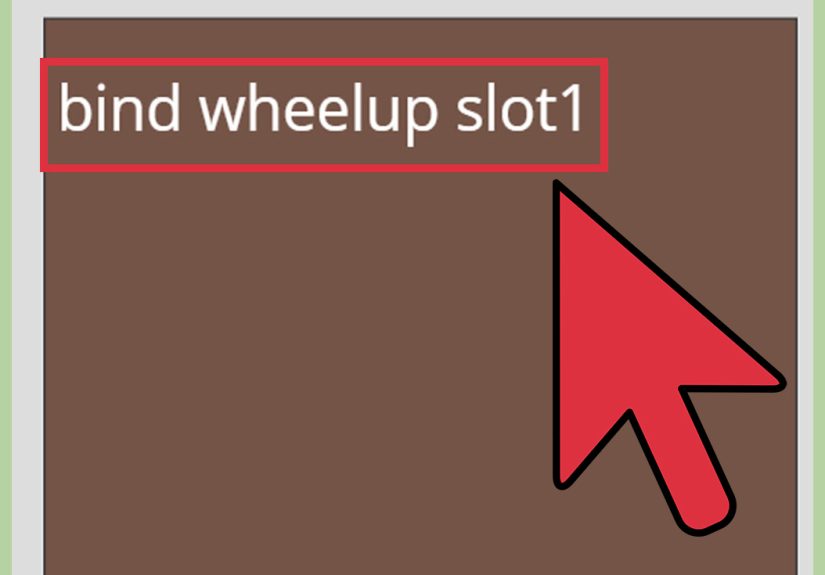
This makes the key switch to your last used weapon. It is one of the fastest ways to bounce between your current gun and your previous slot, especially when you are trying to move quickly between a rifle and knife or return from a utility slot without fumbling.
You can also experiment with the quick inventory or radial inventory system if you like extra control:
Some players love this. Others treat radial menus like a polite suggestion they intend to ignore. The better choice depends on your habits. If you want pure speed, direct slot keys and lastinv usually win. If you want organized utility access, a quick inventory bind can be helpful.
For most competitive players, the strongest CS2 setup is simple:
- Keep 1, 2, 3, and 4 as your main slots
- Use Q for last weapon used
- Reduce dependence on the mouse wheel
- Add a quick inventory bind only if it genuinely helps you
Step 8: Test It in a Practice Match and Fine-Tune It
Do not stop after flipping the setting on. Test it. Load into a practice server, aim map, offline bot match, or warmup and run through a few simple weapon-switch drills:
- Switch from rifle to pistol three times in a row
- Pull out knife while moving, then return to primary
- Throw utility and swap back to your preferred weapon
- Practice recovering after an empty magazine without touching the wheel
If the controls still feel clumsy, the issue may not be the fast-switch setting itself. It may be your key placement. Some players are faster with Q close to movement keys. Others move last-weapon switching to a mouse button. The best control layout is the one you can execute under pressure without thinking about it.
Best Tips for Faster Weapon Switching
Once the setting is enabled, these habits make it even better:
Use Slot Keys More Than the Mouse Wheel
The wheel is quick until it is not. It is easy to overscroll, especially in tense moments. Slot keys are more deliberate and more reliable.
Keep Your Most Important Inputs Close Together
If your hand has to travel like it is catching a connecting flight, the bind is not ideal. Make your most-used weapon actions easy to reach.
Practice With Real Sequences
Do not just admire your settings screen like it is modern art. Practice actual in-round situations: rifle to pistol, knife out while rotating, grenade to rifle, and scoped weapon to movement weapon.
Do Not Chase Every Weird Bind You See Online
Some bind guides are brilliant. Others look like they were invented during a power outage. Use setups that are easy to remember and easy to repeat.
Common Mistakes to Avoid
- Assuming the same command works identically in every Counter-Strike version. It does not.
- Keeping too much on the mouse wheel. This is how surprise grenades happen.
- Copying pro binds without understanding them. A bind is only useful if it matches your habits.
- Ignoring practice. Good settings without repetition are just decorative.
- Thinking fast switching makes guns fundamentally faster. It improves access, not weapon balance.
Why This Setting Still Matters
Fast weapon switching remains relevant because Counter-Strike is a game of tiny margins. A cleaner weapon swap can mean a quicker recovery after a bad peek, a faster pistol pull when your rifle runs dry, or simply less mental clutter while you focus on movement and aim. In a game famous for punishing hesitation, removing an unnecessary input is never a bad idea.
The beauty of this setting is that it is simple. No giant hardware upgrade. No impossible aim routine. No twenty-seven-step ritual involving launch options, moon phases, and a lucky chair. Just better control flow.
Player Experiences: What Fast Weapon Switching Feels Like in Real Matches
For many players, the difference shows up in the first few rounds. At first, fast weapon switching feels almost too sensitive, like the game suddenly drank an energy drink without asking permission. You tap a number key and the weapon is there immediately. No extra selection step, no second click, no little pause where your brain briefly wonders whether the command actually registered. That speed can feel strange for about ten minutes, and then your old setup starts to feel ancient.
A common experience happens during eco rounds. You fire off a pistol duel, instinctively hit your knife to move faster, and then snap back to your sidearm without fumbling through the wrong slot. It feels cleaner, but more importantly, it feels calmer. You stop fighting your own controls. That is the real upgrade. Counter-Strike already gives you enough to worry about with angles, utility, economy, timing, and the occasional teammate who believes every round is the perfect moment to rush through a smoke. Your keyboard should not be the sixth enemy.
AWP players often notice the change in a different way. They are not suddenly shooting faster, but they do feel less trapped after a shot. Swapping away from a scoped weapon and getting back to a movement-friendly option can make the entire rhythm of repositioning feel smoother. It is less about speedrunning the animation and more about reducing hesitation. When the controls are snappy, your decisions become snappier too.
Players moving from casual habits to more competitive play also tend to notice how much they relied on the mouse wheel. Before changing their setup, they might have sworn the wheel was perfectly fine. Then one stressful clutch arrives, the wheel lands on the wrong item, and suddenly they are staring at a grenade when they meant to draw a pistol. After practicing with slot keys and last-weapon binds, many realize the old setup was not fast at all. It was just familiar.
There is also a confidence factor. A tidy weapon-switching setup makes you feel more in control, and in Counter-Strike, confidence matters. When you trust your inputs, you move better, react faster, and make fewer panicked mistakes. You are still going to lose some duels. That part is included with the game. But at least you lose them honestly, not because your controls took a scenic route to the correct weapon.
In the long run, the best experience is subtle: you stop noticing the setting altogether. That is when you know it is working. Your switches happen automatically, your hand learns the rhythm, and your focus stays on the round instead of the interface. In a game built on precision, that kind of invisible comfort is worth a lot more than people think.
Conclusion
If you want to enable fast weapon switching in Counter Strike, the exact method depends on the version you play, but the goal stays the same: make weapon selection immediate, reliable, and natural. In legacy games, that usually means turning on Fast Weapon Switch in advanced keyboard settings or using hud_fastswitch 1. In Counter-Strike 2, it means building a modern equivalent with better binds, direct slot access, and last-weapon switching.
Either way, the payoff is real. Cleaner inputs lead to cleaner decisions, and cleaner decisions are how small habits turn into better rounds. Not every improvement in Counter-Strike has to be dramatic. Sometimes the best upgrade is simply making sure the right weapon appears the moment your fingers ask for it.