Table of Contents >> Show >> Hide
- Can You Really Find Your Apple ID Password Without Resetting It?
- 1. Check the Passwords App on Your iPhone or iPad
- 2. Check Passwords, Safari, or Keychain on Your Mac
- 3. Use iCloud Passwords on a Windows PC
- 4. Search Google Password Manager or Chrome
- 5. Check Microsoft Edge Passwords
- 6. Open Your Third-Party Password Manager and Check Password History
- What Usually Trips People Up
- How to Keep This From Happening Again
- Real-World Experiences Related to Finding an Apple ID Password Without Resetting
- Final Takeaway
Quick note before we dive in: Apple now officially calls an Apple ID an Apple Account, but the old term still dominates search bars, help forums, and panicked late-night Google sessions. So for SEO purposes and plain-English sanity, this guide uses “Apple ID password” throughout.
Forgetting an Apple ID password is one of those annoyingly modern problems that feels tiny until it suddenly becomes huge. One minute you are trying to download an app, sign in on a new iPhone, or approve a payment. The next minute you are staring at the screen like it personally betrayed you. The good news is that you might be able to find your Apple ID password without resetting it. The less-fun news is that this only works if you saved it somewhere legitimate in the first place.
That means no secret hacker tricks, no spooky “password reveal” websites, and definitely no magic button hidden in Settings behind a moon phase and three taps on your elbow. What does work is checking the places where your password may already be stored: Apple’s Passwords app, Safari, iCloud Passwords on Windows, Chrome, Edge, or a third-party password manager like 1Password or Bitwarden.
In this guide, I will walk you through six real, practical ways to find your Apple ID password without resetting it. I will also show you what usually goes wrong, how to tell whether you are looking at the right credential, and when it is time to stop digging and just reset the thing like the emotionally mature adult Apple wants you to be.
Can You Really Find Your Apple ID Password Without Resetting It?
Yes, but only in one very specific situation: you saved the password earlier and still have access to the device, browser, or password manager that stored it. If you never saved it, Apple does not offer a simple “show me my current Apple ID password” screen inside account settings. In that case, resetting the password is the official path.
That distinction matters. Your iPhone passcode, Mac login password, and Apple ID password are not the same thing. They may all live on the same device, but they do different jobs. So if your Mac unlocks fine or your iPhone opens with Face ID, that does not automatically mean you still remember the Apple ID password. Technology loves paperwork, even when it wears a shiny glass front.
1. Check the Passwords App on Your iPhone or iPad
If you use an iPhone or iPad and you ever let Apple save passwords for websites or apps, this is the first place to look. On newer software, Apple stores saved credentials in the Passwords app. On older versions of iOS, similar information may appear under Settings > Passwords.
How to do it
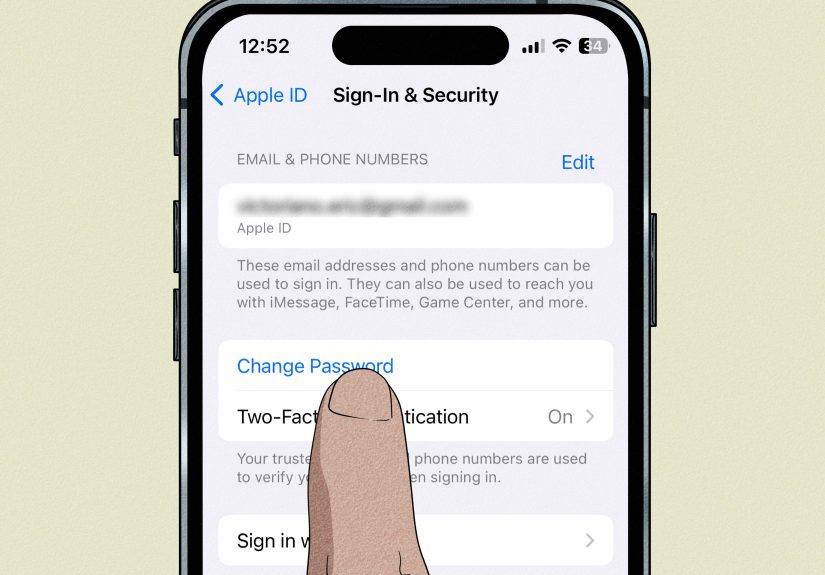
Open the Passwords app, unlock it with Face ID, Touch ID, or your passcode, and search for anything related to Apple. Start with terms like apple.com, icloud.com, account.apple.com, or appleid.apple.com. If that turns up nothing, search your Apple email address or the phone number attached to your Apple account.
Why this works
Many people do not realize they have already saved Apple-related logins during a past sign-in to iCloud on the web, the Apple account site, or an Apple service inside Safari. Once saved, the password can usually be revealed after authentication.
Best use case
This method is especially useful if you are already signed in on the device and just need the password for a second Apple device, a web login, or an App Store purchase prompt. It is fast, local, and does not require you to reset anything.
One important catch
You may not see a neat little entry labeled “Apple ID Password.” Sometimes the saved login is tied to a website domain rather than the account nickname in your head. In other words, search like a detective, not like someone expecting Apple to organize your digital junk drawer for you.
2. Check Passwords, Safari, or Keychain on Your Mac
If you own a Mac, your odds improve. Macs are excellent at quietly remembering things you forgot on purpose. If your Apple ID password was ever saved on the Mac, you may find it in one of three places: System Settings > Passwords, Safari > Settings > Passwords, or in older cases, Keychain Access.
Method A: System Settings
Go to System Settings, click Passwords, authenticate, and search for Apple-related sites. This is the cleanest modern route and the best one to try first.
Method B: Safari Passwords
Open Safari, go to Safari > Settings > Passwords, sign in, and search for the Apple entry. If you signed in through Safari before, this is often where the breadcrumb trail lives.
Method C: Keychain Access
If the saved login is older, or you are working on a Mac that has collected digital fossils for years, open Keychain Access from Applications > Utilities. Search for Apple-related items, open a likely match, and reveal the password after authenticating with your Mac login password.
Why Mac users often win this round
Macs tend to be the long-term storage unit of the Apple ecosystem. People upgrade phones often, but their Mac quietly carries years of saved credentials, synced logins, and browser data. If your iPhone comes up empty, your Mac may still be hiding the answer like a smug librarian.
3. Use iCloud Passwords on a Windows PC
Yes, Windows users get a seat at the table too. If you installed iCloud for Windows and enabled iCloud Passwords, you may be able to access the saved Apple credential from your PC.
How it works
Apple lets you use the iCloud Passwords app on Windows and a browser extension for Chrome, Edge, or Firefox. Once it is set up, you can manage or autofill credentials stored in iCloud Keychain.
What to do
Open iCloud for Windows, make sure Passwords & Keychain is turned on, then check the iCloud Passwords app or use the extension in your browser. Search for Apple-related sites just like you would on iPhone or Mac.
Why this is underrated
A lot of people borrow work habits from one device and personal habits from another. Maybe you signed in to Apple services on a Windows laptop once to grab photos, access iCloud Mail, or manage files. If so, your PC may be the unlikely hero of this story.
One caveat
If you never set up iCloud Passwords on Windows, this method will not magically pull credentials out of the air. It only reveals passwords already stored and synced through Apple’s system.
4. Search Google Password Manager or Chrome
If you use Chrome on desktop or Android, there is a good chance you told Google to save a login at some point and then forgot all about it. That is not laziness. That is called being human in the internet era.
Where to look
Open Chrome and go to Passwords and Autofill > Google Password Manager. Then search for Apple-related domains like apple.com, icloud.com, or account.apple.com.
What you might find
If Chrome saved the login, you can reveal the password after verifying your identity. On many devices, that means Windows Hello, your screen lock, or another local authentication step. Google Password Manager can also surface older saved entries you forgot were there.
Why this helps
People often sign in to Apple services through Chrome on a PC, especially when using iCloud on the web or managing subscriptions. That makes Chrome a legitimate place to check, even if you usually think of Apple and Google as two roommates who politely tolerate each other.
5. Check Microsoft Edge Passwords
Edge is one of the sneakiest places to find a forgotten Apple ID password, mostly because people forget they use Edge at all. It is there, quietly saving passwords, like a coworker who never speaks during meetings but somehow always has the file you need.
How to find it
Open Edge and go to Settings > Profiles > Passwords. Search for Apple-related sites and reveal the password if the browser saved it.
When this method is most useful
This is a great option if you used a Windows computer to sign in to Apple Music, iCloud, or your Apple account page. It is also common in office environments where Edge is the default browser and Chrome never got invited to the party.
Why you should not overlook it
Browser-saved passwords are easy to forget because the whole point of a saved password is that you do not think about it. So if you have ever signed in successfully on that PC, Edge deserves at least one quick search before you start a reset.
6. Open Your Third-Party Password Manager and Check Password History
If you use a dedicated password manager, this may be your best shot of all. Apps like 1Password, Bitwarden, and Dashlane are built for exactly this moment: the frantic search for a credential your brain fired into space six months ago.
What to search
Search for your Apple email, phone number, or Apple-related websites. If you manually named the login, try terms like Apple ID, iCloud, App Store, or simply Apple.
Why password history matters
Here is the sneaky-smart part: if you changed your Apple ID password recently and can only remember the old one, some password managers keep a history of previous passwords. That means you may be able to see the older version and then figure out whether the current one is stored elsewhere or whether you updated it without realizing.
For example, 1Password supports password history for items, and Bitwarden stores recent password history for login items. That can be incredibly helpful if your Apple sign-in stopped working after a security update and you are trying to piece together which version is current.
Bonus tip: use AutoFill to find the vault
If you are not sure which password manager has the Apple login, tap into the sign-in form on your iPhone or Mac and see which AutoFill suggestions appear. Apple devices can pull from multiple password apps. Sometimes the fastest way to find a saved Apple ID password is to let AutoFill point to the vault that already knows it.
What Usually Trips People Up
Before you spend an hour hunting the wrong thing, watch out for these common mix-ups:
- Your device passcode is not your Apple ID password. Helpful, yes. The same thing, no.
- Your Mac login password is not your Apple ID password. They may match if you set them that way, but they are still separate credentials.
- Your Apple ID may be stored under a website name, not “Apple ID.” Search domains, not just labels.
- If you never saved the password, there may be nothing to reveal. At that point, resetting is not failure. It is just reality wearing sensible shoes.
- Do not use random “Apple ID password finder” websites. If a site promises to reveal your Apple password without access to your own devices or saved vaults, it is waving a giant red flag.
How to Keep This From Happening Again
Once you recover the password, do yourself a favor and store it somewhere secure. Use Apple Passwords, a trusted third-party password manager, or another legitimate vault you already rely on. Turn on two-factor authentication, keep your trusted devices updated, and make sure your recovery info is current.
If you use an iPhone, it is also smart to enable security features like Stolen Device Protection. That adds extra biometric checks for sensitive actions involving saved passwords and account changes. Translation: if someone gets hold of your phone, they have a much harder time turning your bad day into a total nightmare.
Real-World Experiences Related to Finding an Apple ID Password Without Resetting
In real life, most people who try to find an Apple ID password without resetting it fall into a few familiar groups. The first is the “new phone panic” crowd. This is the person who buys a new iPhone, starts setup, and suddenly realizes the old password was apparently being remembered by the previous device, by Safari, by muscle memory, or possibly by a tiny helpful ghost. They are still signed in on an old iPad or Mac, which is good news, because that older device often contains the saved login in Passwords, Safari, or Keychain. The funny part is that many of them assume the password is gone forever, when it is actually sitting quietly in a vault they use every day.
The second group is the “I use Apple, but also Windows” crowd. These users often forget that they signed in to iCloud on a work PC months ago to grab photos, check email, or download a file. Then, when they need the password later, they look only on the iPhone and skip the Windows machine entirely. That is a mistake. If iCloud Passwords was set up on the PC, the password may be right there in the browser extension or iCloud Passwords app. It feels a bit like discovering your missing house key has been in the winter coat pocket all summer. Annoying, yes. But also a relief.
The third group is made up of people who use a dedicated password manager but forget to search it properly. They search for “Apple ID,” find nothing, and assume the vault is empty. Then they try “icloud.com,” “apple.com,” their Apple email address, or even “App Store,” and suddenly the login appears like a magician stepping out from behind a curtain. In other cases, the real lifesaver is password history. Someone updated the Apple credential three months earlier, saved the new version in 1Password or Bitwarden, and never consciously remembered doing it. When they check the history, everything clicks into place. It is not glamorous, but it works.
Then there is the final group: people who never saved the password anywhere at all. This is more common than you might think. They signed in once, let the device remember it, and assumed that meant Apple would always be able to display it on request. Unfortunately, that is not how account security works. In these situations, the search ends where Apple intended it to end: with a password reset. That may sound disappointing, but honestly, it is better than some mysterious system that could reveal your account password to anyone holding your unlocked phone. Security is inconvenient on purpose. That is part of the deal.
The big lesson from all these experiences is simple: finding an Apple ID password without resetting it is possible, but only when you are searching places that already had permission to store it. Legitimate recovery is boring, predictable, and tied to devices you trust. Fake shortcuts are usually where the trouble begins. So check your saved passwords, search carefully, verify the right credential, and only reset if the trail runs cold. That is the grown-up solution, even if it is less exciting than the internet promised.
Final Takeaway
If you are trying to find your Apple ID password without resetting it, the smartest path is to check the places where it may have already been saved: Apple Passwords on iPhone or iPad, Passwords or Safari on a Mac, iCloud Passwords on Windows, Chrome, Edge, and trusted password managers. These are legitimate, safe, and realistic options.
But here is the honest bottom line: if none of those places have it, there is no secret Apple back door that will simply reveal your current password. At that point, a reset is not the annoying option. It is the correct one. Still, if you follow the six methods above first, you have a very real chance of recovering the password without changing anything at all.