Table of Contents >> Show >> Hide
- What “BAD_POOL_CALLER” Means (In Human Words)
- Common Causes of BAD_POOL_CALLER on Windows 10
- Before You Start: Quick Triage (30 Seconds That Matters)
- Step-by-Step Fixes (Start Here)
- Fix #1: Unplug new hardware and remove “recent installs”
- Fix #2: Update Windows the right way
- Fix #3: Update or roll back drivers (your most likely win)
- Fix #4: Temporarily remove third-party antivirus (yes, really)
- Fix #5: Run System File Checker (SFC)
- Fix #6: Repair Windows image with DISM
- Fix #7: Check disk health with CHKDSK
- Fix #8: Test RAM with Windows Memory Diagnostic
- Fix #9: Update BIOS/UEFI and chipset drivers
- Fix #10: Clean Boot to catch software conflicts
- If Windows Won’t Boot: Use Safe Mode
- Advanced: Find the Actual Culprit (Minidumps & Driver Verifier)
- Last Resorts (When You’ve Tried Everything and Your Laptop Is Judging You)
- Prevention Tips (So This Doesn’t Become a Weekly Hobby)
- Real-World Experiences and “What Usually Happens” (Extra Notes from the Trenches)
- Experience #1: “It only crashes when I’m online”
- Experience #2: “It started after I cleaned up my PC… with a cleanup app”
- Experience #3: “I upgraded RAM and now Windows is furious”
- Experience #4: “It only crashes after sleep/hibernate”
- Experience #5: “The fix was boringso boring I didn’t believe it”
- Conclusion
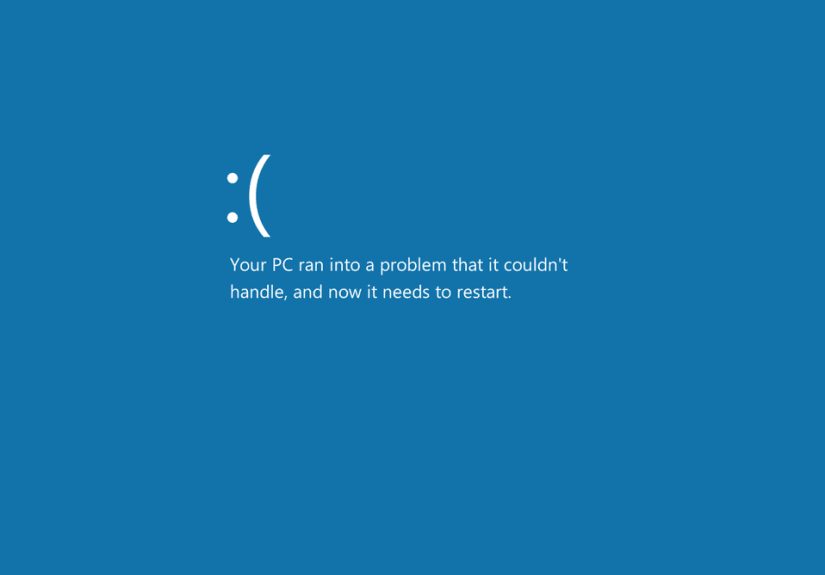
You’re minding your own businessmaybe answering an email, maybe launching a game, maybe just existingand suddenly Windows 10
goes full drama-queen and throws a blue screen with BAD_POOL_CALLER. Not ideal. Not cute. But usually fixable.
This guide walks you through the most reliable fixes in a smart order (easy wins first, deeper diagnostics later), explains
what’s really happening under the hood, and helps you avoid the “randomly try 37 things and pray” approach.
What “BAD_POOL_CALLER” Means (In Human Words)
Windows uses a special area of memory called a pool to track and share resources (like memory allocations) between the system
and drivers. The BAD_POOL_CALLER stop code often appears when somethingcommonly a buggy driver, security software, or a failing
hardware componentmakes an improper request to that pool or corrupts it.
Translation: Windows caught something doing memory math like it was using crayons, and it pulled the emergency brake to prevent damage.
Common Causes of BAD_POOL_CALLER on Windows 10
- Faulty or incompatible drivers (network, storage, GPU, chipset, USB devicesdrivers are frequent offenders).
- Third-party antivirus or “system optimization” utilities hooking into low-level system operations.
- Corrupted system files after updates, crashes, or disk issues.
- Bad RAM or memory instability (including XMP/overclocking problems).
- Disk errors that corrupt files or pagefile behavior.
- BIOS/firmware issues or outdated chipset support.
- New hardware that isn’t playing nicely with Windows 10 or existing drivers.
Before You Start: Quick Triage (30 Seconds That Matters)
1) Note what changed right before the crash
Did you install a driver update? Add a printer? Plug in a new USB hub? Install an antivirus trial that promised “military-grade protection”
(which is always a good sign of chill software)? Write it down. That clue often cuts your troubleshooting time in half.
2) See if Windows can boot normally
- If you can boot: proceed with the steps below in order.
- If you can’t boot: jump to Safe Mode first.
Step-by-Step Fixes (Start Here)
Fix #1: Unplug new hardware and remove “recent installs”
Disconnect any newly added devices: external drives, new controllers, USB docks, webcams, adaptersanything you added recently.
Restart and see if the crash disappears. If it does, the culprit is likely a device driver or hardware conflict.
Also uninstall any recent software you added right before the problem startedespecially “driver updater” apps, aggressive tuning tools,
or third-party antivirus suites.
Fix #2: Update Windows the right way
Go to Settings → Update & Security → Windows Update and install all pending updates. Reboot even if Windows acts like it’s optional.
Updates often include stability fixes, driver improvements, and security patches that prevent pool corruption issues.
Fix #3: Update or roll back drivers (your most likely win)
BAD_POOL_CALLER is frequently driver-related. The trick is knowing whether you need a newer driver or a previous one.
Update drivers
- Open Device Manager (Right-click Start → Device Manager).
- Check drivers for Network adapters, Storage controllers, Display adapters, and USB controllers.
- Prefer drivers from the PC manufacturer (Dell/HP/Lenovo) or the official component maker (Intel/NVIDIA/AMD) for critical components.
Roll back drivers
If the crashes started after a driver update:
- Device Manager → right-click the device → Properties → Driver tab → Roll Back Driver.
- If Roll Back is grayed out, uninstall the device driver (check “Delete the driver software” if offered) and reboot.
Pro tip: Network drivers are frequent troublemakers because they run constantly and interact with security filtering, VPNs, and firewalls.
Fix #4: Temporarily remove third-party antivirus (yes, really)
Many security suites install kernel-level drivers to monitor activity. Sometimes those drivers conflict with Windows updates or other drivers,
and the result can be BAD_POOL_CALLER.
- Uninstall the third-party antivirus completely (not just “disable”).
- If the vendor provides a dedicated removal tool, use it to fully clean leftover drivers.
- Reboot and rely on Windows Security (Defender) temporarily while testing stability.
If the blue screen stops after removing the security suite, you found your villainswap to a different solution or reinstall a newer version.
Fix #5: Run System File Checker (SFC)
Corrupted system files can trigger weird memory behavior. SFC checks and repairs core Windows files.
- Type cmd in the Start menu.
- Right-click Command Prompt → Run as administrator.
- Run:
If SFC finds and repairs issues, reboot and test. If SFC complains it can’t fix everything, go to the next step.
Fix #6: Repair Windows image with DISM
DISM can repair the Windows component store that SFC relies on. Run it from an elevated Command Prompt:
When it finishes, run sfc /scannow again, reboot, and test stability.
Fix #7: Check disk health with CHKDSK
Disk errors can corrupt system files and pagefile data, which can look like “memory problems” at the OS level.
You’ll likely be prompted to schedule on restart. Type Y, reboot, and let it scan.
It can take a whilethis is normal.
Fix #8: Test RAM with Windows Memory Diagnostic
If the pool is being corrupted, faulty memory is a real possibilityeven if your PC “seems fine” most of the time.
- Press Windows + R, type
mdsched.exe, press Enter. - Choose Restart now and check for problems.
- Review results after reboot (Windows usually notifies you; you can also check Event Viewer).
If errors appear, try reseating RAM (desktop), testing one stick at a time, or replacing memory. Also disable RAM overclocking/XMP temporarily to test stability.
Fix #9: Update BIOS/UEFI and chipset drivers
BIOS updates and chipset drivers can improve memory compatibility and stability, especially after Windows feature updates.
Get BIOS and chipset updates from your PC manufacturer’s support page.
If you recently changed BIOS settings (like enabling XMP), revert to defaults for testing. Stability first, speed later.
Fix #10: Clean Boot to catch software conflicts
Clean Boot starts Windows with minimal third-party services, helping you identify conflicts without uninstalling everything.
- Press Windows + R, type
msconfig. - Go to Services → check Hide all Microsoft services → click Disable all.
- Go to Startup → open Task Manager → disable non-essential startup items.
- Reboot and test.
If the problem stops, re-enable items in batches to find the offender (yes, it’s tedious; no, there’s no magic shortcut that’s also reliable).
If Windows Won’t Boot: Use Safe Mode
Safe Mode loads a minimal set of drivers and servicesperfect for removing a broken driver or security suite.
How to get into Safe Mode
- Force restart 2–3 times during boot to trigger Automatic Repair (power off during spinning dots).
- Go to Troubleshoot → Advanced options → Startup Settings → Restart.
- Press 4 for Safe Mode or 5 for Safe Mode with Networking.
Once in Safe Mode, uninstall recent drivers/software, run SFC/DISM, and update drivers.
Advanced: Find the Actual Culprit (Minidumps & Driver Verifier)
Check minidump files
Windows often creates crash dumps that can point to the specific driver file that caused the crash.
Look here:
If you see repeated mentions of a specific .sys file (especially one tied to antivirus, VPNs, or network filtering),
that’s your prime suspect. Updating or uninstalling the associated software often resolves the issue.
Use Driver Verifier (with caution)
Driver Verifier is powerfulbut it can intentionally trigger more blue screens to expose bad drivers. That’s the point, but it can feel like you invited chaos
over for coffee. Use it only if you’re comfortable recovering from crashes and you’ve backed up important files.
To open Driver Verifier:
If you aren’t sure what to select, don’t guess. It’s better to use minidumps and systematic driver updates first.
Last Resorts (When You’ve Tried Everything and Your Laptop Is Judging You)
System Restore
If the error started recently, restoring to a point before the issue can undo the driver/software changes that triggered BAD_POOL_CALLER.
Reset this PC (Keep my files)
If you can’t stabilize Windows, a reset can reinstall system components while keeping personal files.
You’ll still need to reinstall apps afterward.
Clean install Windows 10
If a clean install still produces BAD_POOL_CALLER soon after setup, the odds increase that you’re dealing with hardware instability
(RAM, storage, power, motherboard) or a persistent driver issue from a specific device.
Prevention Tips (So This Doesn’t Become a Weekly Hobby)
- Update Windows and drivers regularlybut avoid random “driver updater” utilities.
- Keep only one antivirus solution. Two real-time scanners can fight like siblings in a small car.
- After major Windows updates, refresh chipset and GPU drivers from official sources.
- Don’t overclock unless you’re comfortable troubleshooting instability.
- Keep backups. Not because you’re pessimisticbecause you’re experienced.
Real-World Experiences and “What Usually Happens” (Extra Notes from the Trenches)
People tend to imagine BAD_POOL_CALLER as a mysterious “Windows is broken” moment, but in real-world troubleshooting it often behaves more like a breadcrumb trail.
The trick is learning what that trail looks like in everyday scenarios.
Experience #1: “It only crashes when I’m online”
A super common pattern: the PC is fine until you start streaming, joining video calls, downloading large files, or opening a bunch of browser tabsthen boom,
BAD_POOL_CALLER. In these cases, the root cause is often a network-related driver or filter:
- A Wi-Fi driver that doesn’t like the latest Windows update
- A VPN client that installs a low-level network adapter
- A security suite that injects traffic inspection drivers
The fix that tends to work: update (or roll back) the network driver, uninstall VPN/security tools temporarily, and test again. If stability returns,
you reintroduce software one item at a time until the troublemaker reveals itself like a cartoon villain pulling off a mask.
Experience #2: “It started after I cleaned up my PC… with a cleanup app”
Many “optimizer” tools claim they remove “junk,” “bad registry entries,” or “unnecessary drivers.” What they sometimes remove is… stability.
If BAD_POOL_CALLER starts right after installing a cleanup tool, driver pack, or “performance booster,” uninstall it first. If the tool touched drivers,
focus on chipset, storage, and graphics drivers next.
Experience #3: “I upgraded RAM and now Windows is furious”
New RAM can work 99% of the time and still cause occasional pool corruption under load. The most telling clue is random crashes that happen more often when:
- Gaming
- Editing photos/video
- Running multiple apps at once
- Using a browser with many tabs (yes, Chrome, we’re looking at you)
If Windows Memory Diagnostic reports errors, that’s straightforward. But even if it doesn’t, try disabling XMP/overclocking and testing again.
A surprising number of “mystery” blue screens disappear when memory settings return to default. If that fixes it, you can later re-enable XMP
or tune settings more conservatively.
Experience #4: “It only crashes after sleep/hibernate”
Another classic: everything seems fine until you close the lid or wake the PCthen BAD_POOL_CALLER shows up like an unwanted sequel.
This often points to power management + drivers: graphics, Wi-Fi, Bluetooth, or chipset. In these cases:
- Update GPU and chipset drivers from official sources
- Update BIOS/UEFI if there’s a stability release
- Test by disabling Fast Startup temporarily
Sleep-related crashes can also involve external peripherals (USB docks are frequent suspects). If you disconnect a dock and the crashes stop,
update dock firmware/drivers or swap the connection path.
Experience #5: “The fix was boringso boring I didn’t believe it”
The most irritating truth: the fix is often not exotic. It’s usually one of these:
- Uninstalling a security suite that installed a bad kernel driver
- Rolling back a driver update that broke compatibility
- Repairing Windows files with DISM + SFC
- Fixing disk errors that silently corrupted system data
That’s why this guide emphasizes order. When you start with the high-probability, low-risk steps, you usually avoid the “I reset Windows three times”
phaseunless you enjoy pain, in which case… please don’t.
Conclusion
The BAD_POOL_CALLER error on Windows 10 is scary-looking but usually points to a practical issue: a misbehaving driver, conflicting software
(often antivirus/VPN), corrupt system files, disk errors, or unstable RAM. Start simpleremove recent changes, update or roll back drivers, and run SFC/DISM/CHKDSK.
If the problem persists, test memory and review crash dumps to identify the real offender. With a methodical approach, you can turn that blue screen into a
one-time episode instead of a recurring series.