Table of Contents >> Show >> Hide
- Quick Fix Checklist (Try These First)
- What “Invite Collaborator” Actually Is (And Where It Hides)
- Why “Invite Collaborator” Isn’t Showing Up (Most Common Causes)
- 1) You’re posting from a place that doesn’t support Collabs
- 2) Your account is private (and you’re trying to be the original creator)
- 3) Instagram hasn’t enabled it for your account (rollouts + experiments)
- 4) You’re using an unsupported content type (or the wrong flow)
- 5) The collaborator’s settings (or relationship to you) blocks it
- 6) Your account has limitations or restrictions
- Step-by-Step: How to Fix “Invite Collaborator” Not Appearing
- Step 1: Update Instagram the right way
- Step 2: Force close the app, then log out/in
- Step 3: Confirm you’re looking in the correct menu
- Step 4: Switch your account to Public (at least temporarily)
- Step 5: Clear cache (Android) or reinstall (iPhone)
- Step 6: Try a different post type (Reel vs. feed post)
- Step 7: Check “who can tag/mention you” settings (for you and your collaborator)
- Step 8: Make sure you’re not trying to schedule the Collab the “wrong” way
- Step 9: Try Meta Business Suite (as a workaround, when available)
- Step 10: Report the issue (and what to include)
- If the Invite Was Sent but the Collab Isn’t Showing
- FAQ: Quick Answers to Common Collab Confusion
- Best Practices So You Don’t Have to Fix This Again Next Week
- Real-World Experiences: What Actually Fixes “Invite Collaborator” Missing (The Extra )
- Conclusion
You open Instagram, you’re ready to post, you tap around confidently… and then it happens:
the “Invite Collaborator” button is nowhere to be found. Not under Tag People.
Not in Advanced Settings. Not hiding behind your thumb like a cartoon villain.
Don’t worryyou’re not “doing Instagram wrong.” The Collabs feature can disappear for a bunch of
totally fixable reasons: app updates, account eligibility, privacy settings, the type of post you’re creating,
or (my personal favorite) Instagram doing an A/B test like it’s a science fair project.
This guide walks you through the most common causes and the fastest fixesplus real-world examples
so you can diagnose what’s actually happening instead of rage-tapping your screen like it owes you money.
Quick Fix Checklist (Try These First)
If you want the fastest path to “oh, there it is,” do these in order:
- Update Instagram (App Store / Google Play), then fully close and reopen the app.
- Log out and log back in (yes, it’s annoying; yes, it works surprisingly often).
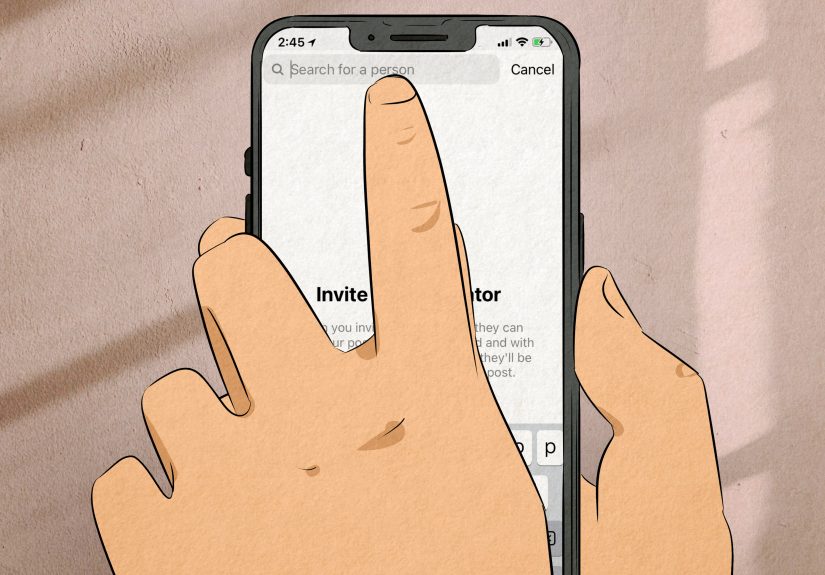
- Confirm you’re in the right place: Create Post/Reel → Tag People → look for Invite Collaborator.
- Make sure your account is public if you’re the one sending the invite.
- Try a different post type (Reel vs. feed post vs. carousel).
- Clear cache (Android) or reinstall (iPhone).
What “Invite Collaborator” Actually Is (And Where It Hides)
“Invite Collaborator” is part of Instagram’s Collabs feature. A Collab post is a single post
that’s co-authored by multiple accounts. Once collaborators accept the invite, the post can appear on
each collaborator’s profile and can share engagement (likes, comments, views) across the same post.
The key detail: the button usually appears inside the tagging flow, not in the caption or
general settings. People often expect it next to “@mention,” but Instagram likes to keep things spicy.
Where to look (the most common path)
- Feed post/carousel: Create → Next → Next → Tag People → Invite Collaborator
- Reel: Create Reel → Next → Next → Tag People → Invite Collaborator
If you don’t see it there, that’s your clue: it’s not a “you missed a button” problem. It’s a “something is blocking the feature” problem.
Let’s fix that.
Why “Invite Collaborator” Isn’t Showing Up (Most Common Causes)
1) You’re posting from a place that doesn’t support Collabs
Collabs is most consistent inside the Instagram mobile app. If you’re trying to post from a desktop browser
or a third-party scheduler, the Collab option may not be available. Some tools can schedule standard posts,
but Collabs can be limited or require a special workflow.
Reality check: If you’re using a social tool and the option isn’t there, try creating the post directly in Instagram as a test.
2) Your account is private (and you’re trying to be the original creator)
One of the biggest “why is this happening to me” causes is privacy. In many cases, the
original author (the person creating the post) needs to be a public account for Collabs to show up.
If you’re private, you may not see the option at all.
This is the #1 fix for creators who swear the feature “used to be there.” If you recently switched to private,
the button didn’t vanishit got politely escorted out.
3) Instagram hasn’t enabled it for your account (rollouts + experiments)
Instagram doesn’t always ship features to everyone at once. Some accounts get a feature early, some get it late,
and some get it after you’ve already posted three “why is my Instagram broken” Stories.
If your friend has the feature and you don’t, that can still be normal. This is especially likely if you’re fully updated
and your account is public, but the option still doesn’t appear.
4) You’re using an unsupported content type (or the wrong flow)
Collabs commonly works on feed posts, carousels, and Reels, but the exact behavior can vary.
Sometimes the option appears for one format and not anotherespecially if you’re using templates, remix features,
or certain publishing tools.
5) The collaborator’s settings (or relationship to you) blocks it
Even if you have Collabs, you might not be able to invite that specific account.
Common blockers include:
- They restrict who can tag/mention them (or require manual approval).
- They’ve limited or blocked you (awkward, but it happens).
- They’re set up in a way that prevents being tagged by non-followers.
- Their account is temporarily restricted or flagged.
A quick test is to try inviting a second account you control (or a friend who can confirm their settings).
If you can invite someone but not that person, the problem isn’t your appit’s compatibility between accounts.
6) Your account has limitations or restrictions
If Instagram has limited your account’s features (for policy, spam-like behavior, rapid follow/unfollow, or other violations),
features can disappear without much explanation. You might still post normally, but “extra” featureslike Collabscan be disabled.
Step-by-Step: How to Fix “Invite Collaborator” Not Appearing
Step 1: Update Instagram the right way
Don’t just assume you’re updated because your phone is new and your vibes are immaculate.
Go to the App Store / Google Play and manually check for updates.
- iPhone: App Store → Search “Instagram” → Update (if available)
- Android: Google Play → Instagram → Update (if available)
Step 2: Force close the app, then log out/in
Instagram can “remember” a broken state. A full restart often refreshes feature flags.
- Close Instagram completely (remove it from recent apps).
- Reopen and check again.
- If still missing: Settings → Log out → Log in.
Step 3: Confirm you’re looking in the correct menu
This sounds obvious until it isn’t. Many people look for “Invite Collaborator” on the caption screen.
It’s usually found here:
Create post → Next → Next → Tag People → Invite Collaborator
If you only see “Tag People” but no “Invite Collaborator,” move to the next stepsbecause the feature is being blocked, not hidden.
Step 4: Switch your account to Public (at least temporarily)
If you’re the one creating the Collab post, switching to public often makes the option appear immediately.
- Profile → Menu → Settings and privacy
- Account privacy → Turn off Private account
- Go back and retry the tagging flow
You can switch back later, but if Collabs is your goal, staying public is usually the long-term solution.
Step 5: Clear cache (Android) or reinstall (iPhone)
If Instagram is updated and your account is eligible, local app data can still glitch the interface.
Android: Clear cache
- Settings → Apps → Instagram
- Storage → Clear cache
- Reopen Instagram and try again
iPhone: Reinstall (or offload)
- Delete Instagram
- Restart your iPhone
- Reinstall Instagram from the App Store
- Log in and check the Tag People screen again
Step 6: Try a different post type (Reel vs. feed post)
Sometimes Collabs appears for Reels but not feed posts (or vice versa), especially during rollouts.
Make a quick test post using a simple photo or short Reel draft.
Pro tip: Use a throwaway draft and don’t publishyour goal is to see whether the button appears in the flow.
Step 7: Check “who can tag/mention you” settings (for you and your collaborator)
If your collaborator has strict tagging/mention settings, you may not be able to invite them.
Ask them to check their mention/tag controls and try again.
- Settings and privacy → How others can interact with you → Tags and mentions
- Set to allow tags/mentions from people they follow (or everyone, if appropriate)
- Also check “Manually approve tags” settings if invites don’t land
Step 8: Make sure you’re not trying to schedule the Collab the “wrong” way
One frustrating detail: even when you can schedule a normal post, Collabs can require the invite step at publishing time,
depending on the workflow you’re using. If you draft or schedule and never see the Collab option, try publishing manually
from the Instagram app first.
Step 9: Try Meta Business Suite (as a workaround, when available)
If you manage a business account, Meta Business Suite may support collaborative publishing workflows for some post types.
If Instagram won’t show the option on mobile, testing via Meta’s tools can help you confirm whether the issue is app-specific
or account-level.
Step 10: Report the issue (and what to include)
If you’ve tried everything and the feature still doesn’t appear, it may be an account rollout issue.
Reporting it helpsespecially if the feature used to exist on your account.
- Settings and privacy → Help → Report a problem
- Include: device type, app version, whether your account is public, and a screenshot of the Tag People screen.
If the Invite Was Sent but the Collab Isn’t Showing
Sometimes the issue isn’t “Invite Collaborator not appearing.” It’s “I invited them… why isn’t it a Collab?”
In that case, remember:
- The collaborator must accept the invite before it appears on their profile.
- They may need to check DMs or notifications for a “Review” / “Accept” prompt.
- Close and reopen Instagram to refresh the post’s data after acceptance.
FAQ: Quick Answers to Common Collab Confusion
How many collaborators can I invite?
Limits can vary by account and rollout. Some users see a smaller cap, while current Collabs guidance supports multiple collaborators.
If you hit a limit prompt, that’s your account’s current capInstagram’s rules aren’t always perfectly consistent across every profile.
Can I Collab with a private account?
In many cases, yesthe collaborator can be private, but the original creator is often required to be public.
If your collaborator is private and things don’t work, have them confirm tag/mention settings and whether they follow you (and vice versa).
Can I add a collaborator after I post?
This one is messy because different accounts and post types can behave differently. Some people can edit a post and invite collaborators after publishing,
while others can’t. If you don’t see the option in Edit → Tag People, it’s not youit’s your current account behavior.
Why does my friend have the button but I don’t?
Feature rollouts and experiments. Two accounts with the same phone model, same city, and same Wi-Fi can still have different features.
Updating and reinstalling can help, but sometimes you really do have to wait for the feature to reach your account.
Best Practices So You Don’t Have to Fix This Again Next Week
- Decide who should publish: Use the account with the strongest reach as the original creator.
- Agree on timing: Tell collaborators to accept quickly, so the post gets shared momentum early.
- Do a test run: Before a big campaign, do one test Collab post to confirm both accounts can send/receive invites.
- Keep your app updated: Many missing-feature issues are just “old app meets new feature.”
- Watch tag settings: If a creator locks down tags/mentions, invites may fail silently.
Real-World Experiences: What Actually Fixes “Invite Collaborator” Missing (The Extra )
Here’s what tends to happen in the wildaka the place where you’re trying to post something fun, your collaborator is waiting,
and Instagram suddenly acts like it’s never heard of collaboration in its entire life.
Experience #1: The “I Swear It Was Here Yesterday” Mystery
A creator I’ll call “J” (because privacy) messaged their co-host: “I’m posting the Reelwatch for the Collab invite.”
They go to Tag People and… no Invite Collaborator. Just the regular tag screen, looking innocent.
In this case, the fix was hilariously simple: their account had been switched to private the night before
to avoid spam DMs. The moment they toggled back to public, the Collab option returned like nothing happened.
Instagram didn’t break; it just enforced the rules quietly, like a strict librarian.
Experience #2: The Android Cache Gremlin
Another time, a small business owner was collaborating with a local bakery. Their teammate on iPhone had the feature.
On Android, it was missing. Same account login, same everything. After updating Instagram, still missing.
The winning move? Clear cache. That’s it. Not spiritual cleansing, not restarting the router, not
whispering motivational quotes to the algorithm. Just clearing cache and reopening the app.
Suddenly the Tag People screen had the Invite Collaborator button like it had been there all along.
Experience #3: The “It’s Not You, It’s Their Settings” Plot Twist
This is the one that drives people nuts: you can invite some accounts, but not the one you actually need.
A creator tried inviting a brand partner and Instagram wouldn’t even show the account in the collaborator search.
They assumed it was a bug. Turns out, the brand account had tight interaction controlstags and mentions were restricted.
Once the brand loosened the settings (even temporarily), the invite worked instantly.
Moral of the story: collaboration isn’t just about your settings; it’s about the other person’s “do not perceive me” shield.
Experience #4: The Scheduling Trap
Teams love scheduling tools. Instagram loves… not always supporting everything in scheduling tools.
I’ve seen people build an entire content calendar, schedule a post, and then realize Collabs can’t be added the way they planned.
The best workaround is to treat Collabs as a “publish-live” feature: draft the post, set reminders, then publish manually in the app
and add collaborators right then. It’s not as automated, but it’s more reliable.
Experience #5: The Rollout Reality Check
Sometimes you do everything right and it’s still missing. Updated app, public account, cleared cache, reinstalled, tried a Reel and a feed post,
sacrificed a perfectly good cup of coffee to the algorithm gods… and nothing. In those cases, it’s often a rollout.
The most helpful move is to confirm whether the feature is present on another account on the same phone.
If the other account has it and yours doesn’t, that points to account-level availability rather than device issues.
At that point, reporting the problem and waiting is annoyingly… the correct play.
The good news is that most “Invite Collaborator not appearing” problems fall into one of three buckets:
privacy, app data glitches, or account availability.
Once you identify which bucket you’re in, you stop guessing and start fixing.
And that’s when Instagram goes from “why are you like this?” to “okay fine, we can work together.”
Conclusion
When “Invite Collaborator” disappears, it’s rarely random. Start by confirming you’re in the right menu (Tag People),
then handle the big three: update/restart, public account eligibility, and app data cleanup.
If that doesn’t do it, check tag/mention settingsespecially on the collaborator’s sideand accept the possibility that Instagram
is rolling the feature out unevenly.
Use the checklist, test with a second account, and you’ll usually get the button back without having to write a dramatic caption like:
“Collaboration is dead. Long live solo posting.”