Table of Contents >> Show >> Hide
- What “Hard Reset” Really Means on Xbox Series X/S
- When You Should Hard Reset Your Xbox
- Before You Reset Anything
- Method 1: Hard Reset by Power Cycling the Console
- Method 2: Restart from the Xbox Menu
- Method 3: Factory Reset Your Xbox Series X/S Without Wiping Games
- Method 4: Full Factory Reset and Remove Everything
- How to Hard Reset an Xbox That Will Not Boot Normally
- Common Problems a Hard Reset Can Fix
- What a Hard Reset Will Not Fix
- Best Practices After the Reset
- Which Reset Option Should You Choose?
- Final Thoughts
- Real-World Experience: What It Feels Like to Hard Reset an Xbox Series X/S
- SEO Tags
If your Xbox Series X or Series S is acting like it just drank three energy drinks and forgot how to behave, a hard reset can often bring it back to earth. Maybe games are freezing, the dashboard is lagging, downloads are stalling, or the screen is black even though the console sounds alive. In many cases, you do not need a repair shop, a new HDMI cable bought in a panic, or a dramatic speech about betrayal. You need the right reset.
Here is the tricky part: people use the phrase hard reset to mean different things. Some mean a full power cycle. Others mean a factory reset. On Xbox Series X/S, those are not the same thing, and using the wrong one can turn a quick fix into an afternoon of reinstalling games. This guide breaks down every reset level in plain English, explains when to use each one, and walks you through the safest method first.
What “Hard Reset” Really Means on Xbox Series X/S
When most players say they want to hard reset an Xbox, they usually mean a full shutdown and power cycle. That is the classic method where you fully turn off the console, wait a bit, and start it back up. This helps clear temporary glitches and cached junk without wiping your games or account.
Then there is the factory reset, which is the deeper option inside Xbox settings. This resets the system software and can remove corrupted system data. Microsoft also gives you two versions of that reset: one that keeps your installed games and apps, and one that wipes everything. In other words, not every reset is a scorched-earth operation. Good news for your bandwidth bill.
When You Should Hard Reset Your Xbox
A hard reset is worth trying when your console shows symptoms like these:
- Games freeze, crash, or refuse to launch
- The screen goes black or stays stuck on startup
- The console feels slow, laggy, or unresponsive
- Downloads stop for no clear reason
- Discs are not being recognized properly on Xbox Series X
- Audio or network behavior gets weird after an update
- You want to troubleshoot before doing a full factory reset
If your Xbox is still turning on and reaching the dashboard, start with the simple hard reset first. If it cannot boot normally, skip ahead to the startup troubleshooter and factory reset sections below.
Before You Reset Anything
Take thirty seconds to be smart. It can save you hours later.
1. Save your progress
If you are in the middle of a game, quit properly first. A hard reset can close apps and games immediately, and any unsaved progress may vanish into the same mysterious dimension as missing TV remotes.
2. Let cloud sync do its thing
If you are connected to the internet and signed in, Xbox cloud syncing usually protects your saves. Still, give the console a moment to finish syncing before doing anything drastic, especially if you just finished a long session.
3. Know your goal
If you are troubleshooting a glitch, use a power cycle or the “keep my games & apps” reset first. If you are selling the console, trading it in, or starting over from scratch, use the full wipe option.
Method 1: Hard Reset by Power Cycling the Console
This is the safest and most common version of a hard reset for Xbox Series X/S. It clears temporary system issues without deleting your content.
Steps to power cycle Xbox Series X or Series S
- Press and hold the Xbox power button on the front of the console for about 10 seconds.
- Wait until the console fully shuts down and the front light turns off.
- Unplug the power cable from the back of the console or the wall outlet.
- Wait at least 10 to 60 seconds. A longer pause helps ensure the system fully clears temporary power state data.
- Plug the power cable back in.
- Press the Xbox button on the console to turn it back on.
If you see the full boot-up animation instead of an instant jump back to the dashboard, that usually means the hard reset worked as intended.
What this method does
- Clears temporary cache issues
- Refreshes power state and some system processes
- Can fix freezes, black screens, failed launches, and odd performance hiccups
- Does not erase your games, apps, or account data
Method 2: Restart from the Xbox Menu
This is not as deep as a hard reset, but it is still useful if your console is behaving strangely and still responds to input.
- Press the Xbox button on your controller.
- Go to Profile & system.
- Select Power.
- Choose Restart console.
Use this when the problem is mild. Use the 10-second shutdown method when the console is being stubborn.
Method 3: Factory Reset Your Xbox Series X/S Without Wiping Games
If a power cycle does not fix the issue, the next step is a factory-style reset that keeps your installed games and apps. This is the sweet spot for many software problems because it resets the operating system and removes potentially corrupted system data while leaving your installed content in place.
How to reset and keep games & apps
- Press the Xbox button on your controller.
- Go to Profile & system > Settings.
- Select System.
- Choose Console info.
- Select Reset console.
- Choose Reset and keep my games & apps.
This is often the best option if your Xbox is crashing, failing to open digital games, or acting unstable after updates. It is more aggressive than a hard power cycle, but it is still far gentler than wiping the entire console.
What stays and what goes
Usually stays: installed games, installed apps, and content tied to your account that will resync.
Usually resets: the operating system, temporary system-level corruption, and certain local settings.
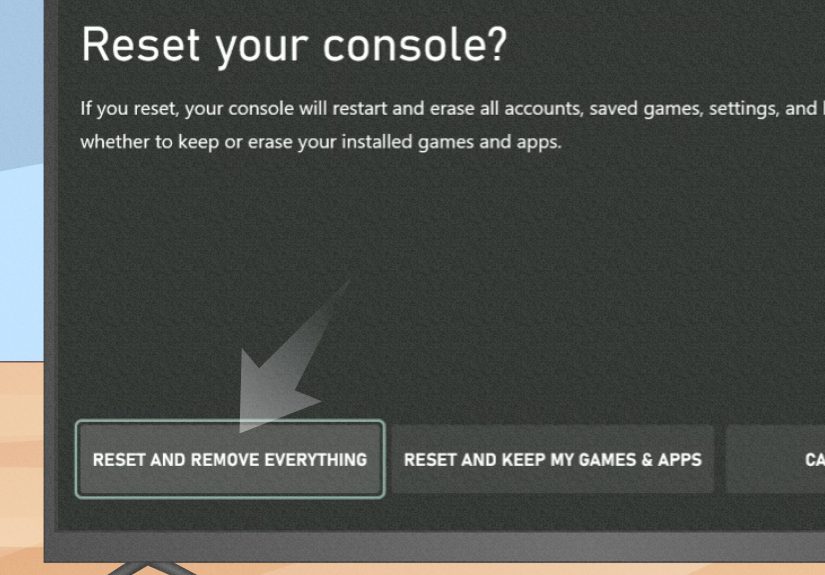
Method 4: Full Factory Reset and Remove Everything
This is the nuclear option. Use it if you are selling the console, gifting it, trading it in, or dealing with a serious problem that survived every lighter reset.
- Press the Xbox button on your controller.
- Go to Profile & system > Settings.
- Select System > Console info > Reset console.
- Choose Reset and remove everything.
This erases user profiles, local settings, installed games, apps, and personal data on the console. If you are preparing the console for sale, this is the correct move. You do not want a stranger enjoying your subscription while judging your game library.
How to Hard Reset an Xbox That Will Not Boot Normally
If your console will not reach the dashboard, you may need the Xbox Startup Troubleshooter. This built-in recovery menu can help you reset the console or run an offline system update.
For Xbox Series X
- Turn the console completely off.
- Press and hold the Pair button and the Eject button.
- While holding both, press the Xbox power button on the console.
- Keep holding Pair and Eject until you hear the startup tones.
- When the troubleshooter appears, choose the needed option.
For Xbox Series S
Because the Series S does not have an eject button, the recovery method is slightly different.
- Turn the console completely off.
- Press and hold the Pair button.
- Press the Xbox power button.
- Keep holding the Pair button until the startup troubleshooter appears.
What you can do in the Startup Troubleshooter
- Reset this Xbox if the console is stuck in a startup loop
- Offline System Update if a software update failed and the system will not start correctly
If your Xbox displays an “E” error code, the troubleshooter and offline system update path may be especially helpful.
Common Problems a Hard Reset Can Fix
Game crashes and dashboard freezes
Temporary cache corruption can make the Xbox feel clunky, especially after updates or repeated quick-resume sessions. A full shutdown often clears that out.
Black screen issues
If your Xbox powers on but the display stays black, a hard reset is one of the first fixes worth trying before you start blaming your TV, HDMI cable, or the universe.
Disc-reading issues on Series X
When the disc drive refuses to cooperate, many troubleshooting guides recommend a full power cycle before assuming hardware failure. It is simple, harmless, and surprisingly effective.
Slow performance
If the console boots slowly, apps drag, or menus feel sticky, a hard reset can help clear out temporary clutter. If the slowdown keeps coming back, a reset that keeps games and apps may be the better long-term fix.
What a Hard Reset Will Not Fix
As magical as it feels when it works, a hard reset is not a cure for everything.
- It will not repair a failing SSD or damaged internal hardware
- It will not permanently fix internet outages from your modem or ISP
- It will not rescue corrupted game files every time
- It will not solve overheating caused by blocked vents or heavy dust buildup
If your Xbox repeatedly crashes after resets, shows recurring startup errors, or shuts off unexpectedly, it may be time for deeper troubleshooting or official repair support.
Best Practices After the Reset
- Check for a system update
- Launch the game or app that was failing
- Verify your network connection
- Re-sync any accessories if needed
- Make sure the console has good airflow and clean vents
If the problem returns immediately, move from a power cycle to Reset and keep my games & apps. That is often the smartest next step.
Which Reset Option Should You Choose?
| Situation | Best Reset Option |
|---|---|
| Minor freezing or lag | Restart console |
| Black screen, stubborn glitch, app crashes | Hard reset by power cycle |
| System problems that keep returning | Reset and keep my games & apps |
| Selling, trading, or gifting the console | Reset and remove everything |
| Console will not boot normally | Startup Troubleshooter |
Final Thoughts
Knowing how to hard reset your Xbox Series X/S console is one of those small tech skills that pays off big. The process is quick, safe, and often surprisingly effective when your console starts misbehaving. The key is picking the right level of reset. Start small with a restart. Move up to a full power cycle when the console needs a firmer nudge. Use the “keep my games & apps” reset when software corruption seems likely. Save the full wipe for trade-ins, hand-me-downs, or truly stubborn system trouble.
In other words, do not swing a sledgehammer when a well-timed reboot will do. Your Xbox, your download queue, and your patience will all appreciate that.
Real-World Experience: What It Feels Like to Hard Reset an Xbox Series X/S
In real life, hard resetting an Xbox Series X or Series S usually starts with a tiny moment of denial. The game freezes, the dashboard hangs, or the screen goes black, and your first instinct is not “Ah yes, a controlled troubleshooting process.” It is usually something more elegant, like staring at the TV and saying, “Seriously?”
What surprises a lot of people is how often a proper hard reset actually works. Not a half-hearted tap of the power button. Not turning off the TV and pretending that counts. A real shutdown, followed by unplugging the console for a short pause, is often enough to clear temporary weirdness. For many players, that fix feels almost suspiciously simple, like finding out the solution to a stressful problem was “close the app and open it again,” except this time the app is a very expensive game console.
One common experience is with Quick Resume. It is a fantastic feature until a game resumes in exactly the wrong mood. Audio may desync. Menus may stutter. A title may act like it woke up on the wrong side of the SSD. After a hard reset, the console often feels cleaner and more stable, and the same game suddenly behaves like nothing ever happened. That is both reassuring and mildly insulting.
Another frequent scenario happens after updates. Sometimes the console technically updates fine, but something feels off afterward. Downloads stall. Sign-in takes too long. The home screen becomes slower than a loading bar in a bad joke. A hard reset can clear the leftover clutter and restore normal performance. It is not dramatic, but it is effective, which is exactly what you want from troubleshooting.
For families, the “Reset and keep my games & apps” option can be a lifesaver. It sounds scary at first because the word reset tends to make people imagine total digital destruction. But in practice, it is often the best middle ground. You get a fresh operating system without spending the next twelve hours redownloading giant games that somehow require the storage footprint of a small moon.
There is also the emotional difference between resetting a Series X and a Series S. The Series X, with its disc drive and larger body, feels like a machine you can negotiate with. The Series S feels more like a polite cube that still somehow finds ways to be dramatic. Both respond well to proper reset steps, but the Series S recovery path can confuse people because there is no eject button. Once you know to use the Pair button alone for startup troubleshooting, the process feels much less mysterious.
The biggest lesson from real-world use is simple: do the lightest reset that matches the problem. Start with a restart. Move to a hard reset. Use the settings-based reset only when smaller fixes fail. That order saves time, protects your data, and keeps a bad evening from becoming a full weekend project. Troubleshooting is never glamorous, but when your Xbox finally boots normally and launches your game without protest, it feels like winning a very nerdy little victory.