Table of Contents >> Show >> Hide
- What Does “Idle” Mean in Microsoft Teams?
- Method 1: Set Your Teams Status Manually When Your Work Mode Changes
- Method 2: Use a Status Message to Explain What You Are Doing
- Method 3: Adjust Windows Power and Sleep Settings Responsibly
- Method 4: Keep Teams Open, Updated, and Synced Across Devices
- Method 5: Use Calendar Blocks and Focus Time to Prevent Misread Availability
- Method 6: Build Team Norms Around Response Times, Not Status Dots
- What Not to Do: Avoid Fake Activity Tricks
- Quick Checklist: How to Keep Teams from Going Idle the Right Way
- Real-World Examples
- Experience-Based Insights: What Actually Works in Daily Team Life
- Conclusion
Microsoft Teams has become the office watercooler, meeting room, file cabinet, and “quick question” machine all rolled into one. It helps remote and hybrid teams stay connected, but there is one tiny colored dot that can cause surprisingly large amounts of workplace drama: the status indicator. One moment you are reading a report, thinking deeply, or sketching ideas on paper. The next moment, Teams quietly marks you as “Away,” and suddenly it looks like you have vanished into the digital wilderness.
Learning how to keep Teams from going idle is not about tricking your employer, pretending to work, or building a secret mouse-moving robot like a tiny office hamster. The better goal is to prevent unnecessary interruptions, reduce status confusion, and make your real availability easier for coworkers to understand. Teams presence is designed to show whether someone is available, busy, in a meeting, presenting, away, or offline. However, because Teams can respond to desktop inactivity, sleep settings, meetings, calendar events, and manual status choices, your status may not always tell the full story.
This guide explains six simple, practical, and professional methods to keep Microsoft Teams from going idle when you are genuinely working. You will learn how to use status settings, status messages, calendar habits, device power options, notifications, and team communication rules to create a more accurate availability signal. In other words, fewer “Are you there?” messages and more actual work. A miracle? Not quite. But close enough for a Tuesday.
What Does “Idle” Mean in Microsoft Teams?
In Microsoft Teams, “idle” usually refers to the moment your status changes from Available to Away because Teams detects inactivity on your device. This can happen when your computer locks, enters sleep mode, or has no recent activity for several minutes. Teams may also display other statuses automatically when you are in a meeting, on a call, presenting, using Do Not Disturb, or marked Out of Office through your calendar.
The issue is that being “inactive” on a keyboard or mouse does not always mean you are not working. You might be reading a long document, reviewing a legal contract, planning a project on a whiteboard, taking notes by hand, watching a training video, or thinking through a complex problem. Knowledge work is not always loud. Sometimes it looks like staring at a spreadsheet with the expression of someone trying to decode ancient treasure maps.
That is why the best approach is not to fight Teams, but to make your status and communication habits more accurate. When your coworkers know what you are doing and when you will respond, the color of your status dot becomes less dramatic.
Method 1: Set Your Teams Status Manually When Your Work Mode Changes
The simplest way to keep Teams from creating confusion is to manually set your status when your work mode changes. Teams allows users to choose statuses such as Available, Busy, Do Not Disturb, Be Right Back, Appear Away, and Offline. You can also set a duration for certain statuses so they reset automatically later.
When to Use Manual Status
Manual status is especially useful when you are starting focused work, joining a long meeting, stepping away briefly, or doing work that does not involve constant computer activity. For example, if you are reviewing a printed report for 45 minutes, setting your status to Busy with a clear status message is better than letting Teams quietly flip you to Away and letting everyone guess whether you are working, missing, or fighting with the printer.
Simple Example
Instead of leaving your status to chance, set it intentionally:
- Available: Use when you are open to chat and quick questions.
- Busy: Use when you are working but do not want unnecessary interruptions.
- Do Not Disturb: Use during deep work, presentations, or high-focus tasks.
- Be Right Back: Use when stepping away briefly.
This method does not force Teams to stay green forever, and that is a good thing. A permanently green status can create unrealistic expectations. The better goal is an honest signal that matches your real work mode.
Method 2: Use a Status Message to Explain What You Are Doing
A status dot gives people a hint. A status message gives people context. If Teams shows you as Busy or Away, a short status message can prevent confusion and reduce unnecessary follow-up messages.
Teams lets you write a custom status message and choose how long it stays visible. You can also make the message appear when someone messages or mentions you. This is one of the most underrated ways to keep Teams communication clean, because it tells people what to expect without requiring you to answer the same question five times.
Status Message Examples
- “Reviewing client documents until 2:30 PM. I’ll reply after that.”
- “In focus mode working on the Q3 report. Please call if urgent.”
- “Reading and annotating offline materials. Back on chat at 11:15 AM.”
- “At lunch until 1:00 PM. For urgent issues, contact Maya.”
These messages are professional, direct, and refreshingly human. They also help teammates avoid assuming that an Away status means you are ignoring them. In many workplaces, confusion creates more stress than the actual delay. A clear status message solves that problem before it starts.
Method 3: Adjust Windows Power and Sleep Settings Responsibly
If your computer goes to sleep too quickly, Teams may stop showing your active presence accurately. Windows includes power and sleep settings that control when your screen turns off, when your device sleeps, and how battery-saving features behave. Adjusting these settings can help prevent Teams from going idle during legitimate work sessions, especially when you are reading, presenting, monitoring dashboards, or attending long meetings.
What to Check
On Windows 11, power and sleep settings are usually found under Settings > System > Power & battery. From there, you can review screen timeout, sleep timeout, and related energy settings. The exact options may depend on whether your device is plugged in, running on battery, or managed by your organization.
A reasonable setup might keep the screen awake longer when plugged in while still allowing shorter sleep times on battery. This gives you a practical balance: Teams does not go idle during active work, but your laptop also does not become a portable space heater.
Important Workplace Note
If your company manages your device, do not bypass IT policies. Some organizations set power rules for security, compliance, battery health, or energy savings. If your device sleeps too aggressively and disrupts your work, ask IT for an approved adjustment. That is much better than installing random tools from the internet and hoping your security team does not appear behind you like a cybersecurity ghost.
Method 4: Keep Teams Open, Updated, and Synced Across Devices
Teams presence works best when the app is running properly. If Teams is closed, outdated, frozen, disconnected, or competing with multiple sessions across devices, your status may not reflect what you are actually doing.
Practical App Habits
- Keep the Teams desktop app open during work hours if your organization uses it as the main communication tool.
- Restart Teams if your status seems stuck or inaccurate.
- Keep the app updated to benefit from bug fixes and performance improvements.
- Check whether Teams is open on both desktop and mobile, because presence may behave differently across devices.
- Use the web version only when needed, but avoid running too many active sessions if they create confusion.
Sometimes the solution is not complicated. Teams may simply need a refresh. If your status shows Away after you return to your computer, try interacting with the desktop app, resetting your status, or restarting the app. It is not glamorous, but neither is unplugging and replugging a routerand somehow that still fixes half the modern world.
Method 5: Use Calendar Blocks and Focus Time to Prevent Misread Availability
Your Teams status is influenced by your calendar. If your calendar says you are in a meeting, Teams may show you as Busy or In a Meeting. If you are presenting, Teams may enable Do Not Disturb to prevent interruptions. This connection can be extremely helpful when used intentionally.
One of the best ways to keep Teams from looking idle during real work is to schedule focus blocks on your calendar. A focus block tells your coworkers, “I am working, but I am not instantly available.” This is especially useful for writing, analysis, coding, reporting, research, planning, or any task that requires concentration.
How to Use Focus Blocks
Create calendar events for deep work and label them clearly. For example:
- “Focus Time: Monthly Budget Review”
- “Project Planning: No Meetings”
- “Writing Sprint: Client Proposal”
- “Research Block: Product Launch Notes”
When your calendar reflects your real work, your Teams presence becomes easier to interpret. Coworkers can see that you are busy rather than absent. Managers can understand where your time is going. You also protect yourself from the dreaded “quick sync” meeting that somehow consumes 47 minutes and produces one sentence of useful information.
Method 6: Build Team Norms Around Response Times, Not Status Dots
The most powerful method has nothing to do with settings. It has to do with culture. Teams should help people collaborate, not turn everyone into a professional dot-watcher. A green dot does not guarantee productivity. A yellow dot does not prove someone is slacking. A red dot does not mean someone has joined a secret society of calendar blockers. It simply means the system is showing an availability signal.
Create Clear Communication Rules
Teams work better when everyone understands how quickly messages should be answered. For example, your team might agree on these norms:
- Chat messages should usually be answered within two business hours.
- Urgent issues should be marked clearly and sent through the agreed urgent channel.
- Project updates should go in channels, not scattered private chats.
- Focus time should be respected unless there is a true emergency.
- Status messages should explain unusual availability changes.
These rules reduce pressure and improve trust. Instead of asking, “Why were you Away?” the team asks, “Did the work move forward?” That is a much healthier question.
What Not to Do: Avoid Fake Activity Tricks
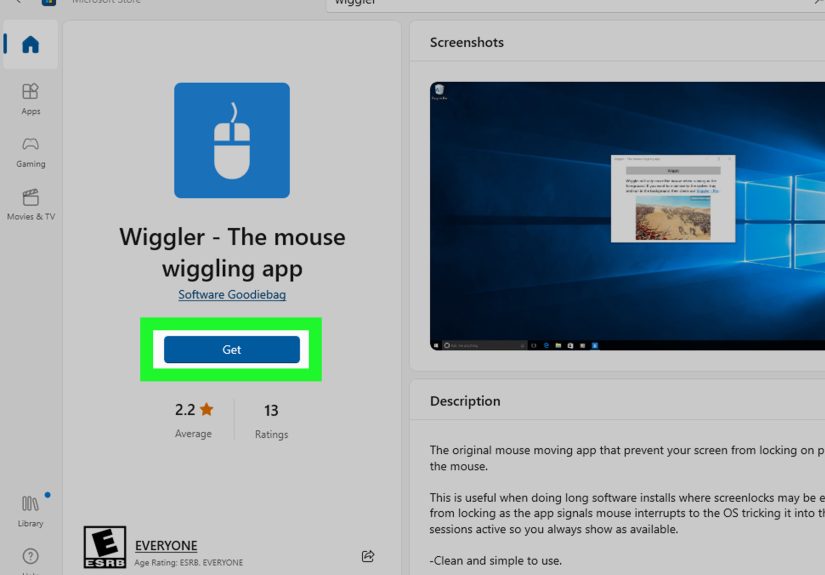
Any article about keeping Teams from going idle should address the elephant in the conference room: fake activity tools. Some people use mouse jigglers, scripts, automated keystrokes, or other tricks to keep Teams showing as Available. These methods may seem clever for about eight seconds, but they create bigger problems than they solve.
First, fake activity can violate workplace policies. Second, it damages trust if discovered. Third, it does not improve actual collaboration. And finally, it may create security risks if you install unapproved software or leave a device unlocked longer than you should. The goal is not to fool Teams. The goal is to make Teams reflect real work more accurately.
If you are constantly worried that your manager is judging you by your Teams status, that is a management problem, not a technology problem. The professional solution is clearer expectations, better workload visibility, and transparent communicationnot digital tap dancing.
Quick Checklist: How to Keep Teams from Going Idle the Right Way
- Set your status manually when changing work modes.
- Add a short status message during focus work or offline tasks.
- Adjust approved Windows power and sleep settings.
- Keep Teams open, updated, and synced properly.
- Use calendar focus blocks for deep work.
- Agree on response-time norms with your team.
- Avoid fake activity tools, scripts, or mouse jigglers.
Real-World Examples
Example 1: The Report Reader
Jordan spends an hour reviewing a printed financial report. Teams marks him as Away after several minutes, even though he is fully working. The fix is simple: Jordan blocks “Financial Review” on his calendar, sets Teams to Busy, and adds a status message saying he will respond after 3:00 PM. Now his team knows he is working, not missing.
Example 2: The Remote Designer
Priya sketches interface ideas on paper before moving them into design software. During sketching, Teams may show inactivity. She sets a recurring morning focus block, keeps Teams open, and uses a status message: “Design sprint in progress. Checking messages at 11:30.” Her availability becomes clear without constant chat interruptions.
Example 3: The IT Support Lead
Marcus monitors several dashboards during a maintenance window. His computer screen must stay on, but he also needs to follow company security rules. He asks IT to approve adjusted sleep settings for plugged-in work sessions. The result: fewer false Away signals, better monitoring, and no policy headaches.
Experience-Based Insights: What Actually Works in Daily Team Life
In real workplaces, the Teams idle problem is rarely just a software problem. It is usually a communication problem wearing a software costume. People become anxious about Teams status when expectations are unclear. If your boss expects instant replies but never says so, every yellow dot feels suspicious. If teammates send vague messages like “Hi” and then wait for a reply before explaining what they need, collaboration slows down. If everyone treats Teams like a live surveillance feed, people start managing appearances instead of outcomes.
The best teams I have seen handle this differently. They do not obsess over whether someone is green, yellow, or red. They create simple rituals that make work visible. For example, a team might post a short daily update in a project channel: “Today I’m finishing the landing page draft, reviewing analytics, and waiting on legal feedback.” That one message does more for productivity than staring at someone’s presence indicator all morning.
Another useful habit is setting “communication windows.” Instead of trying to answer every message instantly, workers check Teams at natural intervals: start of day, before lunch, midafternoon, and before signing off. This helps people stay responsive without letting chat swallow the entire workday. When paired with a good status message, this approach feels professional rather than distant.
Focus blocks also work better when leaders model them. If only junior employees use Busy status, it can look like they are avoiding work. But when managers block focus time too, it becomes normal. The team learns that deep work is part of the job, not a suspicious activity. This is especially important for writers, developers, analysts, designers, accountants, and anyone else whose best work requires long stretches of concentration.
One practical experience is that status messages should be short. Nobody wants to read a tiny autobiography in your Teams status. A good message answers three questions: What are you doing? When will you respond? What should people do if it is urgent? For example: “In focus work until 2 PM. Please call for urgent issues.” That is clear, polite, and useful.
Another lesson: do not overuse Do Not Disturb. If you stay in Do Not Disturb all day, people may stop trusting your status. Use it for real focus sessions, presentations, interviews, sensitive calls, or deadline work. For regular busy periods, Busy plus a status message is often enough.
Finally, remember that Teams is a tool, not a personality test. A good employee may appear Away while reading a complex document. A distracted employee may appear Available while scrolling through vacation rentals. Status is only one signal, and it is not always the most important one. The healthiest teams measure progress through delivered work, clear communication, and reliable follow-through. That is how you keep a team truly activenot just digitally awake.
Conclusion
Knowing how to keep Teams from going idle is really about making your availability more accurate, professional, and easy to understand. The best methods are simple: use manual status settings, write helpful status messages, adjust approved power settings, keep Teams running smoothly, schedule focus blocks, and build team norms around response times instead of status colors.
Microsoft Teams can support excellent collaboration, but only when people use it thoughtfully. Do not waste energy trying to look active every second. Instead, create a workflow where your teammates know when you are available, when you are focused, and when they can expect a reply. That approach keeps Teams from going idle in the way that matters most: it keeps communication alive, trust healthy, and work moving forward.
Note: This article is based on current Microsoft Teams and Windows guidance, practical remote-work collaboration principles, and widely recognized workplace productivity best practices. It intentionally focuses on ethical, policy-friendly methods rather than fake activity tools or status manipulation.