Table of Contents >> Show >> Hide
- Step 1: Define Your Calculator’s “Job Description” (Before You Write Code)
- Step 2: Use CMD’s Built-In Mini Calculator (So You Know What You’re Building On)
- Step 3: Create a Batch File Skeleton (The Part Where It Becomes a “Program”)
- Step 4: Understand CMD Math Quirks (So Your Calculator Doesn’t “Lie”)
- Step 5: Add Optional Decimal Support (PowerShell “Turbo Mode”)
- Step 6: Polish, Troubleshoot, and Make It Easy to Run
- Frequently Asked Questions
- Field Notes: of Real Experience Building a CMD Calculator
- Conclusion
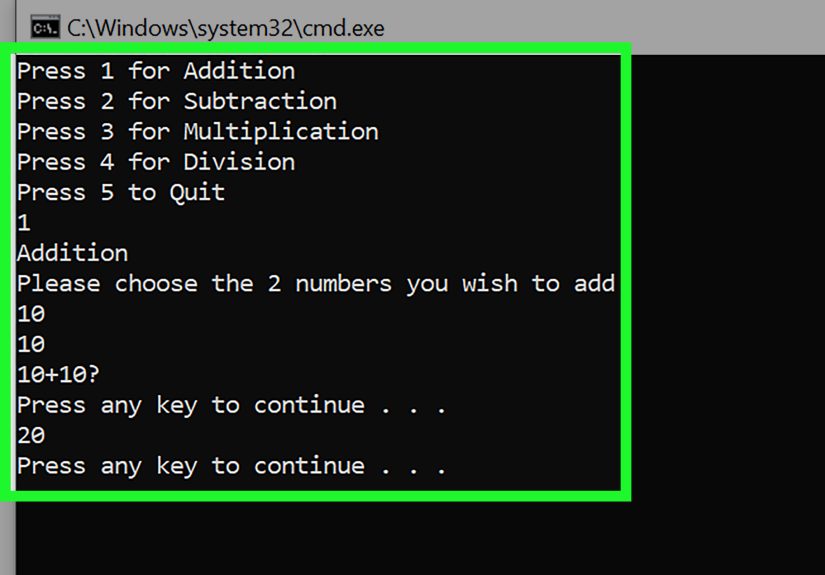
Want a calculator that launches faster than your brain can say “where’s the Windows Calculator app again?” Good news: Command Prompt already has math baked in. Even better news: with one batch file, you can turn that math into a friendly little menu-driven calculator you can run anywhereno mouse, no icons, no distractions, just vibes and variables.
This guide walks you through six practical steps to build a Command Prompt calculator using a Windows batch file (.bat). You’ll get a working script, learn why CMD sometimes “forgets” what decimals are, and pick up a few real-world fixes that keep your calculator from face-planting when a user types something wild like banana instead of 42.
Step 1: Define Your Calculator’s “Job Description” (Before You Write Code)
A calculator can be a tiny one-liner, a menu-based tool, or a full-on expression parser. In Windows CMD, the sweet spot for a quick project is a menu-driven batch calculator that supports the essentials:
- Addition, subtraction, multiplication
- Division (with a clear warning about integer-only behavior)
- Modulo (remainder)
- Optional: exponent/power for small integers
Decide upfront: integers only, or decimals too?
CMD’s built-in arithmetic via set /a is famously old-school: it’s fast and handy, but it’s designed around 32-bit signed integers. That means division like 7/2 becomes 3 (CMD shrugs and walks away with the remainder). If you want decimals, you’ll typically “borrow” a real math enginemost commonly PowerShell.
For this tutorial, we’ll build the main calculator as integer-first (simple, reliable, and great for learning), then show an optional decimal upgrade.
Step 2: Use CMD’s Built-In Mini Calculator (So You Know What You’re Building On)
Before you write a batch file, meet your calculator’s engine: set /a. In Command Prompt, this evaluates arithmetic expressions and can store results in variables. Here are a few quick examples you can try immediately:
Operator precedence is real (and CMD is not sentimental)
CMD follows precedence rules similar to many programming languages. If you’re ever unsure, use parentheses. Parentheses are the duct tape of math.
Pro tip: quote “weird” operators
Some operatorslike bit shiftingcan be misread by the command shell as redirection. So if you ever do shifts, wrap the expression in quotes:
This matters because you’re not just writing mathyou’re writing math inside a command shell that also loves interpreting symbols as “do something else entirely.”
Step 3: Create a Batch File Skeleton (The Part Where It Becomes a “Program”)
Open Notepad (or any plain-text editor), and start a new file. You’ll save it as something like: cmd-calculator.bat. The skeleton below sets up a clean environment, prints a menu, and routes the user to the chosen operation.
Full working script: menu-based Command Prompt calculator
What this script is doing (in human terms)
- Menu input:
choicecollects a single keypress and setserrorlevel. - Safe number input:
findstrchecks that the user typed an integer. - Math engine:
set /aperforms the calculation. - Guardrails: division/modulo by zero are blocked, and power only allows non-negative exponents.
Step 4: Understand CMD Math Quirks (So Your Calculator Doesn’t “Lie”)
Your calculator is now functional. But to make it trustworthy, you need to understand CMD’s behavior. Most “my batch calculator is broken” issues are really “CMD did exactly what it always does, and I didn’t know that.”
Quirk #1: Division is integer division
In CMD batch math, set /a 5/2 becomes 2. Not 2.5. Not 2.50. Just 2. This is not a bug. It’s a lifestyle.
If you want to make this user-friendly, print a small note in your UI, like:
Quirk #2: Parentheses save lives
If you’re calculating something like 100/(A/B+1), parentheses matter. A lot. And because CMD truncates fractional division, you can also get “surprising” results if A/B isn’t clean. When accuracy matters, either scale up (fixed-point math) or switch to PowerShell for floating point.
Quirk #3: 32-bit signed integer limits
The set /a engine is built around 32-bit signed integers. If you try to multiply two large numbers, you can overflow and get nonsense. That’s not your calculator being dramaticit’s math in a small box.
Step 5: Add Optional Decimal Support (PowerShell “Turbo Mode”)
If you want your Command Prompt calculator to handle decimals, the simplest upgrade is to let PowerShell do the heavy lifting for division (or all operations). PowerShell supports floating-point arithmetic and a full set of arithmetic operators.
Example: decimal division using PowerShell from a batch file
You can drop this into your divide branch as an alternate mode:
That turns 7/2 into 3.5, which feels much more like “calculator behavior” and less like “a stern accountant rounding everything down.”
Safety note (small but important)
Don’t pass raw user-typed expressions straight into PowerShell without validation. Keep the pattern we used here: accept numbers, accept a known operation, then build the command yourself. That’s how you keep your “calculator project” from turning into “a script that executes whatever someone types.”
Step 6: Polish, Troubleshoot, and Make It Easy to Run
A calculator you can run once is neat. A calculator you can run whenever you want is a tool. Here are the finishing touches that make your batch calculator feel legit.
Make sure it saves as a real .bat file
- In Notepad: File → Save As
- Set Save as type to All Files
- Name it:
cmd-calculator.bat
Run it from Command Prompt (or Windows Terminal)
Navigate to the folder where you saved it, then run:
Make it runnable from anywhere (optional but satisfying)
Put the .bat file in a folder that’s on your PATH (or add your scripts folder to PATH). Then you can type your calculator name from any directory like it’s a built-in command.
Common “why isn’t this working?” fixes
- Menu selection weirdness: Remember that
choicesetserrorlevelbased on the option index, not the character. - Unexpected math: Use parentheses and remember integer division truncation.
- Special characters: Symbols like
>,<,|, and&are shell operatorsescape them if you echo them in fancy ways. - Decimals rejected: That’s by design in our integer validator. Switch validators if you enable PowerShell float mode.
Frequently Asked Questions
Is set /a the only way to do math in CMD?
For built-in CMD arithmetic, yesset /a is the primary tool. That’s why it’s the backbone of most Windows CMD calculator scripts.
Can this calculator handle full expressions like (2+3)*7?
Not as written. This version is “two numbers + one operation.” You can expand it, but parsing arbitrary expressions in batch is a whole separate hobby (and a great way to learn why programming languages exist). If you need full expression parsing, you’ll typically lean on PowerShell or a compiled CLI calculator.
Can I make it look nicer?
Absolutely. Add colors, ASCII borders, help screens, history logs, or even a “scientific mode.” Just remember: every new feature is also a new place for CMD to remind you it was born in another era.
Field Notes: of Real Experience Building a CMD Calculator
The first time you build a command prompt calculator, it feels like you’ve hacked the Matrixuntil the Matrix responds with 3 when you expected 3.5. That’s usually the moment you learn the most important truth about batch scripting: CMD is capable, but it has opinions. Strong ones.
My earliest “calculator” was just set /a typed directly into the prompt. It was fast, satisfying, and perfect for quick sanity checksuntil I tried dividing anything that didn’t divide cleanly. The truncation isn’t wrong, but it’s not what people expect from a calculator. That’s why I now label integer division clearly, or I route division through PowerShell when decimals matter. The big lesson: when your tool behaves differently than users expect, the fix isn’t always more codesometimes it’s a better explanation.
Input validation was the next surprise. If you only use set /p, someone will eventually type something like 12,000 or 7.2 or (in a truly inspired moment) cat. Batch files are happy to accept that input…and then your math line fails in ways that feel personal. Using findstr as a gatekeeper is a simple upgrade that makes the script feel “professional,” even if the UI is still basically vibes and ASCII.
The menu is where the project starts feeling fun. I used to grab user input with set /p and compare strings, but choice is cleaner for single-keystroke menus and reduces the number of weird edge cases. The only “gotcha” is that errorlevel is based on the index of your choices, not the literal character. Once you internalize that, menus become a superpower: you can build loops, submenus, and even “modes” like integer mode vs decimal mode.
The most time-consuming bugs were never the maththey were the shell rules. Characters like &, |, and ></code mean things in CMD, and they will happily hijack your intentions if you echo them without thinking. I’ve lost time to a missing caret escape, a misplaced parenthesis, and one tragic case where my “pretty” output formatting accidentally redirected text into a file instead of the screen. That pain is oddly educational: it teaches you to respect the environment you’re scripting in.
In the end, a command prompt calculator is less about building the world’s best calculator and more about learning how Windows scripting actually behaves. You walk away understanding variable expansion, control flow, input handling, and why people still reach for PowerShell when they want “real math.” And you get a tiny tool you can run anytime you need quick arithmeticno app switching, no mouse travel, no drama. (Okay, minimal drama.)
Conclusion
Building a Command Prompt calculator is one of those deceptively simple projects that teaches you a lotfast. In six steps, you went from CMD’s built-in set /a arithmetic to a menu-driven batch file calculator with validation, guardrails, and an optional decimal upgrade using PowerShell. If you want to expand it next, add a “decimal mode,” support more operations, or save a calculation history to a log. Just remember: CMD will cooperate… as long as you speak its language.