Table of Contents >> Show >> Hide
- Why “Hotmail on My Desktop” Really Means Outlook.com
- Step 1: Sign In to Your Hotmail Account the Right Way
- Step 2: Install Hotmail as a Desktop App in Edge or Chrome
- Step 3: Create a Desktop Shortcut if You Just Want One-Click Access
- Step 4: Pin Hotmail Where It Is Easy to Reach
- Step 5: Use the Outlook Desktop App if You Want a More Powerful Setup
- Which Method Is Best?
- Common Problems and How to Fix Them
- Why Putting Hotmail on Your Desktop Is Actually Worth It
- Final Thoughts
- Experiences Related to “How to Put Hotmail on My Desktop: 5 Steps”
If you are trying to figure out how to put Hotmail on your desktop, congratulations: you are not confused, you are just dealing with Microsoft branding. Hotmail still exists as an email address for many people, but the service now lives under Outlook.com. So when someone says, “I want Hotmail on my desktop,” what they usually mean is this: “I want one-click access to my email without hunting through browser tabs like a raccoon in a kitchen drawer.”
The good news is that putting Hotmail on your desktop is easy. The even better news is that you have more than one way to do it. You can install it as a desktop-style web app, create a shortcut, pin it to your taskbar, or add your Hotmail account to the Outlook desktop app. The best choice depends on whether you want speed, simplicity, or a more full-featured email setup.
In this guide, you will learn how to put Hotmail on your desktop in 5 steps, plus which method makes the most sense for your device and habits. No tech wizard hat required. A browser and a tiny bit of clicking will do the trick.
Why “Hotmail on My Desktop” Really Means Outlook.com
Before jumping into the steps, let’s clear up the name game. If your email ends in @hotmail.com, you still use that address. Microsoft did not toss it into the internet attic. But the platform itself was redesigned as Outlook.com. That means your Hotmail inbox is typically accessed through Outlook on the web or through the Outlook app.
That matters because when you create a desktop shortcut or install the site as an app, you are usually adding Outlook.com to your desktop, not some separate “Hotmail software.” Same email. New front door. Less 1998, more modern convenience.
Step 1: Sign In to Your Hotmail Account the Right Way
The first step is simple: open your browser and go to Outlook.com. Sign in using your Hotmail email address and password. If you have two-step verification turned on, complete that too. Once you are in your inbox, keep that page open. This is the page you will turn into a desktop shortcut or app.
This step seems almost too obvious to mention, but it matters. If you create a shortcut before signing in, you may end up with a desktop icon that dumps you at a generic sign-in page every time. That is not a disaster, but it is not the smooth, click-and-go experience most people want.
Pro tip: make sure you are signed into the correct Microsoft account before moving on. Plenty of people have an old Hotmail account, a newer Outlook account, a work account, and at least one mystery login they swear they never created. Pick the inbox you actually use.
Step 2: Install Hotmail as a Desktop App in Edge or Chrome
This is the cleanest option for most people. If you use Microsoft Edge or Google Chrome, you can install Outlook.com as a desktop-style app. That means it opens in its own window and feels more like a real mail program than a website hiding inside a browser tab.
How to do it in Microsoft Edge
- Open Outlook.com and sign in to your Hotmail account.
- Click the three-dot menu in the upper-right corner of Edge.
- Select Apps, then choose Install this site as an app.
- Give it a name if you want, such as “Hotmail” or “My Email.”
- Click Install.
Once installed, the app can appear on your desktop, Start menu, or taskbar depending on your system settings. It opens in a separate window, which is perfect if you like your email to behave like an actual desktop app instead of living among seventeen browser tabs and one video you forgot to pause.
How to do it in Google Chrome
- Open Outlook.com in Chrome and sign in.
- Click the three-dot menu.
- Choose Cast, save, and share.
- Select Install page as app or Create shortcut, depending on what Chrome shows.
- Confirm the name and create the app.
This method is excellent if you want quick access, a cleaner window, and fewer distractions. It also tends to look more polished than a plain shortcut because it behaves like a lightweight email app.
Step 3: Create a Desktop Shortcut if You Just Want One-Click Access
Not everyone wants an app-style setup. Sometimes you just want a desktop icon that opens your inbox when clicked. Fair enough. That is the digital version of putting your keys in the same bowl every day: simple, reliable, and weirdly satisfying.
In Chrome
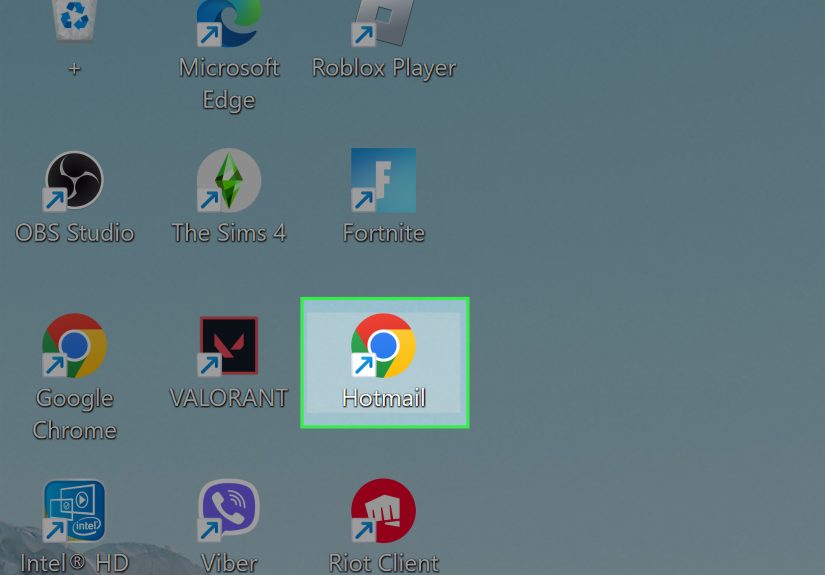
If Chrome offers Create shortcut, use it. That gives you a desktop icon that launches Outlook.com quickly. You can rename it “Hotmail” so it feels familiar and easy to spot.
In Firefox
Firefox handles this a little differently. Open your Hotmail inbox in Firefox, resize the browser so you can see your desktop, then drag the lock icon from the address bar to the desktop. That creates a shortcut to the site.
This is a great option if you do not care whether Hotmail opens in a browser window. It is fast, easy, and perfect for people who mainly want to stop typing the website address over and over again.
Step 4: Pin Hotmail Where It Is Easy to Reach
Once you have your shortcut or app, do yourself a favor and pin it somewhere obvious. Your desktop is nice, but if your screen looks like a yard sale for icons, the shortcut may disappear under screenshots, random PDFs, and that file called “final-final-REALLYfinal.docx.”
Here are the best places to pin it:
- Taskbar: Great for one-click access all day long.
- Start menu: Useful if you prefer a cleaner desktop.
- Desktop: Best if you like visual shortcuts right in front of you.
On Windows, if the app is open, you can usually right-click its icon on the taskbar and choose Pin to taskbar. That way, even if you close it, the icon stays there for easy access later.
If you installed Outlook.com as a web app in Edge, you may also see options that make it easier to launch automatically or manage it like a regular app. That is handy if checking email is part of your morning routine, right after coffee and right before pretending you are not avoiding your inbox.
Step 5: Use the Outlook Desktop App if You Want a More Powerful Setup
If you want more than a shortcut, the Outlook desktop app is worth considering. This option is best for people who manage a lot of email, want built-in notifications, or like having mail, calendar, and contacts in one place.
In the current Outlook for Windows experience, Hotmail accounts are supported. That means you can add your @hotmail.com address directly to the Outlook app and use it like a traditional desktop email client.
How to add Hotmail to Outlook for Windows
- Open Outlook for Windows.
- Go to account settings or the accounts area.
- Select Add Account.
- Enter your Hotmail email address.
- Follow the prompts to sign in and finish setup.
This approach is ideal if you want desktop notifications, better multi-account management, and less dependence on a browser. It is also a smart move if you already use Outlook for work or school and want your personal Hotmail account in the same place.
Which Method Is Best?
There is no one-size-fits-all answer, so here is the easy breakdown:
Choose a web app if…
- You want Hotmail to feel like a real desktop program.
- You use Edge or Chrome.
- You want clean, separate windows for email.
Choose a desktop shortcut if…
- You want the fastest possible setup.
- You do not mind opening Hotmail in your browser.
- You just want one-click access from the desktop.
Choose Outlook for Windows if…
- You manage multiple accounts.
- You want calendar and contacts in one app.
- You prefer a fuller email experience with desktop features.
Common Problems and How to Fix Them
The icon opens the wrong account
You were probably signed into a different Microsoft account when you created the shortcut. Sign out, sign into the correct Hotmail account, and create the shortcut again.
The shortcut opens in a regular browser tab
That usually means you created a shortcut, not a web app. If you want a more app-like experience, use the Install this site as an app option in Edge or Install page as app in Chrome.
The app is missing from the desktop
Check the Start menu or app list. Sometimes the app installs successfully but is not dropped onto the desktop automatically. From there, you can pin it to the taskbar or create a manual desktop shortcut.
I want Hotmail to open when my computer starts
If you use an installed web app, some browsers offer an auto-start setting. On Windows, another workaround is placing a shortcut in the Startup folder. That is a more advanced option, but it works well for people who want their email ready the moment the desktop appears.
Why Putting Hotmail on Your Desktop Is Actually Worth It
This may sound like a tiny convenience, but it has a real effect on productivity. A dedicated Hotmail desktop icon cuts down on friction. That means fewer clicks, fewer distractions, and less time getting sidetracked by social media, shopping tabs, or whatever rabbit hole your browser was planning for you today.
It also helps less technical users. A parent, grandparent, or anyone who does not enjoy digging through bookmarks can click one obvious icon and get to email instantly. That kind of simplicity matters. Good tech should feel helpful, not like it wants to test your patience for sport.
Final Thoughts
If you have been wondering how to put Hotmail on your desktop, the answer is easier than it looks. In most cases, the best move is to open Outlook.com, sign in with your Hotmail account, and install it as a web app in Edge or Chrome. If you want something even simpler, a desktop shortcut works just fine. And if you want the full desktop email experience, add your Hotmail account to Outlook for Windows.
The key thing to remember is that Hotmail is now part of Outlook. Once you know that, the rest is just choosing the setup that matches your style. Some people want a full app. Some want a shortcut. Some want their email one click away because they are done playing hide-and-seek with browser tabs. All are valid life choices.
Experiences Related to “How to Put Hotmail on My Desktop: 5 Steps”
For many people, the experience of putting Hotmail on the desktop is less about technology and more about routine. It changes how email fits into the day. A student might use a desktop shortcut so class messages are always one click away before homework starts. A small business owner may install Outlook.com as an app because it keeps customer emails separate from the rest of the browser chaos. A parent might create a big, obvious Hotmail icon for a family computer so checking school notices feels easy instead of irritating.
One common experience is simple relief. Before creating a desktop app, people often open a browser, type in a website, sign in again, get distracted by another tab, then forget why they opened the computer in the first place. Once Hotmail sits on the desktop or taskbar, that friction disappears. Click the icon, open the inbox, move on with life. It sounds small, but small improvements are often the ones people keep using.
Another experience is familiarity. Many users still call it Hotmail because that is the address they have had for years. They may not care that Microsoft renamed the platform. They just want their old email account to feel easy and familiar again. Creating a desktop icon labeled “Hotmail” can actually make the experience feel more intuitive, especially for users who do not want to memorize new branding every few years because a tech company got bored.
There is also a confidence factor. People who are nervous about computers often feel more comfortable when an app or shortcut is visible on the desktop. They do not need to remember bookmarks, menus, or browser paths. The icon becomes a trusted starting point. For older adults, remote workers, or anyone who does not enjoy digital guesswork, that matters a lot. Technology becomes less of a puzzle and more of a tool.
Then there is the productivity angle. Users who install Hotmail as a web app often say it feels cleaner than opening mail in a browser tab. The separate window reduces clutter. Notifications feel more deliberate. The inbox becomes a destination rather than another tab squeezed between online shopping, news, and ten half-finished searches about why the printer is “making that sound again.”
In real life, the best experience usually comes from choosing the method that matches the person. Some users love the web app because it feels modern and tidy. Others prefer the shortcut because it is fast and familiar. A more advanced user may add Hotmail to Outlook for Windows and never think about browser access again. The point is not picking the fanciest setup. The point is making email easy enough that it stops being a chore and starts being just another smooth part of the day.