Table of Contents >> Show >> Hide
- Why “Hacking” a Locked Account Is the Wrong Move
- First, Figure Out What Kind of Account You Are Locked Out Of
- How to Recover Access on Windows
- How to Recover Access on a Mac
- How to Recover Access on a Chromebook
- What to Do for Work, School, and Family Devices
- What Not to Do When You Are Locked Out
- How to Protect Your Data During Recovery
- How to Avoid This Problem Next Time
- Final Thoughts
- Real-World Experiences: What Getting Locked Out Actually Feels Like
Getting locked out of your own computer is one of those modern-life moments that can ruin a perfectly decent day in under thirty seconds. One minute you are opening your laptop to finish a project, check a bill, or grab a file you definitely meant to back up yesterday. The next minute, the login screen stares back at you like a bouncer outside a club you technically own. Frustrating? Absolutely. Hopeless? Not even close.
If you are searching for ways to get into a password-protected computer account, the smartest move is not to look for shady “hacks.” It is to use legitimate account recovery steps that protect your data, your privacy, and your device. In this guide, we will walk through the safe and legal ways to recover access to a locked Windows PC, Mac, Chromebook, or managed school or work device. We will also cover what not to do, how to protect your files, and how to avoid this problem in the future.
Why “Hacking” a Locked Account Is the Wrong Move
Let’s start with the obvious but important part: trying to break into a password-protected account that is not yours is illegal and unethical. Even if the computer is physically sitting in front of you, that does not automatically give you the right to access the account on it. That is especially true for school laptops, work devices, shared household computers, and secondhand machines with old accounts still attached.
Even when the account is yours, using random bypass tricks from sketchy corners of the internet can make a bad situation worse. You could corrupt the operating system, trigger encryption protections, lose access to synced accounts, or permanently damage files you were trying to save. In other words, using bad advice to “save time” often turns a lockout into a mini disaster movie.
The safer path is official recovery. It may be less dramatic, but it works more often, protects your information, and does not leave you wondering whether you accidentally installed digital raccoons in your system.
First, Figure Out What Kind of Account You Are Locked Out Of
Before you do anything, identify the type of account involved. This matters because the recovery path depends on how the computer was set up.
1. Personal cloud-linked account
This includes accounts tied to services like a Microsoft account, Apple ID, or Google account. These are usually the easiest to recover because they often support password reset, recovery email, trusted devices, or identity verification.
2. Local account
A local account is stored only on the computer. It is not linked to a cloud identity. If you forgot the password for a local account and never set up recovery options, your choices may be more limited.
3. Work or school managed account
If the device belongs to a company or school, the right answer is simple: contact the administrator or IT department. Managed devices often have security policies, monitoring, encryption, and access controls that you should not try to bypass.
4. Shared or inherited computer
If you bought the device secondhand, inherited it, or received it from a family member, ownership of the hardware does not necessarily mean you should try to force access to the old user profile. The safest route is to confirm ownership and reinstall the system if needed.
How to Recover Access on Windows
Windows lockouts are common, especially when people switch between PINs, passwords, and cloud logins and then forget which one they actually used. The good news is that Microsoft offers several official recovery paths.
Use the official Microsoft account recovery process
If your Windows login is connected to a Microsoft account, use the official password recovery flow for that account. You may be able to verify your identity with a recovery email, phone number, authentication app, or security questions. Once your account password is reset, you can use the updated credentials to sign in to your computer.
Check whether you are confusing your PIN and password
A lot of people remember a device PIN but forget the full account password, or vice versa. On Windows, these are not always the same thing. If one does not work, look for sign-in options and confirm whether the screen expects a PIN, password, or biometric sign-in.
Use password hint and recovery options
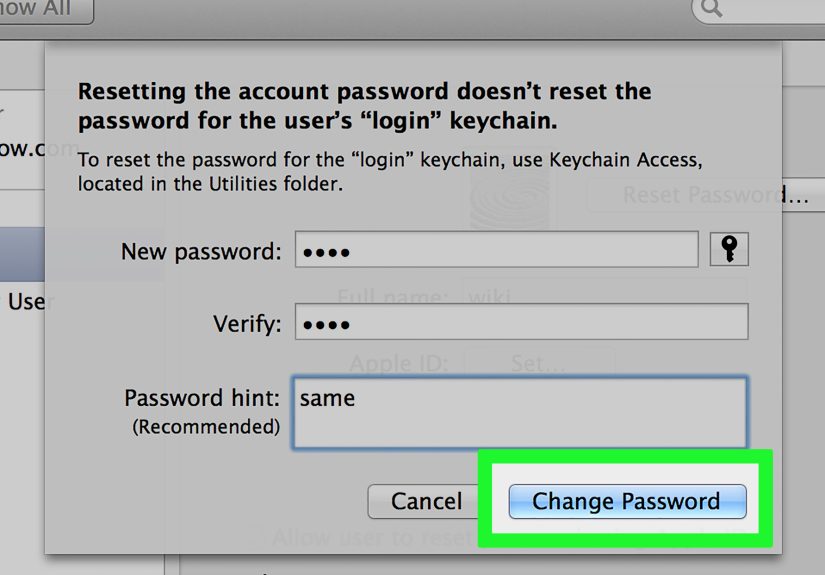
If you created a local account and set a password hint or recovery option, use it. This is not flashy, but it is often enough to jog your memory. And yes, the hint “same as usual but with symbol” may feel unhelpful in the moment, but it is still better than “banana?” written with false confidence.
Contact the device owner or admin for managed machines
If the PC belongs to work or school, the admin can usually reset credentials or reassign access properly. Do not try to “solve it yourself” on a managed device. That is the digital equivalent of trying to repair an airplane seatbelt with a butter knife.
Prepare for a system reset if recovery fails
If you cannot recover a local account and there are no recovery options available, an official system reset or clean reinstall may be the only safe path. Before doing this, confirm whether the device uses BitLocker or another encryption feature and whether important files are backed up. A reset can remove local data, so make sure you understand the consequences before proceeding.
How to Recover Access on a Mac
Mac users often rely on a combination of Apple ID, Touch ID, FileVault, and local credentials. That combination is wonderfully convenient until your brain decides to take a personal day.
Try your Apple ID-based recovery options
If your Mac account is tied to an Apple ID and recovery was configured, you may be able to reset access using Apple’s official account recovery methods. This can involve trusted devices, recovery contacts, or other identity checks. If the password on your Apple account recently changed, make sure you are using the updated information.
Use built-in recovery prompts
Some Mac login screens offer prompts after repeated failed attempts, pointing you to restart in recovery mode or use your Apple ID. Follow the device’s official options rather than third-party tutorials that promise miracle access in twelve clicks and one suspicious download.
Be careful with FileVault
If FileVault is enabled, your disk is encrypted. That is excellent for security and less excellent for improvising. Encryption means you should stick to legitimate recovery methods, because random workarounds are much more likely to fail or complicate recovery.
Use Apple Support if needed
When in doubt, official support is the safest route. If you can prove ownership, support channels can help you understand the correct recovery steps for your model and setup.
How to Recover Access on a Chromebook
Chromebooks are usually tied to a Google account, which makes recovery more straightforward than on many traditional laptops.
Reset the Google account password
If you forgot the password for the Google account used to sign in, start with the official Google account recovery process. Once the account is recovered, wait for changes to sync and then sign back in.
Remember how local data works
Most Chromebook workflows are cloud-centered, which is helpful if you need to reset the device. Files stored locally but not synced can still be lost, so check what was backed up to Drive or other cloud storage.
Use a reset only after checking sync status
If account recovery fails, a device reset may be an option. Just make sure you understand whether important documents, downloads, or app data were synced before you press the big metaphorical red button.
What to Do for Work, School, and Family Devices
This section is less glamorous, but it matters a lot. Not every locked device should be handled like a personal laptop.
For work devices
Contact IT. Really. Enterprise systems often use device management, remote authentication, multifactor sign-in, and encryption policies. What feels like a simple forgotten password could be part of a larger access policy.
For school devices
Talk to the school’s tech administrator or library/media staff. Many schools can reset student credentials quickly and properly.
For family or shared devices
Get permission from the account owner. If the owner is unavailable, focus on recovering the machine through proof of ownership and legitimate reset procedures instead of attempting to enter their profile.
What Not to Do When You Are Locked Out
When stress rises, judgment sometimes goes on vacation. Avoid these common mistakes:
Do not download random “password unlock” tools
Many so-called recovery tools are scams, malware, or data-harvesting traps. The promise sounds convenient. The outcome often sounds like “Why is my browser opening six mystery tabs and mining cryptocurrency?”
Do not keep guessing forever
Repeated failed attempts can trigger lockouts, delays, or account protection measures. Step back, verify the account type, and use the correct recovery process instead.
Do not erase the system before checking backups
A reset can fix access but destroy unsaved local files. Pause and confirm whether documents, photos, app data, and encryption keys are backed up.
Do not ignore proof of ownership
If you need vendor or manufacturer support, receipts, serial numbers, warranty information, or account ownership details can help. Gather them early.
How to Protect Your Data During Recovery
The real goal is not just getting past a login screen. It is recovering access without turning your files into collateral damage.
Check cloud backups first
Look for files stored in OneDrive, iCloud, Google Drive, Dropbox, or another service. People often panic about lost files before realizing half their life is already synced somewhere else.
Look for external backups
If you use Time Machine, Windows backup tools, an external SSD, or a NAS, confirm the latest backup before making major changes.
Document your steps
Write down what you tried, what account type is involved, and what messages the computer shows. This helps if you later talk to support and prevents you from repeating the same failed attempt like a determined but confused goldfish.
How to Avoid This Problem Next Time
Once you get back in, take ten extra minutes to future-proof your setup. Your future self will be annoyingly grateful.
Use a password manager
A reputable password manager can store strong credentials securely, reduce reuse, and save you from relying on memory alone.
Set up account recovery options
Add recovery email addresses, phone numbers, trusted devices, and backup codes where supported.
Keep backups current
Regular backups turn account lockouts from existential crises into mild inconveniences with snacks.
Use passphrases you can remember
Long passphrases are often easier to remember and harder to crack than short, complex passwords that look like a cat walked across the keyboard.
Separate device PINs from account passwords carefully
Know whether your system uses a PIN for convenience and a password for the actual account. Confusing the two causes more lockouts than people like to admit.
Final Thoughts
If you are locked out of a password-protected computer account, the answer is not hacking. The answer is identifying the account type, using official recovery methods, protecting your data, and involving the right administrator or support team when needed. That approach is safer, smarter, and a lot less likely to end with lost files, malware, or a very uncomfortable conversation with IT.
The most important thing to remember is this: access recovery should protect both your device and your integrity. There is a big difference between recovering your own machine and trying to bypass someone else’s security. Stay on the right side of that line, use legitimate tools, and treat account recovery as a security process rather than a shortcut contest.
Real-World Experiences: What Getting Locked Out Actually Feels Like
Anyone who has ever been locked out of a computer knows the feeling. It starts with confidence. You sit down, type what you are sure is the correct password, and hit Enter like a champion. Then the system says no. You try again, a little slower this time. Still no. By the third attempt, you are suddenly reconsidering your entire identity. Was your favorite special character an exclamation mark? A dollar sign? Why did you ever think mixing a PIN, a password, and facial recognition was a “streamlined setup”?
One of the most common experiences is discovering that the problem is not the password at all. It is the sign-in method. People often forget whether they created a local account, used a Microsoft account, linked the device to an Apple ID, or signed in with a school email. From the user’s perspective, it is just “my computer.” From the computer’s perspective, it is very much not that simple. That mismatch causes a surprising number of lockouts.
Another common story involves old devices. Someone pulls a laptop out of a drawer because they need one file from three years ago. The battery still works, the machine still boots, and the login screen appears like a smug museum exhibit from a previous era of your life. You remember the wallpaper. You remember the folder names. You do not remember the password. Suddenly you are bargaining with yourself and the universe at the same time.
Then there is the work or school scenario, which has its own flavor of stress. You are sure you changed your password recently because the system required it. You are equally sure you wrote it down somewhere safe. That “safe place” is now apparently protected by the same invisible goblin that steals socks from dryers. In these situations, the fastest solution is usually contacting IT, but many people delay doing that because they think they should be able to fix it themselves. Usually, that just adds thirty extra minutes of panic before the inevitable help desk call.
The most reassuring part of these experiences is that they are normal. Lockouts happen to organized people, tech-savvy people, busy people, and people who definitely told everyone else to use a password manager while somehow not updating their own backup codes. The lesson is not that you failed. The lesson is that digital access needs a plan. Once people recover their account, they almost always wish they had done three things earlier: set better recovery options, backed up their important files, and written down which account system the device actually used.
In that sense, being locked out is annoying, but it can also be useful. It forces you to clean up your digital life, strengthen your security habits, and build a recovery process that does not depend entirely on memory and optimism. And honestly, those are improvements worth making before the next login screen decides to test your patience again.