Table of Contents >> Show >> Hide
- Why Writing in Hindi on WhatsApp Feels Confusing at First
- How to Write in Hindi on WhatsApp on iPhone
- How to Write in Hindi on WhatsApp on Android
- Does WhatsApp Need to Be in Hindi Too?
- Best Way to Type Hindi Faster on WhatsApp
- Examples of Hindi Messages You Can Send on WhatsApp
- Troubleshooting Hindi Typing on WhatsApp
- Which Option Is Best?
- What Using Hindi on WhatsApp Actually Feels Like: Real-World Experiences
- Final Thoughts
If you can send a meme at lightning speed but freeze the second you need to type नमस्ते, welcome to the club. The good news is that writing in Hindi on WhatsApp is not hard. The slightly annoying news is that the exact method depends on your phone, your keyboard, and whether you want to type in Devanagari script or in Roman letters that magically turn into Hindi.
In other words, your phone is not being dramatic. It just needs the right keyboard setup.
This guide walks you through how to write in Hindi on WhatsApp on both iPhone and Android, including built-in keyboard options, transliteration tools, voice typing, handwriting, and troubleshooting. By the end, you will know exactly how to type messages like क्या हाल है? without wrestling your keyboard like it owes you money.
Why Writing in Hindi on WhatsApp Feels Confusing at First
WhatsApp itself is mostly the stage, not the actor. The actual typing happens through your phone’s keyboard. That means if Hindi is not enabled in your keyboard settings, WhatsApp cannot magically produce Hindi letters on its own.
There are also two different ways people usually write Hindi on WhatsApp:
1. Devanagari typing
This is the standard Hindi script, such as नमस्ते, धन्यवाद, and आप कैसे हैं? It looks correct and formal, and it is usually the best choice if you are messaging family, teachers, or anyone who actually likes proper spelling.
2. Transliteration or Hinglish typing
This lets you type Hindi sounds using the English alphabet, and the keyboard converts them into Hindi. For example, typing namaste may turn into नमस्ते. This is fast, beginner-friendly, and perfect for people who know Hindi well but do not want to memorize a full Devanagari layout.
Neither method is “better” for everyone. The right choice depends on whether you want speed, accuracy, or the joy of impressing your relatives in the family group chat.
How to Write in Hindi on WhatsApp on iPhone
If you use an iPhone, you have two easy routes: Apple’s built-in keyboard or a third-party keyboard like Gboard. The built-in method is simple and clean. Gboard can be more flexible if you want easier multilingual typing.
Method 1: Add the Hindi Keyboard on iPhone
To type in Hindi on WhatsApp with the iPhone’s built-in keyboard, first add Hindi to your keyboard list.
Steps:
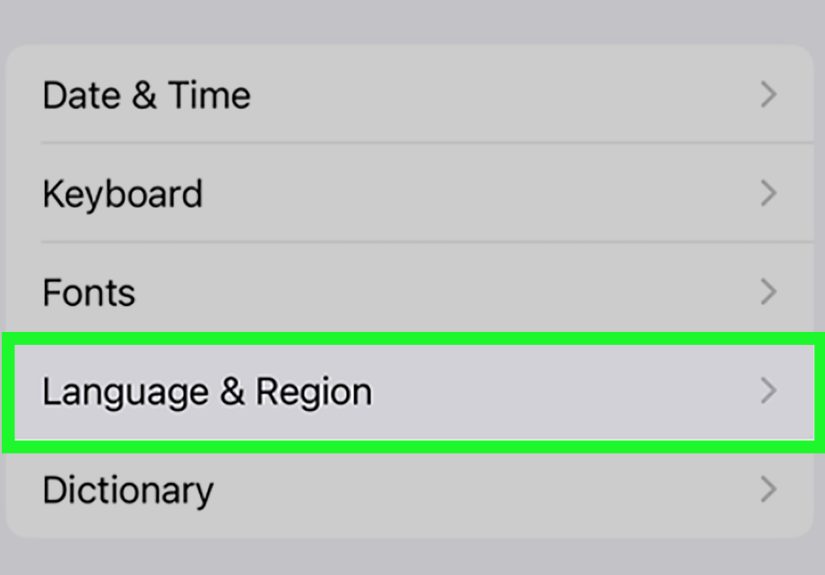
Open Settings > General > Keyboard > Keyboards > Add New Keyboard. Then select Hindi.
After that, open WhatsApp, tap any chat, and bring up the keyboard. Tap the globe icon to switch between keyboards until Hindi appears.
Once enabled, you can type directly in Hindi script. If you already use English, you may also be able to add Hindi to an English keyboard setup for smoother bilingual typing, depending on your current keyboard configuration.
What This Feels Like in Real Life
The built-in Hindi keyboard works well, but it may feel slower at first if you are used to typing only in English. Expect a short adjustment period. Your thumbs are not failing you. They are just learning new geography.
Method 2: Use Gboard on iPhone for Easier Multilingual Typing
If you want more flexibility, Gboard is a strong option on iPhone. It lets you add languages in the app and switch between them more easily. For many users, this is the better route when they often jump between English and Hindi in the same conversation.
Basic setup:
Install Gboard, open the Gboard app, add Hindi as a language, then enable Gboard in your iPhone keyboard settings. Once it is active, open WhatsApp and switch to Gboard using the globe icon.
This is especially useful if you type mixed-language messages like:
Kal meeting hai, please time par aana.
Or if you want a smoother flow between English and Hindi without constantly hopping from one keyboard to another.
Can You Use Voice Typing on iPhone?
Yes. You can turn on Dictation in iPhone keyboard settings and use the microphone to speak instead of type. This can be helpful for longer Hindi messages, especially if your spoken Hindi is stronger than your typing speed.
Voice typing is handy, but it is not perfect. Background noise, fast speech, and local slang can confuse it. So before sending a message to your aunt, your boss, or your class group, read it once. Dictation has a sense of adventure.
How to Write in Hindi on WhatsApp on Android
Android is usually even more flexible for Hindi typing, especially if you use Gboard or SwiftKey. Many Android phones already come with Gboard installed, which makes the process pretty quick.
Method 1: Enable Hindi in Gboard
To write in Hindi on WhatsApp on Android, go to your phone’s keyboard settings and add Hindi in Gboard.
Steps:
Open Settings > System > Keyboard or Languages & input > On-screen keyboard > Gboard > Languages > Add keyboard or choose Hindi.
After selecting Hindi, you may see multiple layout options. This is where things get interesting.
Choose the Right Hindi Layout
Android keyboards often offer more than one Hindi input style. Common choices include:
Hindi (Devanagari)
This gives you the full Hindi script layout. It is best if you want to type proper Hindi directly.
Hindi Transliteration
This lets you type Hindi words using English letters, and the keyboard converts them into Devanagari. For example:
aap kaise ho becomes आप कैसे हो
For many people, transliteration is the easiest way to write in Hindi on WhatsApp because it combines speed with readable Hindi output.
Method 2: Use SwiftKey for Hindi Transliteration
Microsoft SwiftKey is another popular option on Android. It supports Hindi transliteration and is especially useful if you like predictive text, a customizable layout, and a keyboard that learns how you write over time.
SwiftKey can feel more natural for users who type mostly in English characters but want Hindi output. If Gboard does not click with your brain, SwiftKey might.
Method 3: Use Voice Typing on Android
Gboard also supports voice typing, which is great for longer messages, fast replies, or those moments when typing feels like too much work and speaking feels like destiny.
Open WhatsApp, tap the text box, then tap the microphone icon on the keyboard. Speak clearly in Hindi, and Gboard will turn your speech into text.
This works especially well for everyday messages such as:
मैं दस मिनट में पहुँच रहा हूँ
आज घर देर से आऊँगा
शुभ रात्रि
Voice typing is fast, but it is smartest when you speak clearly and do a quick review before hitting send.
Method 4: Try Handwriting Input
Some Android users also like handwriting input in Gboard. With this feature, you write letters on the screen with your finger or a stylus, and the keyboard converts them into typed text.
This is useful if you know the Hindi script visually but are slower on a keyboard layout. It is not the fastest method, but it can feel more intuitive for certain users.
Does WhatsApp Need to Be in Hindi Too?
Not necessarily. You can write Hindi messages even if the WhatsApp app itself stays in English. These are separate things.
That said, some users prefer changing WhatsApp’s app language too.
On Android
Depending on your version of WhatsApp and Android, you may be able to set the app language inside WhatsApp or through Android’s per-app language settings. This is useful if you want the menus, buttons, and interface to appear in Hindi as well.
On iPhone
WhatsApp generally follows your iPhone’s language settings. So if your phone language is English, the app may remain in English even while you type messages in Hindi.
For most people, this is perfectly fine. The chat language and app language do not have to match. Think of it as wearing sneakers with a suit. Unusual, maybe, but still functional.
Best Way to Type Hindi Faster on WhatsApp
Once Hindi typing is enabled, speed comes down to habit and settings. Here are the methods that usually work best:
Use transliteration if you are a beginner
If you can speak Hindi but do not want to memorize a script keyboard, transliteration is the easiest starting point.
Keep only one or two active languages
Too many active languages can make suggestions and autocorrect messy. If your keyboard keeps guessing the wrong language, simplify your setup.
Use voice typing for long messages
Typing a one-line reply is easy. Typing three paragraphs to explain family drama is where voice typing earns its paycheck.
Save common phrases
If you often send the same Hindi greetings or replies, learn your keyboard’s shortcut or personal dictionary features. This can save a surprising amount of time.
Examples of Hindi Messages You Can Send on WhatsApp
Here are a few useful examples if you want to test your keyboard right away:
Hello: नमस्ते
How are you? आप कैसे हैं?
I am on my way: मैं रास्ते में हूँ
Thank you: धन्यवाद
See you tomorrow: कल मिलते हैं
Did you eat? क्या आपने खाना खाया?
Start with short messages like these, and you will build speed much faster than by trying to write a full essay in your first attempt.
Troubleshooting Hindi Typing on WhatsApp
The Hindi keyboard is not showing up
Go back to keyboard settings and confirm Hindi was actually added. Then reopen WhatsApp and tap the globe or language switch key.
The keyboard shows Hindi, but predictions are weird
Check whether too many languages are enabled. Mixed predictions are common when several languages are active at once.
Typing in English letters is not converting to Hindi
You probably selected the standard Hindi script layout instead of Hindi transliteration. Switch the layout in your keyboard language settings.
Voice typing is inaccurate
Speak more slowly, reduce background noise, and make sure the selected input language matches Hindi.
WhatsApp menus are still in English
That affects the app interface only, not your typing. You can still send Hindi messages normally.
Which Option Is Best?
If you want the simplest answer, here it is:
Best for iPhone users: Add the Hindi keyboard first. If you want easier multilingual typing, use Gboard.
Best for Android users: Use Gboard with Hindi transliteration if speed matters, or Devanagari if accuracy and full script control matter more.
Best for long messages: Voice typing.
Best for beginners: Transliteration.
There is no single perfect method. The smartest setup is the one you will actually use every day.
What Using Hindi on WhatsApp Actually Feels Like: Real-World Experiences
Once people start writing in Hindi on WhatsApp, the biggest surprise is usually how quickly it becomes normal. At first, even sending a simple नमस्ते can feel like a tiny mission. You add a keyboard, tap the wrong key three times, accidentally open emoji, question your life choices, and then finally send one word like you just completed a technical certification. But after a few days, your fingers learn the pattern.
A common experience is that users begin with transliteration because it feels familiar. They type shukriya, see शुक्रिया appear, and suddenly the whole thing feels much less intimidating. This is especially true for bilingual users who speak Hindi at home but do most of their phone typing in English. Transliteration gives them a bridge between the language they know and the script they do not type often.
Another very real pattern shows up in family chats. Younger users often start out sending Hindi in Roman letters, such as kal aaunga or thik hai, because it is faster. But once they enable a Hindi keyboard, they notice that messages in Devanagari feel warmer, clearer, and more respectful in certain conversations. A message to a cousin can be casual, but a message to grandparents in proper Hindi script often feels more personal. It is a small change, yet it changes the tone of the conversation.
There is also the mixed-language reality of modern WhatsApp chats. Lots of users do not write in “pure” Hindi or “pure” English. They bounce between both in the same sentence. Something like आज call कर लेना or मैं class के बाद reply करूंगा is very common. This is where multilingual keyboards become especially useful. Instead of forcing one language at a time, they let people communicate the way they actually speak.
Voice typing creates another interesting experience. For some people, it feels like a superpower. Long messages become much easier, especially when explaining directions, making plans, or replying in a hurry. For others, it feels risky, because one background horn, one rushed phrase, or one bad recognition guess can turn a perfectly normal message into accidental comedy. That is why experienced users almost always do a quick proofread before sending.
Over time, most people settle into a routine. Maybe they use transliteration for fast chats, Devanagari for meaningful messages, and voice typing when their hands are busy. That is the real secret: writing Hindi on WhatsApp is not about finding one magical method. It is about building a typing setup that matches your habits, your conversations, and your comfort level. Once that clicks, Hindi messaging stops feeling like a tech problem and starts feeling natural.
Final Thoughts
If you want to write in Hindi on WhatsApp, the process is much easier than it looks. On iPhone, add the Hindi keyboard or use Gboard for extra flexibility. On Android, Gboard and SwiftKey make Hindi typing, transliteration, voice input, and even handwriting surprisingly approachable.
The main trick is choosing the input style that matches how your brain already works. If you know Hindi but prefer English letters, use transliteration. If you want proper script from the start, use Devanagari. If you are in a hurry, let voice typing do the heavy lifting.
Either way, once you set it up, WhatsApp becomes a much friendlier place for Hindi conversations. And honestly, your family group chat may never be the same again.