Table of Contents >> Show >> Hide
- What Is the Net User Command?
- Why Use Net User Instead of Windows Settings?
- How to Open Command Prompt as Administrator
- List All User Accounts in Windows
- Create a New Local User Account
- Change a User Password with Net User
- Enable or Disable a Windows User Account
- Delete a User Account
- Set Account Expiration Dates
- Control Password Requirements
- Limit Logon Hours
- Work with User Groups
- Use Net User with Domain Accounts
- Common Net User Options
- Practical Net User Examples
- Security Tips for Using Net User
- Troubleshooting Common Net User Problems
- Net User vs. PowerShell: Which Should You Use?
- Best Practices for Managing Windows Users
- Experience Notes: Real-World Lessons from Using Net User
- Conclusion
Managing user accounts in Windows does not always require a long stroll through Settings, Control Panel, Computer Management, or whatever corner of the interface Microsoft has redecorated this year. Sometimes the fastest path is still the old-school one: open Command Prompt, type a clear command, press Enter, and let Windows do the heavy lifting. That is where the net user command earns its place in every administrator’s toolkit.
The net user command lets you view, create, modify, disable, delete, and troubleshoot Windows user accounts from the command line. It works on local accounts and, when used with the right permissions and the /domain option, can also display or manage domain user information in many Windows environments. For home users, it is a handy way to fix account issues quickly. For IT technicians, help desk staff, and system administrators, it is a reliable command that can save time when the graphical interface is slow, unavailable, or simply not the best tool for the job.
Think of it as the Swiss Army knife of Windows user management. It is not flashy. It will not send you motivational quotes. But when you need to create a test account, reset a local password, disable a user, or check account settings fast, net user is calm, dependable, and very much awake.
What Is the Net User Command?
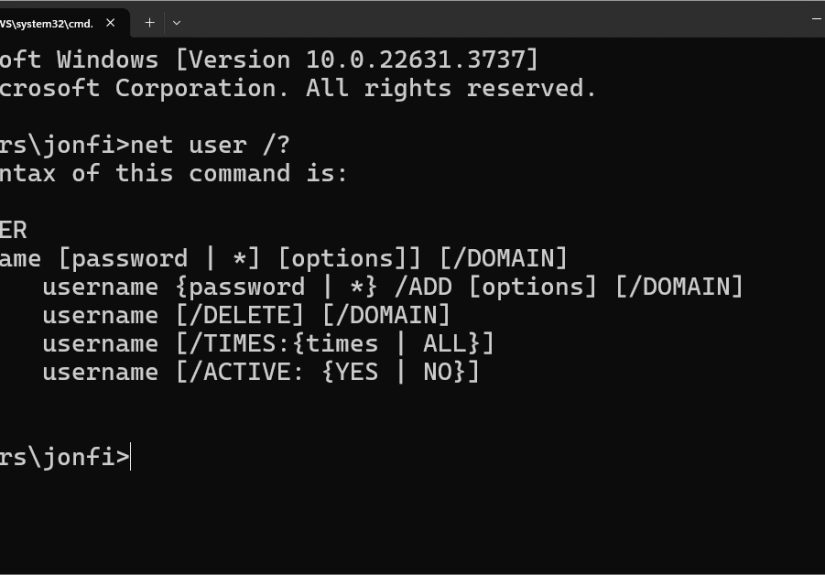
The net user command in Windows is a command-line utility used to manage user accounts. It belongs to the broader family of Windows net commands, which can perform tasks related to users, groups, shares, sessions, and network resources.
With net user, you can list accounts on a computer, view detailed information about a specific user, create new local users, change passwords, activate or deactivate accounts, set password rules, define login times, and delete accounts that are no longer needed. It is especially useful when you want quick results without clicking through multiple menus.
Basic Syntax
The general structure looks like this:
At its simplest, the command can be used with no extra details:
This displays a list of user accounts on the local computer. If you specify a username, Windows shows details about that account:
If you are making changes, you usually need to open Command Prompt or Windows Terminal as an administrator. Otherwise, Windows may respond with an access denied message, which is its polite way of saying, “Nice try, but you do not have the keys.”
Why Use Net User Instead of Windows Settings?
Windows Settings is fine for ordinary account tasks, especially for casual users. But the net user command offers speed, precision, and script-friendly control. It is particularly helpful when you need repeatable commands, remote troubleshooting steps, or fast account checks.
Speed and Efficiency
Opening Settings, clicking Accounts, navigating sign-in options, and waiting for pages to load can feel slow when you already know exactly what you want to do. A single command can often complete the same task in seconds.
Useful for Troubleshooting
If a user cannot sign in, if an account is disabled, or if password settings look suspicious, net user can quickly reveal account status, password expiration details, last logon information, and group-related clues. It is not a full forensic toolkit, but it is an excellent first flashlight in a dark room.
Works Well in Scripts
Administrators can use net user in batch files and automation workflows. For example, a small setup script can create a local support account, set a comment, disable password expiration, and add the account to a group using related commands such as net localgroup.
How to Open Command Prompt as Administrator
Before using commands that create, modify, or delete users, open an elevated Command Prompt. Here is a simple method on Windows 10 or Windows 11:
- Click the Start button.
- Type cmd or Command Prompt.
- Right-click Command Prompt.
- Select Run as administrator.
- Approve the User Account Control prompt if it appears.
You can also use Windows Terminal or PowerShell as administrator. The net user command works from these shells because it is a Windows command-line utility, not a Command Prompt-only trick.
List All User Accounts in Windows
To see all local user accounts on a Windows computer, run:
Windows will display a list of accounts. You may see familiar names, along with built-in accounts such as Administrator, Guest, DefaultAccount, or other system-created accounts. Do not panic if the list includes accounts you did not personally create. Windows uses some local accounts for system features, compatibility, or security boundaries.
View Details for One User
To inspect a specific account, use:
For example:
This may show the user’s full name, comment, account status, password requirements, last password change, password expiration, allowed logon hours, and local group memberships. If you are troubleshooting, this output can answer several questions at once: Is the account active? Does the password expire? Is the user locked out? Is the account allowed to log on now?
Create a New Local User Account
To create a local Windows user with a password, use:
This creates a user named Taylor with the password MyStrongPassword123!. Of course, do not use that exact password. It has now appeared in an article, which means it should retire immediately and take up gardening.
A safer method is to use an asterisk so Windows prompts you to enter the password privately:
This avoids leaving the password visible on the screen or stored in command history. It is a better habit, especially on shared systems or during support sessions.
Create a User with a Full Name and Comment
You can add descriptive information when creating or modifying an account:
The /fullname option sets the display name, while /comment helps document the purpose of the account. Comments are useful when future-you, or some poor technician in six months, wonders why the account exists.
Change a User Password with Net User
To change a local user’s password directly, run:
Again, using an asterisk is safer:
Windows will prompt you to type and confirm the new password. This is one of the most common uses of the Windows net user command, especially when managing local accounts on workstations, lab machines, or test systems.
Force Password Change at Next Logon
To require a user to change their password the next time they sign in, use:
This is useful when an administrator sets a temporary password. The user can sign in once, then choose a private password. It is a simple security improvement that prevents temporary credentials from becoming permanent, which is how many security problems begin their villain origin story.
Enable or Disable a Windows User Account
Disabling an account is often safer than deleting it immediately, especially in business environments where you may need to preserve profile data, audit trails, or access history.
To disable a user account:
To enable it again:
This is helpful when an employee leaves temporarily, a test account is not currently needed, or you want to block access while investigating an issue. Disabling an account keeps it available for review while preventing normal sign-in.
Delete a User Account
To delete a local user account, use:
Be careful. Deleting the account removes the user account itself, but it may not automatically clean up every related profile folder or application setting. Before deleting accounts on a production system, confirm whether files, encryption keys, browser data, certificates, or application-specific settings must be preserved.
Best Practice Before Deleting
Before deleting a user, consider disabling the account first. Wait until you are sure nothing important depends on it. In business settings, follow your organization’s offboarding, data retention, and compliance policies. In home settings, at least check the user’s Desktop, Documents, Downloads, and any app-specific folders. The recycle bin is not a data governance strategy.
Set Account Expiration Dates
You can set a date when an account should expire. This is useful for contractors, temporary users, students, lab environments, and short-term access scenarios.
To remove the expiration date:
Account expiration is different from password expiration. Account expiration controls whether the account itself can be used after a date. Password expiration controls when the user must change the password.
Control Password Requirements
The net user command can manage some password-related settings for local users. For example, you can specify whether a password is required:
In most real-world environments, users should have passwords. Passwordless local accounts are risky unless the device is isolated and used for a very specific purpose. Even then, document the reason clearly. “Because it was easier” is not documentation; it is a confession.
Allow or Prevent Password Changes
To prevent a user from changing their password:
To allow password changes again:
This option may be used for controlled environments, shared kiosks, or lab systems. However, for normal personal or business accounts, users should generally be allowed to maintain their own secure passwords, unless centralized identity policies say otherwise.
Limit Logon Hours
You can use /times to control when an account is allowed to sign in. For example:
This allows logon Monday through Friday from 8 a.m. to 6 p.m. To allow logon at all times again, use:
Logon-hour restrictions can be useful in schools, shared workstations, training labs, and basic access-control scenarios. They are not a replacement for stronger security controls, but they can reduce casual misuse outside approved hours.
Work with User Groups
The net user command manages user accounts, but group membership is handled with a related command: net localgroup. This distinction matters. Creating a user does not automatically make that user an administrator.
Add a User to the Local Administrators Group
To add a local user to the Administrators group, run:
To remove that user from the Administrators group:
Use administrative privileges sparingly. Local administrator rights are powerful and risky. A standard account is safer for everyday work, while administrator access should be reserved for tasks that truly require it.
View Local Groups
To list local groups on a computer, run:
To view members of a specific group:
This is a quick way to audit who has elevated rights. If you find mystery accounts in the Administrators group, investigate them. Mystery administrators are like mystery leftovers in the office fridge: technically present, probably dangerous, and nobody wants responsibility.
Use Net User with Domain Accounts
In domain environments, the /domain option tells Windows to perform the operation against the domain controller instead of only the local computer.
Depending on your permissions and environment, you may be able to view or manage domain user information. In modern enterprise environments, however, many organizations use Active Directory tools, Microsoft Entra ID, PowerShell, endpoint management platforms, or identity governance systems for deeper account administration.
The net user /domain option remains useful for quick checks, but it should not be treated as a complete replacement for proper directory management tools.
Common Net User Options
Here are several useful options you may encounter while managing users in Windows:
/addcreates a new user account./deleteremoves a user account./active:yesenables an account./active:nodisables an account./fullname:"Name"sets the full display name./comment:"Text"adds a descriptive comment./expires:datesets an account expiration date./expires:neverremoves account expiration./passwordchg:yesallows the user to change the password./passwordchg:noprevents the user from changing the password./passwordreq:yesrequires a password./timessets allowed logon hours./domainapplies the command to a domain account when supported.
Practical Net User Examples
Create a Temporary Contractor Account
This creates a temporary user, prompts for a password, adds a full name, and sets an expiration date. It is cleaner than creating an account and hoping someone remembers to remove it later. Spoiler: someone usually does not.
Disable an Account During Investigation
This blocks sign-in without deleting the account. It is useful when reviewing suspicious activity, handling offboarding, or pausing access temporarily.
Reset a Local Password Securely
The asterisk prompts for the new password privately. This is better than typing the password directly into the command line.
Check Whether an Account Is Active
Review the output for account status, password details, logon restrictions, and group membership information.
Security Tips for Using Net User
Because net user can change access to a Windows system, it should be used carefully. A small typo can create confusion, and a careless password reset can create security problems.
Use Strong Passwords
Use long, unique passwords or passphrases. Avoid simple patterns, reused passwords, names, birthdays, and anything that looks like it was invented by a sleepy raccoon walking across a keyboard. A password manager can help generate and store stronger credentials.
Avoid Typing Passwords Directly
Whenever practical, use * instead of typing the password in the command itself. This reduces the chance of exposing credentials on screen or in command history.
Do Not Overuse Administrator Accounts
Only grant administrator rights when necessary. Standard user accounts reduce the damage caused by malware, mistakes, and unauthorized changes. If a user needs temporary admin access, document why, when, and for how long.
Audit Local Administrators Regularly
Periodically run:
Remove accounts that no longer need elevated rights. Old admin accounts are a common security risk because they are often forgotten but still powerful.
Troubleshooting Common Net User Problems
“System Error 5 Has Occurred. Access Is Denied.”
This usually means Command Prompt is not running as administrator, or your account does not have permission to make the requested change. Open an elevated terminal and try again.
“The User Name Could Not Be Found.”
Check the spelling of the username. If the account name contains spaces, wrap it in quotation marks:
“The Password Does Not Meet the Password Policy Requirements.”
The password may be too short, too simple, recently used, or blocked by local or domain password policy. Choose a longer, more complex password that follows the system’s rules.
Command Works Locally but Not on the Domain
If you are trying to manage a domain account, include /domain and make sure you have the proper domain permissions. In many organizations, account changes must be handled through approved administrative tools and workflows.
Net User vs. PowerShell: Which Should You Use?
PowerShell provides modern cmdlets such as Get-LocalUser, New-LocalUser, Set-LocalUser, and Remove-LocalUser on supported systems. These cmdlets are powerful and better suited for structured automation.
However, net user remains valuable because it is simple, widely recognized, and available across many Windows versions. For quick tasks, it is often faster. For advanced scripting and large-scale management, PowerShell is usually the better choice.
A practical rule: use net user for quick checks and simple changes; use PowerShell or dedicated identity tools for complex, repeatable, enterprise-grade administration.
Best Practices for Managing Windows Users
Good user management is not just about knowing commands. It is about reducing risk, documenting changes, and making access easy to understand.
- Create separate accounts for separate people. Shared accounts make auditing difficult.
- Disable accounts before deleting them when data retention matters.
- Use account expiration for temporary users.
- Keep administrator membership limited and reviewed.
- Use clear comments for service, test, or support accounts.
- Follow your organization’s password and access policies.
- Record account changes when working in professional environments.
Experience Notes: Real-World Lessons from Using Net User
After working with Windows user management long enough, one lesson becomes obvious: simple commands often solve messy problems. The net user command is not glamorous, but it is one of those tools that quietly proves its worth when the usual interface is inconvenient, slow, or unavailable.
One common experience is helping someone regain access to a local account on a machine that is not joined to a domain. The graphical account settings may be buried behind menus, but an elevated Command Prompt can quickly show whether the account exists, whether it is active, and whether the password needs attention. Running net user username often reveals the issue in seconds. Sometimes the account is disabled. Sometimes the password has expired. Sometimes the username is slightly different from what the user remembers. Computers are very literal. “Close enough” is not a username.
Another practical lesson is that disabling accounts is usually better than immediately deleting them. In real environments, people often discover too late that an old profile contains a needed file, a browser bookmark, a certificate, or an application setting. By using net user username /active:no, you can block access while keeping the account available for review. This approach is especially useful during employee offboarding, contractor cleanup, or security investigations.
The password prompt option is another habit worth building. Typing net user username * instead of placing the password directly in the command is cleaner and safer. It keeps passwords from being displayed on screen and reduces accidental exposure. This small detail separates careful administration from “Oops, everyone in the room just saw the temporary password.”
In training labs and test environments, net user is wonderfully convenient. You can create accounts quickly, set expiration dates, force password changes, and reset test users without clicking through the Windows interface again and again. When paired with net localgroup, it becomes even more useful because you can create a standard user first and then intentionally decide whether that user should receive administrative rights. That extra step encourages better thinking. Not every account needs to be an admin, no matter how loudly convenience argues.
There is also a cautionary lesson: always verify the target account before making changes. A mistyped username can waste time or, in worse cases, modify the wrong account. When working on production machines, it is smart to run net user first, confirm the exact account name, then run the change. This is especially important when names are similar, when accounts use initials, or when display names differ from login names.
Finally, net user is best viewed as a dependable utility, not a complete identity-management strategy. It is excellent for local user administration and quick checks, but larger environments need policies, documentation, auditing, centralized identity tools, and regular reviews. The command can open the door, close the door, and check who has a key. It cannot decide who deserves the key in the first place. That part still requires human judgment, preferably before Friday at 4:59 p.m.
Conclusion
The net user command remains one of the most useful Windows command-line tools for managing local users quickly and effectively. It can list accounts, show account details, create new users, reset passwords, disable access, set expiration dates, and support practical troubleshooting. When combined with related commands such as net localgroup, it gives administrators and power users a fast way to manage user access without relying entirely on the graphical interface.
For everyday users, learning a few basic examples can make Windows account management less mysterious. For IT professionals, net user is a reliable shortcut that belongs in the troubleshooting toolkit. Use it carefully, run it with the right permissions, protect passwords, and avoid handing out administrator rights like free office candy. The command may be old-school, but in Windows administration, old-school often means battle-tested.